
PX SEO makes your Joomla site load faster with a few switches: browser caching, minified and inlined CSS and JavaScript, deferred stylesheets and lazy-loaded images.
Overview
PX SEO works on the HTML your site sends to visitors. It never changes your template or extension files, and it does nothing in the administrator.
- Browser caching: let browsers keep a copy of your pages.
- Optimize CSS: minify your site's stylesheets and put them straight into the page, so the browser makes fewer requests.
- Optimize JS: do the same for your site's scripts.
- Defer CSS: load chosen stylesheets after the page has rendered.
- Lazy-load images: load images only when they come into view, and add their width and height to prevent layout shift.
PX SEO has two parts that work together:
- the PX Seo component, where you change the settings;
- the System - Px SEO plugin, which applies them to every page.
Installation
System requirement
- Joomla 4.x, 5.x or 6.x
- PHP 8.0 or later
Install the package
- Download the PX SEO package from your account on thepixel.dev.
- In the Joomla administrator, go to System » Install » Extensions.
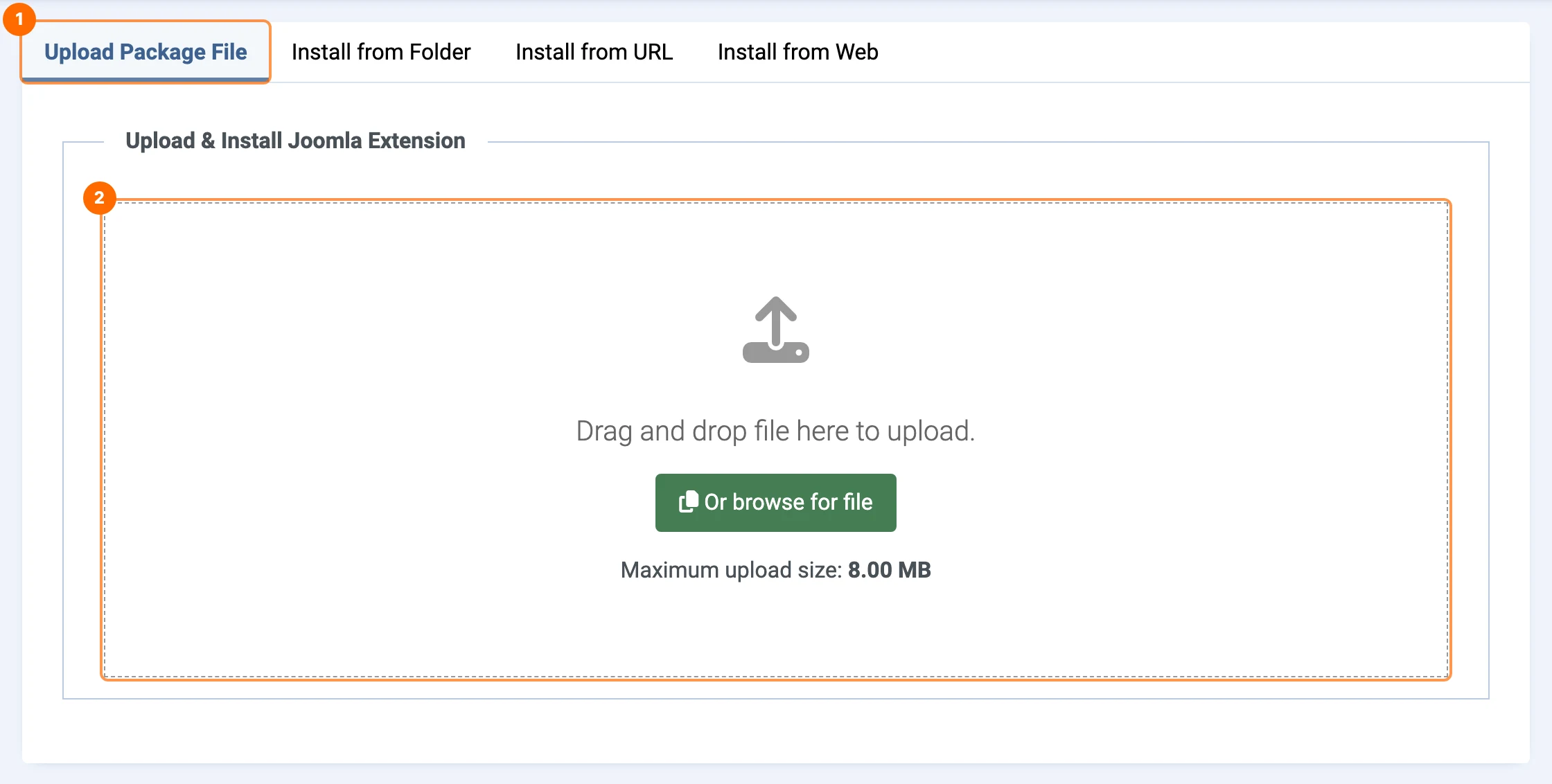
- Open the Upload Package File tab 1 and drop the zip file into the upload area 2.
Open PX SEO
Go to Components » PX Seo, or find it on the Components dashboard.
Enable the plugin
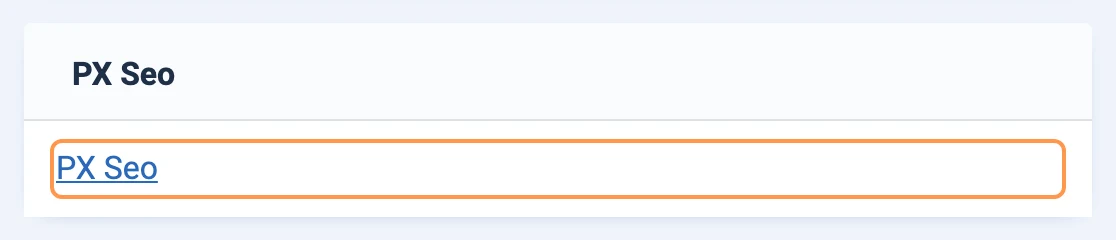
If the System - Px SEO plugin is not enabled yet, PX Seo shows a red message at the top. Click here in the message.

The link opens the plugin list filtered to PX SEO. Click the status icon 1 to enable it.

Run the plugin last
PX SEO must run after every other system plugin, so it sees the final HTML of the page. When it is not last, PX Seo shows a yellow warning. Click here in the warning and PX SEO moves itself to the end of the list. You then see “Plugin System - PxSeo is set to the last plugin.”

The settings screen
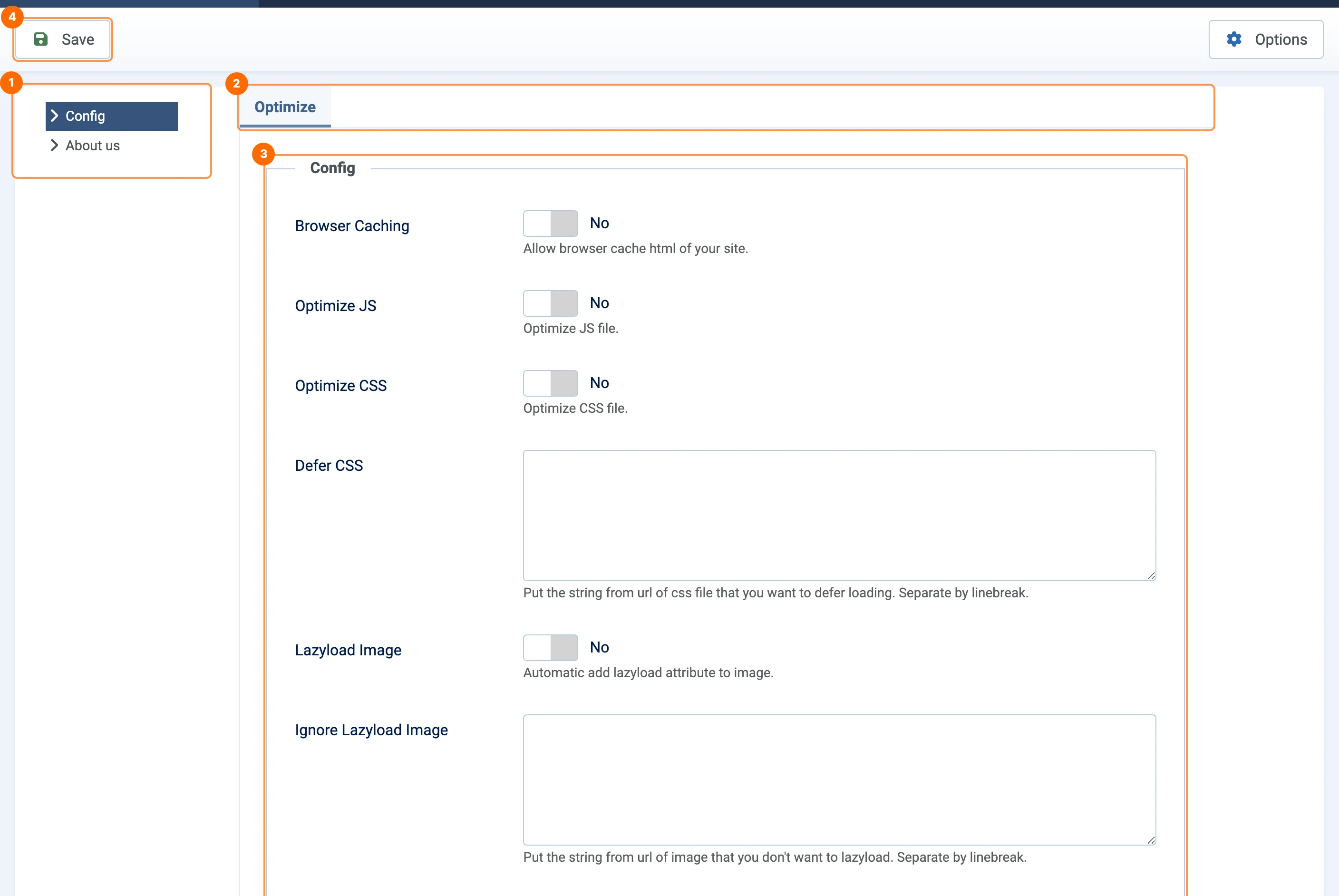
- 1Menu: Config holds the settings, About us shows the version and a link to thepixel.dev.
- 2Optimize tab.
- 3Settings, explained below.
- 4Save: apply your changes. They take effect on the next page load.
Turn on one setting at a time and check your site after each one. If something looks wrong, you know which setting caused it.
Caching, CSS and JavaScript
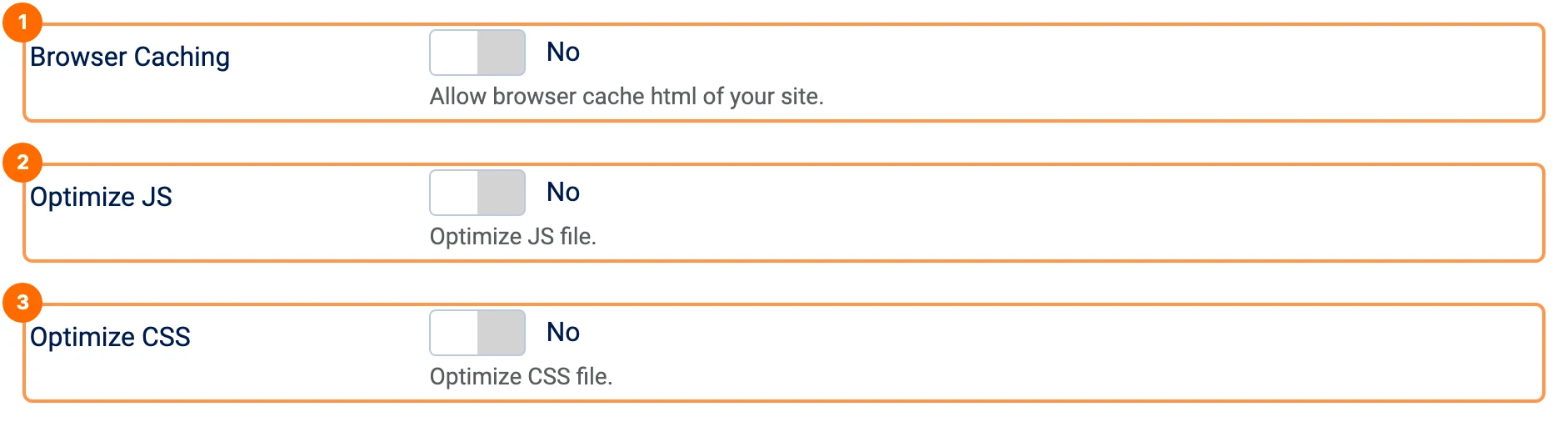
Browser Caching
1Lets visitors' browsers cache the HTML of your pages, so returning visitors load them faster. Leave it off if your pages change for each visitor, for example a shop cart or a member area.
Optimize JS
2Minifies your site's JavaScript files and puts them directly into the page.
- Only files on your own site are changed. Scripts from other domains (Google, CDNs…) are left as they are.
- Scripts that already load with
async,deferortype="module"are skipped. - The minified copy is kept in
cache/pxseo_optimize_cache_jsand rebuilt when the original file changes.
Optimize CSS
3Minifies your site's stylesheets and puts them directly into the page.
- Only files on your own site are changed; external stylesheets are left alone.
- Image and font paths inside the CSS are rewritten so they still work.
- A stylesheet that uses
@importis deferred instead of inlined. - Files listed in Defer CSS are not inlined.
- The minified copy is kept in
cache/pxseo_optimize_cache_cssand rebuilt when the original file changes.
Defer CSS
Stylesheets in this list load after the page has rendered, so they do not block the first paint. Use it for CSS that is not needed to show the top of the page, such as icon fonts or animation libraries.
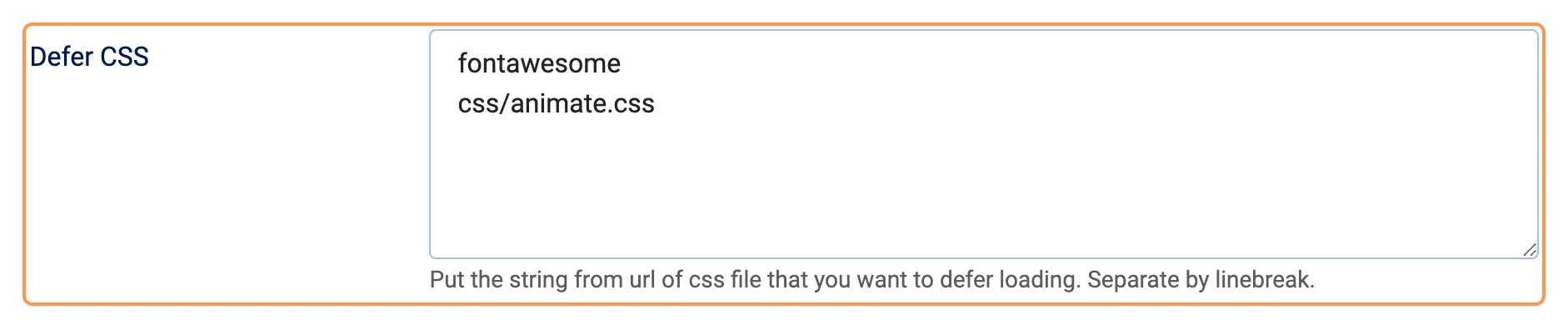
- Write one entry per line. An entry matches every stylesheet whose URL contains it, so
fontawesomematches/media/vendor/fontawesome-free/css/fontawesome.min.css. - Matching is not case-sensitive.
- Deferring works even when Optimize CSS is off.
Do not defer the main CSS of your template; the page would show without styles for a moment.
Lazy-load images
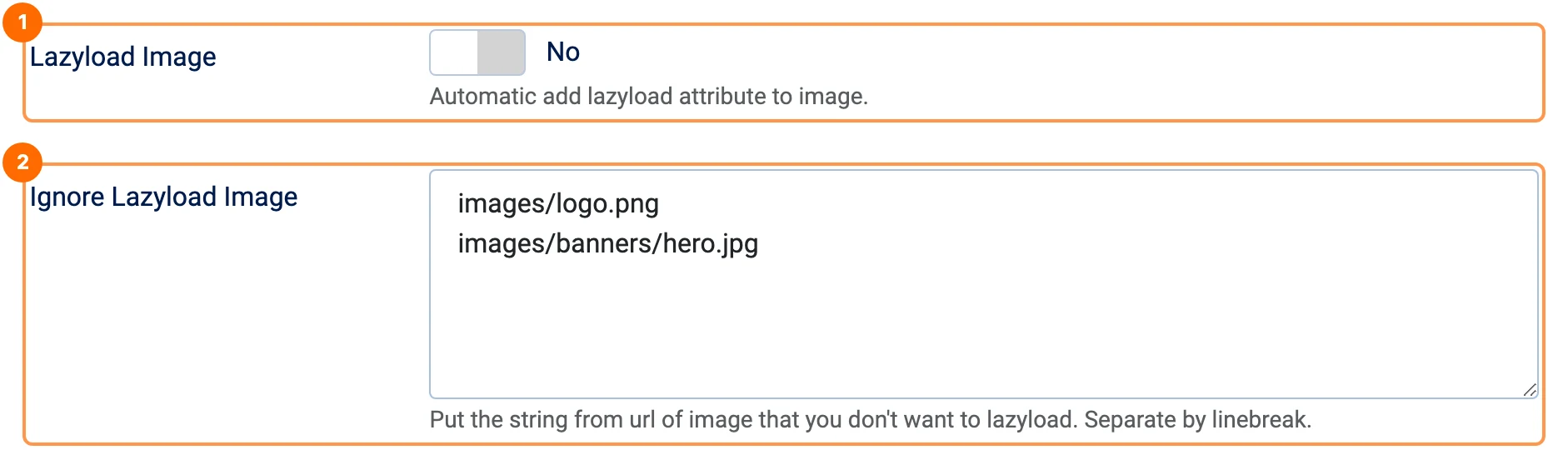
Lazyload Image
1Adds loading="lazy" to the images on your pages, so the browser loads them only when they are about to scroll into view. PX SEO also adds the real width and height of each image, which stops the page from jumping while images load.
It works on images stored on your site. Images from other domains are left as they are.
Ignore Lazyload Image
2Images that should load straight away, such as your logo or the large banner at the top of the home page. Write one entry per line; any part of the image path works.
These images get fetchpriority="high" instead, so the browser loads them first. This improves the Largest Contentful Paint score in Google PageSpeed.
Check the result
Open your site in a private window, right-click and choose View Page Source.
- An optimized stylesheet or script appears as a comment with the original path, followed by the minified code:
<!--/templates/cassiopeia/css/template.min.css-->
<style>:root{--cassiopeia-color-primary:#112855;…}</style>
- A deferred stylesheet has
media="print" onload="this.media='all'". - A lazy-loaded image looks like this:
<img src="/images/sampledata/parks/landscape.jpg" width="1200" height="800" loading="lazy" px-lazyload="">
To measure the gain, test the page in Google PageSpeed Insights before and after.
Troubleshooting
A page looks broken
- Turn off Optimize CSS and Optimize JS, save, and reload the page.
- Turn them back on one at a time to find which one causes the problem.
- If one stylesheet is the cause, add it to Defer CSS so it is not inlined.
My CSS or JS changes do not show
PX SEO rebuilds its copy when a file changes. If you still see the old version, go to System » Clear Cache and delete the pxseo_optimize_cache_css and pxseo_optimize_cache_js groups. Also clear your browser cache if Browser Caching is on.
Pages PX SEO skips
PX SEO does not change the administrator, the front-end Site Configuration page, or the front-end article edit form.
Permissions
Click Options in the PX Seo toolbar to choose which user groups can open PX SEO and change its settings. By default only Super Users can.
Upgrade
Install the new PX SEO package through System » Install » Extensions, the same way as the first install. Your settings are kept. Afterwards, open PX Seo once to check that the plugin is still enabled and last.