
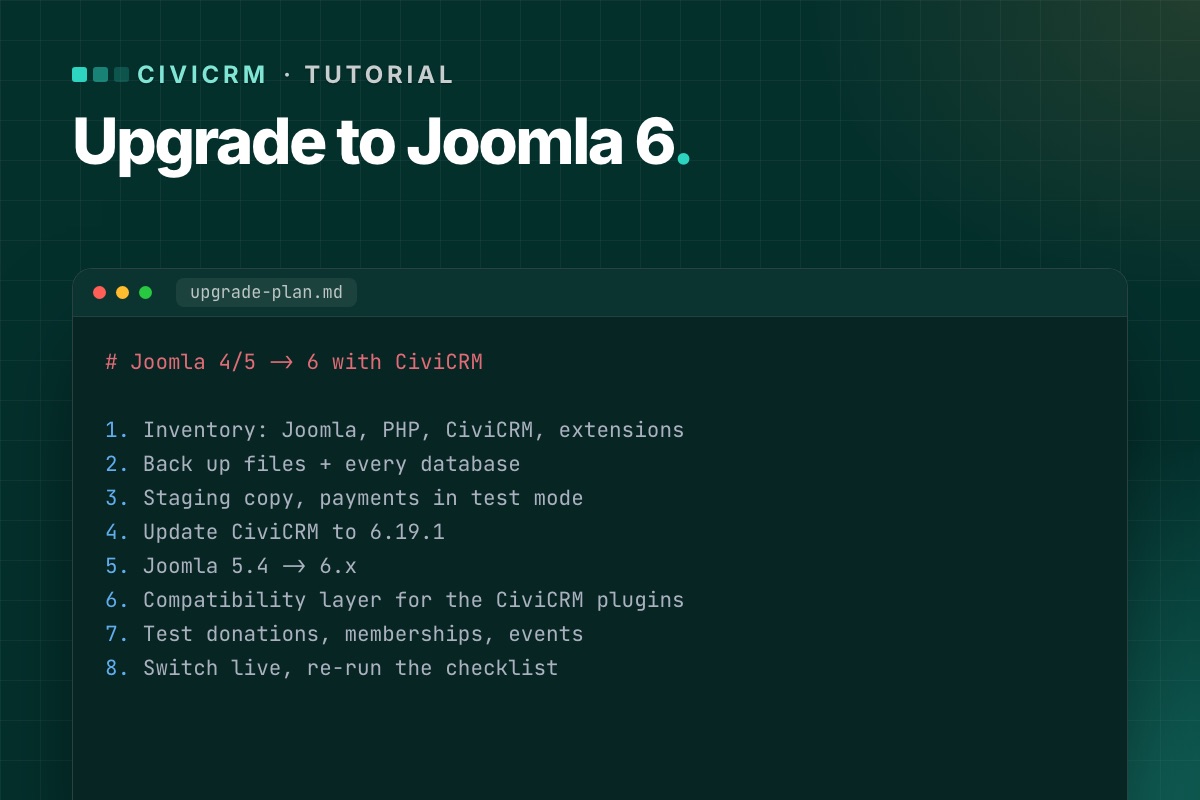

This is the order of work we use to move a Joomla site with CiviCRM to Joomla 6. It assumes you have shell or hosting-panel access, and that you will do everything on a staging copy first. Expect a day of work for a simple site and several days for one with many extensions.
Before you start, read the current Joomla 6 status: CiviCRM's own package is built for Joomla 5, so step 6 needs a compatibility layer.
What you need
- A server (or staging server) with PHP 8.3+, MySQL 8.0.13+ or MariaDB 10.4+, and the PHP extensions bcmath, intl, zip and mbstring. How to check.
- Full backups – files and every database.
- A list of what the site does with CiviCRM: which contribution pages, membership types, events, mailing lists and scheduled jobs are in use.
- Time when nobody is running a mailing or a campaign.
Step 1: Take an inventory
Write down the Joomla version, PHP version and CiviCRM version (CiviCRM shows it in the footer of its admin pages). Then list:
- Every Joomla extension, and whether it has a Joomla 6 version.
- Every CiviCRM extension (Administer » System Settings » Extensions), and whether it supports your target CiviCRM and PHP versions.
- Payment processors in use – they are the riskiest part to break.
Extensions without a Joomla 6 or PHP 8.3 version are your real project scope. See how to audit CiviCRM extensions.
Step 2: Back up everything
CiviCRM keeps files in several places on a Joomla site:
administrator/components/com_civicrm– the codecomponents/com_civicrm– the front-end entry pointmedia/civicrm– uploads, compiled templates, custom files
Back up the whole site folder plus the Joomla database. If CiviCRM uses its own database, back that up too – check CIVICRM_DSN in civicrm.settings.php. Copy both settings files outside the site:
components/com_civicrm/civicrm.settings.php
administrator/components/com_civicrm/civicrm.settings.php
Then restore the backup somewhere and open it. A backup you have never restored is a hope, not a backup.
Step 3: Build staging on the target stack
Restore the backup on a staging server that already runs PHP 8.3 and MySQL 8 (or MariaDB 10.4+). Update the database credentials and paths in configuration.php and both CiviCRM settings files. Then:
- Block outgoing email on staging (or point it at a mail catcher) so test mailings never reach real supporters.
- Switch payment processors to test or sandbox mode.
- Disable the staging cron until you are ready to test it.
Step 4: Update CiviCRM on the current Joomla
Change one thing at a time. First bring CiviCRM to the latest release on the Joomla version you have:
- Download
civicrm-x.y.z-joomla.zipfrom civicrm.org and unzip it into the Joomlatmpfolder. - System » Install » Extensions » Install from Folder, path ending in
tmp/com_civicrm. - Delete the compiled templates in
media/civicrm/templates_c. - Run the database upgrade:
/administrator/index.php?option=com_civicrm&task=civicrm/upgrade&reset=1 - Check the version in the CiviCRM footer and look at Administer » Administration Console » System Status.
If CiviCRM uses a separate database and you are below 6.19.0, compare CIVICRM_DSN with your backup after the install – see the separate-database bug.
Step 5: Upgrade Joomla
- Update Joomla to the latest 5.4 first, and every extension to its latest 5.x version.
- Run Joomla's pre-update check for Joomla 6. Replace or remove extensions it flags.
- Update the template – or its Joomla 6 version – at the same time as Joomla.
- Upgrade Joomla to 6.
Step 6: Add the CiviCRM compatibility layer
On Joomla 6, CiviCRM's own Joomla plugins (user sync, system, quick icon) need to work with Joomla's event system. Do this outside the files CiviCRM ships – a small Joomla extension or plugin of your own – so a CiviCRM update never overwrites it. The pattern is explained in Joomla 6 plugin events, with a CiviCRM example and Keep CiviCRM fixes out of core.
Step 7: Test what matters
Test every page that takes money, members or email addresses, end to end, with test payments. Then run the scheduled jobs from the command line and check the job log. The full list is in our post-upgrade test checklist.
Step 8: Prove it survives a CiviCRM update
Install a CiviCRM update on staging – even a reinstall of the same version – and repeat the tests. If anything you fixed in step 6 breaks, the fix lives in the wrong place.
Step 9: Go live
- Pick a quiet window. Pause cron during the switch.
- Take a fresh backup of live – there may be new donations since you built staging.
- Repeat the upgrade on live (or switch to the upgraded copy and merge new data), then run a short smoke test: one test donation, one sign-up, one cron run.
- Keep the rollback backup for at least a week.
Common errors
- Blank page after installing the CiviCRM package – raise
memory_limitandmax_execution_time, or use the-altzip if PHP has no zip support. - Missing icons or broken styling – check Administer » System Settings » Resource URLs.
- Reminders and renewals stop – cron. See scheduled jobs not running.
- CiviCRM pages 404 – menu items and old links.
The commands we actually run
# terminal – before: versions, and a backup of both databases and both settings files
cv status --cwd=/var/www/example.org
mysqldump --single-transaction --no-tablespaces joomla_db  | gzip > joomla-$(date +%F).sql.gz
mysqldump --single-transaction --no-tablespaces civicrm_db | gzip > civicrm-$(date +%F).sql.gz   # if separate
cp components/com_civicrm/civicrm.settings.php ~/civicrm.settings.site.php
cp administrator/components/com_civicrm/civicrm.settings.php ~/civicrm.settings.admin.php
On staging, stop CiviCRM from sending any email at all, not just CiviMail: add this to both settings files. CiviCRM then writes every outgoing message to the log file instead of the mail server:
// administrator/components/com_civicrm/civicrm.settings.php (staging only)
define('CIVICRM_MAIL_LOG', '/var/www/example.org/media/civicrm/templates_c/mail.log');
After installing the new CiviCRM package, run the database upgrade and clear caches from the shell, which is safer than the browser for large databases:
# terminal
cv upgrade:db --cwd=/var/www/example.org
cv flush --cwd=/var/www/example.org
Rather have it done for you? We upgrade Joomla sites with CiviCRM to Joomla 6 on staging first, with a test report and a rollback backup.
CiviCRM Joomla 6 upgrade →