
PX Content is a free Joomla module that builds page sections from content blocks. Pick a block and a style in Content → Site Modules, then edit its text, links and images right on the front-end.
Overview
PX Content is a site module. Each module shows one content block, such as a hero, a feature grid, numbers, a team, testimonials, pricing or an FAQ. You pick the block and its style from a visual library, fill in a short form, and editors can then change the text, links and images right on the page. PX Content is free.
- Block library: 12 blocks with 20 styles in the module, each with a preview thumbnail. Templates can add their own blocks.
- Front-end editing: double-click a text to edit it, change links in a small popup and swap images through the Joomla Media Manager.
- Block settings on the page: spacing, alignment and button styles in a settings panel on each block.
- Simple admin forms: tabs, media fields and repeatable rows for cards, steps and numbers.
- Works with any template: the module ships a usable base layout; a template adds its own look on top.
Installation
System requirement
- Joomla 4.4, 5.x or 6.x
- PHP 8.1 or later
- Any site template. Templates from ThePixel (such as PX Base) ship extra block styles and decoration.
Install the module
- Log in on thepixel.dev and download
mod_px_content_v1.0.0.zipfrom Account → Downloads. A free account is enough. - In the Joomla administrator, go to System → Install → Extensions, open Upload Package File and drop the zip file into the upload area.
- Go to Content → Site Modules → New and choose PX Content.
PX Content updates through the Joomla update system: new versions show up in System → Update → Extensions.
Quick start
- Create a new PX Content module and give it a title.
- Click Change block and pick a block and a style (see Block library).
- Fill in the tabs of the block. Every block opens with sample content, so you can save first and edit later.
- Choose a Position on the right, set Menu Assignment, and save.
- Open the page on the site. If you are logged in with permission to edit the module, you can now edit it there (see Front-end editing).
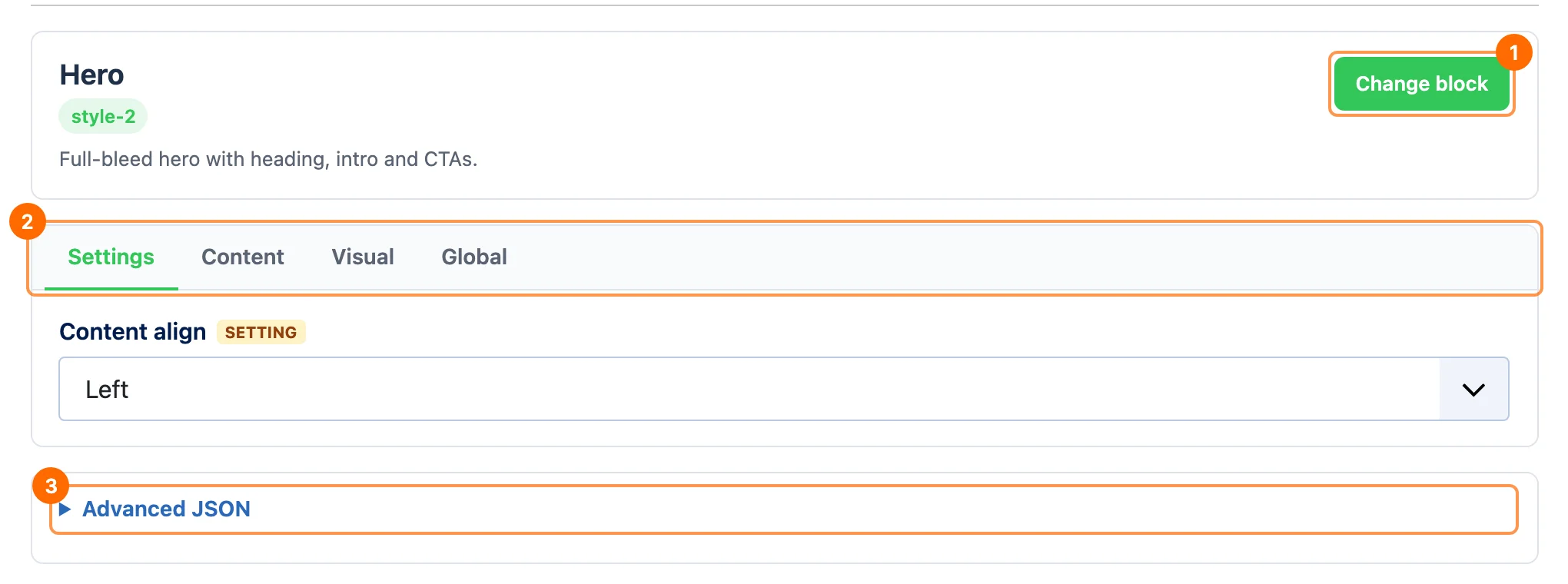
- 1Change block: opens the block library. The card on the left shows the block, its style and a short description.
- 2Block tabs: the fields of the block. Their names come from the block, for example Settings, Content, Visual and Global.
- 3Advanced JSON: the whole block configuration as JSON, to copy a block to another module or site. Invalid JSON is ignored.
Block library
Click Change block in the module to open the library. Pick a block type on the left, then click a style card. The form reloads with the fields of that style.
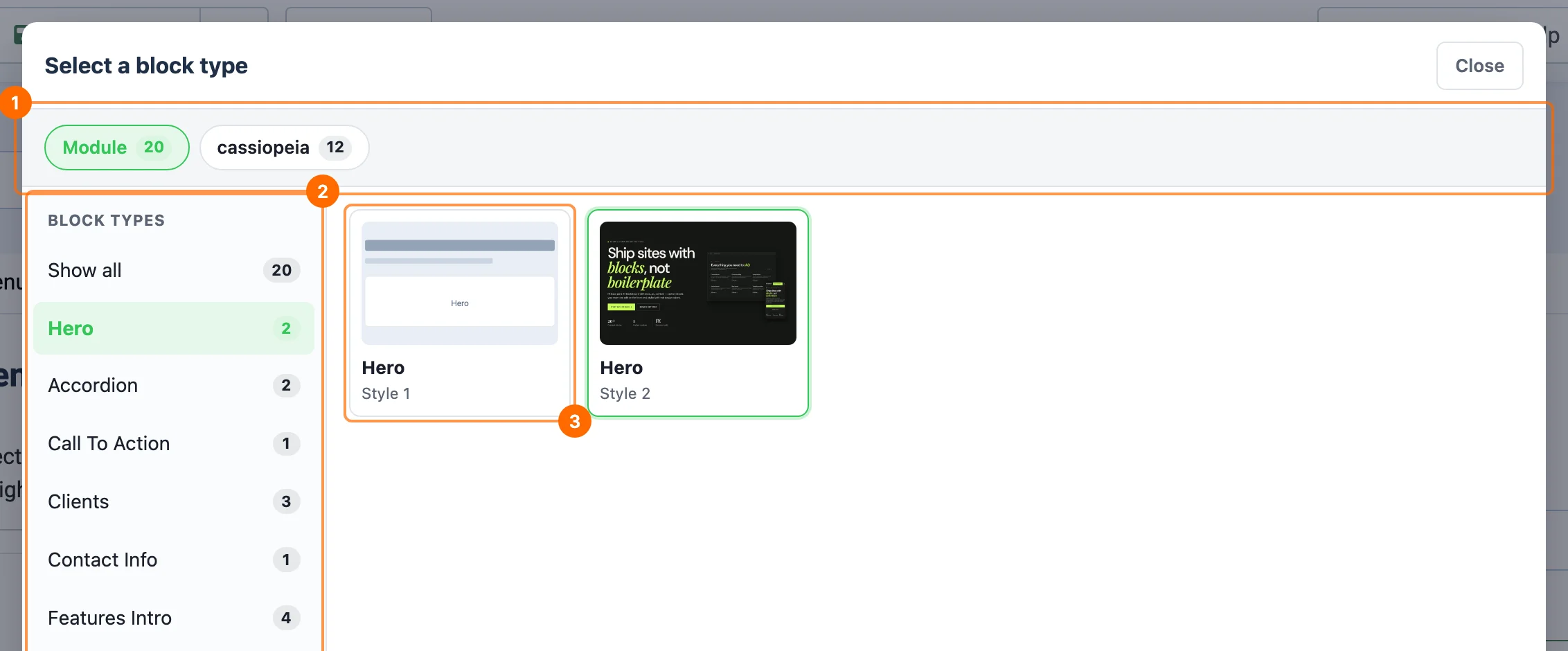
- 1Source: Module lists the blocks that come with PX Content. Every template that ships its own blocks gets a button with its name.
- 2Block types: with the number of styles of each type. Show all lists every style.
- 3Style cards: a preview of the style. The current style has a green border.
Blocks in the module
| Block | Styles |
|---|---|
| Hero | Style 1: background image with overlay. Style 2: copy, visual and stats. |
| Features Intro | Style 1: why us with image. Style 2: service cards. Style 3: about with checks and metrics. Style 4: process steps. |
| Clients | Style 1: logo grid. Style 2: name marquee. Style 3: dark capability marquee. |
| Gallery | Style 1: project grid with title, category and link. Style 2: case studies. |
| Accordion | Style 1: FAQ in two columns. Style 2: centered FAQ. |
| Stats | Style 1: a row of numbers that count up when they scroll into view. |
| Team | Style 1: member cards with social links. |
| Testimonials | Style 1: quotes in a slider. |
| Pricing | Style 1: plan cards. |
| Timeline | Style 1: vertical timeline steps. |
| Call To Action | Style 1: heading, text and buttons. |
| Contact Info | Style 1: channel cards with icon, label, value and an email, phone or web link. |
Module settings
Global tab
Every block has a Global tab with Spacing top and Spacing bottom: No spacing, Small, Medium, Large or X-Large. The space gets smaller on tablets and phones. Use No spacing when the template section around the module already has padding. Blocks can add their own fields to this tab, such as Align.
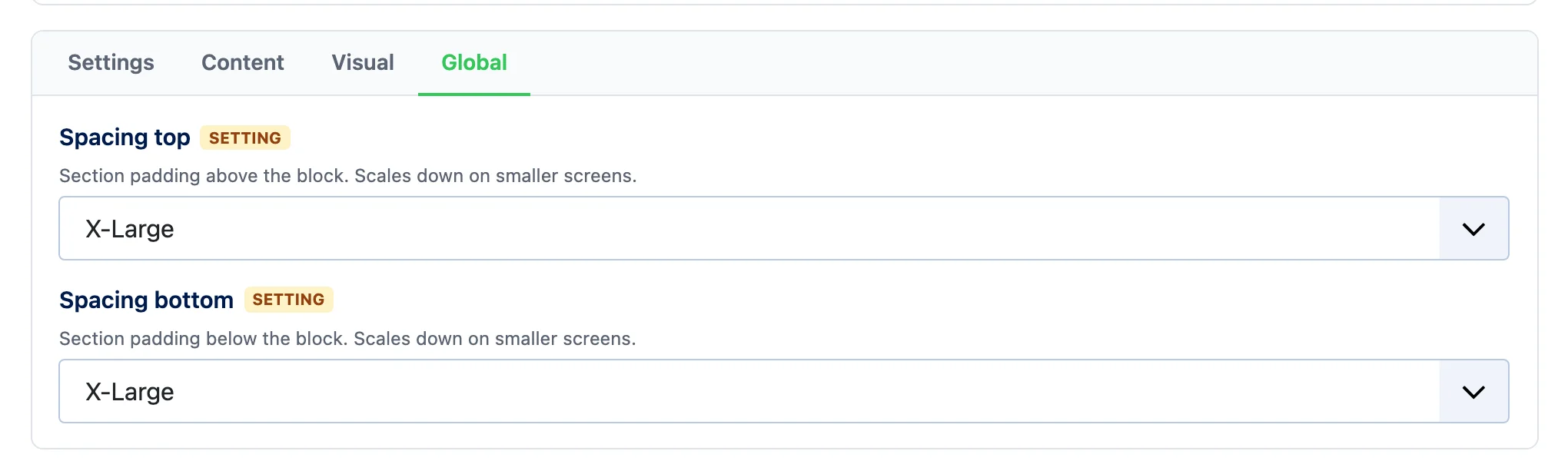
Fields marked SETTING can also be changed on the page in edit mode (see Block settings on the page).
Advanced tab
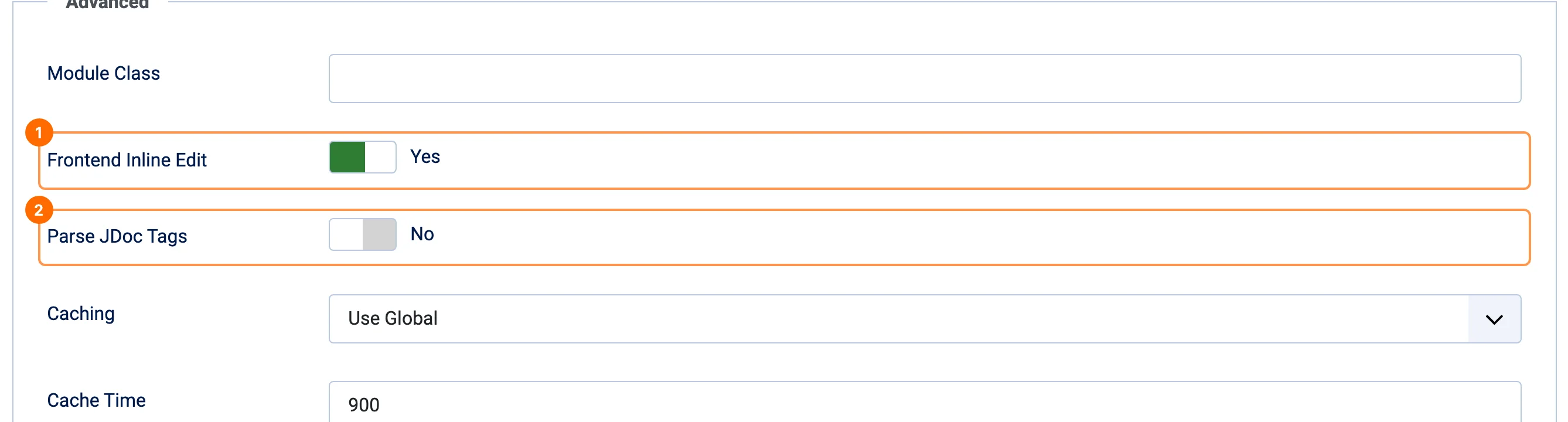
- 1Frontend Inline Edit (default Yes): lets users who may edit this module change it on the page. Set it to No to lock the module to the administrator.
- 2Parse JDoc Tags (default No): renders
<jdoc:include>tags inside block templates, for blocks that load other modules.
Caching and Cache Time work like in any Joomla module. A change saved on the page clears the module cache.
Front-end editing
Log in on the site with a user that may edit the module (Edit permission on Site Modules, for example Super Users or a group you allow in System → Global Configuration → Permissions or the module's Permissions tab). An Edit content button appears at the bottom right of every page that has a PX Content module.
Edit mode
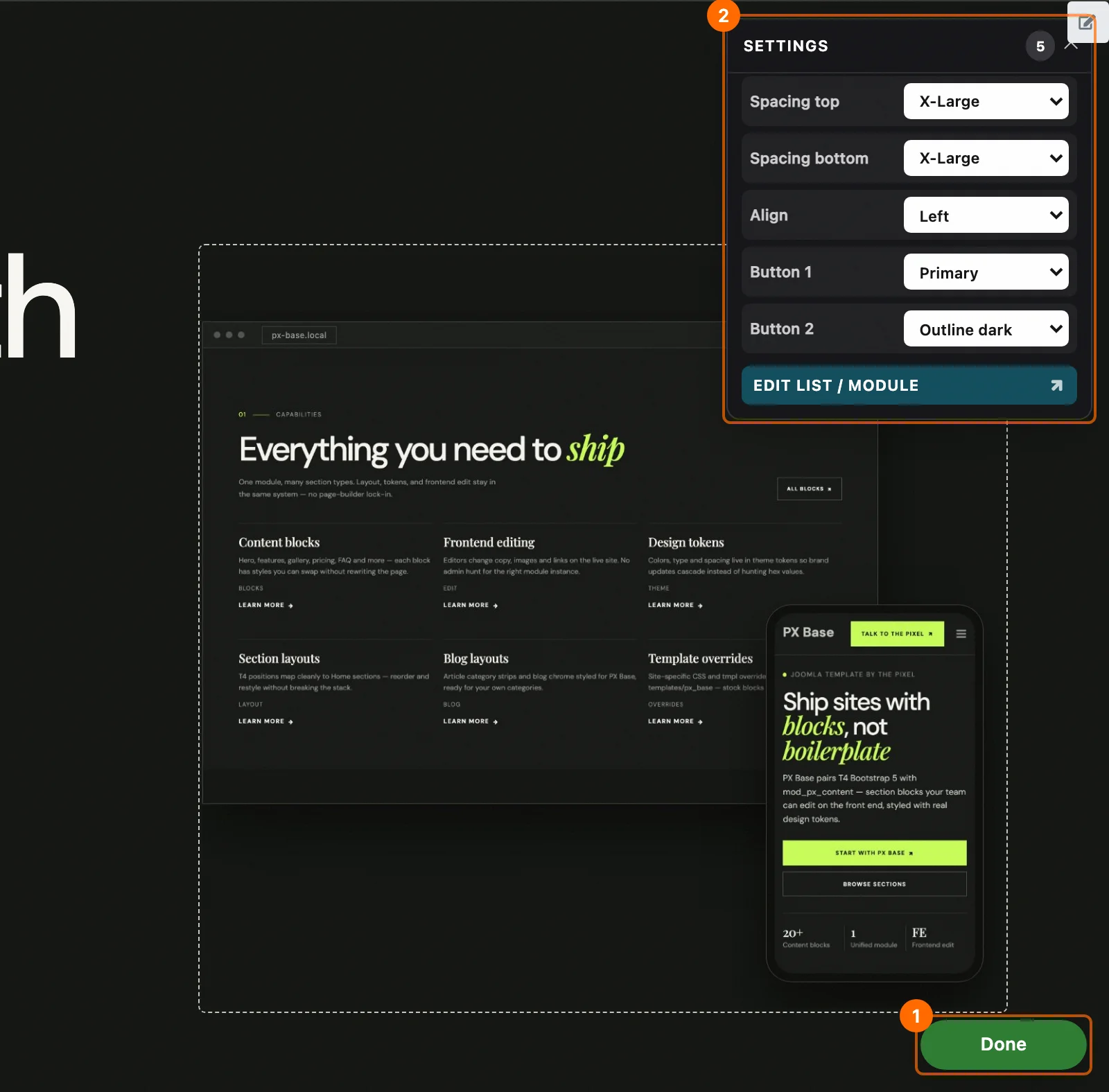
- 1Edit content / Done: turns edit mode on and off. Edit mode stays on while you move between pages in the same browser tab.
- 2Settings: the settings panel of the block (see below). The pencil button next to it opens the module form.
In edit mode, editable texts, links and images get an outline when you point at them. Visitors never see any of this.
Edit text
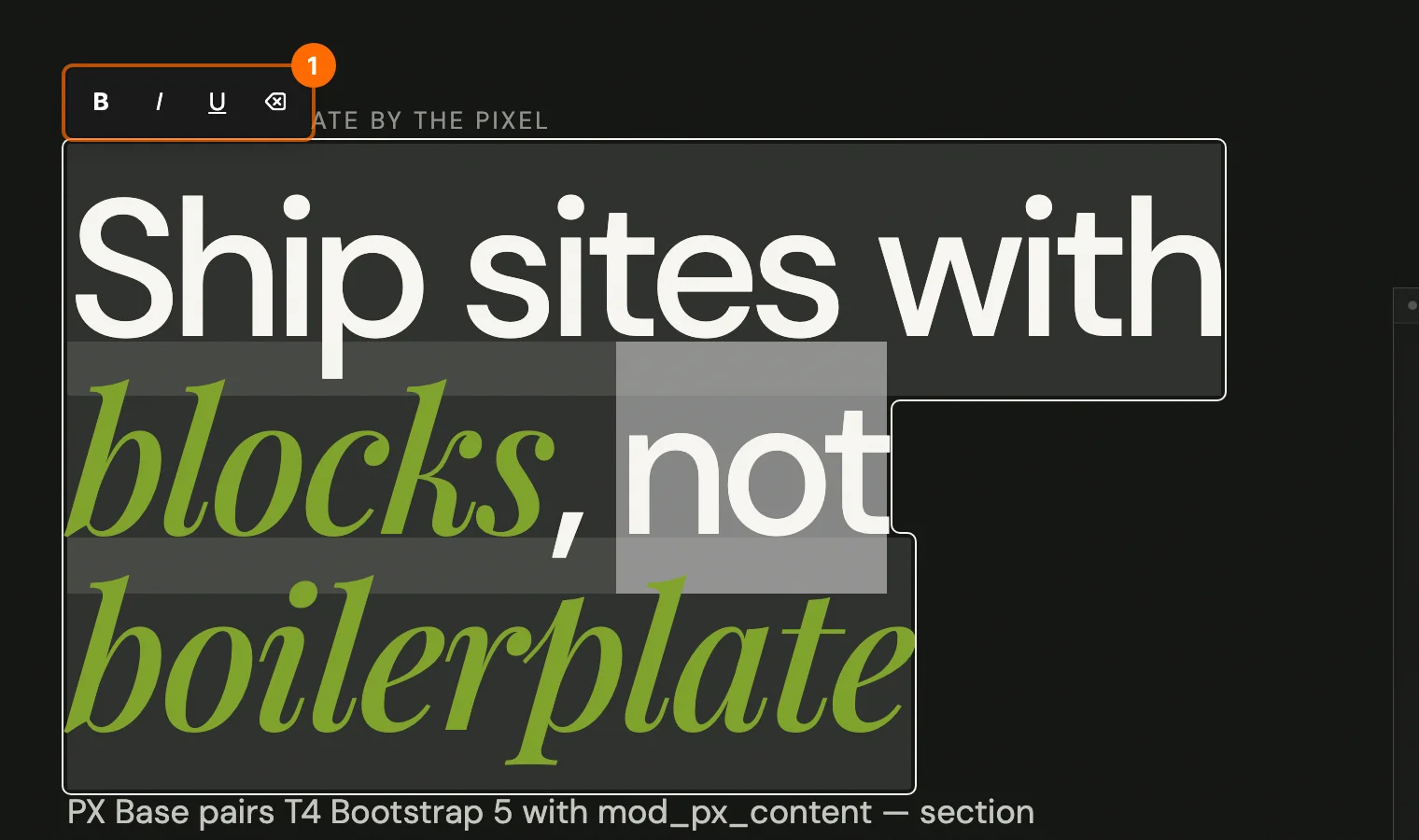
Double-click a heading, paragraph or button label and type. Headings and rich text get a small toolbar 1 with Bold, Italic, Underline and Clear formatting.
| Key | What it does |
|---|---|
| Enter | Saves a one-line text, such as a button label. |
| Ctrl / Cmd + Enter | Saves a multi-line or formatted text. |
| Esc | Cancels and puts the old text back. |
| Click outside | Saves the text. |
A short Saved message confirms each change. It is live for visitors right away.
Edit links
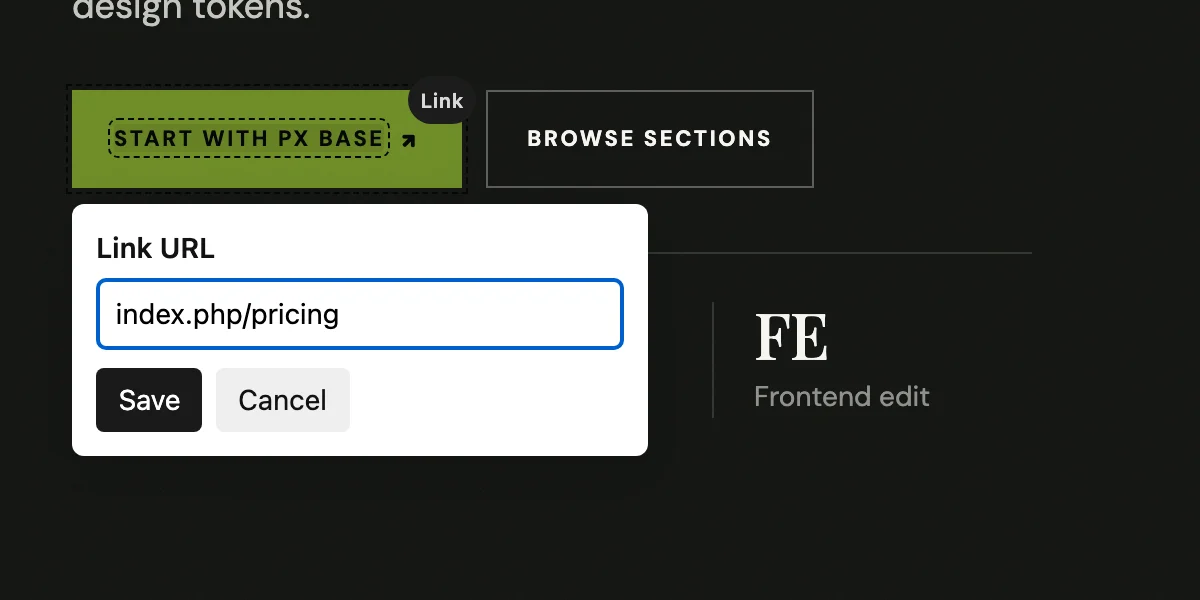
Point at a button or link and click the Link badge, or Alt-click it. Type the new address in Link URL and click Save. Ctrl / Cmd-click opens the link as usual.
Edit images
Point at an image and click the Img badge (or BG for a background image). The Joomla Media Manager opens; pick or upload an image and click Select. This needs the Access Administration Interface or Create permission on Media; without it you can type an image path instead.
Block settings on the page
Click Settings at the top right of a block to change its SETTING fields without leaving the page, such as spacing, alignment and button styles. The number shows how many settings the block has. Edit list / module opens the full module form in a popup, for repeatable rows such as cards, steps or numbers.
Blocks in your template
A block is a folder. Put one in your template to add a new block or to change a block of the module, without touching the module files.
templates/your_template/blocks/hero/
  config.xml          block title, description and shared fields
  tmpl/style-1.php    front-end markup of style 1
  tmpl/style-1.xml    fields and sample content of style 1
  tmpl/style-2.php    another style
  preview/style-1.jpg picker thumbnail (webp, png, jpg or svg)
  css/style.css       optional styles
  js/script.js        optional script
- The module looks for blocks in
modules/mod_px_content/blocks/,templates/<template>/blocks/andtemplates/<template>/local/blocks/. - Give every style its own
style-N.xml: the admin form and front-end editing only offer the fields listed inconfig.xmland that file. - Stylesheets load in this order, later ones win:
media/css/px-content.css(shared--px-*tokens) → the module block CSS → the template block CSS → thelocal/block CSS. Override the--px-*tokens in your template's:rootto restyle every block at once. - In a title, wrap a word in
<b>to highlight it or in<em>for the italic accent.
The full developer notes are in modules/mod_px_content/blocks/README.md inside the package.
Troubleshooting
| Problem | What to do |
|---|---|
| No Edit content button on the site. | Log in on the site (not only in the administrator), check that your user group may edit Site Modules, and that Frontend Inline Edit is Yes on the module's Advanced tab. |
| A text has no outline in edit mode. | Only fields listed in the style's XML can be edited on the page. Edit the others in the module form. |
| The Media Manager does not open. | Your user needs the Access Administration Interface or Create permission on Media. You can still type an image path. |
| Visitors still see the old text. | PX Content clears the Joomla module cache when you save. If a page cache or a CDN sits in front of the site, clear it too. |
| A block looks plain. | The module ships a base layout that works with any template. Brand colours, hover effects and decoration come from your template's blocks/ folder. |
Credits & license
PX Content is free software released under the GNU General Public License version 2 or later. The Testimonials slider uses Swiper (MIT license).