
Joomla 6
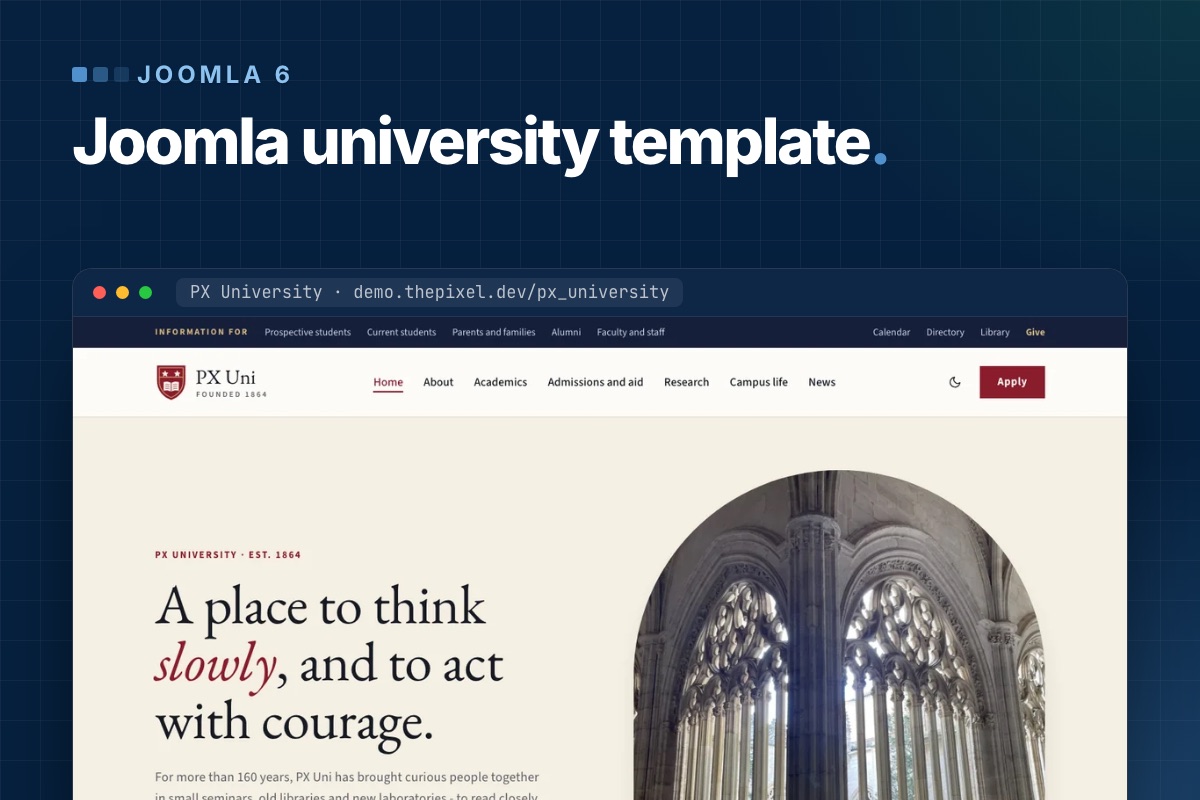

A Joomla university template gives you the look. What takes the time is the content behind it: programs, schools, admissions, events and news, kept up by people in different offices. This guide shows how the PX University quickstart (part of Pro, live demo) models that content with Joomla 6 core features: categories, nested tags, custom fields, list modules and Smart Search. There is no events or course component to learn. The page sections around the content are blocks of the bundled PX Content module, and the template runs on the T4 Framework. Then it shows how you replace the demo college with a real one.
What a university site has to do
Most visitors come with one of five questions. Each one maps to a page type, and each page type maps to something Joomla already has:
| Visitor asks | Page | Built with |
|---|---|---|
| What can I study? | Program pages, a program list, a finder | Articles with custom fields, tags, Smart Search |
| Which faculty is that? | School pages | A landing page per school plus a tag |
| How do I apply, what does it cost? | Admissions | Content blocks: steps, fees, FAQ |
| What is on? | Events | Articles with a date field |
| What is new? | News | A category with subcategories |
The template uses British spelling for its content names (Programmes, "Find a programme"). We keep those names where they are what you see in the administrator.
The content model in the quickstart
This is what the installer's SQL creates. Counts are the demo content you will replace:
# PX University 1.0.0 quickstart: content model
Categories
  News                 17 articles in 4 subcategories:
                       College news, Research, Arts and culture, Admissions
  Events                6 articles   fields: Event date, Time, Venue, Admission
  Programmes           20 articles   fields: Level, Duration, Starts,
                                             Entry requirements, Fees
  Pages                15 articles   page shells: About, Admissions, 6 schools ...
  Legal                 3 articles

Tags (nested)
  Schools              Humanities, Natural Sciences, Engineering,
                       Law and Policy, Music and Arts, Business
  Levels of study      Undergraduate, Graduate, Doctoral
  Topics               19 tags for news (Research, Campus, Alumni ...)

Template styles        Home, Inner (default), Full Width, Landing
The custom fields are assigned to their category, so the event fields only show on the edit form of an article in Events, and the program fields only in Programmes. You find them under Content → Fields.
Programs: one article each, five fields
A program is an article in the Programmes category with two tags: its school and its level. The five fields are plain text, so "3 years" or "4 years with a beginners' year" both work. The level is entered twice on purpose: the Level field is what the page shows ("Undergraduate (BA)"), the level tag is what puts the program on a level page.
The template decides the layout from the fields, not from the category. An article whose Level field has a value gets the program layout:
- a sticky "Key facts" panel with the five fields;
- the article's Link A as the apply button and Link B as a second button (the demo uses it for the open day), both from the article's Images and Links tab;
- an "On this page" list built from the
<h2 id="...">headings in the text, so give your headings an id; - up to three related programs: other articles in the same category that share the school tag, in title order.
The three level pages in the Academics menu (Undergraduate, Graduate, Doctoral) are tag menu items, and the full list is a category menu item for Programmes. Tag a new program and it shows up on its level page, in the full list and in the cards on its school page, without touching a module. The cards module shows up to 12 programs per school; raise the count in the module if a school has more.
Schools: a landing page plus a tag
A school is two things with the same alias: a tag under Schools, and a menu item of type Single Article with the style PX University - Landing. The program layout looks for a menu item whose alias matches the school tag's alias and links the program to it. If there is none, it links to the tag page instead. So when you rename "Humanities" to your own faculty, change the tag and the menu item alias together. Keep the parent tag titled Schools: the layout finds the school by that title, and without it the school link and the related programs disappear.
The school page itself is a stack of modules assigned to that menu item. The Humanities page has eight: a hero in hero, then numbers, a heading, the program cards, a quote, a heading, the news list and a call to action in page-top. The program cards are a core Articles - Category module: category Programmes, filtered by the school's tag, layout programme-cards, ordered by title. The news list works the same way with a topic tag (Humanities uses Library).
A seventh school therefore takes five things: a tag under Schools, an empty article in Pages as the page shell, a Single Article menu item with the Landing style and the tag's alias, copies of the eight modules with their tag filters and texts changed and assigned to the new menu item, and a card in the schools block on Home and on Academics. Those cards are kept by hand in the block settings.
The program finder runs on Smart Search
The search box on the home page and on Academics is part of a PX Content block (Features Intro, the style with arch cards). It is a plain form that sends the query to Joomla's Smart Search. The level dropdown is not a filter: the script adds the chosen word, for example "Undergraduate", to the search text. The levels are a comma-separated list in the block settings, next to the label, the placeholder and the page the form submits to.
Two things follow from that. First, a program is found by its title and text. Joomla's content plugin for Smart Search does not index an article's tags, and a custom field is only indexed when its Search Index option is set, which it is not for the five program fields. Smart Search also wants every word of the query, so a search for "history undergraduate" only finds the History program if the word "undergraduate" is in its text. Write the level into the first paragraph of every program.
Second, Smart Search only finds what is in its index. The installer's SQL ships with an empty index, so build it once after installing and after any bulk import:
# in the site root; builds the Smart Search index
php cli/joomla.php finder:index
After that, the Smart Search content plugin keeps the index current when you save an article. Check the result under Components → Smart Search → Index.
Events: articles with a date field
An event is an article in Events. The Event date field is a calendar field with time; Time, Venue and Admission are text. An article with an event date gets the event layout: a date block beside the title, an "Event details" panel, Link A as the booking button, add-to-calendar links and up to three other events from the same category, earliest first.
Event lists (home, Visit, the sidebar) are Articles - Category modules with the events layout. Know how the order works before you rely on it:
- The module picks its articles first (on the home page: four, by article ordering). The layout then sorts those by event date. An event without a date falls back to its publish date.
- Nothing hides an event automatically once it is over. Setting Finish Publishing on the article takes it out of the module lists, but in 1.0.0 the "more events" list on an event page does not check that date and would link to a page that is gone. Until that is fixed, unpublish past events.
The six demo events are dated October and November 2026, so replace or unpublish them first.
News and who edits what
News is one category with four subcategories, each with its own Category Blog menu item, plus topic tags. Rename the subcategories to match your communications team: a research office and an admissions office usually want their own.
That split is also how you hand out editing rights, with three things to set up:
- A group per office. The default groups are in the quickstart (an Author creates articles and edits their own, an Editor edits any article, a Publisher can also publish), but their rights apply to the whole site. To keep the admissions office to the Admissions news category and Events, create a group for it under Registered and allow Create, Edit and Edit State on the Permissions tab of those two categories only.
- A way to add articles. Author, Editor and Publisher cannot log in to the administrator, and the quickstart menu has no Create Article item. Add one for the office, or give it administrator access.
- Who may edit page sections. The heroes, statistics, fees and FAQ are PX Content modules, and editing them on the page is open to anyone who may edit modules. With the default permissions that includes Editors and Publishers. If only the web team should change those, deny Edit for the other groups under Content → Site Modules → Options → Permissions.
Build order for a real site
- Install the quickstart on staging and remove the installation folder. It needs Joomla 6 hosting: PHP 8.3+, MySQL 8.0.13+ or MariaDB 10.4+.
- Logo, name, two colors. System → Site Template Styles, open a style, then Site Settings and Theme Color. The four styles share the same site and color profiles, so one change covers all of them.
- Schools. Rename the six tags, menu items, page shells, module titles and the cards in the schools block; add or unpublish schools.
- Programs. Replace the 20 demo articles, tag each with school and level, fill the five fields and name the level in the text.
- Admissions. Rewrite the steps, fee cards and FAQ blocks. The demo fees are invented.
- Events and news. Replace the demo articles and unpublish events as they pass.
- Run the indexer again (add
purgeto the command if you removed content outside the administrator) and test the finder with a subject and a level. - Permissions. Create the office groups and accounts, set category and module permissions, then go live.
Screenshots of the template settings, styles, module positions and blocks are in the PX University documentation.
Limits you should know
- Joomla 6 and PHP 8.3+ only. On Joomla 5, read Joomla 5 vs Joomla 6 and plan the upgrade first.
- Events are articles, not a calendar. No recurring events, no registration or ticketing. Link A can point to your booking system.
- Program data is free text. Fees and durations are not structured, so you cannot sort or filter by them.
- The finder's level is a search word, not a filter. Smart Search matches word stems, so test each level with your own program texts.
- What we checked. Everything above was read from the 1.0.0 quickstart source and its installer SQL. We did not run a fresh install for this post.
Get PX University
PX University is part of Pro ($99 for the first year, every template and extension, unlimited sites). See the design on the Joomla university template page and its live demo. Short on time? With Pro + Launch we install the template and demo and set your logo, colors and fonts.
A free template for Joomla 6 is only useful if you end up with a site. PX Base comes with a quickstart that installs Joomla 6.2, the template, the PX Content module, the T4 Framework plugin and seven demo pages, and you replace the content instead of building the layout. This walkthrough goes from download to a page of your own, and says where the template stops. It needs a free account on this site and PHP 8.3 or later.
What you need
- Joomla 6.x and PHP 8.3 or later. PX Base does not run on Joomla 5. On a Joomla 5 site, read Joomla 5 vs Joomla 6 first.
- MySQL 8.0.13+ or MariaDB 10.4+, and Apache 2.4+ or Nginx 1.21+.
- A ThePixel.dev account. It is free; the downloads sit behind the login.
Quickstart or template?
The product page offers four downloads. Which one you need depends on whether the site exists yet:
| Download | Use it when |
|---|---|
| Quickstart | New site. Installs Joomla 6.2, the template, PX Content, T4 Framework and the demo content in one go. |
| Template | You add PX Base to a site you already have. |
| PX Content module | Needed with the template package; already in the quickstart. |
| T4 Framework plugin | Needed with the template package; already in the quickstart. |
Step 1: install the quickstart
- Log in on this site, open the PX Base page and download the Quickstart zip.
- Create an empty database and a database user on your hosting.
- Upload the quickstart zip to the folder where the site will live and extract it.
- Open the domain. The Joomla installer starts.
- Enter the site name, your admin account and the database details, then click Install Joomla.
- Click Remove "installation" folder when it finishes.
The demo users are not included. You log in with the admin account you just created. After this you have a working copy of the demo site, which is the starting point for everything below.
How the demo pages are built
Before you change anything, it helps to know the pattern, because every page follows it. We looked at the installed quickstart:
- Home, About, Services, Projects and Pricing use the template style PX Base - Home. Blog and Contact use PX Base - Default. A third style, PX Base - No sidebar, is for plain content pages. Open them under System → Site Template Styles.
- Each page of the first group has its own header module in the
slideshowposition (PX Home Hero, PX About Header, PX Services Header, PX Projects Header, PX Pricing Header), followed by section modules insection-1tosection-11. - Almost all of these modules are the same type, PX Content. One module shows one block: a hero, a pricing table, an FAQ. Some modules are assigned to several pages; PX Home Testimonials, for example, shows on Home, About, Services, Projects and Pricing, and you change that on the module's Menu Assignment tab.
PX Content has 12 block types in 20 styles: Hero (2), Features Intro (4), Clients (3), Gallery (2), Accordion (2, the FAQ), and Pricing, Testimonials, Team, Stats, Timeline, Contact Info and Call To Action (1 each). Timeline is not used on the demo pages, so it is free for your own steps or milestones. Why we built it this way is in the PX Base release post.
Step 2: logo, name and colors
In System → Site Template Styles, click a style name. That opens the T4 settings screen with a live preview next to it.
- Site Settings → Logo Settings holds the site name, slogan, logo image and a smaller logo for phones.
- Theme Color sets Primary (the lime green of the buttons and highlights) and Secondary, plus base, main menu and footer colors.
The three styles share the default site, navigation and theme profiles, so a new logo or color shows on every page, not just the one you edited. For small design changes use Tools → Edit Custom CSS; that CSS survives template updates.
Step 3: replace the demo content
Go to Content → Site Modules and type the page name in the search box: PX Home, PX About, PX Pricing. You get the sections of that page, with their position and type. Open one to change the block, its style, texts, images and buttons. The tab Advanced JSON holds all settings of a block as text, so you can copy a section to another module or another site.
The pricing, testimonials and client logos in the demo are ThePixel's own. Unpublish those modules or rewrite them before the site goes public, or your visitors read someone else's reviews.
Step 4: edit on the page
Most texts and images can be changed without opening the module:
- Log in on the site (the demo links the login page in the footer, under Resources) and click Edit content at the bottom right.
- Double-click a heading or paragraph, change it, and press Ctrl/⌘ + Enter to save.
- Use the Img and BG buttons to pick an image or background from the Media Manager.
- Settings on a block opens spacing, alignment and button styles. Click Done when you finish.
It works for users who are allowed to edit modules, so Joomla permissions decide who gets it. You can switch it off per module with Frontend Inline Edit on the Advanced tab.
Step 5: add a page of your own
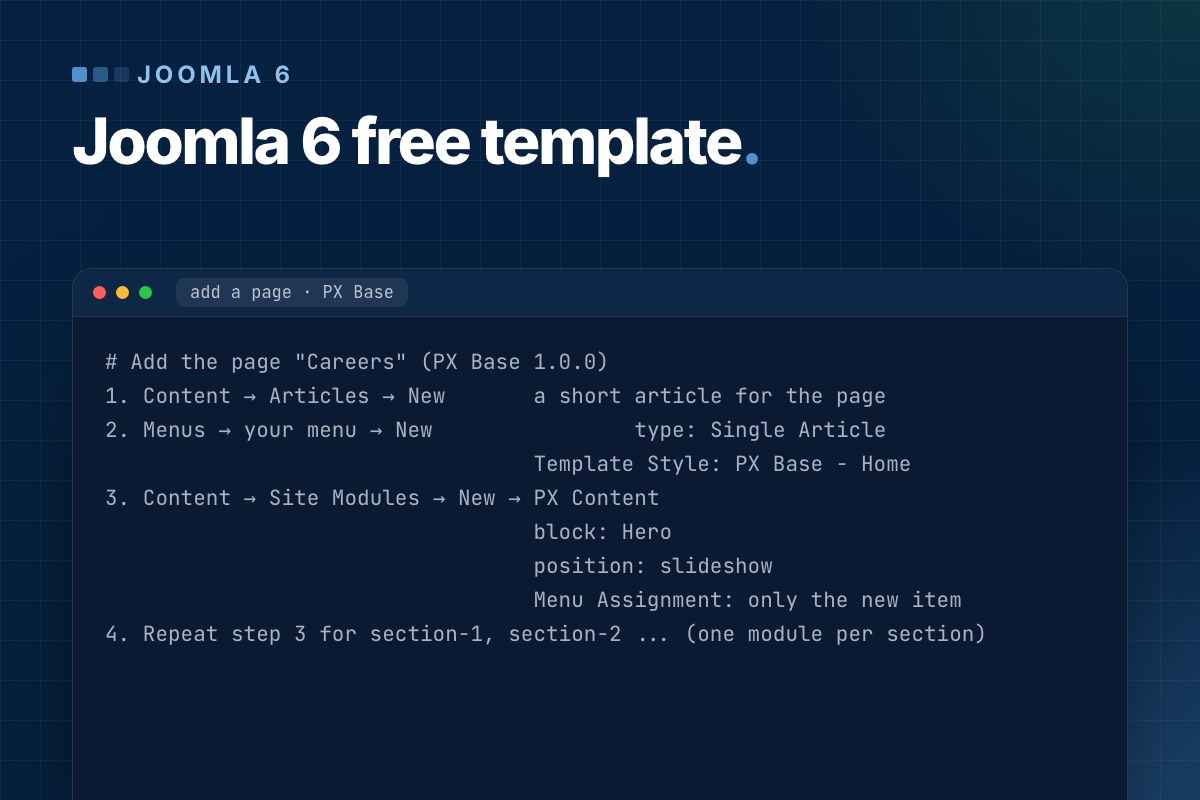
A new page is an article, a menu item and a few PX Content modules. This is the recipe from the PX Base documentation, and it is how the quickstart builds its own Services page: a Single Article menu item with the style PX Base - Home, and a Hero module in slideshow that is assigned to that one menu item. We read that structure from the installed quickstart; we did not click through the steps for a new page.
# Add the page "Careers" (PX Base 1.0.0)
1. Content → Articles → New       a short article for the page
2. Menus → your menu → New                type: Single Article
                                  Template Style: PX Base - Home
3. Content → Site Modules → New → PX Content
                                  block: Hero
                                  position: slideshow
                                  Menu Assignment: only the new item
4. Repeat step 3 for section-1, section-2 ... (one module per section)
The Blog menu item is a Category Blog of the Blog category and uses the default style. Contact details live in Components → Contacts, and the FAQ under the contact form is a PX Content module in contact-bottom.
Already have a Joomla 6 site?
Install the downloads in this order under System → Install → Extensions: the T4 Framework plugin (check that System - T4 Framework is enabled in System → Plugins), then the PX Base template, then the PX Content module. A manual install gives you the template and its styles but not the demo pages and modules, so build your pages with the recipe above.
Limits you should know
- Joomla 6 and PHP 8.3+ only. There is no Joomla 5 build.
- Do not edit the template files. An update overwrites them; put changes in Custom CSS.
- Changes not showing? Clear the cache under System → Clear Cache. With CSS & JS Optimization on in the T4 Global Settings, also reload with Ctrl/⌘ + Shift + R after changing Custom CSS.
- Back up before every update. New versions show in System → Update → Extensions. If a release needs a newer T4 Framework or PX Content, its release notes say so.
The full reference, with screenshots of every settings screen, is the PX Base documentation. Joomla 6.2 itself is covered in What's new in Joomla 6.
Get PX Base
Download the quickstart from the PX Base page; you can use it on as many sites as you like. If the design has to match a brand beyond colors and blocks, our template customization service builds on top of it.
Joomla 6.0 came out in October 2025, and two feature releases have followed: 6.1 and 6.2. Most "what's new" lists repeat the release announcement. This one is written from the other side: we run Joomla 6.2 on our own site and upgrade client sites to it, so for each change we note what it means when you build, upgrade or maintain a site.
Joomla 6 in one table
| Joomla 5.4 | Joomla 6.x | |
|---|---|---|
| Minimum PHP | 8.1 | 8.3 |
| Database | MySQL 8.0.13+, MariaDB 10.4+, PostgreSQL 12+ | same |
Old J* class names (JFactory, JText …) | work, with a deprecation | only through the "Backward Compatibility 6" plugin, off on new installs |
| Core updates | manual or one click | automated updates available (TUF-signed) |
| Support | security fixes until October 2027 | current major version |
The PHP minimum is enforced in the first lines of index.php. A site on PHP 8.2 doesn't degrade gracefully after the upgrade: every page, front end and back end, shows the "incompatible PHP" notice instead. Check PHP first, before you even look at extensions.
// index.php (Joomla 6.2)
\define('JOOMLA_MINIMUM_PHP', '8.3.0');

if (version_compare(PHP_VERSION, JOOMLA_MINIMUM_PHP, '<')) {
    die(str_replace('{{phpversion}}', JOOMLA_MINIMUM_PHP, file_get_contents(\dirname(__FILE__) . '/includes/incompatible.html')));
}
Joomla 6.0: a cleanup release with a few features
Automated core updates
Joomla can now install core updates by itself. The update data is signed with The Update Framework (TUF), which Joomla adopted in 5.1, so a compromised mirror can't push a fake package. You'll find it under System → Update → Joomla → Options.
Our advice: turn it on for small brochure sites. On sites with a custom template, overrides or a shop, keep it off and update after a staging run. An automated update tests nothing that core tests don't, and overrides and third-party plugins are exactly where updates break.
Cassiopeia Extended: child templates, shown by example
Child templates arrived in Joomla 4.1, but few people used them. Joomla 6 ships Cassiopeia Extended, a child of Cassiopeia with font and colour options, as a working example. For developers it's the cleanest reference for the pattern: the child template contains only what it changes, and everything else falls back to the parent.
<!-- templates/cassiopeia_extended/templateDetails.xml (excerpt) -->
<extension type="template" client="site">
    <name>cassiopeia_extended</name>
    <inheritable>0</inheritable>
    <parent>cassiopeia</parent>
    …
</extension>
If you build a site on Cassiopeia, make a child template on day one and put your overrides and CSS there. The next Cassiopeia update then can't overwrite them.
Versioning that includes fields, tags and categories
Content history used to store only the article row. In Joomla 6 a version also covers custom field values, tags and the category, so "restore" really brings the article back to how it was. The #__history table got two new columns for this, is_current and is_legacy. Versions saved before the upgrade are marked as legacy, because they don't contain field data.
One side effect to plan for: more data per version. On sites with many fields and frequent saves, set "Maximum Versions" in the Articles options to a sensible number.
Featured articles merged into the Articles view
The separate Featured Articles manager in the back end is gone. It is now the Articles list with the featured filter (view=articles&filter[featured]=1). The upgrade rewrites the admin menu link. Custom admin menus, bookmarks or extensions that link to view=featured in the back end need the new URL. The front-end featured menu item type is unchanged.
Smaller things that matter
- Two new custom field types: Number (min, max, step, decimals, currency) and Note (a heading or info box in the edit form).
- Mail template for new articles: the "new article submitted" notification is now an editable mail template (
plg_content_joomla.newarticle). - Batch remove a tag from many items at once.
- Language update site moved to the 6.x translation list. Language packs for 5.x won't show up as updates.
Joomla 6.1: spam protection and module versioning
- Proof-of-work CAPTCHA (
plg_captcha_powcaptcha). The browser solves a small puzzle in the background. There's no third-party service, no cookie and no API key. reCAPTCHA sends visitor data to Google and usually needs cookie consent, so this is now our default for contact and registration forms. Enable the plugin and set it as default in Global Configuration. - Workflow diagram. With Workflows on, the Articles → Workflows screen draws the stages and transitions as a graph. Stages have a new
positioncolumn for the layout. - Media custom fields for audio, video and documents. They render as HTML5
<audio>,<video>or a document link. - Module versioning and multilingual associations. Modules get version history like articles (a new
com_modules.modulecontent type), and module instances can be associated across languages. - Language override status. Missing overrides are shown and can be created in one step.
Joomla 6.2: editor and template quality of life
- Separate image and figure classes for intro and full-text images. You no longer need an override just to put a class on the
<figure>. - Media Manager picker and a Read More button in the editor.
- Multi-level dropdown menus in Cassiopeia.
- Login module toggles to hide the "Forgot your password/username?" links without an override.
- "Show subcategory image" option for Articles, Contacts and News Feeds categories.
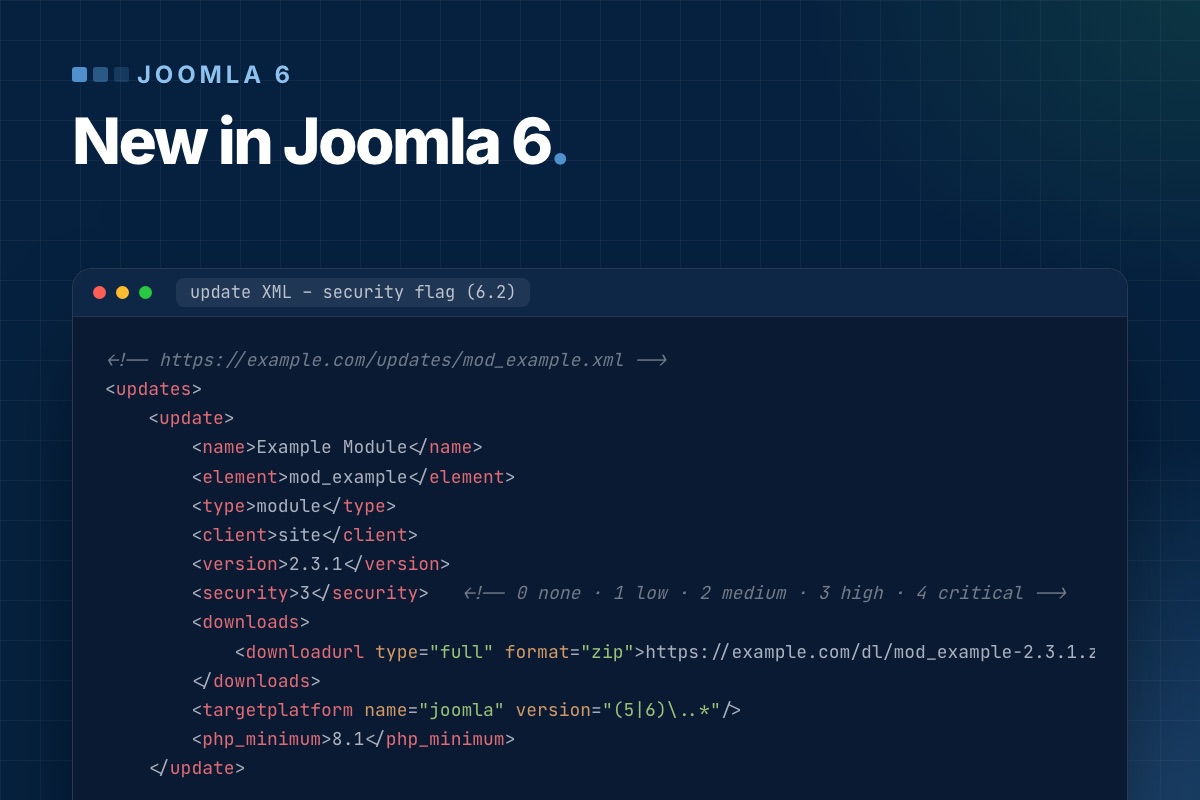
- Security flag for extension updates. An extension's update XML can mark a release as a security release with a severity from 0 (none) to 4 (critical). Joomla stores it in the new
#__updates.securitycolumn and highlights the update in the dashboard. If you publish extensions, start using it:
<!-- https://example.com/updates/mod_example.xml -->
<updates>
    <update>
        <name>Example Module</name>
        <element>mod_example</element>
        <type>module</type>
        <client>site</client>
        <version>2.3.1</version>
        <security>3</security>   <!-- 0 none · 1 low · 2 medium · 3 high · 4 critical -->
        <downloads>
            <downloadurl type="full" format="zip">https://example.com/dl/mod_example-2.3.1.zip</downloadurl>
        </downloads>
        <targetplatform name="joomla" version="(5|6)\..*"/>
        <php_minimum>8.1</php_minimum>
    </update>
</updates>
What breaks when you upgrade
The features are the easy part. The work in a 5 → 6 upgrade is in code that relied on things Joomla 6 removed or moved:
- Old class names.
JFactory,JText,JHtml,JRouteand about 450 otherJ*aliases now live in the "Behaviour – Backward Compatibility 6" plugin. Its "Classes Aliases" option is off on a fresh install. On upgraded sites, check it before you blame an extension. - Moved classes.
Joomla\CMS\Filesystem\*,Joomla\CMS\Input\*and the old CLI application classes are only loaded through the same plugin's "Include Deprecated Classes" option. Their replacements are the framework packagesJoomla\Filesystem\*andJoomla\Input\*. - Removed assets.
chosenandwcpolyfillare gone. The compat plugin registers empty stubs, so an extension that asks for them doesn't throw an exception, but whatever relied on Chosen.js no longer gets it.
The code side of each of these, with before/after examples, is in Joomla 6 for extension developers. The side-by-side comparison for site owners is in Joomla 5 vs Joomla 6.
Should you upgrade now?
- New sites: start on Joomla 6.2 and PHP 8.3 or 8.4.
- Joomla 5.4 sites with maintained extensions: yes, after a staging run. Most well-kept extensions released Joomla 6 versions in 2025–2026.
- Sites with an abandoned extension, an old shop or CRM: stay on 5.4 for now. It has security support until October 2027. Plan the extension replacement first. Our VirtueMart and CiviCRM status pages show what that looks like for two big ones.
- Sites still on Joomla 3 or 4: go to 5.4 first, then 6. There is no direct jump.
Planning a Joomla 6 upgrade? Send us your site URL. We check PHP, extensions and overrides, and reply with a plan and a fixed quote.
Joomla 6 migration →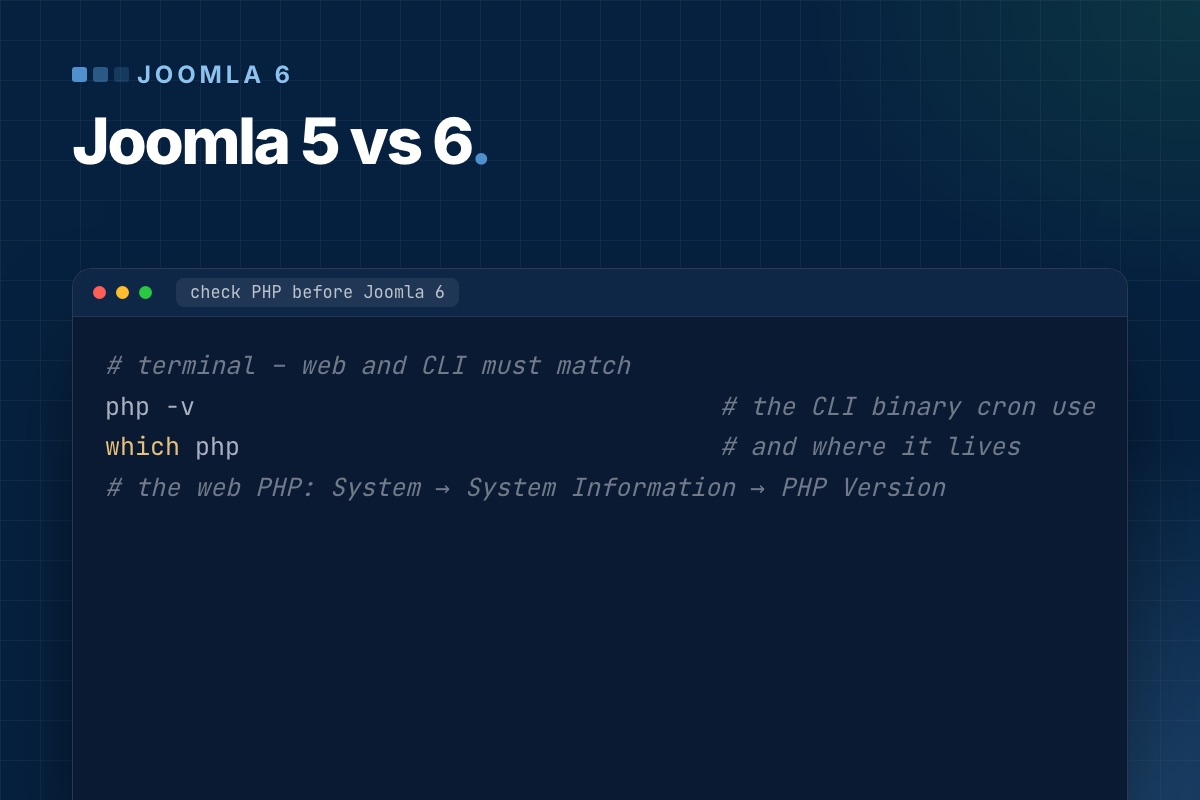
Joomla 5 and Joomla 6 look almost identical in the back end. The differences are underneath, and they decide how much an upgrade costs. These are the ten we check on every 5 → 6 project, ordered by how often they turn up as real work.
1. PHP 8.3 is the floor
Joomla 5 runs on PHP 8.1 and up. Joomla 6 refuses to start below 8.3.0. Every page shows the "incompatible PHP" notice, so there is no gradual failure to catch on a test page. Two things follow:
- Switch PHP to 8.3 on Joomla 5.4 first, and let the site run on it for a week. Joomla 5.4 supports 8.3, so any extension that breaks is a PHP problem, not a Joomla 6 problem, and you've separated the two.
- Check the CLI PHP version too. Cron jobs and the Scheduler often run on a different binary than the web server.
# terminal – web and CLI must match
php -v                                   # the CLI binary cron uses
which php                                # and where it lives
# the web PHP: System → System Information → PHP Version
2. Old class names are off by default
On Joomla 5, JFactory::getUser() works and logs a deprecation. On a fresh Joomla 6 install it's a fatal "class not found", because the ≈450 J* aliases moved into the "Behaviour – Backward Compatibility 6" plugin and its "Classes Aliases" option is off. Upgraded sites need the same check. This is the most common reason an extension "breaks on Joomla 6", and often the only one. The code fixes are in Joomla 6 for extension developers.
3. Filesystem and Input classes moved
Joomla\CMS\Filesystem\* and Joomla\CMS\Input\* are now provided by the compat plugin, and the replacements in the Joomla Framework throw exceptions where the old classes returned false. Upload handlers and importers are where this shows up. They work until the first failure, and then the error handling never runs.
4. Some front-end assets are gone
chosen (the old enhanced select) and wcpolyfill were removed. The compat plugin registers empty stubs, so there's no error message, just a plain <select> where a searchable dropdown used to be. Check the forms of older extensions by eye.
5. Template overrides compared against new core layouts
Joomla 6.2 changed the article image layouts (separate image and figure classes), and several components changed their default layouts across 6.0–6.2. After the upgrade, System → Templates shows which overrides have "changes found". Compare each one. The image layouts and the article/category blog layouts are the ones we rebuild most often.
6. Featured articles in the back end
Featured Articles is now a filter of the Articles list (view=articles&filter[featured]=1). The upgrade fixes the core admin menu, but custom admin menu items and editor bookmarks to view=featured need updating. The front-end featured menu item type is unchanged.
7. Versioning stores more
A saved version now includes custom fields, tags and the category, and modules get versions too (6.1). That's good for editors, but on a site with many fields and frequent saves the #__history table grows faster. Set "Maximum Versions" deliberately. Versions saved before the upgrade are marked is_legacy and don't contain field data.
8. Updates can install themselves
Joomla 6 can apply core updates automatically, using signed update metadata (TUF). For a site with overrides, a shop or a CRM we leave it off and update after a staging run. For a simple brochure site it's a reasonable default. Extension developers can now also flag a release as a security update with a severity (6.2), which the dashboard highlights.
9. Spam protection without a third party
Joomla 6.1 added a proof-of-work CAPTCHA plugin. No Google, no cookie, no API key. If your Joomla 5 site uses reCAPTCHA only because core had nothing else, the upgrade is a good moment to drop it, along with the consent-banner entry that comes with it.
10. Support timeline
| Version | Status (October 2026) |
|---|---|
| Joomla 5.4 | security fixes until October 2027 |
| Joomla 6.x | current; new features in 6.x minor releases |
| Joomla 4.4 and older | end of life, no security fixes |
Joomla 5.4 is not urgent to leave. It is urgent to have a plan, because extension vendors move their attention to 6.x well before 5.4 ends.
Before you decide: run the pre-update check
When Joomla Update on 5.4 offers the Joomla 6 upgrade, it runs a pre-update check first. It lists every third-party extension with a compatibility status from its update server: compatible, not compatible, or unknown. "Unknown" usually means the vendor doesn't publish Joomla 6 data. Treat it as "not compatible" until you have tested it.
For a quick inventory outside the back end:
# terminal – third-party extensions with their versions (adjust the table prefix)
mysql -e "SELECT type, element, folder, JSON_UNQUOTE(JSON_EXTRACT(manifest_cache, '$.version')) AS version,
                 JSON_UNQUOTE(JSON_EXTRACT(manifest_cache, '$.author')) AS author
          FROM jos_extensions
          WHERE JSON_UNQUOTE(JSON_EXTRACT(manifest_cache, '$.author')) NOT IN ('Joomla! Project', 'Joomla! Projects')
          ORDER BY type, element;" mydb
Our upgrade order
- PHP 8.3 on Joomla 5.4, one week in production.
- Update every extension to its latest 5.x release, and replace the ones with no Joomla 6 plan.
- On staging: upgrade to Joomla 6, turn on Debug and Log Deprecated API, and click through the site.
- Fix the deprecations, review the overrides, then decide whether the compat plugin options can be turned off.
- Upgrade live in a quiet window, with a backup you have actually restored once.
If the site runs a shop or a CRM, check that piece first: VirtueMart on Joomla 6 and CiviCRM on Joomla 6 each have their own timeline.
Not sure your site is ready for Joomla 6? We run the checks above on a copy of your site and send you the list of what breaks, with a fixed quote to fix it.
Joomla 6 migration →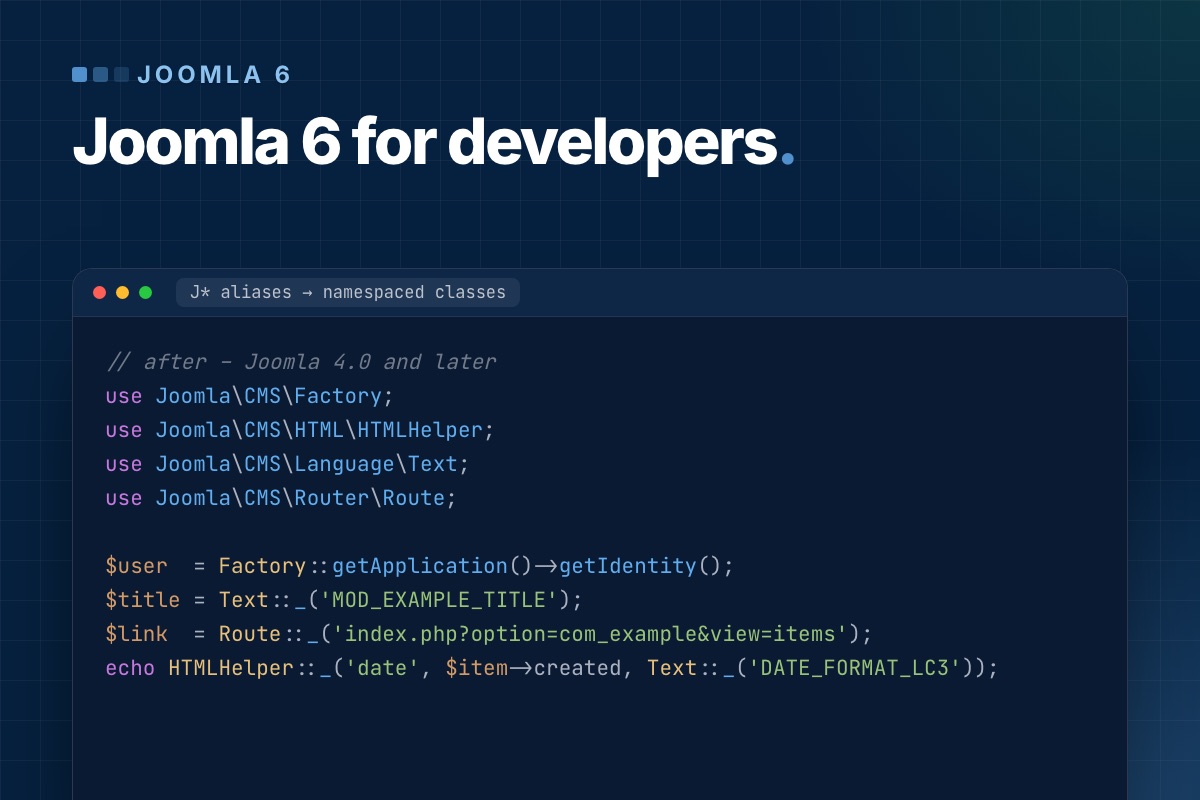

We first wrote this post about the Joomla 6 alpha. Joomla 6 is now at 6.2, and we have moved our own site and several client sites to it, so here is the version we wish we had read then: the changes in Joomla 6 that break extension and template code, how to find them in a codebase, and the replacement for each.
Everything below was checked against the Joomla 6.2 source, not the release notes.
The short version
| Old code | Joomla 6 status | Use instead |
|---|---|---|
JFactory, JText, JHtml, JRoute … (≈450 aliases) | removed from core; only via the compat plugin, off on new installs | namespaced classes: Factory, Text, HTMLHelper, Route |
Joomla\CMS\Filesystem\File, Folder, Path | moved to the compat plugin | Joomla\Filesystem\File, Folder, Path |
Joomla\CMS\Input\Input | moved to the compat plugin | Joomla\Input\Input |
CliApplication scripts in /cli | moved to the compat plugin | a console command in cli/joomla.php |
$db->getQuery(true) | deprecated | $db->createQuery() |
Factory::getUser(), getDbo(), getCache() … | deprecated since 4.3, removed in 7.0 | $app->getIdentity(), the DI container |
chosen, wcpolyfill assets | removed (empty stubs in the compat plugin) | choices.js via the fancy-select field |
Legacy plugins (plgSystemFoo with method-name events) | still work, deprecated | SubscriberInterface + event objects |
The compatibility plugin: what it does and doesn't do
Joomla 6 ships Behaviour – Backward Compatibility 6 (plg_behaviour_compat6) with three options:
- Classes Aliases, off by default. It loads
classmap.php, which registers the oldJ*names. Every alias in it is tagged "6.0", meaning it was removed from core in 6.0. - Include Deprecated Classes, on by default. It registers
plugins/behaviour/compat6/classesunder theJoomla\CMSnamespace, which brings backFilesystem,Inputand the old CLIApplicationclasses. - Removed Assets, on by default. It adds empty
chosenandwcpolyfillassets so$wa->useScript('chosen')doesn't throw.
Two things we learned on real upgrades. First, a fresh Joomla 6 install has Classes Aliases off, so an extension that works on an upgraded site can fatal-error on a new one. Test on both. Second, these classes are tagged for removal in 7.0. The plugin buys you time, it doesn't fix anything. On our own site, two commercial extensions (a subscription component and a forum) still need the aliases on Joomla 6.2. That is the most common situation you'll meet.
Find the problems before you upgrade
Run this from the extension's root. It's crude, but it catches most of the list above in seconds:
# terminal
grep -rnE "\bJ(Factory|Text|Html|Route|Uri|Table|Model[A-Z]?\w*|View\w*|Controller\w*|Plugin|Log|Date|Language|Session|User|Access|Form\w*|Registry|Filter\w*)\b" --include=*.php .
grep -rnE "Joomla\\\\CMS\\\\(Filesystem|Input)\\\\" --include=*.php .
grep -rnE "getQuery\(true\)|Factory::(getUser|getDbo|getSession|getLanguage|getDocument|getCache)\(" --include=*.php .
grep -rnE "useScript\('(chosen|wcpolyfill)'|HTMLHelper::_\('formbehavior\.chosen" --include=*.php .
Then test with Debug System on and Log Deprecated API on (System → Global Configuration → Logging). Click through every view of the extension and read administrator/logs/deprecated.php. It lists each deprecated call with the file and line, including the calls that grep misses because the class name is built dynamically.
1. Class aliases: the mechanical part
// before – works only with "Classes Aliases" on
$user  = JFactory::getUser();
$title = JText::_('MOD_EXAMPLE_TITLE');
$link  = JRoute::_('index.php?option=com_example&view=items');
echo JHtml::_('date', $item->created, JText::_('DATE_FORMAT_LC3'));
// after – Joomla 4.0 and later
use Joomla\CMS\Factory;
use Joomla\CMS\HTML\HTMLHelper;
use Joomla\CMS\Language\Text;
use Joomla\CMS\Router\Route;
$user = Factory::getApplication()->getIdentity();
$title = Text::_('MOD_EXAMPLE_TITLE');
$link = Route::_('index.php?option=com_example&view=items');
echo HTMLHelper::_('date', $item->created, Text::_('DATE_FORMAT_LC3'));Note getIdentity() instead of Factory::getUser(). Swapping JFactory for Factory makes the code run on Joomla 6, but every deprecated Factory::get* call is another fix waiting for Joomla 7. Do both in one pass.
2. Filesystem: same names, different behaviour
This is the one that causes bugs rather than fatal errors. The framework classes are not drop-in replacements: they throw exceptions where the old CMS classes returned false and queued an error message.
// before – Joomla\CMS\Filesystem\File
use Joomla\CMS\Filesystem\File;

if (!File::delete($tmpFile)) {
    $this->setError('Could not remove the temporary file');   // never reached on Joomla 6
}
// after – Joomla\Filesystem\File (framework package)
use Joomla\Filesystem\Exception\FilesystemException;
use Joomla\Filesystem\File;
try {
File::delete($tmpFile);
} catch (FilesystemException $e) {
$this->getApplication()->enqueueMessage('Could not remove the temporary file', 'warning');
}Also check File::exists() and Folder::exists(). In most code a plain is_file() or is_dir() is clearer and has no dependency.
3. Input: change the type hints
$app->getInput() is declared to return Joomla\Input\Input. Code that type-hints the old CMS class still runs while "Include Deprecated Classes" is on. With it off, or on Joomla 7, it fails with a TypeError.
// src/Helper/ExampleHelper.php
use Joomla\Input\Input;              // was: Joomla\CMS\Input\Input

public static function getFilters(Input $input): array
{
    return [
        'category' => $input->getInt('catid'),
        'search'   => $input->getString('filter_search', ''),
    ];
}
While you're there, replace $app->input (a magic property) with $app->getInput(). Static analysis can follow a method call, not a magic property.
4. Database queries: createQuery()
getQuery(true) still works, but the $new parameter triggers a deprecation in the database package. createQuery() always returns a fresh query object:
// src/Model/ItemsModel.php
$db    = $this->getDatabase();
$query = $db->createQuery()                    // was: $db->getQuery(true)
    ->select($db->quoteName(['id', 'title', 'alias']))
    ->from($db->quoteName('#__example_items'))
    ->where($db->quoteName('state') . ' = 1')
    ->order($db->quoteName('ordering') . ' ASC');
In models, use $this->getDatabase() (from DatabaseAwareTrait), not Factory::getDbo(). It also makes the model testable, because the database can be injected.
5. CLI scripts become console commands
Standalone scripts in /cli that extend CliApplication only run while the compat plugin provides that class. The supported way is a console command, registered by a plugin and run through cli/joomla.php. That gives you options, help text and exit codes for free:
// plugins/console/example/src/Extension/Example.php
namespace Example\Plugin\Console\Example\Extension;

use Example\Plugin\Console\Example\Command\CleanupCommand;
use Joomla\Application\ApplicationEvents;
use Joomla\Application\Event\ApplicationEvent;
use Joomla\CMS\Plugin\CMSPlugin;
use Joomla\Event\SubscriberInterface;

final class Example extends CMSPlugin implements SubscriberInterface
{
    public static function getSubscribedEvents(): array
    {
        return [ApplicationEvents::BEFORE_EXECUTE => 'registerCommands'];
    }

    public function registerCommands(ApplicationEvent $event): void
    {
        $event->getApplication()->addCommand(new CleanupCommand());
    }
}
// plugins/console/example/src/Command/CleanupCommand.php
namespace Example\Plugin\Console\Example\Command;
use Joomla\Console\Command\AbstractCommand;
use Symfony\Component\Console\Command\Command;
use Symfony\Component\Console\Input\InputInterface;
use Symfony\Component\Console\Input\InputOption;
use Symfony\Component\Console\Output\OutputInterface;
use Symfony\Component\Console\Style\SymfonyStyle;
final class CleanupCommand extends AbstractCommand
{
protected static $defaultName = 'example:cleanup';
protected function configure(): void
{
$this->setDescription('Delete expired example items');
$this->addOption('days', null, InputOption::VALUE_REQUIRED, 'Older than N days', 30);
}
protected function doExecute(InputInterface $input, OutputInterface $output): int
{
$io = new SymfonyStyle($input, $output);
// … delete rows older than (int) $input->getOption('days')
$io->success('Done');
return Command::SUCCESS;
}
}# terminal
php cli/joomla.php example:cleanup --days=60For recurring jobs, a task plugin for the Scheduler is usually better than a command plus a crontab line, because it is configurable in the back end and logged. Commands are for things you run by hand or from a deploy script.
6. Assets: chosen is gone
If a form or layout calls HTMLHelper::_('formbehavior.chosen') or useScript('chosen'), Joomla 6 renders a plain <select>. Thanks to the stub asset there's no error, so it's easy to miss. Use the core fancy-select field, which is built on choices.js:
<!-- forms/filter_items.xml -->
<field
    name="tag"
    type="tag"
    mode="nested"
    layout="joomla.form.field.list-fancy-select"
    multiple="true"
    label="JTAG"
/>
7. Plugins: move to SubscriberInterface now
Legacy plugins (a plgSystemFoo class whose public methods are matched to event names) still run on Joomla 6. They are the next thing to go, and a plugin that implements SubscriberInterface works on Joomla 4.4, 5 and 6 alike, so there's no reason to wait. The full before/after, with the service provider and event objects, is in Joomla 6 plugin events explained with a CiviCRM example.
Template overrides
Overrides are code too. After the upgrade, open System → Templates → (your template) and look for the "Changes found" notice: Joomla flags overrides whose core layout changed in the update. In Joomla 6.2 the intro/full-text image layouts changed (separate image and figure classes), so overrides of layouts/joomla/content/intro_image.php and full_image.php are the first to compare.
A version policy that keeps one codebase
For our own extensions we support the current and the previous major version from one codebase: today Joomla 5.4 and 6.x, PHP 8.1+. Everything in this post works on both, because every replacement above exists since Joomla 4.x. The manifest says so:
<!-- mod_example.xml -->
<extension type="module" client="site" method="upgrade">
    <name>mod_example</name>
    <version>3.0.0</version>
    <namespace path="src">Example\Module\Example</namespace>
    …
</extension>
<!-- update XML -->
<targetplatform name="joomla" version="(5\.4|6)\..*"/>
<php_minimum>8.1</php_minimum>Once your code passes the grep above and leaves deprecated.php empty, it is ready for Joomla 6 and most of the way to Joomla 7. What Joomla 7 removes next is in Joomla 7 breaking changes.
An extension that won't run on Joomla 6? Whether it's yours or abandoned by its vendor, we port it, keep your data, and hand you code that runs on 5.4 and 6.
Custom extension development →