

Joomla has no screen for typing SQL, so to run a SQL query in the Joomla admin you need a database tool that lives in the backend. With the free PX Adminer component it is Components → PX Adminer → SQL command. The safe way to use it is a fixed routine: run a SELECT with the same WHERE first, copy the rows you are about to change, try the change inside a transaction that ends in ROLLBACK, and only then run it with COMMIT. Below is that routine with the output from a Joomla 6.2 test site, and four things that can undo a change you wanted or keep one you did not.
Where a SQL statement can be run
Joomla's own database screen (System → Maintenance → Database) only compares your tables with the update scripts and fixes the structure. It has no input for a statement. That leaves three places:
- The host's phpMyAdmin, if you have the hosting login and the host offers it.
- The
mysqlclient over SSH, if you have shell access. - A database tool inside the Joomla administrator. PX Adminer puts Adminer 6 behind the Joomla login. Only Super Users can open it, and it connects with the database settings Joomla already has, so there is no second password to keep.
The routine below works the same in all three. The details about separate runs and "Stop on error" are specific to Adminer.
One thing before the first statement: SQL you copy from a forum often writes table names as #__content. #__ is Joomla's placeholder for the table prefix. A database tool does not replace it, so type the real prefix from $dbprefix in configuration.php. On our test site that is j6_.
The routine: five steps
The example job: unpublish every site module at the position sidebar-right. You could do this under Content → Site Modules; the point here is the order of the steps, which stays the same for any UPDATE. Step 5 has a second form for a DELETE.
1. Run a SELECT with the same WHERE
-- step 1: look at the rows the change will touch
SELECT id, title, published
FROM j6_modules
WHERE position = 'sidebar-right' AND client_id = 0;
On the test site this lists 5 modules, all published. The UPDATE may report at most that number later: MySQL counts the rows it really changed, so a row that already holds the new value is not counted. If the list holds a row you did not expect, fix the WHERE now. client_id = 0 keeps the administrator modules out of it.
2. Copy the rows you are about to change
-- step 2: keep the current rows in a dated table
CREATE TABLE j6_bak_modules_20261111 AS
SELECT * FROM j6_modules
WHERE position = 'sidebar-right' AND client_id = 0;
Adminer answers Query executed OK, 5 rows affected. The copy has the data and no indexes, which is fine for a table you will drop again. Run this statement on its own, never inside the transaction of step 3: CREATE TABLE commits whatever is open. If the table holds personal data (users, for example), the copy holds it too until you drop it. For a change across many tables, take a full dump instead: the Back up database link in PX Adminer downloads the whole database as a dated .sql.gz file.
3. Dry run inside a transaction
Tick Stop on error under the SQL box, then run the whole script in one go:
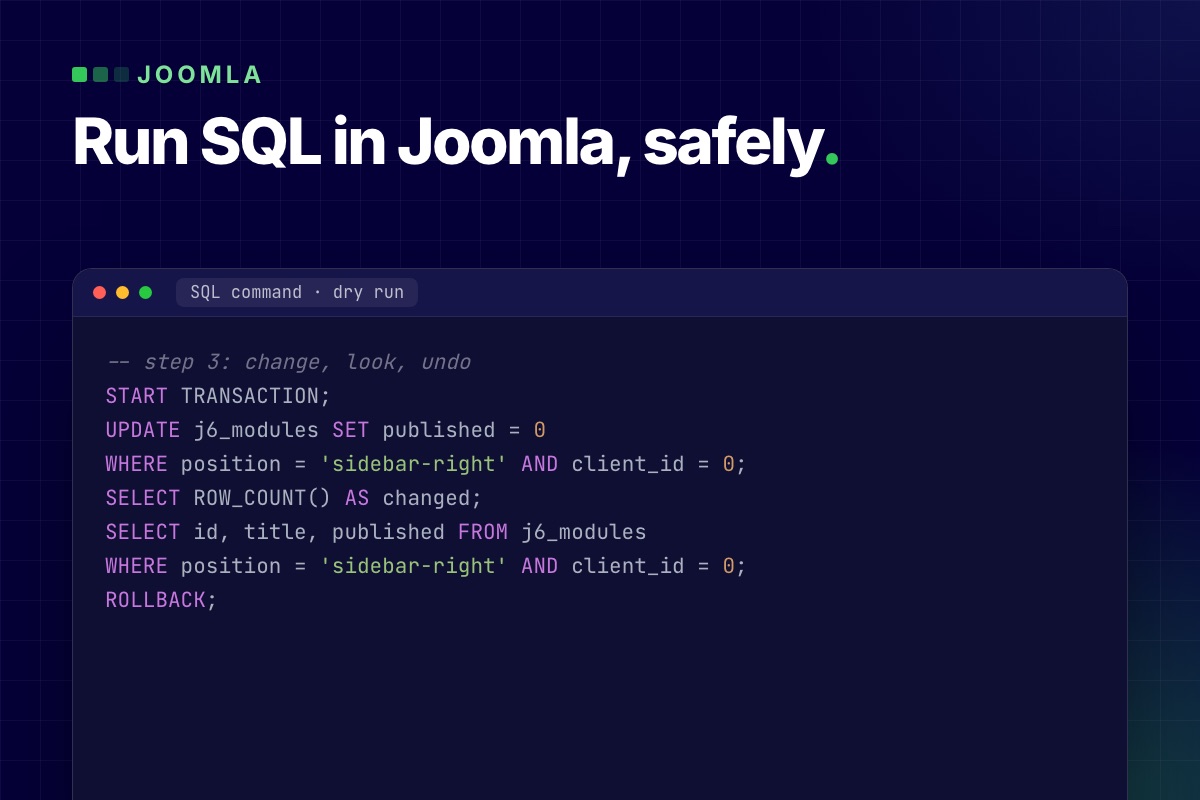
-- step 3: change, look, undo
START TRANSACTION;
UPDATE j6_modules SET published = 0
WHERE position = 'sidebar-right' AND client_id = 0;
SELECT id, title, published FROM j6_modules
WHERE position = 'sidebar-right' AND client_id = 0;
ROLLBACK;
The UPDATE reports 5 rows affected, the same 5 as in step 1, and the SELECT after it shows them unpublished. After ROLLBACK the table is as it was; we read it again over a separate connection and all five were still published. Visitors never saw the change, because other connections do not see a transaction that has not been committed.
4. Run it for real
-- step 4: the same change, kept
START TRANSACTION;
UPDATE j6_modules SET published = 0
WHERE position = 'sidebar-right' AND client_id = 0;
COMMIT;
Keep Stop on error ticked here too. The reason is in the next section. Then open the site and check the result where a visitor would see it.
5. If it was wrong, put the old values back
-- step 5: restore one column from the copy
UPDATE j6_modules m
JOIN j6_bak_modules_20261111 b ON b.id = m.id
SET m.published = b.published;
On the test site this set the 5 modules back, and a comparison with the state before step 1 showed no difference. List every column your change touched in the SET part. After a DELETE there is no row left to join, so the way back is to insert the copied rows again:
-- step 5 after a DELETE: put the copied rows back
INSERT INTO j6_modules
SELECT * FROM j6_bak_modules_20261111
WHERE id NOT IN (SELECT id FROM j6_modules);
The last line skips rows that still exist; without it one duplicate id stops the whole insert with error 1062. Rows that a foreign key deleted along with yours in other tables are not in the copy. When you are sure the change is good, remove the copy with DROP TABLE j6_bak_modules_20261111;. Leftover bak_ tables are clutter, and every full backup carries them along.
Four things that break the routine
We ran each of these on the same test site.
Every run is its own connection
Two runs of SELECT CONNECTION_ID() gave two different ids (162, then 169). So a transaction cannot span two runs. We ran START TRANSACTION and an UPDATE, then COMMIT as a second run: both reported OK, and the table was unchanged. Adminer rolls back whatever is still open at the end of a run, and the connection closes with it, so the later COMMIT had nothing to commit. Put START TRANSACTION, the changes and the COMMIT or ROLLBACK in one script.
"Stop on error" is off by default
Without it, Adminer keeps going after a failed statement. We put a typo in the second of two updates:
-- test: second statement fails
START TRANSACTION;
UPDATE j6_c12_demo SET state = 0 WHERE title LIKE 'Old%';
UPDATE j6_c12_demo SET nosuchcol = 1;
COMMIT;
With the box unticked, the first update ran, the second failed with error 1054, and COMMIT still ran: half the script was now permanent. With Stop on error ticked, the script stopped at the error and the first update was rolled back at the end of the run. The table was untouched.
ALTER, CREATE, DROP and TRUNCATE commit on the spot
Statements that change structure end the current transaction, a behavior the MySQL manual lists under statements that cause an implicit commit. In our test an UPDATE followed by ALTER TABLE … ADD and then ROLLBACK kept both the update and the new column. A transaction protects INSERT, UPDATE and DELETE. For structure changes and for TRUNCATE, the copy from step 2 or a dump is the only way back.
MyISAM tables ignore ROLLBACK
Joomla's own tables are InnoDB, but older extensions still bring MyISAM tables. On a MyISAM copy of the test table, ROLLBACK reported OK and the rows stayed changed. The only hint was a small Warnings link next to the ROLLBACK line in the result; it opens warning 1196, Some non-transactional changed tables couldn't be rolled back. Check the Engine column in the table list before you rely on a transaction.
An extra guard: sql_safe_updates
For statements that pick rows by id, start the script with SET sql_safe_updates = 1;. MySQL then refuses an UPDATE or DELETE whose WHERE does not use an indexed column (error 1175) instead of changing every row. It lasts for that one run. It is strict: the module example above is refused too, because position has no index.
What PX Adminer Pro automates
Steps 2 and 5 are the ones people skip when they are in a hurry. PX Adminer Pro, the paid add-on, does them on every change:
- A snapshot before each change. For an
UPDATEorDELETEwith aWHERE, Pro copies only the matching rows; in our test the snapshot of theUPDATE … WHERE title LIKE 'Old%'held 1 row. For aDELETEwithoutWHEREit copied the whole table (4 rows). A table you drop is moved into the snapshot instead of deleted (copied, if it has triggers or foreign keys). - Restore from a list. Components → PX Adminer → Snapshots shows each snapshot with the statement that caused it. Restoring the delete snapshot brought the 4 rows back, and Pro first saved the state before the restore as a new snapshot, so the restore itself can be undone.
- Write-protected core tables. By default the users, user group map, user groups, view levels, assets, extensions, schemas and multi-factor authentication tables cannot be changed from PX Adminer; reading them still works. An
UPDATEonj6_userswas refused with "PX Adminer Pro write-protects j6_users". - Read-only mode, for everyone or for chosen user groups. Browsing, export and
SELECTwork; ourUPDATEwas refused with "PX Adminer is in read-only mode, so changes are turned off". Useful when a colleague needs to look something up and should not be able to change anything.
Limits of the automatic part: a table larger than the snapshot limit (100 MB by default) is not copied and the change still runs, with a notice. By default the maintenance task deletes snapshots older than 30 days and all but the newest 100. And a snapshot is taken even for a script you roll back, so the list also holds dry runs. Setup and options are in the PX Adminer Pro documentation.
What SQL does not do on a Joomla site
- It does not clear the cache. If caching is on, a module or menu change may not show until you run System → Maintenance → Clear Cache.
- It skips Joomla's own logic. No plugin events run, so a change made in SQL has no entry in the article's version history and is not picked up by Smart Search until the next index run.
- Tree tables need more than one row changed. Assets, categories, menu items, tags and user groups store their position in
lftandrgtcolumns. Deleting or moving a row by hand leaves the tree inconsistent. Do those changes in the Joomla screens. Categories, menu items and tags have a Rebuild button in their managers that repairs the tree; assets and user groups do not. - It needs a working administrator. If the backend does not load, use SSH or the host's tools; our post on a Joomla site broken after a PHP upgrade covers that case.
- Your database user sets the limits. On shared hosting the user may not be allowed to create tables, and then step 2 fails. Take the dump instead.
Before a bigger job such as a Joomla upgrade, a full backup comes first; step one of our migration runbook describes it. We tested on MySQL 8.0.40 only; MariaDB has transactions and sql_safe_updates as well, but check the behavior on your version before you rely on it.
Get PX Adminer
PX Adminer is free with a free account on this site. Download it from the PX Adminer page, install it from System → Install → Extensions and open it under Components. It needs Track Session Metadata set to Yes under System → Global Configuration → System, which is the Joomla default. If you would rather not run SQL on a live site yourself, our maintenance and support service does it for you.