
Joomla
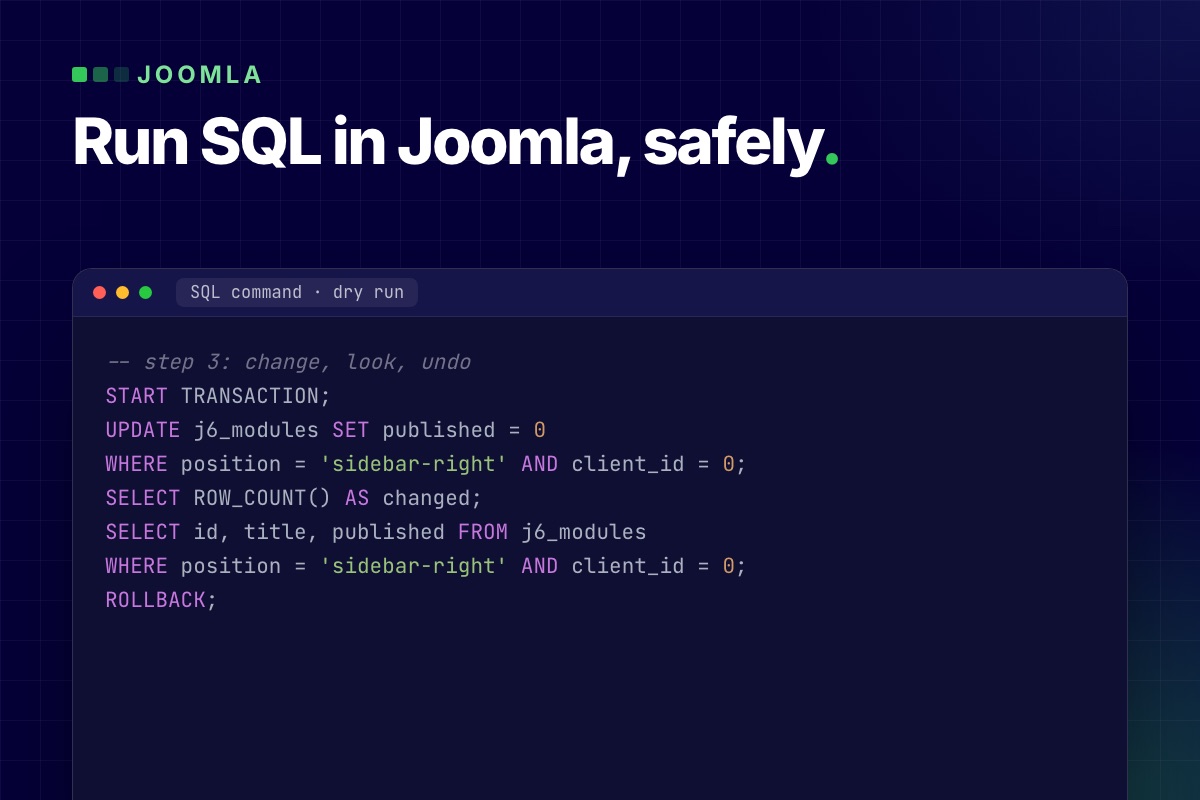

Joomla has no screen for typing SQL, so to run a SQL query in the Joomla admin you need a database tool that lives in the backend. With the free PX Adminer component it is Components → PX Adminer → SQL command. The safe way to use it is a fixed routine: run a SELECT with the same WHERE first, copy the rows you are about to change, try the change inside a transaction that ends in ROLLBACK, and only then run it with COMMIT. Below is that routine with the output from a Joomla 6.2 test site, and four things that can undo a change you wanted or keep one you did not.
Where a SQL statement can be run
Joomla's own database screen (System → Maintenance → Database) only compares your tables with the update scripts and fixes the structure. It has no input for a statement. That leaves three places:
- The host's phpMyAdmin, if you have the hosting login and the host offers it.
- The
mysqlclient over SSH, if you have shell access. - A database tool inside the Joomla administrator. PX Adminer puts Adminer 6 behind the Joomla login. Only Super Users can open it, and it connects with the database settings Joomla already has, so there is no second password to keep.
The routine below works the same in all three. The details about separate runs and "Stop on error" are specific to Adminer.
One thing before the first statement: SQL you copy from a forum often writes table names as #__content. #__ is Joomla's placeholder for the table prefix. A database tool does not replace it, so type the real prefix from $dbprefix in configuration.php. On our test site that is j6_.
The routine: five steps
The example job: unpublish every site module at the position sidebar-right. You could do this under Content → Site Modules; the point here is the order of the steps, which stays the same for any UPDATE. Step 5 has a second form for a DELETE.
1. Run a SELECT with the same WHERE
-- step 1: look at the rows the change will touch
SELECT id, title, published
FROM j6_modules
WHERE position = 'sidebar-right' AND client_id = 0;
On the test site this lists 5 modules, all published. The UPDATE may report at most that number later: MySQL counts the rows it really changed, so a row that already holds the new value is not counted. If the list holds a row you did not expect, fix the WHERE now. client_id = 0 keeps the administrator modules out of it.
2. Copy the rows you are about to change
-- step 2: keep the current rows in a dated table
CREATE TABLE j6_bak_modules_20261111 AS
SELECT * FROM j6_modules
WHERE position = 'sidebar-right' AND client_id = 0;
Adminer answers Query executed OK, 5 rows affected. The copy has the data and no indexes, which is fine for a table you will drop again. Run this statement on its own, never inside the transaction of step 3: CREATE TABLE commits whatever is open. If the table holds personal data (users, for example), the copy holds it too until you drop it. For a change across many tables, take a full dump instead: the Back up database link in PX Adminer downloads the whole database as a dated .sql.gz file.
3. Dry run inside a transaction
Tick Stop on error under the SQL box, then run the whole script in one go:
-- step 3: change, look, undo
START TRANSACTION;
UPDATE j6_modules SET published = 0
WHERE position = 'sidebar-right' AND client_id = 0;
SELECT id, title, published FROM j6_modules
WHERE position = 'sidebar-right' AND client_id = 0;
ROLLBACK;
The UPDATE reports 5 rows affected, the same 5 as in step 1, and the SELECT after it shows them unpublished. After ROLLBACK the table is as it was; we read it again over a separate connection and all five were still published. Visitors never saw the change, because other connections do not see a transaction that has not been committed.
4. Run it for real
-- step 4: the same change, kept
START TRANSACTION;
UPDATE j6_modules SET published = 0
WHERE position = 'sidebar-right' AND client_id = 0;
COMMIT;
Keep Stop on error ticked here too. The reason is in the next section. Then open the site and check the result where a visitor would see it.
5. If it was wrong, put the old values back
-- step 5: restore one column from the copy
UPDATE j6_modules m
JOIN j6_bak_modules_20261111 b ON b.id = m.id
SET m.published = b.published;
On the test site this set the 5 modules back, and a comparison with the state before step 1 showed no difference. List every column your change touched in the SET part. After a DELETE there is no row left to join, so the way back is to insert the copied rows again:
-- step 5 after a DELETE: put the copied rows back
INSERT INTO j6_modules
SELECT * FROM j6_bak_modules_20261111
WHERE id NOT IN (SELECT id FROM j6_modules);
The last line skips rows that still exist; without it one duplicate id stops the whole insert with error 1062. Rows that a foreign key deleted along with yours in other tables are not in the copy. When you are sure the change is good, remove the copy with DROP TABLE j6_bak_modules_20261111;. Leftover bak_ tables are clutter, and every full backup carries them along.
Four things that break the routine
We ran each of these on the same test site.
Every run is its own connection
Two runs of SELECT CONNECTION_ID() gave two different ids (162, then 169). So a transaction cannot span two runs. We ran START TRANSACTION and an UPDATE, then COMMIT as a second run: both reported OK, and the table was unchanged. Adminer rolls back whatever is still open at the end of a run, and the connection closes with it, so the later COMMIT had nothing to commit. Put START TRANSACTION, the changes and the COMMIT or ROLLBACK in one script.
"Stop on error" is off by default
Without it, Adminer keeps going after a failed statement. We put a typo in the second of two updates:
-- test: second statement fails
START TRANSACTION;
UPDATE j6_c12_demo SET state = 0 WHERE title LIKE 'Old%';
UPDATE j6_c12_demo SET nosuchcol = 1;
COMMIT;
With the box unticked, the first update ran, the second failed with error 1054, and COMMIT still ran: half the script was now permanent. With Stop on error ticked, the script stopped at the error and the first update was rolled back at the end of the run. The table was untouched.
ALTER, CREATE, DROP and TRUNCATE commit on the spot
Statements that change structure end the current transaction, a behavior the MySQL manual lists under statements that cause an implicit commit. In our test an UPDATE followed by ALTER TABLE … ADD and then ROLLBACK kept both the update and the new column. A transaction protects INSERT, UPDATE and DELETE. For structure changes and for TRUNCATE, the copy from step 2 or a dump is the only way back.
MyISAM tables ignore ROLLBACK
Joomla's own tables are InnoDB, but older extensions still bring MyISAM tables. On a MyISAM copy of the test table, ROLLBACK reported OK and the rows stayed changed. The only hint was a small Warnings link next to the ROLLBACK line in the result; it opens warning 1196, Some non-transactional changed tables couldn't be rolled back. Check the Engine column in the table list before you rely on a transaction.
An extra guard: sql_safe_updates
For statements that pick rows by id, start the script with SET sql_safe_updates = 1;. MySQL then refuses an UPDATE or DELETE whose WHERE does not use an indexed column (error 1175) instead of changing every row. It lasts for that one run. It is strict: the module example above is refused too, because position has no index.
What PX Adminer Pro automates
Steps 2 and 5 are the ones people skip when they are in a hurry. PX Adminer Pro, the paid add-on, does them on every change:
- A snapshot before each change. For an
UPDATEorDELETEwith aWHERE, Pro copies only the matching rows; in our test the snapshot of theUPDATE … WHERE title LIKE 'Old%'held 1 row. For aDELETEwithoutWHEREit copied the whole table (4 rows). A table you drop is moved into the snapshot instead of deleted (copied, if it has triggers or foreign keys). - Restore from a list. Components → PX Adminer → Snapshots shows each snapshot with the statement that caused it. Restoring the delete snapshot brought the 4 rows back, and Pro first saved the state before the restore as a new snapshot, so the restore itself can be undone.
- Write-protected core tables. By default the users, user group map, user groups, view levels, assets, extensions, schemas and multi-factor authentication tables cannot be changed from PX Adminer; reading them still works. An
UPDATEonj6_userswas refused with "PX Adminer Pro write-protects j6_users". - Read-only mode, for everyone or for chosen user groups. Browsing, export and
SELECTwork; ourUPDATEwas refused with "PX Adminer is in read-only mode, so changes are turned off". Useful when a colleague needs to look something up and should not be able to change anything.
Limits of the automatic part: a table larger than the snapshot limit (100 MB by default) is not copied and the change still runs, with a notice. By default the maintenance task deletes snapshots older than 30 days and all but the newest 100. And a snapshot is taken even for a script you roll back, so the list also holds dry runs. Setup and options are in the PX Adminer Pro documentation.
What SQL does not do on a Joomla site
- It does not clear the cache. If caching is on, a module or menu change may not show until you run System → Maintenance → Clear Cache.
- It skips Joomla's own logic. No plugin events run, so a change made in SQL has no entry in the article's version history and is not picked up by Smart Search until the next index run.
- Tree tables need more than one row changed. Assets, categories, menu items, tags and user groups store their position in
lftandrgtcolumns. Deleting or moving a row by hand leaves the tree inconsistent. Do those changes in the Joomla screens. Categories, menu items and tags have a Rebuild button in their managers that repairs the tree; assets and user groups do not. - It needs a working administrator. If the backend does not load, use SSH or the host's tools; our post on a Joomla site broken after a PHP upgrade covers that case.
- Your database user sets the limits. On shared hosting the user may not be allowed to create tables, and then step 2 fails. Take the dump instead.
Before a bigger job such as a Joomla upgrade, a full backup comes first; step one of our migration runbook describes it. We tested on MySQL 8.0.40 only; MariaDB has transactions and sql_safe_updates as well, but check the behavior on your version before you rely on it.
Get PX Adminer
PX Adminer is free with a free account on this site. Download it from the PX Adminer page, install it from System → Install → Extensions and open it under Components. It needs Track Session Metadata set to Yes under System → Global Configuration → System, which is the Joomla default. If you would rather not run SQL on a live site yourself, our maintenance and support service does it for you.
You can build a landing page from Joomla content blocks without a page builder. Joomla 6 ships three ways to do it, and a free block module adds a fourth where the editor changes the text on the page itself. We ran three of them on a Joomla 6.2 site with Cassiopeia and read the fourth, the Articles module, from the core source. Below is what each one takes, where it breaks and what it loads.
The four ways at a glance
| Way | The editor changes text in | The markup lives in | Use it for |
|---|---|---|---|
| Custom module + layout override | The module form | A template file | A few fixed sections with simple text |
{loadmoduleid} in an article | The module form | The module or its override | A section in the middle of an article |
| Articles + custom fields + a list module | The article form | A module layout override | Repeating items: team, services, FAQ |
| Block module (PX Content) | The page itself | A block template | Whole landing pages a client keeps editing |
A section is a layout plus the content in it. The four ways differ in how far apart they keep the two. The further apart, the less an editor can break.
A Custom module with a layout override
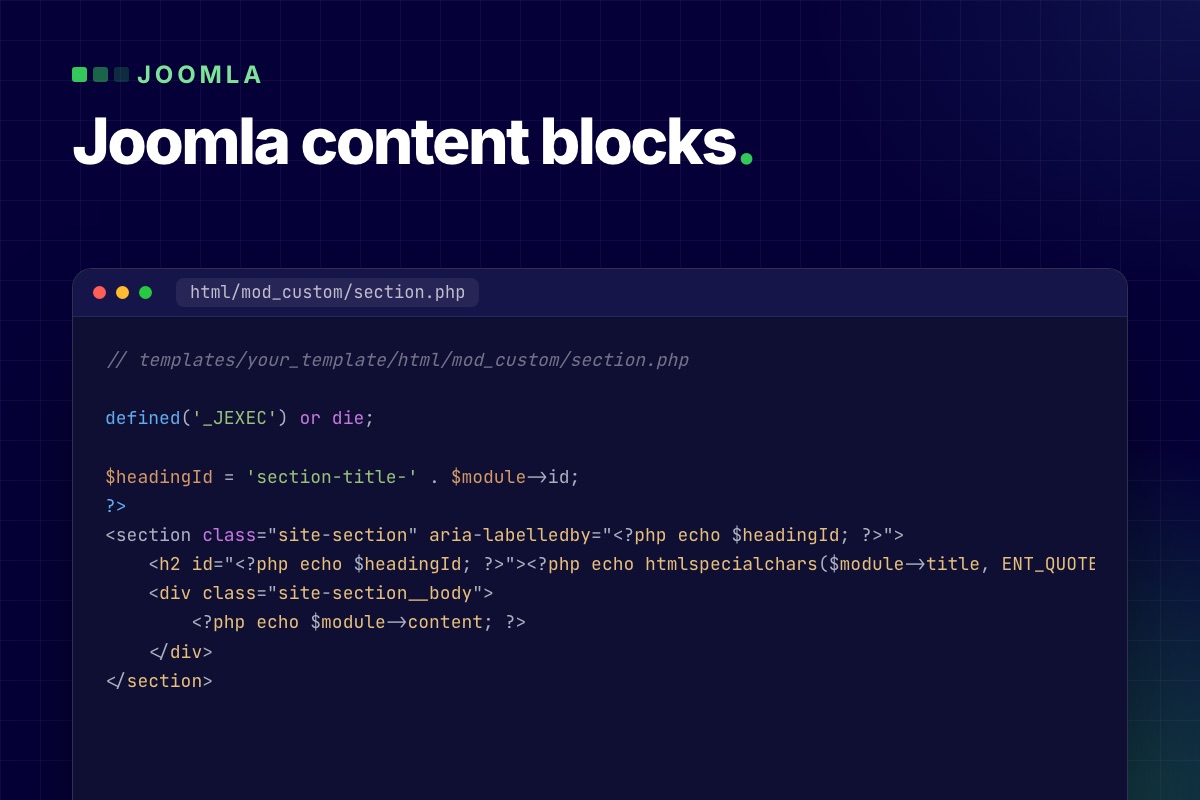
Cassiopeia already does this. Its banner is a Custom module with the layout banner, a short file in templates/cassiopeia/html/mod_custom/banner.php that wraps whatever the editor typed in the overlay markup. You can use the same pattern for your own sections. This is the override we tested. Save it with <?php on its own first line, above the comment:
// templates/your_template/html/mod_custom/section.php

defined('_JEXEC') or die;

$headingId = 'section-title-' . $module->id;
?>
<section class="site-section" aria-labelledby="<?php echo $headingId; ?>">
    <h2 id="<?php echo $headingId; ?>"><?php echo htmlspecialchars($module->title, ENT_QUOTES, 'UTF-8'); ?></h2>
    <div class="site-section__body">
        <?php echo $module->content; ?>
    </div>
</section>
Then create the module under Content → Site Modules → New → Custom and set three things:
- Title: hide it in the module form. The layout prints it as the section heading.
- Advanced → Layout: pick section. Joomla lists the files in the template's
html/mod_custom/folder, except those with an underscore in the name, somy_section.phpwould not show up. - Advanced → Module Style: none, so the template's card wrapper does not go around your section.
On our test site the module in position top-a came out as one clean <section> with the heading and the paragraph, nothing else. The editor types a paragraph. The section, the heading level and the classes stay in the file. Put the override in your own template or a child template, not in Cassiopeia itself.
Where it breaks
- Anything with structure. A row of three cards is still HTML in the editor. The first time a client deletes a card or pastes from Word, the wrapper divs and their classes go with it.
- Inline CSS and scripts. Module text goes through Joomla's text filters (Global Configuration → Text Filters). On a default install only Super Users are set to No Filtering. Managers, Administrators, Editors and the other editing groups get the Default Forbidden List, which removes
<style>,<script>,<iframe>and<link>among others when they save. A section that a Super User built with a<style>block loses its styling the day an Administrator edits it. Keep the CSS in the template. - Finding the module. The editor has to know which of 30 modules holds the headline. Joomla's Frontend Editing (Global Configuration → Site, set to Modules by default) helps: it adds an edit link to each module in a template position, for users who have the Frontend Editing permission on modules. A module loaded into an article, as in the next section, gets no such link.
A module inside an article with {loadmoduleid}
The Content - Load Modules plugin puts a module in the middle of an article. It understands three tags (the # lines are notes, not part of the tag):
# every module published in position "faq"
{loadposition faq}

# one module by type and title
{loadmodule mod_custom,Opening hours}

# one module by its ID
{loadmoduleid 149}
Use the ID. A title changes the day somebody renames the module, and the tag then loads nothing. The module has to be published, assigned to the page under Menu Assignment and visible to the visitor's access level, but it does not need a position.
We loaded the section module from the previous step into an article and it rendered, with one flaw. The editor wraps the tag in a paragraph, so the page source was <p><section>…</section></p>. A <section> is not allowed inside a <p>, so the browser closes the paragraph early and you get an empty paragraph above and below the section. Switch the editor to its code view and change that one wrapper from <p> to <div>.
Tags also work inside a module. A Custom module has a Prepare Content option, which runs content plugins on the module text, so a module can load another module or use any other content plugin tag.
Articles and custom fields behind a list module
Team members, services, FAQ entries: when a section repeats the same item, make each item an article and let a module print the list. The editor then works in the article form, which is the part of Joomla they already know, and permissions follow the category.
- One category per section type, for example Team.
- Custom fields for that category under Content → Fields: role, photo, profile link. Assign the fields to the category so they only show up there.
- An Articles module (the
mod_articlesmodule that Joomla 6 ships) filtered to the category, with your own layout inhtml/mod_articles/that prints the cards.
One switch decides whether this works. The Articles module has an option Trigger Plugin Events, and it is off by default. The field values reach your layout as $item->jcfields, and the Fields plugin only fills that when the module triggers the content events. Leave the option off and your override gets articles with no fields. We read this from the module's helper and the Fields plugin in Joomla 6.2; it is the first thing to check when a card comes out empty.
For rows inside one article, such as the questions of one FAQ, the core Subform field type gives the editor repeatable rows. The trade-off of this whole approach: a developer writes one override per section type, and the page is still a stack of modules.
A block module: fields in, section out
A block module takes the idea of the layout override to the end. The layout is a block template that the editor never sees. The content is a set of fields: a heading, an intro, a list of rows. PX Content is our free module built this way. One module shows one block, you pick the block and its style from a library (12 blocks in 20 styles in version 1.0.1), and each block opens with sample content.
The part a client notices is the editing. A logged-in user with edit permission on that module clicks Edit content on the page, double-clicks a heading or a paragraph and types. The editor cannot break the layout markup: only the fields the block declares can be saved, and rich text goes through Joomla's input filter. The release post covers the block list, the save rules and how a template adds its own blocks.
What it loads
We put one FAQ block (Accordion, four questions) on the Cassiopeia test site, with no ThePixel template involved, and looked at the page source:
| Page | Block CSS | Block JavaScript |
|---|---|---|
| Cassiopeia + one Accordion block | 2 files, 10.7 KB (3.1 KB gzipped) | None. The FAQ is native <details> |
| PX Base demo home, 12 blocks of 8 types | 18 files, 81.8 KB (21.3 KB gzipped) | 3 files, 159.7 KB (45.1 KB gzipped) |
Each block type loads its stylesheet once, however many blocks of that type are on the page, plus one shared file of 7.9 KB. A template can add its own stylesheet per block type, and PX Base does. The 18 files are 8 from the module, 8 from the template, the shared file and Swiper's stylesheet (18.5 KB). Almost all of the JavaScript on the demo home is the Swiper slider (154.6 KB, 43.1 KB gzipped), which is loaded only when a Testimonials block is on the page. Leave that block out and the page would carry 3.5 KB of block script, and Swiper's stylesheet would go too. The cost on that page is the number of requests: 18 CSS files, most of them small. Sizes are the files on disk; the gzipped figure is gzip at its default level.
What you give up
- A fixed set of blocks. A layout that is not in the library means a new block: a folder with a config file and a PHP and XML pair per style, not a drag in a canvas.
- One block per module. A page is a stack of modules in template positions, so the template needs enough positions, and the page order is the module order.
- No free placement. Editors change content and a few settings such as spacing and alignment. They cannot move a column.
When a page builder is the right tool
Use a page builder when people who do not write code have to invent new layouts: a marketing team that ships a different campaign page every week, or a site where every page is a one-off. None of the four ways above gives a non-developer a blank canvas.
We did not install or measure any page builder for this post, so here is what to check instead of a verdict:
- Where is a page stored? If the layout and the text sit in the builder's own table or format, find out what is left of the content when the builder is uninstalled.
- What loads on pages that do not use it? Open a plain article in the browser's network tab and look for the builder's CSS and JavaScript.
- Does it run on your Joomla version without the backward compatibility plugin, and how fast did it support the last major release?
- Who can edit? Check that it follows Joomla's permissions, so an Author cannot change the home page.
Which one to pick
- One or two static sections on a site you maintain yourself: a Custom module with a layout override.
- A box in the middle of a long article:
{loadmoduleid}, wrapped in a<div>. - Lists that grow (team, services, case studies): articles with custom fields and an Articles module.
- A landing page of standard sections that a client edits: a block module.
- New layouts every week from non-developers: a page builder, after the four checks above.
They mix well. Our own free template works that way: PX Base builds its home page from blocks and leaves the blog to plain Joomla articles.
Limits of this test
- What we ran. The Custom module layout override,
{loadmoduleid}and one PX Content block on Joomla 6.2.0 with Cassiopeia; the 12-block page on a local PX Base demo (Joomla 6.1.1, PX Content 1.0.0, same asset loading as 1.0.1). - What we read from source. The text filter list, the Frontend Editing default and the whole Articles module approach, including its plugin events. We did not build that one.
- Not measured. Load time. File sizes say what a block adds, not how fast your page is.
- Older Joomla. PX Content runs on Joomla 4.4 and 5.x too, but we only tested the core steps on 6.2.
Get PX Content
PX Content is free with a ThePixel.dev account and works with any template. Download it from the PX Content page and follow the documentation for the first block. Need a block that is not in the library, or a set designed for your brand? We build them as part of template customization.
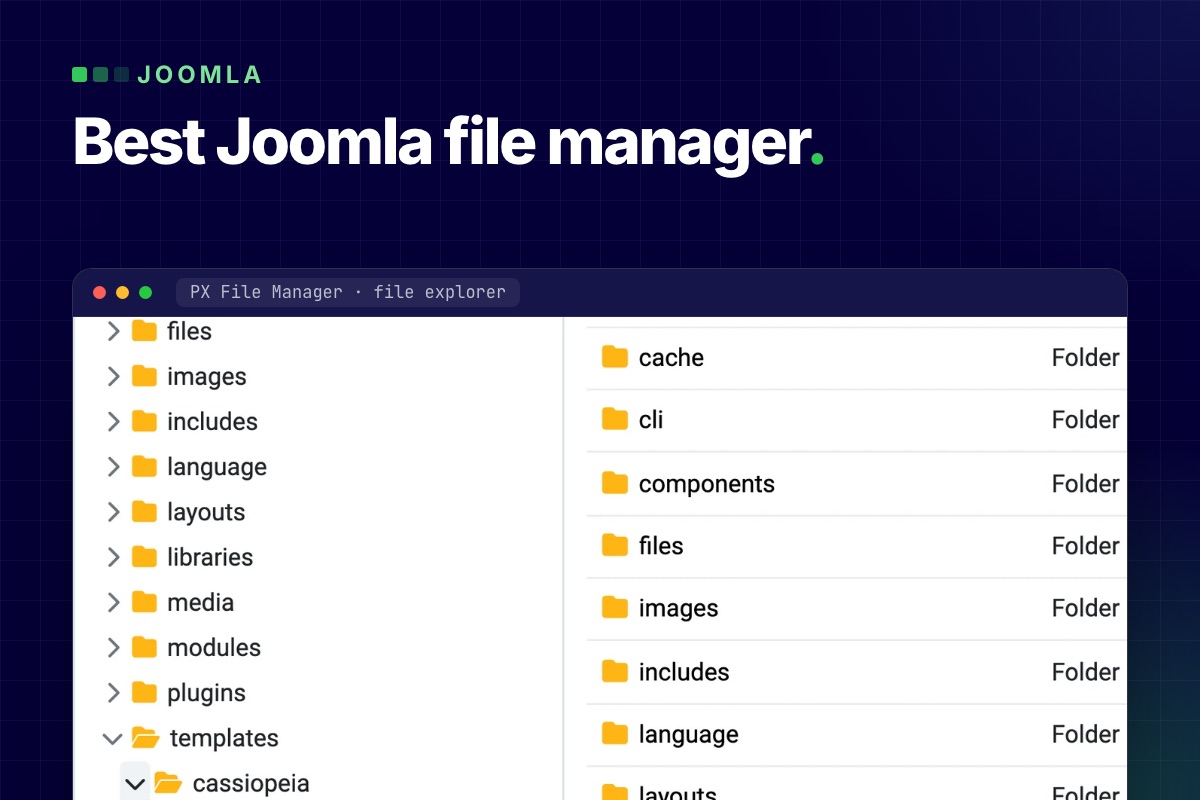
The best Joomla file manager depends on the job. For editing site files from the administrator (configuration.php, .htaccess, a plugin file), pick a site file manager such as PX File Manager, Phoca Commander or JMP File Manager. For images and documents inside articles, a media manager such as Quantum Manager or Joomla's own Media Manager is enough. For giving visitors a download area, you want a document manager like FILEman, not a file manager at all.
We make PX File Manager, so read that row with that in mind. This page compares what each tool's own listing says, as of November 2026.
How we compared
- Tested by us: PX File Manager 1.2.1 on Joomla 6.2. Its features below come from the extension itself.
- Read, not tested: every other tool. Versions, prices and features come from the Joomla Extensions Directory (JED) listing or the vendor page, opened on 4 November 2026. Listings change, so check the version line for your Joomla before you install anything.
- Tools that only manage media or downloads are included because they show up in the same searches. We did not audit any other tool's security; the checklist further down is what we would look at before installing one.
What Joomla core already does
- Template files: System → Site Templates → your template → Customise opens files inside that template's folder. By default it handles
txt, less, ini, xml, js, php, css, sass, scss, jsonfiles (Templates options). - Media Manager: works inside the folders set in the Filesystem – Local plugin. In Joomla 6.2 the defaults are
imagesandfiles.
Neither opens configuration.php, .htaccess or a file in /plugins. That gap is what a site file manager fills. For the step-by-step version, see how to edit Joomla files without FTP.
Joomla file managers compared (November 2026)
| Tool | What it is | Joomla (per listing) | Price | Worth knowing |
|---|---|---|---|---|
| PX File Manager | Site file manager: tree and list, tabbed code editor, search, trash, zip and tar.gz | 5.4 and 6 (1.2.1); 1.1 covers 4.4 to 5.3 | Free with a site account | Super Users only by default; view, create, edit and delete per user group. PHP 8.1+ |
| Phoca Commander | Dual-panel file manager | 3 to 6; 6.0.0, updated December 2025 | Free, GPL | Edit, upload, zip and unzip, chmod, copy and move |
| JMP File Manager | Site file manager built on elFinder | 3 to 6; 1.3.3, updated November 2026 | Paid (price not on the listing) | Edits and reads text files in the browser, zip and unzip, search, preview |
| Quantum Manager | File and media manager for editor and media fields | 5 and 6 in the tags (the text says 4 and 5); 3.3.0, updated May 2026 | Free, GPL | Bulk upload, resize and crop, watermark. A media tool, not a code editor |
| FILEman | File, video and image manager for visitors and editors | Not listed on the vendor page | $49 for 6 months for FILEman alone; or $99 a year and up for the Joomlatools suite | Galleries, public or private downloads. A document and media manager, not a site file editor |
| Joomla core | Template editor and Media Manager | Built in | Free | Template folder and media folders only |
We left out eXtplorer. Its JED listing is currently unpublished with the reason "UR3: Vulnerable Extension", and we found no Joomla 4, 5 or 6 compatibility statement for it. If you still run it from an old install, replace it.
Pick by job
- Small, urgent edits on one site: a site file manager. Phoca Commander is free and has a familiar two-panel layout. PX File Manager adds a tabbed Monaco editor (the VS Code engine), a syntax check for PHP, JSON, XML and INI before saving, and a trash you can restore from for 30 days.
- Prefer an elFinder-style interface: JMP File Manager.
- Editors who need to upload and resize images: Quantum Manager or the core Media Manager. A site file manager is the wrong tool and gives editors more access than they need.
- A download area with public and private files: FILEman. In PX File Manager the "Folder listing" menu item can list one folder of downloads, read-only, but it is not a gallery or document library.
- Client sites and teams: PX File Pro adds a folder and rules per user group, protected core files, an activity log, share links with expiry, file versions and an image optimizer. It comes with the Pro membership ($99 a year at the time of writing, every product, unlimited sites).
What to check before you install a file manager
A tool that can edit PHP in the browser is a way into your site. Before you install any of them:
- Who can open it? It should respect Joomla's user groups, and the default should be Super Users only. Anyone who can edit can write PHP, which is full control of the site.
- Is it locked to the site folder? Paths with
..or links that lead outside the Joomla root should be refused. - Does it check a session token on every action? Without it, a link on another website can trigger a delete or an edit while you are logged in.
- Can you undo a delete? PX File Manager moves deleted files to a trash folder first. Check what yours does before you need it.
- Does it update through Joomla? An extension that is not updated is a risk. Check the "last updated" date and the Joomla version on its JED listing, and that it is still listed.
- Does it match your Joomla and PHP version? PX File Manager 1.2 needs Joomla 5.4 or 6; on Joomla 4.4 to 5.3 use 1.1. Check the same for the others.
The login still matters most: a strong Super User password and two-factor authentication. Our Joomla hardening guide covers that side. And none of these can help when the administrator is down; keep SFTP or your host's panel for that.
Get PX File Manager
PX File Manager is free for registered users. Download it, install it from System → Install → Extensions and open it under Components. Teams and agencies can compare it with PX File Pro on the same page. For a database instead of files, there is PX Adminer, and if you would rather have someone else look after the site, see our maintenance and security service.
Joomla database repair in short: if the error is 1194 or 1195 ("marked as crashed"), take a backup, run CHECK TABLE, and only then REPAIR TABLE, which works on MyISAM, ARCHIVE and CSV tables and does nothing on InnoDB, where you restore the backup instead. A missing table or column (errors 1146, 1054) is a different problem with a different fix. Below: how to tell them apart, and how to run the check and repair from the Joomla administrator with PX Adminer (free) or from SSH with mysqlcheck.
First: what kind of broken is it?
Read the exact error before you touch anything. The MySQL numbers show in the PHP or Joomla error log, or on the page itself when Error Reporting in Global Configuration is set to Maximum; visitors normally see a generic error. A damaged MyISAM table often reports Got error 145 from storage engine, which is the same crashed-table problem (MySQL error 145).
- Error 1194 / 1195, "marked as crashed". The server's own wording is Table '%s' is marked as crashed and should be repaired (1194) and …and last (automatic?) repair failed (1195). This is the case
REPAIR TABLEexists for. - Error 1146 (table doesn't exist) or 1054 (unknown column). The table or column is missing, usually after a half-finished extension update or an import that stopped early. A repair does nothing here; the structure has to be brought up to date. See the Joomla section below.
- The site loads but one item is wrong (a module that will not render, an article stuck as checked out). That is bad data, not a damaged table. Edit the row, or for a locked item use System → Global Check-in.
- Everything is down, including the admin. Start with the host's tools or SSH, and read Joomla broken after a PHP upgrade, because a PHP version problem looks the same from outside.
Back up before you repair
The MySQL documentation for REPAIR TABLE says to back up a table before repairing it, because a repair can lose data. Do it even when the table looks small. In PX Adminer 1.1.0 there is a Back up database link next to Export; it downloads the whole database as a dated .sql.gz file. On the command line the equivalent is mysqldump. Keep the file outside the web root. If the dump stops on the crashed table itself, copy that table's files (.frm, .MYD, .MYI on MyISAM) from the data directory first; that needs server access, so ask your host if you do not have it. If you are about to upgrade Joomla as well, step one of our migration runbook covers the same backup.
Check the storage engine: REPAIR TABLE does not work on InnoDB
REPAIR TABLE works only for MyISAM, ARCHIVE and CSV tables. Current Joomla installs create InnoDB tables, so on a normal Joomla table the statement answers with a note instead of repairing anything. We ran both on a scratch database (MySQL 8.0.40):
-- MySQL 8.0.40, scratch database (Table column left out)
REPAIR TABLE pixel_demo_inno;
+--------+----------+---------------------------------------------------------+
| Op     | Msg_type | Msg_text                                                |
+--------+----------+---------------------------------------------------------+
| repair | note     | The storage engine for the table doesn't support repair |
+--------+----------+---------------------------------------------------------+
List the tables that are not InnoDB on your site:
-- Tables that are not InnoDB
SELECT table_name, engine
FROM information_schema.tables
WHERE table_schema = DATABASE() AND engine <> 'InnoDB';
On a test copy of thepixel.dev, none of Joomla's core tables are in that list: 31 of its 290 tables are MyISAM, and all of them belong to one third-party subscription extension. That is the usual picture: the list is short and points at one extension. Those are the tables a "marked as crashed" error can come from, and the only ones REPAIR TABLE can fix.
Check, then repair a MyISAM table
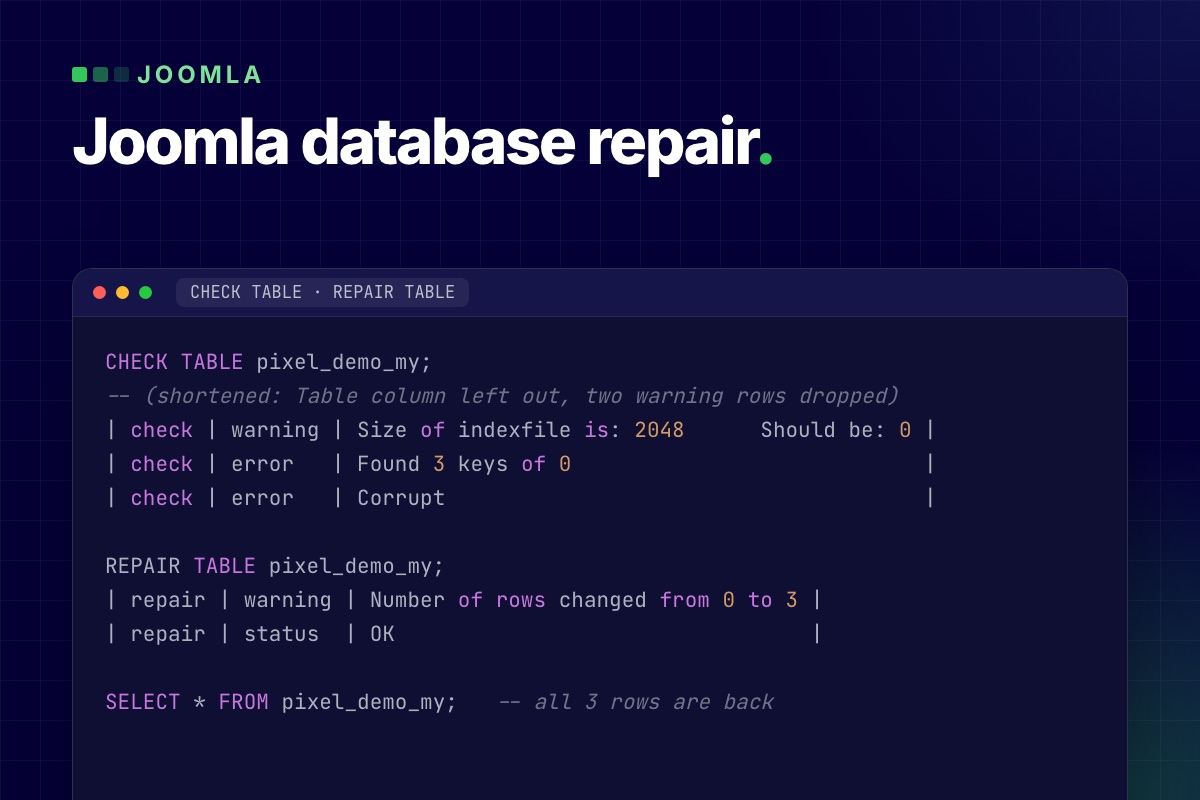
To get a damaged table to show, we overwrote 64 bytes in the header of a MyISAM index file (.MYI) on the scratch database. This is a rough imitation, not the same as a crash during a write, but it gives the same kind of messages. The first step is always CHECK TABLE, which changes nothing:
CHECK TABLE pixel_demo_my;
-- (shortened: Table column left out, two warning rows dropped)
| check | warning | Size of indexfile is: 2048      Should be: 0 |
| check | error   | Found 3 keys of 0                            |
| check | error   | Corrupt                                      |

REPAIR TABLE pixel_demo_my;
| repair | warning | Number of rows changed from 0 to 3 |
| repair | status  | OK                                 |

SELECT * FROM pixel_demo_my;   -- all 3 rows are back
Treat the result as a report to read. A repair that ends with status OK but changes the row count has dropped or recovered rows, and you should know which before the site goes back to normal. If the server stops during a repair, MySQL's documentation says to restart it and run REPAIR TABLE again straight away, before any other statement touches the table.
Run it from the admin with PX Adminer
If the Joomla administrator still opens, you do not need a hosting panel for this:
- Open Components → PX Adminer (it needs Track Session Metadata set to Yes under System → Global Configuration → System, the Joomla default) and click the database name to see the table list with sizes and engines.
- Tick the tables you want to look at. Under the list, the buttons run Analyze, Optimize, Check and Repair; Adminer shows the SQL statement behind each one as a tooltip (
CHECK TABLE,REPAIR TABLE, …). Click Check first. - Read the result. Only if it reports errors on a MyISAM table, run Repair on that table, then Check again.
- Reload the page that failed.
The same four statements can be typed in the SQL command screen. These buttons are Adminer features; PX Adminer wraps them in a Joomla component that only Super Users can open and that uses the database settings Joomla already has. For its security model see the documentation.
No admin? Use mysqlcheck over SSH
mysqlcheck ships with MySQL and MariaDB and runs the same statements on a whole database:
# check every table, change nothing
mysqlcheck -u DBUSER -p --check DBNAME

# check, and repair only the tables that report corruption
mysqlcheck -u DBUSER -p --auto-repair DBNAME
Take the backup first and run it when traffic is low. MariaDB ships its own mysqlcheck with the same options, though we only tested MySQL 8.0.40.
What Joomla's own Database screen does (and does not)
System → Maintenance → Database compares your tables with the update scripts of Joomla and your extensions, and its Update Structure button applies the changes that are missing. That can fix errors like 1146 and 1054 after an interrupted update, when the missing table or column is defined in the update scripts of Joomla or the extension; if it is not, update or reinstall the extension. It does not run REPAIR TABLE, so it will not bring back a crashed table. Run it after a repair if the site still complains about a missing column.
When the table is InnoDB and really is damaged
There is no REPAIR TABLE for it. Damage on InnoDB tends to show up as page corruption or the server failing to start, not as error 1194; if you get 1194, check the engine again with the query above. In order of preference:
- Restore the table, or the whole database, from your last good backup. This is the normal answer.
- Ask your host. Corruption is often a disk or crash problem, not a Joomla one.
- Only as an emergency, MySQL's
innodb_force_recoverycan start a server that will not start, so you can dump your data. Values 4 and above can damage the data files for good, so start at 1 and read that page before you try it. It is a job for the server owner, not something to run from a Joomla admin.
Stop it coming back: move old tables to InnoDB
InnoDB tables recover from a crash on their own in most cases, which is why a "marked as crashed" error is rare on a current Joomla site. If the engine query above showed MyISAM tables, convert them once you have a backup:
ALTER TABLE pixel_demo_my ENGINE=InnoDB;The statement rebuilds the table and blocks writes to it while it runs, which takes a while on a large table, so do it off-peak and check that the extension that owns the table has no fixed-engine requirement first. On the scratch database the table was InnoDB afterwards and kept its rows.
Limits you should know
- There is no undo. Repair and engine changes act on the live database at once. PX Adminer Pro copies a table into a snapshot before an ALTER, such as the engine change, so it can be restored in one click; a REPAIR is not covered.
- It needs a working administrator for the PX Adminer route; otherwise use SSH or your host's tools.
- MySQL and MariaDB only. PX Adminer does not support PostgreSQL.
- Your database user needs the privileges for the statements; on shared hosting the host may restrict them.
Get PX Adminer
PX Adminer is free with a free account on this site. Download it from the PX Adminer page, install it from System → Install → Extensions and open it under Components. Not comfortable running repairs on a live site? Our maintenance and recovery service does it for you.
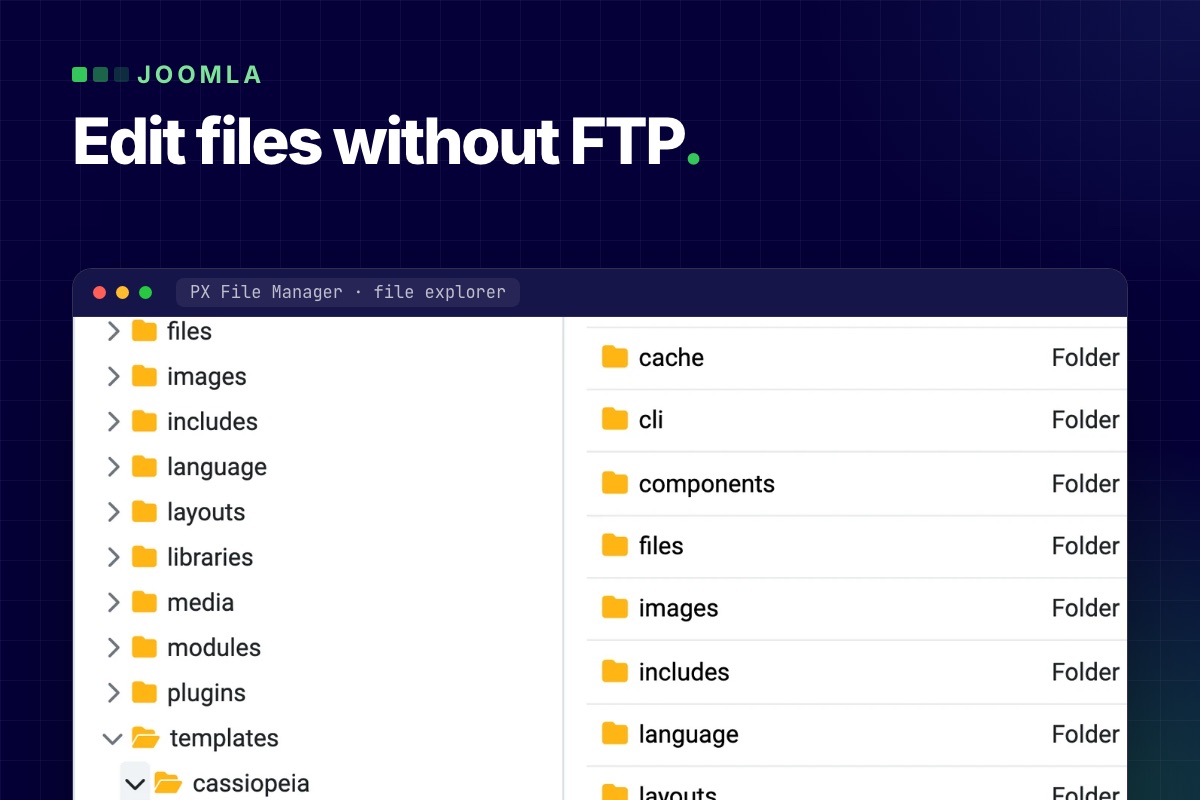
You can edit Joomla files without FTP from the administrator, as long as something in there gives you a file browser and a code editor. Joomla core only goes part of the way: it edits template files and manages media, not the rest of the site. For everything else (configuration.php, .htaccess, a plugin file you need to patch, a stray file to delete) you need a file manager component.
What Joomla core lets you edit
- Template files. System → Site Templates → your template → Customise lets you open and edit that template's files and create overrides. It does not open anything else.
- Media. Content → Media manages files in the media folders (
/imagesby default) and only accepts the file types allowed in the Media options. - Both are Super User tools by default.
Nothing in core opens configuration.php, .htaccess, a component's PHP file or a file in /plugins. That is the gap FTP, SFTP or the hosting panel's file manager normally fills.
Edit files from the Joomla administrator with PX File Manager
PX File Manager is a free component that adds a file explorer and a code editor to Components → PX File Manager. It is built on the Monaco editor, the same editor engine as VS Code. It works on any file under the Joomla root and nowhere outside it.
The common jobs:
- Open and edit a file. Click a file in the tree; text files open in a tab with syntax highlighting. Save writes the file directly to disk. Closing a tab with unsaved changes asks first.
- Find a file. The search box at the top of the sidebar (Cmd/Ctrl+K) matches file and folder names (not file contents), so
template defaultfindstemplates/…/default.php. The shortcut does not fire while the cursor is inside the editor. It skips/.git,/cache,/logs,/administrator/cacheand/administrator/logsby default; change the list in the component Options. - Upload. Drop files onto the list or use Upload. Files go up one at a time into the open folder.
- Zip and unzip. Select items and Compress, or Extract a zip. If you type a destination folder name that already exists, Extract refuses; with no name it unpacks into the current folder and asks what to do with clashing files.
- Copy, cut, paste, rename, delete. A folder cannot be pasted into itself. Delete is permanent (there is no trash), and force-deleting a folder removes everything in it.
- Change permissions. Properties shows the details; the Permissions dialog sets the mode as 3 or 4 octal digits such as
644or0755. Never use777.
Binary files are not opened as text, and the editor will not save content with NUL bytes. Images, audio, video and PDFs open in a preview instead.
Is it safe to put a file editor in the admin?
A file editor in the browser is a risk if it is badly built. From the component source:
- Every request needs a valid Joomla session token (CSRF), and every action is checked against four permissions you can set per user group: manage (browse, read, search), create (upload, zip, copy), edit (rename, save, chmod) and delete (delete, move). "Manage" still lets a user open and download any file under the root,
configuration.phpincluded, so it is not a read-only-safe role. Anyone with create or edit can write PHP into the site, which is full control: give those only to people you would trust with FTP. - Paths are resolved against the Joomla root. A path with
..or one that resolves outside the root is rejected. - It runs as the PHP user, so it can only touch what the web server can already write. A file that is read-only for PHP stays read-only: the save fails with "File is not writable."
Keep the component updated through the Joomla updater. As with any admin tool, the real protection is a strong super-user login with two-factor authentication, and only the groups that need it getting the permissions above. When clients or editors need their own folder and must never reach configuration.php, PX File Pro adds a root folder and rules per user group, protected core files and an activity log. Our Joomla hardening guide covers the login side.
Edit live files without breaking the site
The editor saves straight to the live file. It does not keep a version history, so the safety net is yours:
- Copy before you edit. Select the file, Copy, Paste in the same folder, choose to keep both (never Override) and rename the copy, for example to
configuration.bak.php. Keep the.phpending: a copy namedconfiguration.php.bakis served as plain text and would publish your database password. Delete the copy when the change is confirmed. - Change one thing at a time and reload the front end and the admin in another tab before the next change.
- Have a way back in before you start. A PHP syntax error in a plugin or template file can break the front end and the administrator, and then the editor cannot save either. Know where your host's file manager or SFTP login is, so you can restore the copy.
- Do not edit core files. Joomla updates overwrite them. Put changes in a template override, a plugin or a child template.
- Take a full backup first before touching
configuration.php,.htaccessor anything in a plugin.
If the admin itself is down, a browser-based tool cannot help and FTP, SSH or the host panel is the way in. See Joomla broken after a PHP upgrade for recovering in that case.
Two common edits, step by step
Change a rule in .htaccess
- Open
/.htaccess(Apache and LiteSpeed hosts; nginx ignores it). Copy it first and rename the copy, as above. - Add your rule, save, and load the front page and
/administrator. A bad rule returns a 500 error right away. - A bad rule usually returns a 500 on the administrator too, so restore the copy from your host's panel or SFTP.
Turn on debug in configuration.php
// configuration.php
public $debug = true;
public $error_reporting = 'maximum';
Both properties exist in Joomla's configuration class; set them back to their previous values when you are done, and never leave debug on a public site. When the admin works, Global Configuration (System and Server tabs) changes these without touching the file, which is the better route. It also sets configuration.php to read-only (0444), so a save in the editor fails with "File is not writable." To edit by hand, set it to 644 in the Permissions dialog, save, then set it back to 444.
When another tool is the better choice
For a bulk deploy, a Git workflow or a whole-site move, use SFTP, rsync or SSH. A browser file manager is for the small, urgent edits and the "I just need to look at that file" moments. For the database there is PX Adminer.
Get PX File Manager
PX File Manager is free for Joomla 4.4, 5 and 6 with a free account on this site. Download it from the PX File Manager page, install it from System → Install → Extensions, and open it under Components. For production sites where you would rather not do this yourself, our maintenance and security service covers updates, backups and recovery.
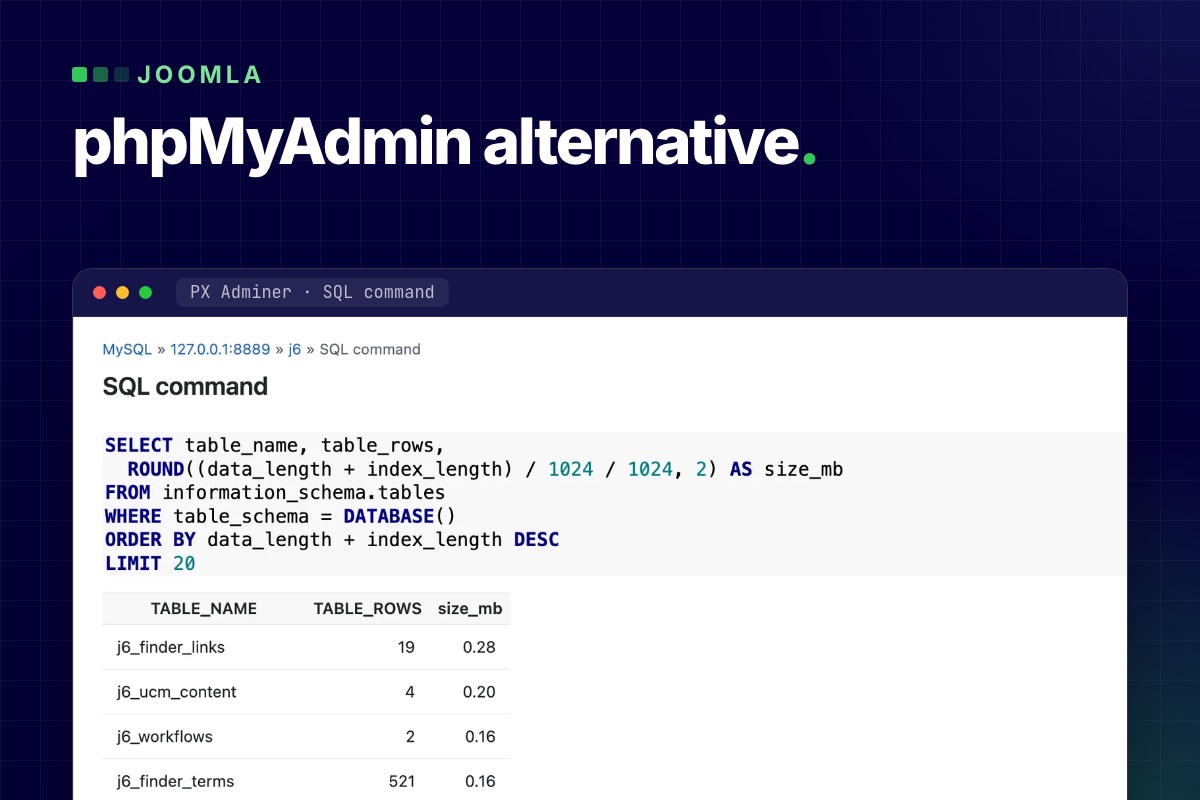
A phpMyAdmin alternative for Joomla can live inside the administrator itself. PX Adminer is a free component that opens your site's database under Components → PX Adminer: browse and edit tables, run SQL, export and import, and nothing to log in to, because it uses the database settings Joomla already has. It needs Joomla 5 or 6 and a MySQL or MariaDB database.
Why look for a phpMyAdmin alternative at all
Most Joomla problems that end in the database are small: an article that will not open because it is stuck as checked out, a module with a broken params value, a user you need to look up. Fixing them means getting to a database tool first, and that is where the time goes:
- phpMyAdmin is a separate application with its own login. If it lives behind the hosting panel, you need the panel login too, and that is not always at hand.
- A database tool is a high-value target. Any tool you add to a live site, this one included, needs to be locked down; see the security section below.
- Joomla's tables are named with a site-specific prefix, so copied queries need editing before they run.
If your host gives you phpMyAdmin and you are happy with it, nothing here forces a switch.
What PX Adminer does
PX Adminer is built on Adminer by Jakub Vrana, an open-source database manager written in PHP. Adminer alone also runs without a hosting panel, but you would upload it yourself and protect its login yourself. PX Adminer wraps it in a Joomla component and adds the Joomla parts:
- Tables and data. Filter the table list by name, then browse, search, sort and filter rows.
- Edit rows. Change, add, clone or delete rows in a form. Fields that hold JSON, such as a module's
paramsor an article'simages, get a Format button and a "Valid JSON" check, so you can read the value indented and see right away if your edit broke it. - SQL command. Run any SQL, or insert one of the ready-made Joomla queries. Choosing a query fills in your site's real table prefix; nothing runs until you click Execute.
- Export and import. Download tables or the whole database as SQL, CSV or TSV (optionally gzipped) with the size of every table shown first, and import an
.sqlor.sql.gzfile. - Structure. See and change columns, indexes and foreign keys.
Four common jobs
These use the queries from the SQL command's "Joomla queries" list. Open Components → PX Adminer, click SQL command, pick the query, read it, then Execute. In the examples #__ stands for your table prefix; PX Adminer writes the real one for you.
1. Release items that are stuck as checked out
An article, category, module or menu item that stays locked after a crashed session can be listed first:
-- Show checked-out items
SELECT 'content' AS source, id, title, checked_out, checked_out_time FROM `#__content` WHERE checked_out > 0
UNION ALL SELECT 'categories', id, title, checked_out, checked_out_time FROM `#__categories` WHERE checked_out > 0
UNION ALL SELECT 'modules', id, title, checked_out, checked_out_time FROM `#__modules` WHERE checked_out > 0
UNION ALL SELECT 'menu', id, title, checked_out, checked_out_time FROM `#__menu` WHERE checked_out > 0;
The "Check in all articles, categories, modules and menu items" query then clears them with UPDATE … SET checked_out = NULL, checked_out_time = NULL. It does the same kind of fix as System → Global Check-in, but only for those four tables; Global Check-in covers every table that has a checked-out column. Use Global Check-in when the admin works. The query changes data: read it before you click Execute.
2. List the members of the Super Users group
-- Super Users
SELECT u.id, u.name, u.username, u.email, u.block, u.lastvisitDate
FROM `#__users` u
JOIN `#__user_usergroup_map` m ON m.user_id = u.id
WHERE m.group_id = 8
ORDER BY u.id;
Group 8 is Joomla's default Super Users group. This lists its direct members only, blocked accounts included (check the block column), and it does not show a custom group that has been given Super User rights. An account nobody on the team recognises is a reason to act the same day.
3. Fix a broken JSON value
- Open the table (for example the modules table), click edit on the row and find the
paramsfield, which carries the JSON label. - Click Format to read it indented, make the change, and once you have changed the text, check that PX Adminer says Valid JSON.
- Compact folds it back. If you only formatted it to read it, the original text is saved unchanged. If you edited it, it is saved compact, as Joomla writes it.
- Save, then reload the page that uses the module.
4. Find the biggest tables, then export first
-- Largest tables
SELECT table_name, table_rows,
  ROUND((data_length + index_length) / 1024 / 1024, 2) AS size_mb
FROM information_schema.tables
WHERE table_schema = DATABASE()
ORDER BY data_length + index_length DESC
LIMIT 20;
table_rows is an estimate for InnoDB tables, but the order is what matters. On our own site the biggest were the action log and a Smart Search index table. Before you clean anything, or before a Joomla update, use Export: choose gzip and SQL, tick all tables with their data, and keep the file somewhere other than the web root. Import takes .sql and .sql.gz files up to your PHP upload limit; for bigger ones PX Adminer can run an adminer.sql file you put in its folder on the server.
Is it safe to open the database from the admin?
Full database access is enough to take over a site, so this is the part to check. From the PX Adminer source and its documentation:
- Super Users only. The component checks the global
core.adminpermission. Other groups, Administrator included, get a 403 even if you give them access in the component Options. - No password of its own. When you open the component, Joomla issues a one-time key that is valid for 60 seconds and works once, only in the browser that asked for it. Only a hash of it is stored.
- Tied to your Joomla login. Every request checks that your administrator session is still active and that the user is not blocked and is still a Super User. Log out of Joomla and PX Adminer closes. A session lasts two hours at most.
- Your site's database only. It connects with the host, user and database from
configuration.phpand has no login form for another server. - A log. When Joomla's logs folder exists and is writable, sign-ins and rejected keys that belong to a user are written to
pxadminer.phpthere with time, IP address and user ID.
It works with the privileges of your Joomla database user: if that user can see other databases on the same server, so can a SQL command here. The real protection is still a strong Super User login with two-factor authentication. Our Joomla hardening guide covers that side.
Limits you should know
- There is no undo. Changes go to the live database at once. Export first, and stay out of Joomla's own tables (users, assets, extensions) unless you know the effect. PX Adminer Pro adds the undo: a snapshot of the rows or tables before each change, restored in one click.
- MySQL and MariaDB only. PostgreSQL is not supported, even though Adminer itself can talk to other databases.
- It needs a working administrator. If the admin is down, for example after a PHP upgrade, use your host's tools or SSH. See Joomla broken after a PHP upgrade.
- Session setting. In System → Global Configuration → System, Track Session Metadata must be Yes (the Joomla default).
- Requirements: PHP 8.1 or later with mysqli (Joomla 6 itself needs a newer PHP than that).
Get PX Adminer
PX Adminer is free with a free account on this site. Download it from the PX Adminer page, install it from System → Install → Extensions and open it under Components; the documentation walks through every screen.
Related: its sister tool PX File Manager does the same for files, and before a Joomla 5 or 6 upgrade a database export belongs in step one of our migration runbook. For production sites where you would rather not do it yourself, our maintenance and security service covers updates, backups and recovery.

Content wins rankings, but on a Joomla site the technical layer decides whether that content is found once, under one URL, with the right title, and understood. This guide covers that layer: URLs, duplicates, titles and descriptions, structured data, sitemaps, multilingual tags and speed. It's what we check and fix on every Joomla site, including our own. We just went through our own blog with this list.
1. URLs: one page, one address
Joomla can reach the same article under many URLs: the menu route, /index.php/…, /component/content/article/…, with and without ?Itemid=, with and without a trailing slash. Search engines see each one as a separate page. The fixes are all in core:
| Setting | Where | Set to |
|---|---|---|
| Search Engine Friendly URLs | Global Configuration → Site | Yes |
| Use URL Rewriting | Global Configuration → Site | Yes (rename htaccess.txt to .htaccess, or the nginx equivalent) |
| Remove IDs from URLs | Articles → Options → Integration | Yes (check it on staging, see below) |
| Strict Routing | Plugins → System – SEF | Yes: redirects non-SEF URLs to the SEF one |
| Strict handling of index.php | Plugins → System – SEF | Yes: redirects /index.php/… away |
| Trailing slash for URLs | Plugins → System – SEF | one choice, enforced by redirect |
The SEF plugin options arrived in Joomla 5.1–5.2, and most sites never turned them on. They replace the hand-written redirect rules we used to put in .htaccess.
"Remove IDs from URLs" changes URLs on an existing site: /blog/12-my-post becomes /blog/my-post. Do it on a new site, or with 301 redirects from every old URL (the Redirect component or server rules). Turning it on without redirects is a reliable way to lose rankings.
# nginx – the Joomla front controller, with the URL rewriting it expects
location / {
    try_files $uri $uri/ /index.php?$args;
}
2. Canonical tags: core only adds them in one case
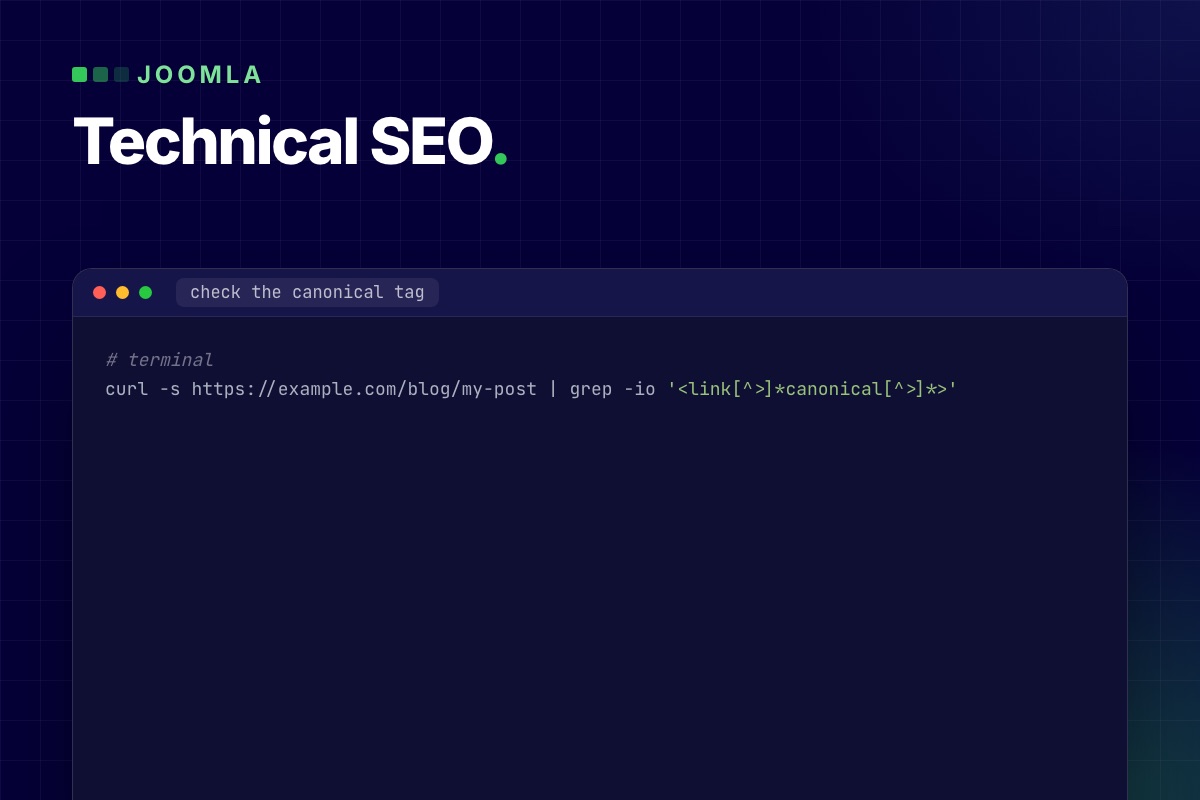
Many people assume Joomla prints a canonical tag on every page. It doesn't. The System – SEF plugin only adds one when its Site Domain option is filled in. Components can add their own, but core content doesn't. Check your page source:
# terminal
curl -s https://example.com/blog/my-post | grep -io '<link[^>]*canonical[^>]*>'
If nothing comes back, set Site Domain, or add the canonical in your template the way we did on this site: path only, query string dropped except for pagination (?start=), and only on pages that are indexable.
3. Titles and descriptions
- Browser Page Title (article → Options → Layout, or the menu item's Page Display tab) lets the
<title>differ from the H1. We keep titles to 60 characters and put the long, descriptive version in the H1. One catch: Joomla only uses an article's Browser Page Title when a menu item links to that article directly. For articles reached through a category, you need a small template fix to apply it. - Site name in page titles (Global Configuration → Site): "after" is the usual choice, but a 55-character title plus " - Your Company" gets truncated. We drop the suffix when the result passes about 65 characters.
- Meta descriptions: Joomla uses the article's, then the menu item's, then the global one. A global description repeated on hundreds of pages is worse than none. Keep descriptions under 160 characters, and give category pages their own.
- Paginated lists (
?start=12) need a distinct title: "… - Page 2". Some SEO extensions append "Results from #12", which reads like a bug to users.
Find the gaps in bulk with SQL instead of opening articles one by one:
# terminal – published articles with a missing or too-long description, and long titles
mysql -e "SELECT id, CHAR_LENGTH(title) AS t, CHAR_LENGTH(metadesc) AS d, title
          FROM jos_content WHERE state = 1
            AND (metadesc = '' OR CHAR_LENGTH(metadesc) > 160 OR CHAR_LENGTH(title) > 60)
          ORDER BY d;" mydb
4. Structured data: core does more than you think
Since Joomla 5, core ships schema.org support: a System – Schema.org plugin that prints a JSON-LD graph (Organization or Person, WebSite, WebPage), and schemaorg plugins per type: Article, BlogPosting, Book, Event, JobPosting, Organization, Person, Recipe and Custom. The article edit form gets a Schema tab where you pick the type. Set the base data (organisation name, logo) in the System – Schema.org plugin once.
Three things we fix on most sites:
- Choose BlogPosting for blog posts rather than the plain Article the core falls back to, with author, dates and an absolute image URL. Google ignores relative image paths in JSON-LD.
- Avoid duplicate BreadcrumbLists. The breadcrumbs module prints its own JSON-LD. If your template or an SEO extension prints another, the page has two competing trails.
- Validate after every template change with the Rich Results Test. A broken JSON-LD block fails silently.
# terminal – list the JSON-LD types a page outputs
curl -s https://example.com/blog/my-post \
  | python3 -c "import sys,re,json; [print(json.loads(b).get('@type') or [n.get('@type') for n in json.loads(b).get('@graph',[])]) for b in re.findall(r'<script type=\"application/ld\+json\"[^>]*>(.*?)</script>', sys.stdin.read(), re.S)]"
5. Sitemaps and robots
- Joomla has no core XML sitemap. Use an extension that builds one from menus and content, and make sure it lists only canonical URLs: no
?Itemid=or/component/variants, no noindexed pages. robots.txt: Joomla's default no longer blocks/images/,/media/or/templates/, but sites upgraded from Joomla 3 often still have the old file. Blocking CSS and JS stops Google from rendering the page. Add the sitemap URL torobots.txt.- Noindex the utility pages: login, registration, search results, tag lists without content, checkout and account pages. Use the robots option of the menu item, or set it in the template for whole components.
- Empty categories that return a page with no posts are thin content. Unpublish them until they have posts.
6. Multilingual sites: hreflang from associations
With associations set up (Content → Multilingual Associations), the System – Language Filter plugin can print hreflang alternate tags. Turn on "Add Alternate Meta Tags", and use "Add x-default Meta Tag" for the fallback language. Hreflang only works when it's reciprocal. Every language version must link back. An article without an association in one language breaks the set for that pair, and the Multilingual Associations view shows you which ones are missing.
7. Speed is part of SEO
Core Web Vitals are a ranking signal, and most Joomla sites fail them for the same few reasons. The page cache is off, the hero image is lazy-loaded, too many scripts block rendering, and slow queries push the server time up. We cover each with code in Joomla performance from the code up.
8. Content structure that helps
Technical SEO gets the page found. Structure helps it rank:
- One H1 per page. Watch templates and modules that render module titles as
h1orh2above the content. - Internal links in the body of articles, between related posts and to service pages. Menus and "related articles" modules count less than a link in the text.
- Category pages with an introduction, their own title and description. They often rank for broader terms than any single article.
- Image alt text set per image, and covers sized to the layout.
The audit in one table
| Check | Healthy |
|---|---|
Non-SEF and /index.php/ URLs | 301 to the SEF URL |
| Canonical tag | on every indexable page, absolute, path only |
<title> | unique, ≤ 60–65 characters, "Page N" on pagination |
| Meta description | unique, ≤ 160 characters, also on categories |
| JSON-LD | BlogPosting/Article with absolute image; one BreadcrumbList |
| Sitemap | canonical URLs only, listed in robots.txt |
| Noindex | login, search, account, checkout, empty categories |
| hreflang | reciprocal, with x-default (multilingual sites) |
| Core Web Vitals | LCP image not lazy, page cache on for guests |
Want this audit on your Joomla site? We run it, fix the technical issues in your template and configuration, and leave you a list for the content side.
SEO & speed optimization →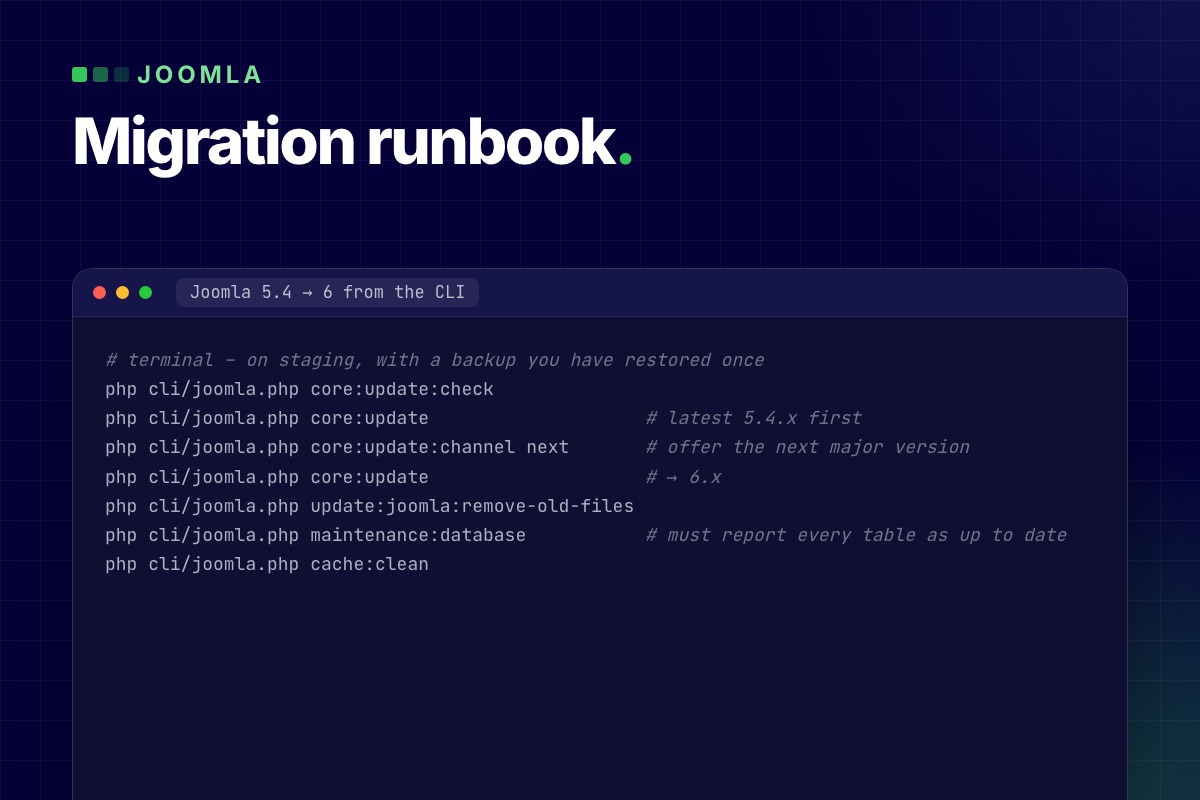

This is the order of work we use to move a Joomla 3 or 4 site to Joomla 5.4, written as a runbook: what to run, what to check after each step, and the problems that cost us time on real migrations. The last section covers the next jump, 5.4 → 6, from the command line, the way we upgraded our own site.
Step 0: Inventory and a staging copy
Never migrate the live site. Copy it, files and database, to a staging host with the target PHP version, and write down what you are starting from:
# terminal – on the copy
grep -E "MAJOR_VERSION|MINOR_VERSION|PATCH_VERSION|RELEASE|DEV_LEVEL" libraries/src/Version.php
php -v
mysql -e "SELECT type, element, folder, enabled,
                 JSON_UNQUOTE(JSON_EXTRACT(manifest_cache, '$.version')) AS version
          FROM jos_extensions
          WHERE JSON_UNQUOTE(JSON_EXTRACT(manifest_cache, '$.author')) NOT LIKE 'Joomla%'
          ORDER BY type, element;" mydb > extensions-before.txt
For every line in extensions-before.txt, decide: update (a Joomla 5 version exists), replace (abandoned, an alternative exists), or remove (not used). Disabled extensions are the easiest wins. Uninstall them before you start, and the migration has fewer moving parts.
On staging, also turn off outgoing mail and put payment plugins in test mode. Scheduled tasks and cron jobs on a copy will otherwise mail real customers.
Step 1 (Joomla 3 only): 3.10 → 4.4
This is the expensive step, because Joomla 4 rewrote the core.
- Update to the last 3.10. In Joomla Update, the Pre-Update Check tab lists every extension with "compatible / not compatible / unknown" for Joomla 4, and checks PHP and database versions.
- Switch the template to Cassiopeia on staging before the update. A Joomla 3 template will not render on Joomla 4. It gets rebuilt anyway, and a working default template makes the result testable.
- Run the update to 4.4 through Joomla Update ("Upload & Update" with the 4.4 update package if the channel doesn't offer it).
- Fix the database schema: System → Maintenance → Database. Every row must say "up to date". If one doesn't, press "Update Structure" and read what it reports.
- Rebuild the template for Joomla 4/5 (Bootstrap 5, the Web Asset Manager, new layout overrides). Copying old overrides across is the most common source of broken pages after a migration.
Content, users, menus and categories come across reliably. In our experience, what breaks is everything around them: custom template overrides, editors' inline HTML that relied on Bootstrap 2 classes (span6, pull-right), and extensions that store HTML with old markup.
# terminal – find Bootstrap 2/3 classes in article HTML that will lose their styling
mysql -e "SELECT id, title FROM jos_content
          WHERE introtext REGEXP 'class=\"[^\"]*(span[0-9]+|pull-(left|right)|offset[0-9]+|hidden-phone|visible-desktop)'
             OR \`fulltext\` REGEXP 'class=\"[^\"]*(span[0-9]+|pull-(left|right)|offset[0-9]+)';" mydb
Step 2: 4.4 → 5.x with the compatibility plugin
From 4.4 the jump is an update, not a migration. Joomla 5 ships Behaviour – Backward Compatibility, which keeps Joomla 4 code that uses deprecated APIs running.
- Update every extension to its newest version for Joomla 4 first. Most vendors released versions that run on both 4.4 and 5.
- Check PHP 8.1+ (8.3 if you're going on to Joomla 6).
- Run Joomla Update → 5.x. Check System → Maintenance → Database again.
- With Log Deprecated API on (Global Configuration → Logging), click through the site and read
administrator/logs/deprecated.php. That file is your to-do list for Joomla 6.
Step 3: 5.x → 5.4 and leave the site there for a while
Update to the latest 5.4.x, re-test, and go live. Joomla 5.4 has security support until October 2027. A site that is cleanly on 5.4 with an empty deprecation log is in the best possible position for Joomla 6, and you've only changed one thing at a time.
Going on to Joomla 6 from the command line
We upgraded our own site from 5.4 to 6.2 with the Joomla CLI. It's faster than the browser for big sites and doesn't hit PHP time limits. The commands:
# terminal – on staging, with a backup you have restored once
php cli/joomla.php core:update:check
php cli/joomla.php core:update                    # latest 5.4.x first
php cli/joomla.php core:update:channel next       # offer the next major version
php cli/joomla.php core:update                    # → 6.x
php cli/joomla.php update:joomla:remove-old-files
php cli/joomla.php maintenance:database           # must report every table as up to date
php cli/joomla.php cache:clean
What we hit on the way, and what you are likely to hit too:
- The CLI itself crashed before the update started. The CLI application boots enabled plugins, and plugins whose entry file still uses
J*class names fail when they load. We disabled those plugins (in our case 112, from three commercial extensions) for the upgrade only, then re-enabled them. Joomla also asks you to disable the old Joomla 5 compatibility plugin before the major update. - The finalisation step failed after the files were replaced, because the running process still had Joomla 5 classes in memory. Running finalisation again with the new code, and then
maintenance:database, completed it cleanly. Check the schema report. "Files updated" is not "upgrade done". - Extensions that need old class names ran again once "Classes Aliases" was turned on in Behaviour – Backward Compatibility 6. It's off by default.
- Case-insensitive file systems. On macOS (our local copies), an extension update that renamed folders from
classes/toClasses/deleted the new folder together with the old one. Linux servers are fine, but test locally on a case-sensitive volume or expect surprises.
The checks we run after every step
| Check | How |
|---|---|
| Schema up to date | System → Maintenance → Database, or maintenance:database |
| No PHP errors | web server error log, with Error Reporting at "Maximum" on staging |
| Deprecations | administrator/logs/deprecated.php |
| Every page type renders | home, category blog, article, contact form, search, login, 404, every component's main views |
| Forms send | contact, registration, password reset; check the mail catcher |
| Overrides | System → Templates → "Changes found" notices |
| URLs unchanged | crawl the old sitemap against staging; every URL should be 200 or a deliberate 301 |
The last row matters more than it looks. Router and menu changes during a migration can quietly change URLs, and rankings go with them. A crawler that takes a URL list as input (Screaming Frog, or wget --spider -i urls.txt) finds them in minutes.
When it goes live
- Freeze content on live (or note what changes during the switch).
- Take a final backup of live.
- Deploy staging to live, with live's
configuration.phpvalues (database, paths, mail, live site URL). - Clear all caches, including the CDN, and check the same list again on live.
- Keep the old live backup for at least a month.
If the site runs a shop or a CRM, it has its own upgrade path on top of this one: see VirtueMart 3 to 4.8 on Joomla 5 and upgrading a Joomla site with CiviCRM.
Want this done for you? We migrate Joomla 3 and 4 sites to 5.4 and 6, with a rebuilt template, your URLs kept and the site online throughout. Fixed quote after a free check.
Joomla migration →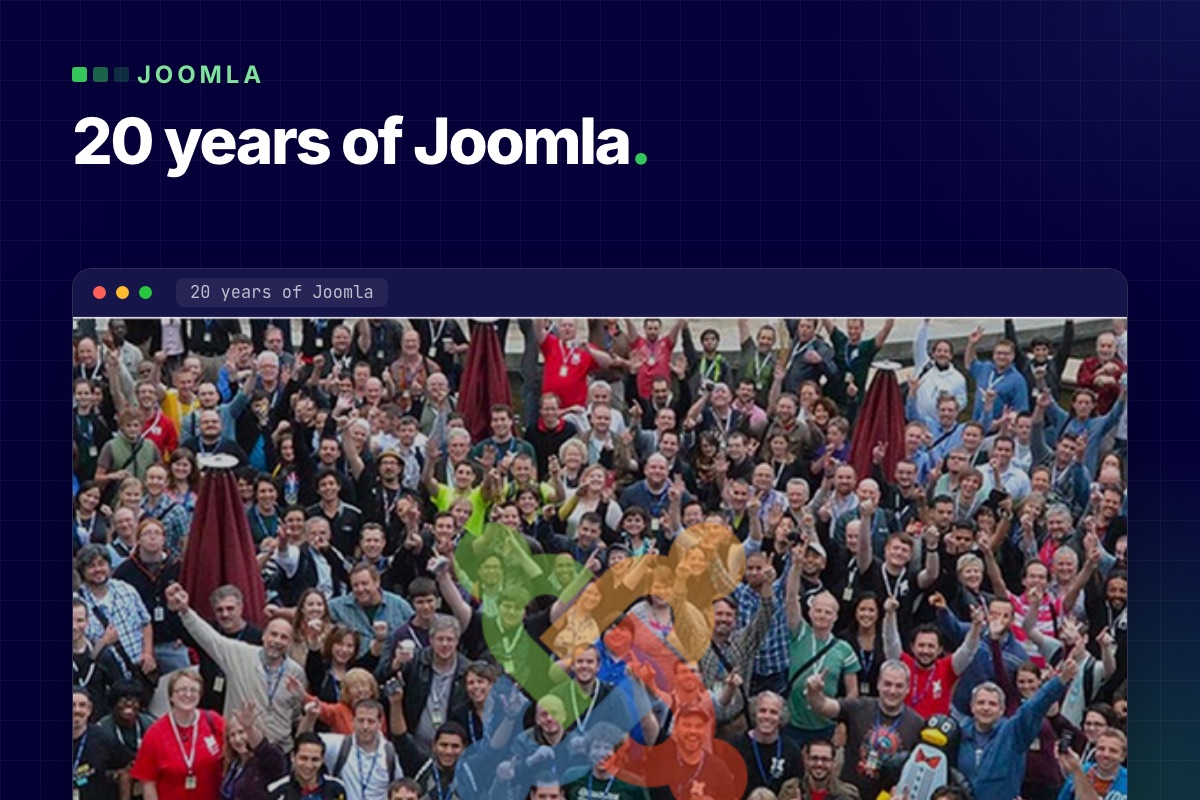
We installed our first Joomla 1.0 from a zip file, over FTP, on shared hosting with cPanel. Joomla turned 20 in 2025, and in those twenty years we've built, broken, migrated and rebuilt more Joomla sites than we can count. This post is the short history, the projects we're proud of, and the lessons that changed how we write code. With the code, because the lessons only mean something with the code.
Twenty years in six versions
- 2005 – Mambo becomes Joomla. We didn't follow the politics. We saw a new name, a community on fire, and the forums where we learned.
- 2008 – Joomla 1.5. MVC,
JFactory, template overrides. Confusing at first, then the moment we realised Joomla was a framework, not just a site builder. - 2012 – Joomla 2.5. Rock solid and quirky. The golden age of VirtueMart shops and K2 blogs. Some of the 2.5 sites we migrated still run today, two major versions later.
- 2012–2021 – Joomla 3. Bootstrap 2, template frameworks, a huge extension ecosystem, and our first complex systems: surveys, ticketing, streaming.
- 2021 – Joomla 4. The rewrite: namespaces, a DI container, Bootstrap 5, the Web Asset Manager, an API. It took long and it was worth it.
- 2023–2026 – Joomla 5 and 6. The calm after the rewrite: smooth updates, PHP 8.3, automated updates, child templates. Our own site runs Joomla 6.2, and we're testing extensions against the 7.0 branch.
Projects that last
The best part of twenty years is watching sites outlive the version they were built on. A few we've built, migrated or rebuilt:
- Vivi City Network: 11 travel sites migrated into one multisite Joomla platform.
- Vivi City: the global travel comparison platform, redesigned and tuned for speed.
- Multifamily Insiders, the largest online community for multifamily professionals, and its sister sites moved to Joomla 6.
- MBCCS – Marina Bay Cruise Centre Singapore: website and customer portal.
- IGAD: a multilingual information portal for an intergovernmental organisation.
- NorCal CarciNET and WARMTH: CiviCRM sites on Joomla 6, before CiviCRM officially supports it.
- Therapeeds: straight from Joomla 3 to a rebuilt Joomla 6 site.
The full list is on Case studies.
Seven lessons, with the code
1. Never edit core. Listen to events instead
Every core edit we've ever inherited was overwritten by an update or blocked one. Joomla is event-driven: almost anything core does can be changed from a plugin. The modern form, unchanged since Joomla 4, is a subscriber that declares its events:
// plugins/content/readingtime/src/Extension/ReadingTime.php
final class ReadingTime extends CMSPlugin implements SubscriberInterface
{
    public static function getSubscribedEvents(): array
    {
        return ['onContentPrepare' => 'addReadingTime'];
    }

    public function addReadingTime(ContentPrepareEvent $event): void
    {
        if ($event->getContext() !== 'com_content.article') {
            return;
        }
        $item = $event->getItem();
        $item->readingTime = (int) ceil(str_word_count(strip_tags($item->text)) / 220);
    }
}
2. Overrides should be surgical, and in a child template
An override is a copy of core that stops getting core's fixes. We override only what we must, in a child template, and after every update we check System → Templates for "Changes found" and compare. On this site alone, Joomla 6.2's new image classes meant re-checking the image layout overrides.
3. URLs are a contract
Menu structure is URL structure in Joomla, and every reorganisation, migration or "Remove IDs from URLs" switch can break links that took years to earn. Before any migration we crawl the old sitemap, and afterwards we check that every URL returns 200 or a deliberate 301. Most lost rankings we've been asked to recover came from skipping that one step.
4. Modules are small applications
Since Joomla 4, a module has a dispatcher and helpers created by a helper factory, which injects the database. We build them like that, even small ones. They're testable, cacheable and survive major versions:
// modules/mod_example/src/Helper/ExampleHelper.php
class ExampleHelper implements DatabaseAwareInterface
{
    use DatabaseAwareTrait;

    public function getItems(Registry $params): array
    {
        $db    = $this->getDatabase();      // injected, not Factory::getDbo()
        $query = $db->createQuery()->select('*')->from($db->quoteName('#__example'))->setLimit(5);

        return $db->setQuery($query)->loadObjectList();
    }
}
5. The query builder is not optional
Prepared statements through Joomla's query builder (bind(), whereIn()) are what stand between a site and SQL injection, and they keep queries portable between MySQL, MariaDB and PostgreSQL. Every SQL injection we've cleaned up was string concatenation in an extension.
6. Custom fields go further than they look
We've built pricing tables, survey logic and content variations on core custom fields plus layout overrides, where we'd once have written a component. With Joomla 6's number and note fields and Joomla 6.1's media fields, the list keeps growing. Fewer custom components means fewer things to port at the next major version.
7. Extensions live or die by updateability
Before an extension goes into a client site, we check: namespaced code, an update server, a release in the last year, and no deprecation warnings on the current Joomla version. That last check has become our best predictor of whether the vendor will be ready for the next major version. On Joomla 6, it's a one-line setting: Log Deprecated API.
Why we still choose Joomla
- Overrides at every level (layouts, language strings, templates, plugins) to adapt it without forking it.
- A real framework underneath: DI container, console commands, a REST API and a task scheduler, all in core.
- ACL that handles real organisations, with view levels and permissions per group, per category, per item.
- Multilingual in core, with associations and hreflang, no plugin required.
- A predictable lifecycle: a major version every two years, each with a compatibility plugin and a clear deprecation list, so upgrades can be planned.
Twenty years in, Joomla is still the tool we reach for when a site has to do more than publish pages, and still be maintainable in five years.
Need someone who's been with Joomla since day one? Migrations, rebuilds, custom extensions and long-term maintenance, by developers who've done it for twenty years.
Let's talk →