
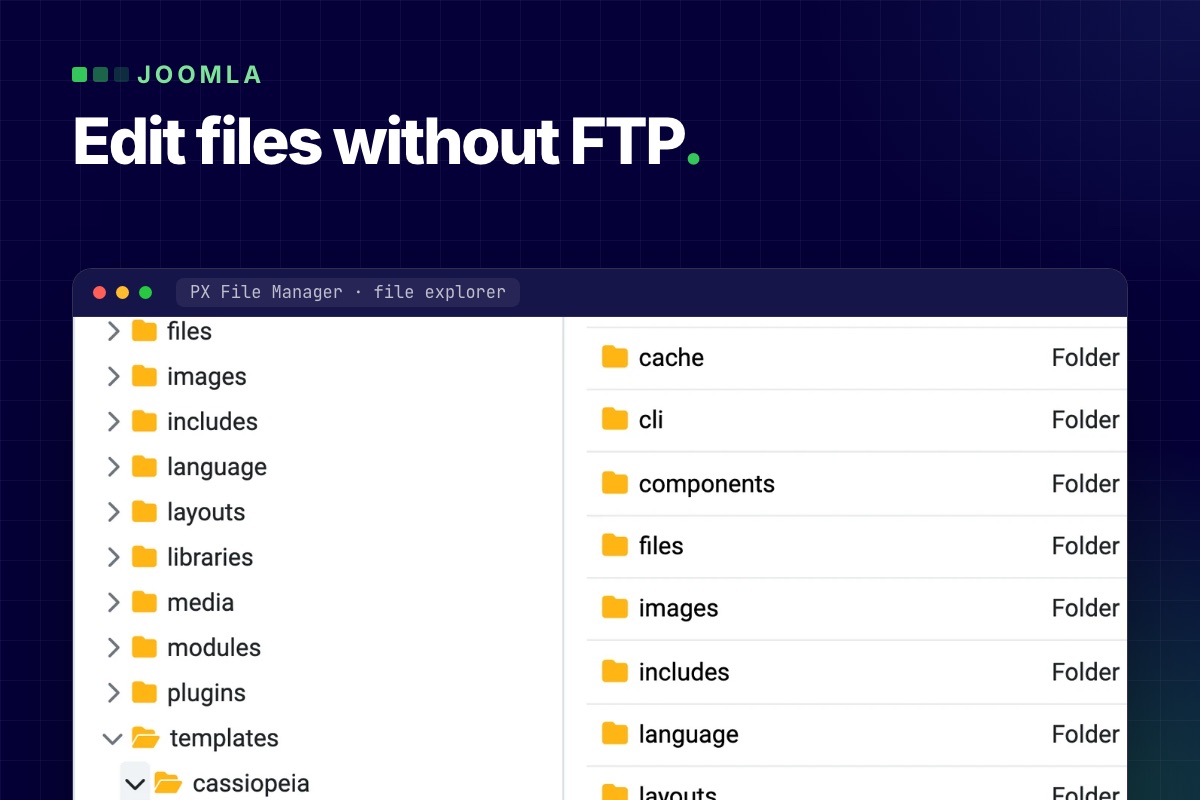

You can edit Joomla files without FTP from the administrator, as long as something in there gives you a file browser and a code editor. Joomla core only goes part of the way: it edits template files and manages media, not the rest of the site. For everything else (configuration.php, .htaccess, a plugin file you need to patch, a stray file to delete) you need a file manager component.
What Joomla core lets you edit
- Template files. System → Site Templates → your template → Customise lets you open and edit that template's files and create overrides. It does not open anything else.
- Media. Content → Media manages files in the media folders (
/imagesby default) and only accepts the file types allowed in the Media options. - Both are Super User tools by default.
Nothing in core opens configuration.php, .htaccess, a component's PHP file or a file in /plugins. That is the gap FTP, SFTP or the hosting panel's file manager normally fills.
Edit files from the Joomla administrator with PX File Manager
PX File Manager is a free component that adds a file explorer and a code editor to Components → PX File Manager. It is built on the Monaco editor, the same editor engine as VS Code. It works on any file under the Joomla root and nowhere outside it.
The common jobs:
- Open and edit a file. Click a file in the tree; text files open in a tab with syntax highlighting. Save writes the file directly to disk. Closing a tab with unsaved changes asks first.
- Find a file. The search box at the top of the sidebar (Cmd/Ctrl+K) matches file and folder names (not file contents), so
template defaultfindstemplates/…/default.php. The shortcut does not fire while the cursor is inside the editor. It skips/.git,/cache,/logs,/administrator/cacheand/administrator/logsby default; change the list in the component Options. - Upload. Drop files onto the list or use Upload. Files go up one at a time into the open folder.
- Zip and unzip. Select items and Compress, or Extract a zip. If you type a destination folder name that already exists, Extract refuses; with no name it unpacks into the current folder and asks what to do with clashing files.
- Copy, cut, paste, rename, delete. A folder cannot be pasted into itself. Delete is permanent (there is no trash), and force-deleting a folder removes everything in it.
- Change permissions. Properties shows the details; the Permissions dialog sets the mode as 3 or 4 octal digits such as
644or0755. Never use777.
Binary files are not opened as text, and the editor will not save content with NUL bytes. Images, audio, video and PDFs open in a preview instead.
Is it safe to put a file editor in the admin?
A file editor in the browser is a risk if it is badly built. From the component source:
- Every request needs a valid Joomla session token (CSRF), and every action is checked against four permissions you can set per user group: manage (browse, read, search), create (upload, zip, copy), edit (rename, save, chmod) and delete (delete, move). "Manage" still lets a user open and download any file under the root,
configuration.phpincluded, so it is not a read-only-safe role. Anyone with create or edit can write PHP into the site, which is full control: give those only to people you would trust with FTP. - Paths are resolved against the Joomla root. A path with
..or one that resolves outside the root is rejected. - It runs as the PHP user, so it can only touch what the web server can already write. A file that is read-only for PHP stays read-only: the save fails with "File is not writable."
Keep the component updated through the Joomla updater. As with any admin tool, the real protection is a strong super-user login with two-factor authentication, and only the groups that need it getting the permissions above. Our Joomla hardening guide covers the login side.
Edit live files without breaking the site
The editor saves straight to the live file. It does not keep a version history, so the safety net is yours:
- Copy before you edit. Select the file, Copy, Paste in the same folder, choose to keep both (never Override) and rename the copy, for example to
configuration.bak.php. Keep the.phpending: a copy namedconfiguration.php.bakis served as plain text and would publish your database password. Delete the copy when the change is confirmed. - Change one thing at a time and reload the front end and the admin in another tab before the next change.
- Have a way back in before you start. A PHP syntax error in a plugin or template file can break the front end and the administrator, and then the editor cannot save either. Know where your host's file manager or SFTP login is, so you can restore the copy.
- Do not edit core files. Joomla updates overwrite them. Put changes in a template override, a plugin or a child template.
- Take a full backup first before touching
configuration.php,.htaccessor anything in a plugin.
If the admin itself is down, a browser-based tool cannot help and FTP, SSH or the host panel is the way in. See Joomla broken after a PHP upgrade for recovering in that case.
Two common edits, step by step
Change a rule in .htaccess
- Open
/.htaccess(Apache and LiteSpeed hosts; nginx ignores it). Copy it first and rename the copy, as above. - Add your rule, save, and load the front page and
/administrator. A bad rule returns a 500 error right away. - A bad rule usually returns a 500 on the administrator too, so restore the copy from your host's panel or SFTP.
Turn on debug in configuration.php
// configuration.php
public $debug = true;
public $error_reporting = 'maximum';
Both properties exist in Joomla's configuration class; set them back to their previous values when you are done, and never leave debug on a public site. When the admin works, Global Configuration (System and Server tabs) changes these without touching the file, which is the better route. It also sets configuration.php to read-only (0444), so a save in the editor fails with "File is not writable." To edit by hand, set it to 644 in the Permissions dialog, save, then set it back to 444.
When another tool is the better choice
For a bulk deploy, a Git workflow or a whole-site move, use SFTP, rsync or SSH. A browser file manager is for the small, urgent edits and the "I just need to look at that file" moments. For the database there is PX Adminer.
Get PX File Manager
PX File Manager is free for Joomla 4.4, 5 and 6 with a free account on this site. Download it from the PX File Manager page, install it from System → Install → Extensions, and open it under Components. For production sites where you would rather not do this yourself, our maintenance and security service covers updates, backups and recovery.