
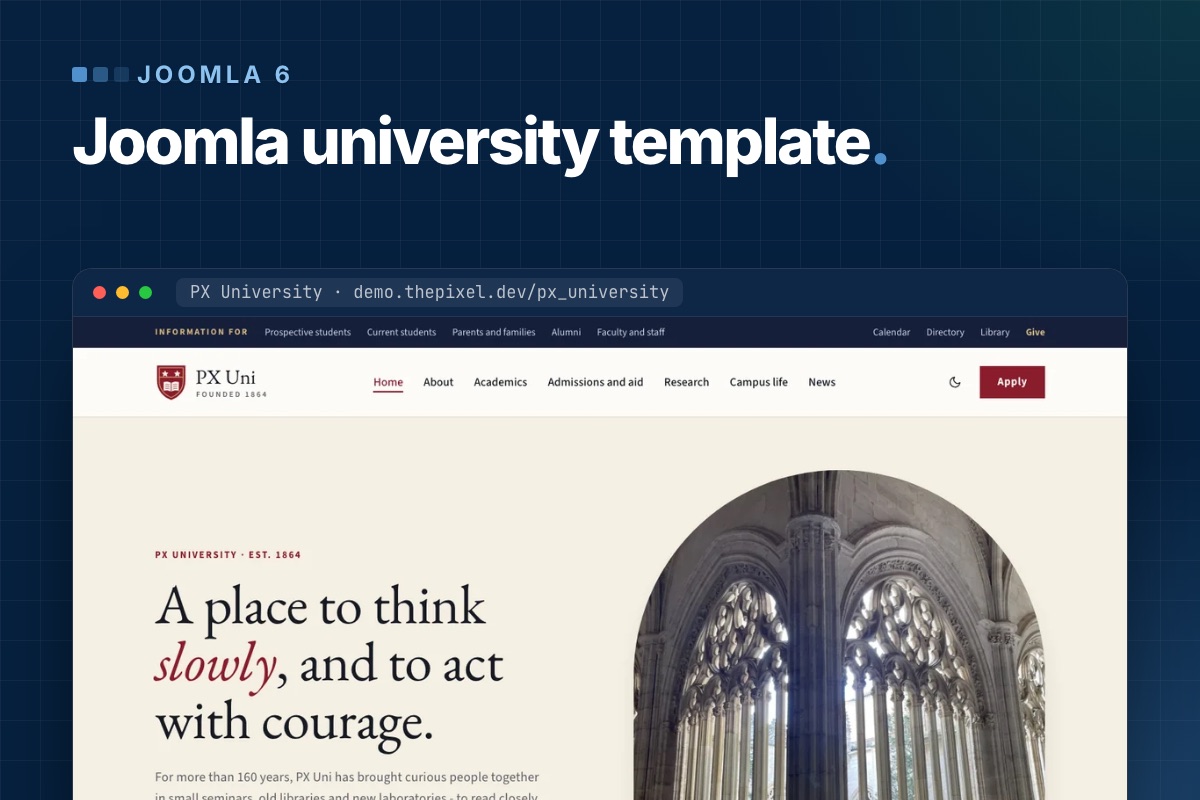

A Joomla university template gives you the look. What takes the time is the content behind it: programs, schools, admissions, events and news, kept up by people in different offices. This guide shows how the PX University quickstart (part of Pro, live demo) models that content with Joomla 6 core features: categories, nested tags, custom fields, list modules and Smart Search. There is no events or course component to learn. The page sections around the content are blocks of the bundled PX Content module, and the template runs on the T4 Framework. Then it shows how you replace the demo college with a real one.
What a university site has to do
Most visitors come with one of five questions. Each one maps to a page type, and each page type maps to something Joomla already has:
| Visitor asks | Page | Built with |
|---|---|---|
| What can I study? | Program pages, a program list, a finder | Articles with custom fields, tags, Smart Search |
| Which faculty is that? | School pages | A landing page per school plus a tag |
| How do I apply, what does it cost? | Admissions | Content blocks: steps, fees, FAQ |
| What is on? | Events | Articles with a date field |
| What is new? | News | A category with subcategories |
The template uses British spelling for its content names (Programmes, "Find a programme"). We keep those names where they are what you see in the administrator.
The content model in the quickstart
This is what the installer's SQL creates. Counts are the demo content you will replace:
# PX University 1.0.0 quickstart: content model
Categories
  News                 17 articles in 4 subcategories:
                       College news, Research, Arts and culture, Admissions
  Events                6 articles   fields: Event date, Time, Venue, Admission
  Programmes           20 articles   fields: Level, Duration, Starts,
                                             Entry requirements, Fees
  Pages                15 articles   page shells: About, Admissions, 6 schools ...
  Legal                 3 articles

Tags (nested)
  Schools              Humanities, Natural Sciences, Engineering,
                       Law and Policy, Music and Arts, Business
  Levels of study      Undergraduate, Graduate, Doctoral
  Topics               19 tags for news (Research, Campus, Alumni ...)

Template styles        Home, Inner (default), Full Width, Landing
The custom fields are assigned to their category, so the event fields only show on the edit form of an article in Events, and the program fields only in Programmes. You find them under Content → Fields.
Programs: one article each, five fields
A program is an article in the Programmes category with two tags: its school and its level. The five fields are plain text, so "3 years" or "4 years with a beginners' year" both work. The level is entered twice on purpose: the Level field is what the page shows ("Undergraduate (BA)"), the level tag is what puts the program on a level page.
The template decides the layout from the fields, not from the category. An article whose Level field has a value gets the program layout:
- a sticky "Key facts" panel with the five fields;
- the article's Link A as the apply button and Link B as a second button (the demo uses it for the open day), both from the article's Images and Links tab;
- an "On this page" list built from the
<h2 id="...">headings in the text, so give your headings an id; - up to three related programs: other articles in the same category that share the school tag, in title order.
The three level pages in the Academics menu (Undergraduate, Graduate, Doctoral) are tag menu items, and the full list is a category menu item for Programmes. Tag a new program and it shows up on its level page, in the full list and in the cards on its school page, without touching a module. The cards module shows up to 12 programs per school; raise the count in the module if a school has more.
Schools: a landing page plus a tag
A school is two things with the same alias: a tag under Schools, and a menu item of type Single Article with the style PX University - Landing. The program layout looks for a menu item whose alias matches the school tag's alias and links the program to it. If there is none, it links to the tag page instead. So when you rename "Humanities" to your own faculty, change the tag and the menu item alias together. Keep the parent tag titled Schools: the layout finds the school by that title, and without it the school link and the related programs disappear.
The school page itself is a stack of modules assigned to that menu item. The Humanities page has eight: a hero in hero, then numbers, a heading, the program cards, a quote, a heading, the news list and a call to action in page-top. The program cards are a core Articles - Category module: category Programmes, filtered by the school's tag, layout programme-cards, ordered by title. The news list works the same way with a topic tag (Humanities uses Library).
A seventh school therefore takes five things: a tag under Schools, an empty article in Pages as the page shell, a Single Article menu item with the Landing style and the tag's alias, copies of the eight modules with their tag filters and texts changed and assigned to the new menu item, and a card in the schools block on Home and on Academics. Those cards are kept by hand in the block settings.
The program finder runs on Smart Search
The search box on the home page and on Academics is part of a PX Content block (Features Intro, the style with arch cards). It is a plain form that sends the query to Joomla's Smart Search. The level dropdown is not a filter: the script adds the chosen word, for example "Undergraduate", to the search text. The levels are a comma-separated list in the block settings, next to the label, the placeholder and the page the form submits to.
Two things follow from that. First, a program is found by its title and text. Joomla's content plugin for Smart Search does not index an article's tags, and a custom field is only indexed when its Search Index option is set, which it is not for the five program fields. Smart Search also wants every word of the query, so a search for "history undergraduate" only finds the History program if the word "undergraduate" is in its text. Write the level into the first paragraph of every program.
Second, Smart Search only finds what is in its index. The installer's SQL ships with an empty index, so build it once after installing and after any bulk import:
# in the site root; builds the Smart Search index
php cli/joomla.php finder:index
After that, the Smart Search content plugin keeps the index current when you save an article. Check the result under Components → Smart Search → Index.
Events: articles with a date field
An event is an article in Events. The Event date field is a calendar field with time; Time, Venue and Admission are text. An article with an event date gets the event layout: a date block beside the title, an "Event details" panel, Link A as the booking button, add-to-calendar links and up to three other events from the same category, earliest first.
Event lists (home, Visit, the sidebar) are Articles - Category modules with the events layout. Know how the order works before you rely on it:
- The module picks its articles first (on the home page: four, by article ordering). The layout then sorts those by event date. An event without a date falls back to its publish date.
- Nothing hides an event automatically once it is over. Setting Finish Publishing on the article takes it out of the module lists, but in 1.0.0 the "more events" list on an event page does not check that date and would link to a page that is gone. Until that is fixed, unpublish past events.
The six demo events are dated October and November 2026, so replace or unpublish them first.
News and who edits what
News is one category with four subcategories, each with its own Category Blog menu item, plus topic tags. Rename the subcategories to match your communications team: a research office and an admissions office usually want their own.
That split is also how you hand out editing rights, with three things to set up:
- A group per office. The default groups are in the quickstart (an Author creates articles and edits their own, an Editor edits any article, a Publisher can also publish), but their rights apply to the whole site. To keep the admissions office to the Admissions news category and Events, create a group for it under Registered and allow Create, Edit and Edit State on the Permissions tab of those two categories only.
- A way to add articles. Author, Editor and Publisher cannot log in to the administrator, and the quickstart menu has no Create Article item. Add one for the office, or give it administrator access.
- Who may edit page sections. The heroes, statistics, fees and FAQ are PX Content modules, and editing them on the page is open to anyone who may edit modules. With the default permissions that includes Editors and Publishers. If only the web team should change those, deny Edit for the other groups under Content → Site Modules → Options → Permissions.
Build order for a real site
- Install the quickstart on staging and remove the installation folder. It needs Joomla 6 hosting: PHP 8.3+, MySQL 8.0.13+ or MariaDB 10.4+.
- Logo, name, two colors. System → Site Template Styles, open a style, then Site Settings and Theme Color. The four styles share the same site and color profiles, so one change covers all of them.
- Schools. Rename the six tags, menu items, page shells, module titles and the cards in the schools block; add or unpublish schools.
- Programs. Replace the 20 demo articles, tag each with school and level, fill the five fields and name the level in the text.
- Admissions. Rewrite the steps, fee cards and FAQ blocks. The demo fees are invented.
- Events and news. Replace the demo articles and unpublish events as they pass.
- Run the indexer again (add
purgeto the command if you removed content outside the administrator) and test the finder with a subject and a level. - Permissions. Create the office groups and accounts, set category and module permissions, then go live.
Screenshots of the template settings, styles, module positions and blocks are in the PX University documentation.
Limits you should know
- Joomla 6 and PHP 8.3+ only. On Joomla 5, read Joomla 5 vs Joomla 6 and plan the upgrade first.
- Events are articles, not a calendar. No recurring events, no registration or ticketing. Link A can point to your booking system.
- Program data is free text. Fees and durations are not structured, so you cannot sort or filter by them.
- The finder's level is a search word, not a filter. Smart Search matches word stems, so test each level with your own program texts.
- What we checked. Everything above was read from the 1.0.0 quickstart source and its installer SQL. We did not run a fresh install for this post.
Get PX University
PX University is part of Pro ($99 for the first year, every template and extension, unlimited sites). See the design on the Joomla university template page and its live demo. Short on time? With Pro + Launch we install the template and demo and set your logo, colors and fonts.