
PX Base is a free starter template for Joomla 6 on the T4 Framework. This guide covers installing the quickstart or the template, the template styles, logo and colours, layouts, module positions, the PX Content blocks behind every section, editing on the page, and upgrades.
Overview
PX Base is a free starter template for Joomla 6, built on the T4 Framework and Bootstrap 5. Every section of its pages is a PX Content block: you pick a block, choose a style and fill in the texts and images, in the administrator or right on the page.
- 3 template styles: the home layout (also used for About, Services, Projects and Pricing), the default layout with a sidebar, and a full-width layout.
- T4 Framework: logo, fonts, colours, menu and layouts on one settings screen with a live preview.
- PX Content module with 12 block types in 20 styles: hero, features, clients, gallery, pricing, testimonials, team, stats, timeline, FAQ, contact details and call to action.
- 7 ready-made pages in the quickstart: Home, About, Services, Projects, Pricing, Blog and Contact.
- Joomla pages in the same design: login, registration, password reset, articles, categories, tags, search, contact and the 404 page.
- Edit on the page: change texts, images and block settings on the site, without opening the module.
Quick start in 5 steps
- Install the quickstart on your hosting.
- Put in your logo and site name.
- Change the brand colours.
- Replace the texts and images of each section in PX Content, or on the page itself.
- Write your own posts in the Blog category and update the contact details.
What you can download (free, with a ThePixel.dev account):
| Package | Use it when |
|---|---|
| Quickstart | You start a new site. It installs Joomla 6.2, the template, PX Content, T4 Framework and the demo content in one go. |
| Template | You add PX Base to a site you already have. |
| PX Content module | Needed with the template package. Already in the quickstart. |
| T4 Framework plugin | Needed with the template package. Already in the quickstart. |
Installation
System requirements
- Joomla 6.x
- PHP 8.3 or later
- MySQL 8.0.13+ or MariaDB 10.4+
- Apache 2.4+ or Nginx 1.21+
Install the quickstart
The quickstart is the fastest way to a site that looks exactly like the demo.
- Log in on thepixel.dev and download the PX Base Quickstart from the product page.
- Create an empty database and a database user on your hosting.
- Upload the zip to the folder where the site will live, and extract it.
- Open your domain in the browser. The Joomla installer starts.
- Fill in the site name, your admin account and the database details, then click Install Joomla.
- When the installer finishes, click Remove "installation" folder.
The quickstart already contains the T4 Framework, the PX Content module and all demo content and images. You do not need to install anything else. The demo users are not included: you log in with the admin account you create in the installer.
Install on an existing site
Install the packages in this order through System » Install » Extensions » Upload Package File:
- T4 Framework plugin (the template needs it to run). Check that System - T4 Framework is enabled in System » Plugins.
- PX Base template.
- PX Content module.
A manual install gives you the template and its styles, but not the demo pages and modules. Build your pages with the steps in Set up your pages.
Template styles
Go to System » Site Template Styles. PX Base has three styles 1. PX Base - Default is the default 2: every page without its own style uses it.
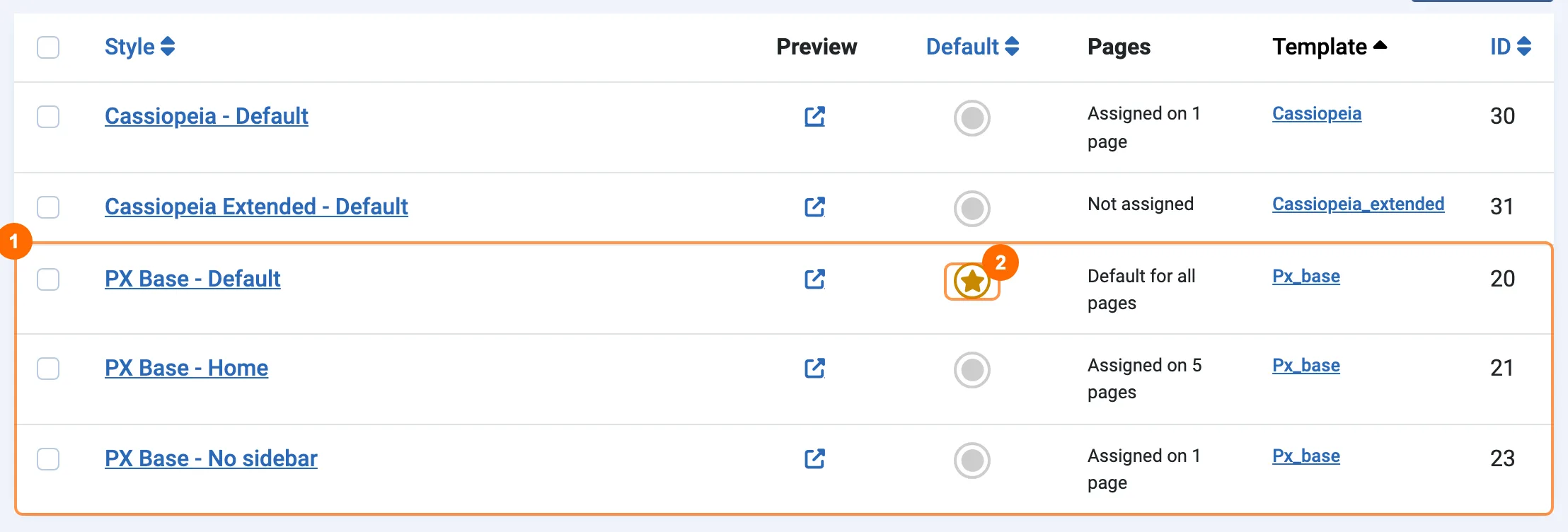
| Style | T4 layout | Used for |
|---|---|---|
| PX Base - Home | home | Home, About, Services, Projects and Pricing: a hero in slideshow, then full-width sections. |
| PX Base - Default | default | Blog, Contact and the Joomla pages (login, tags, search…): page header and content, with optional sidebars. |
| PX Base - No sidebar | no-sidebar | Content pages without sidebars. |
Assign a style to a page
Open the menu item in Menus and choose the style in Template Style on the Details tab. In the demo, Home, About, Services, Projects and Pricing use PX Base - Home; Blog and Contact use the default style.
Template settings (T4)
Click a style name in Site Template Styles to open the T4 settings screen.
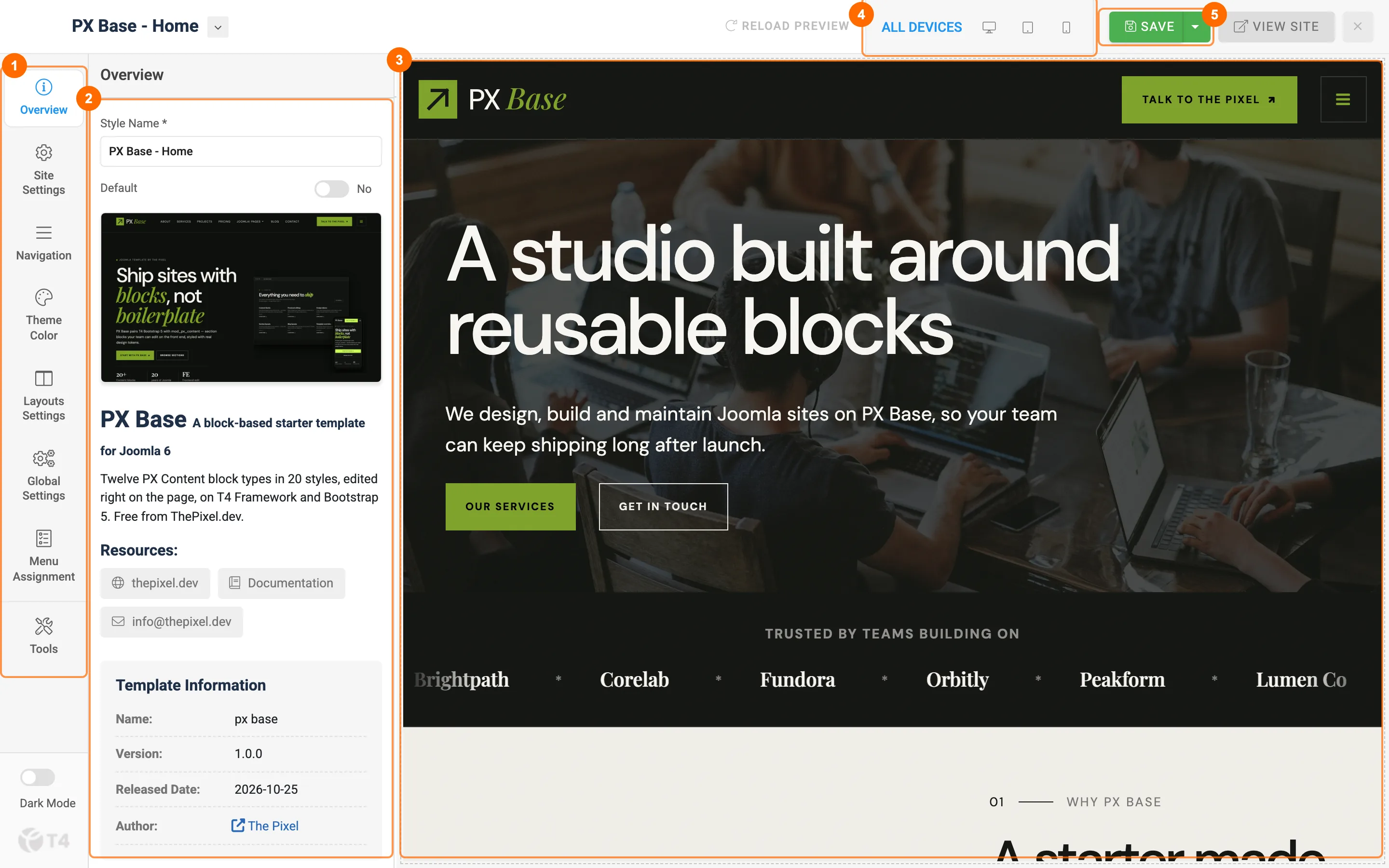
- 1Settings menu: Overview, Site Settings, Navigation, Theme Color, Layouts, Global Settings, Menu Assignment and Tools.
- 2Settings panel for the item you chose. Overview shows the template version and links to this guide.
- 3Live preview of your site. It updates as you change settings.
- 4Device preview: desktop, tablet or phone.
- 5Save the style.
Site Settings, Navigation, Theme Color and Layouts are saved as named profiles (default, home…). The three PX Base styles share the default site, navigation and theme profiles, so a new logo or colour shows on every page.
Logo and fonts
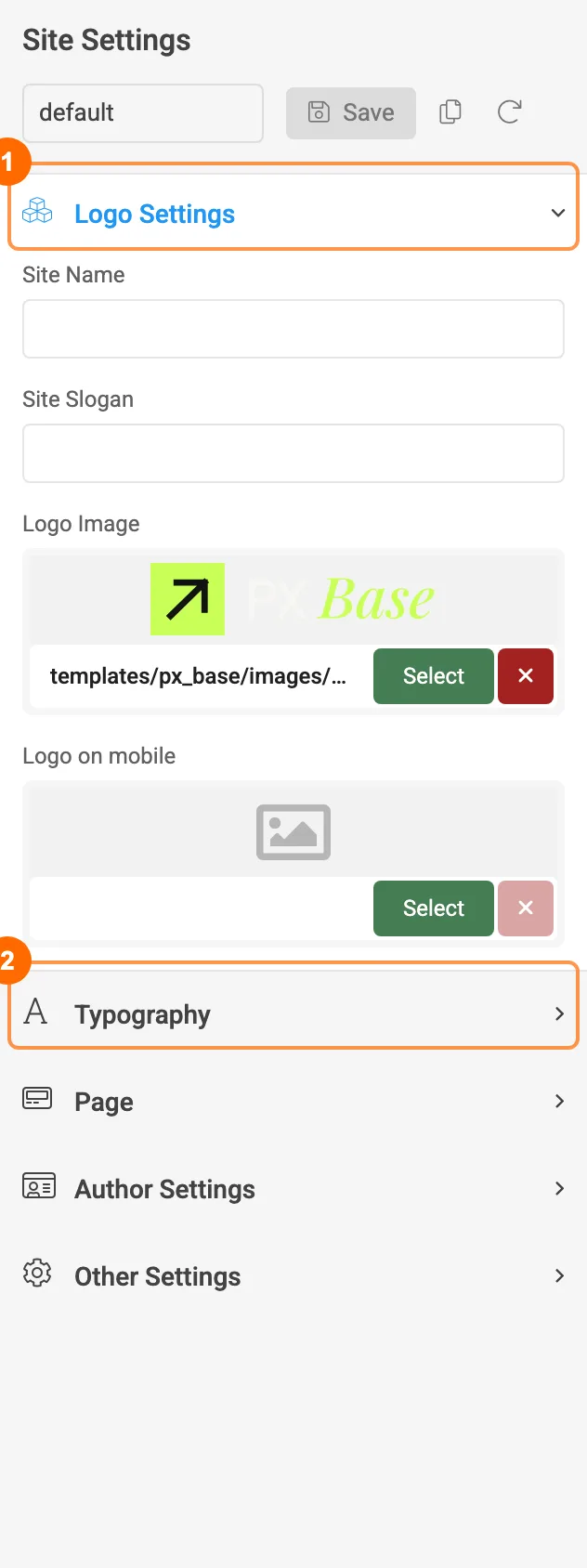
- 1Logo Settings: site name, slogan, logo image and a smaller logo for phones. The demo logo is in
templates/px_base/images/. - 2Typography: body and heading fonts. Page, Author Settings and Other Settings are below it.
Colours
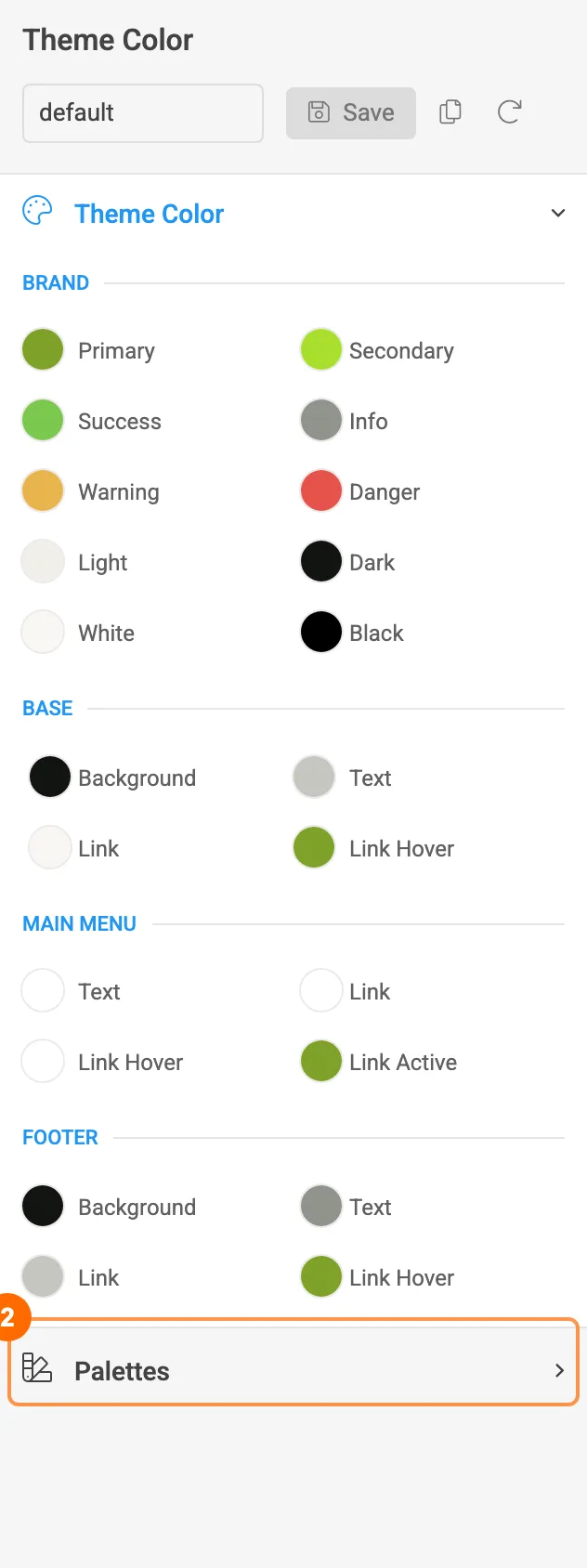
- 1Theme Color: change Primary (the lime green of buttons and highlights) and Secondary to your brand colours. Base, main menu and footer colours are below them.
- 2Palettes: colour sets that sections and modules can use for their background and text.
Menu and megamenu
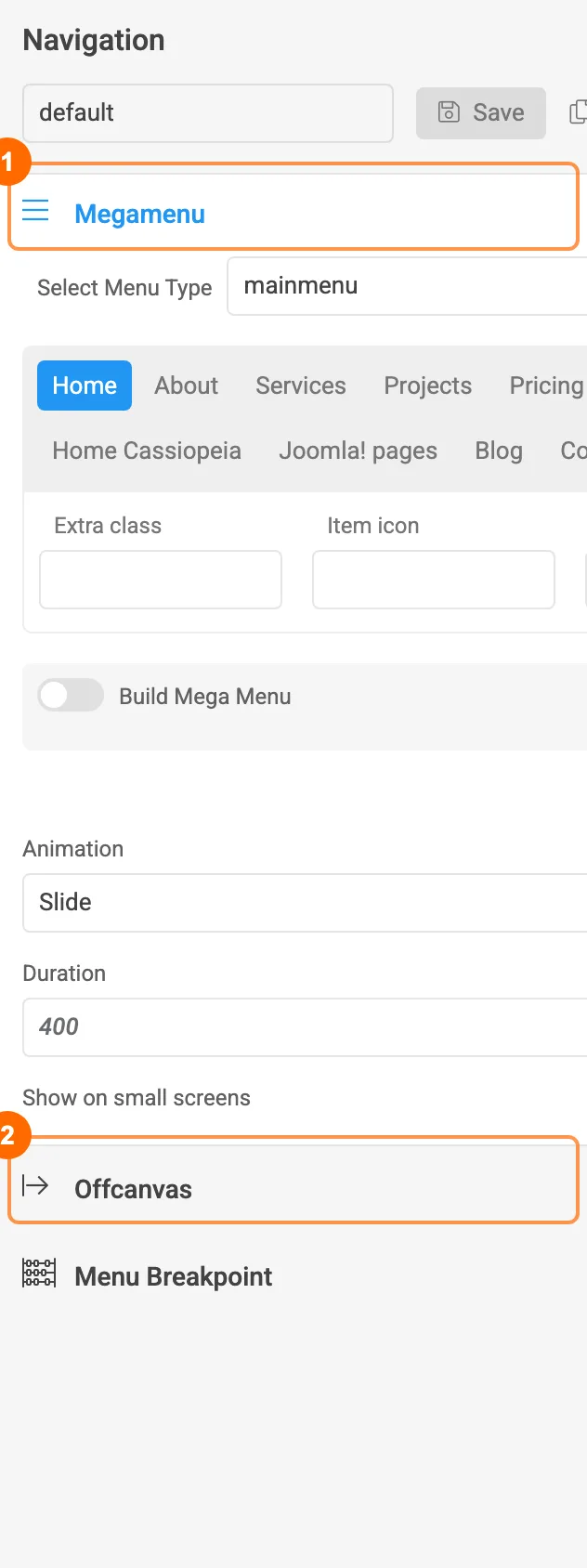
- 1Megamenu: pick the menu (mainmenu), click a menu item, then turn on Build Mega Menu to add columns and modules to its dropdown. Animation and Duration set how dropdowns open.
- 2Offcanvas (the side menu behind the ☰ button) and Menu Breakpoint, the screen width where the main menu turns into the mobile menu.
Layouts
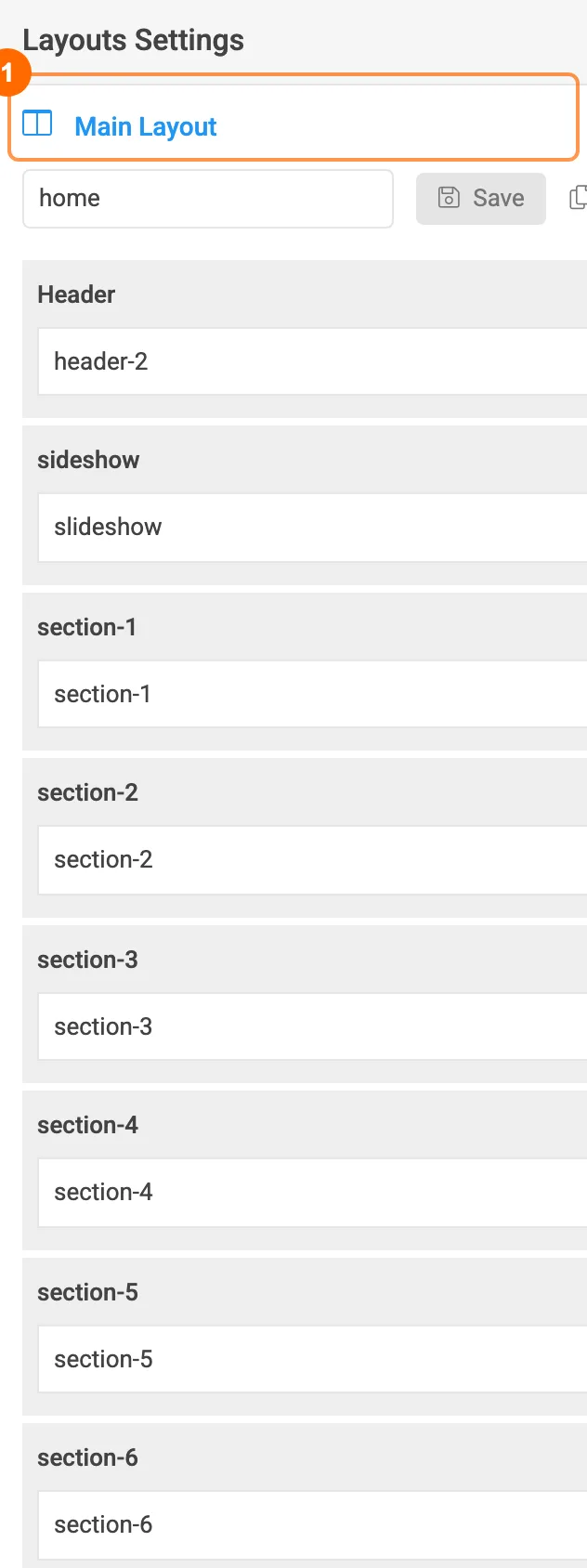
- 1Main Layout: the layout this style uses (see the table in Template styles).
- Below it are the sections of the page, top to bottom, each with its module position: header,
slideshow,section-1…section-11and the footer. Drag rows to reorder them, or open a row's settings to change its width and background.
Your own CSS
Use Tools » Edit Custom CSS for small design changes. Your CSS is kept when you update the template.
Module positions
Every section of a page is a module in a position:
| Position | Where | Layouts |
|---|---|---|
header-r | Right side of the header: the “Talk to The Pixel” button | all |
off-canvas | Menu in the side panel | all |
slideshow | Large hero under the header | home |
section-1 … section-11 | Full-width sections, top to bottom | home |
masthead | Page title area | default |
sidebar-l, sidebar-r | Left and right sidebar | default |
contact-bottom | Under the contact form (the demo shows an FAQ there) | Contact page |
footer-logo, footnav-1 … footnav-5 | Footer: brand column and link columns | all |
footer | Bottom bar: copyright line | all |
Go to Content » Site Modules to see every module with its position 1 and type 2. The demo names its modules after the page: type PX Home, PX About or PX Pricing in the search box to see the sections of one page.
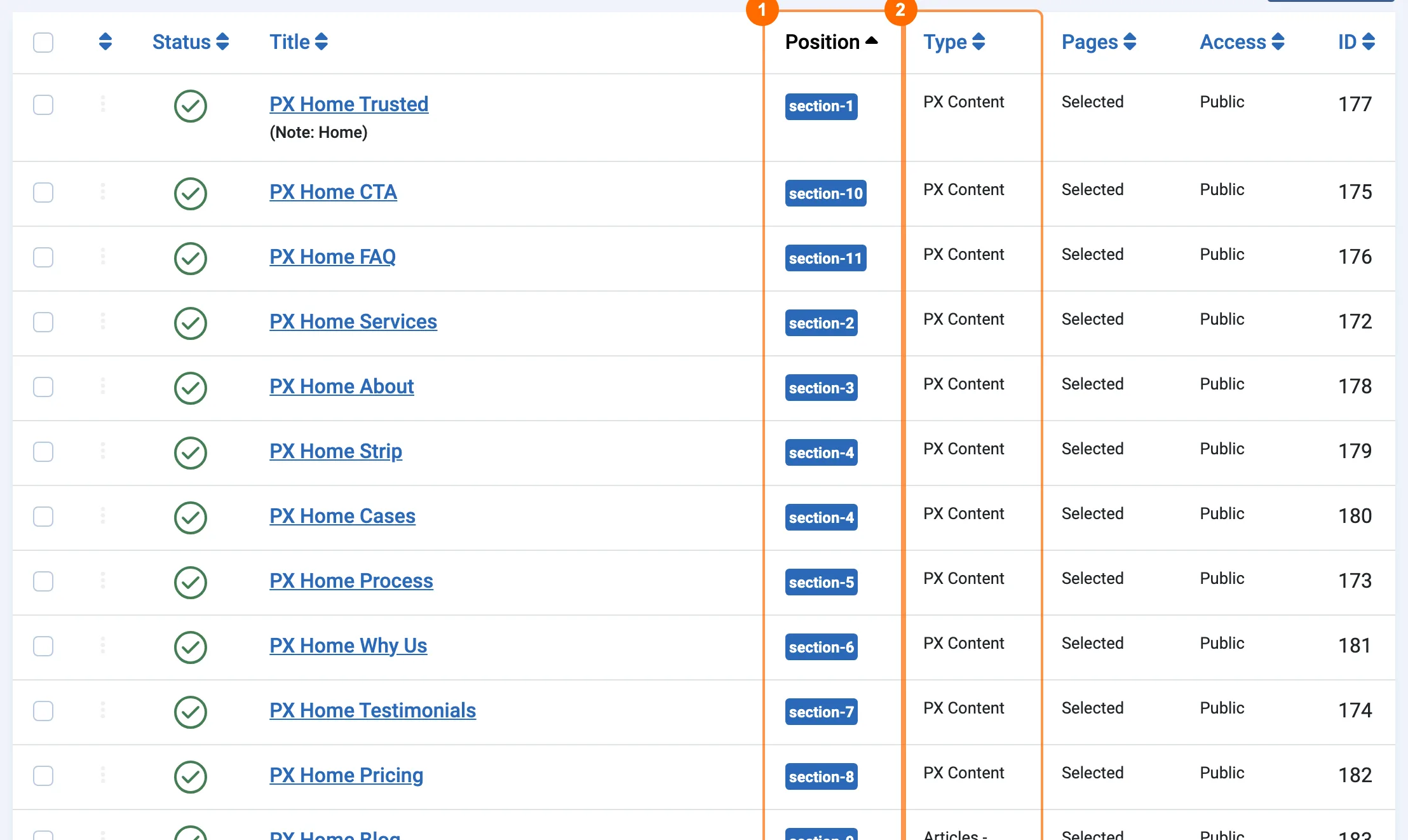
One section can show on several pages: PX Home Testimonials, for example, is assigned to Home, Services, Pricing, About and Projects. Change the pages on the module's Menu Assignment tab.
PX Content blocks
Most sections are a PX Content module. Each module shows one block, such as a hero, a pricing table or an FAQ, with its own texts, images and buttons.
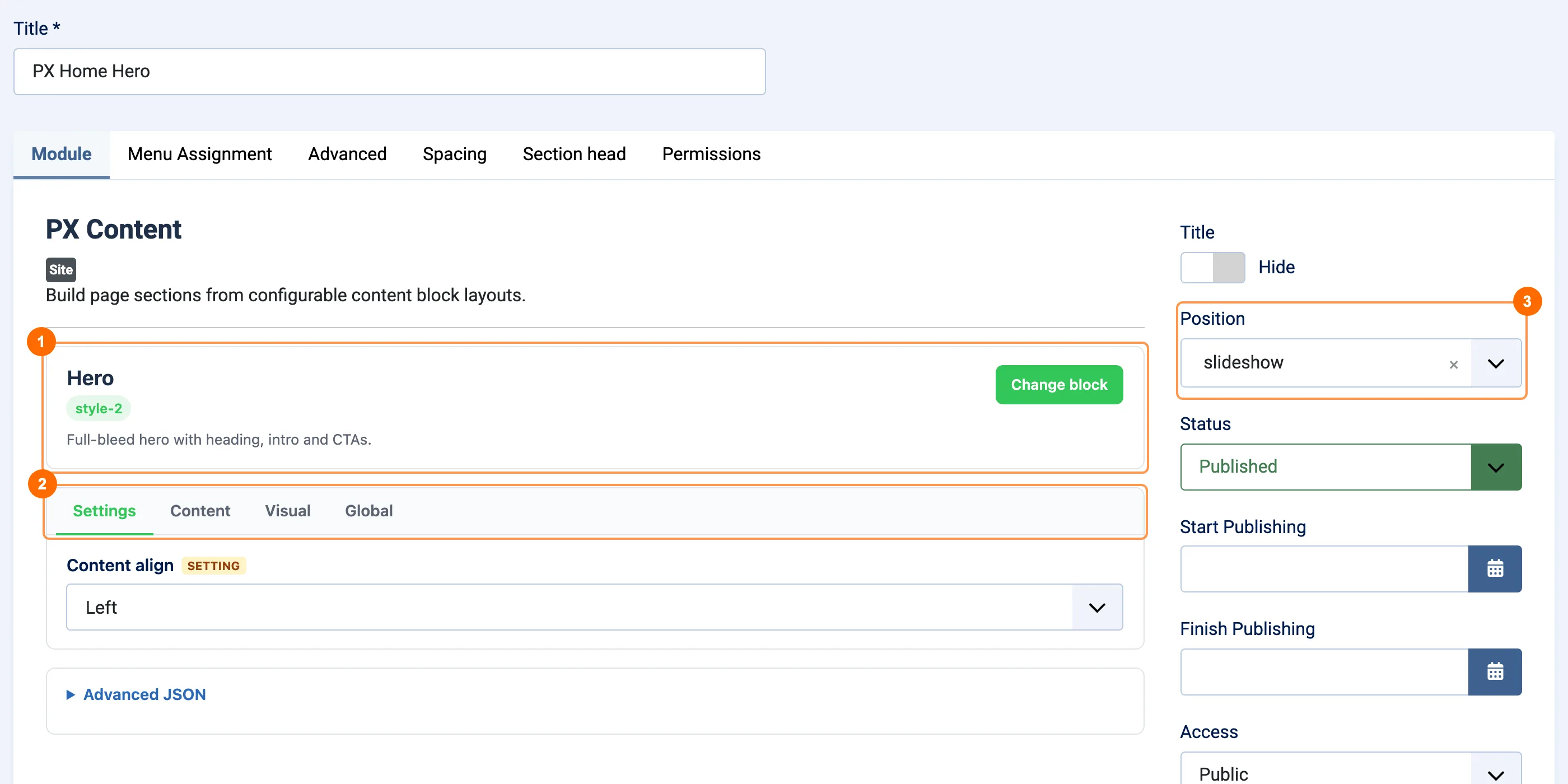
- 1Block and style: the block this module shows (here Hero, style-2). Click Change block to pick another one.
- 2Block settings in tabs: Settings, Content, Visual and Global. The fields change with the block. Advanced JSON below them holds all settings as text: copy it to move a block to another module or site.
- 3Position: where the block shows (see Module positions).
The Spacing tab sets the space above and below the section, and Section head adds a small badge and a title with a highlighted word, as on the demo pages.
Choose a block
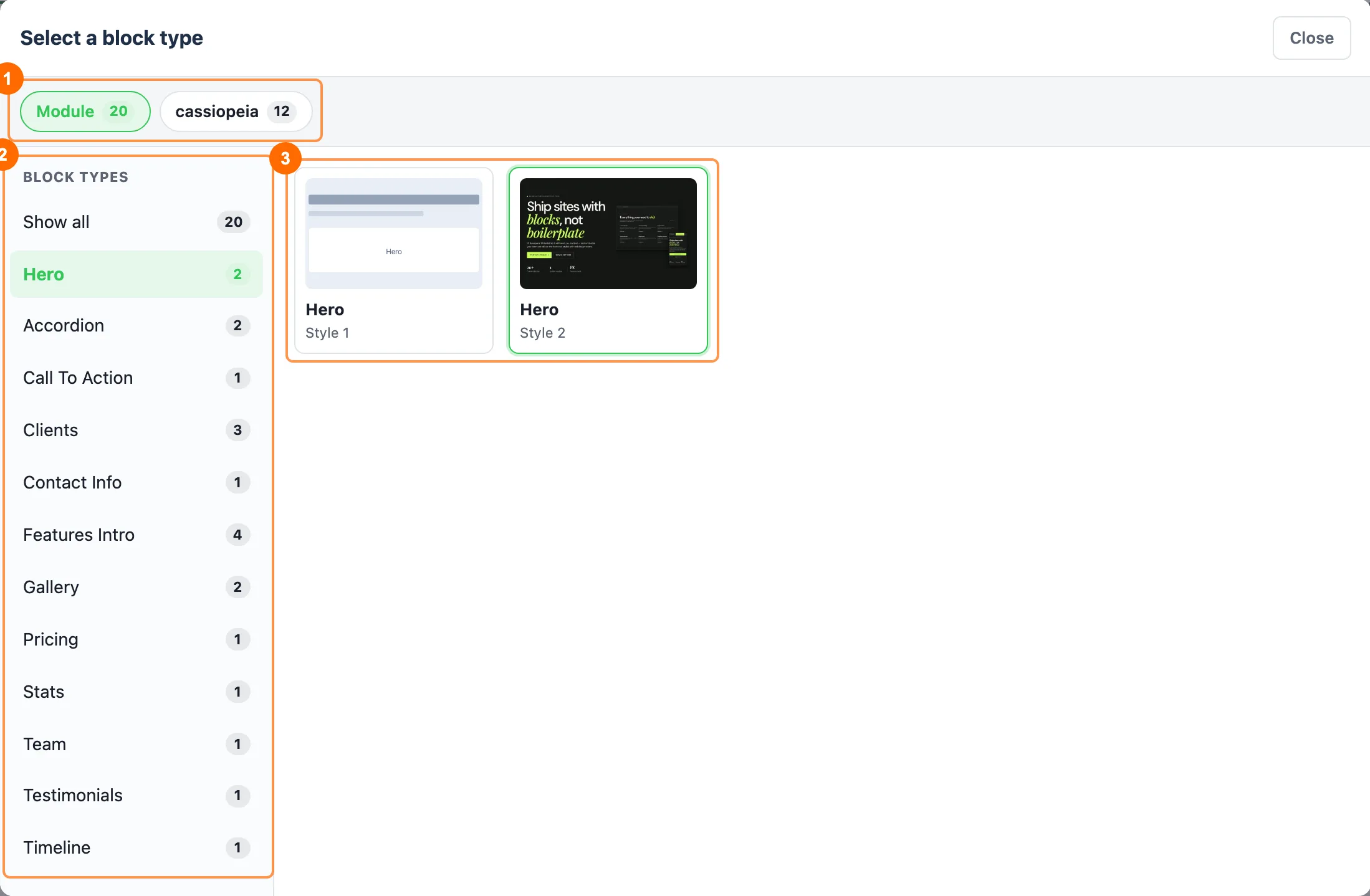
- 1Module lists the 20 block styles of PX Content.
- 2Block types, with the number of styles of each.
- 3Styles with a preview. Click one to use it.
The blocks, and where the demo uses them:
| Block | Styles | Used in the demo for |
|---|---|---|
| Hero | 2 | Home hero; page headers of About, Services, Projects and Pricing |
| Clients | 3 | “Trusted by” logo strip; the scrolling capability strip |
| Features Intro | 4 | Capabilities cards, “Why PX Base”, the four-step workflow, “Built different” |
| Gallery | 2 | Project showcase on Home and Projects |
| Testimonials | 1 | Quotes slider |
| Pricing | 1 | Plans on Home and Pricing |
| Call To Action | 1 | “Let's build” band at the end of the page |
| Accordion | 2 | FAQ on Home and Contact |
| Stats | 1 | Numbers on About |
| Team | 1 | Team on About |
| Timeline | 1 | Not on the demo pages: use it for steps or milestones |
| Contact Info | 1 | Not on the demo pages: address, phone and email as a section |
Edit on the page
You can change most texts and images right on the site, without opening the module. It is on by default (Frontend Inline Edit on the module's Advanced tab) and works for users who may edit modules.
- Log in on the site (the demo links the login page in the footer, under Resources).
- Click Edit content at the bottom right of the page.
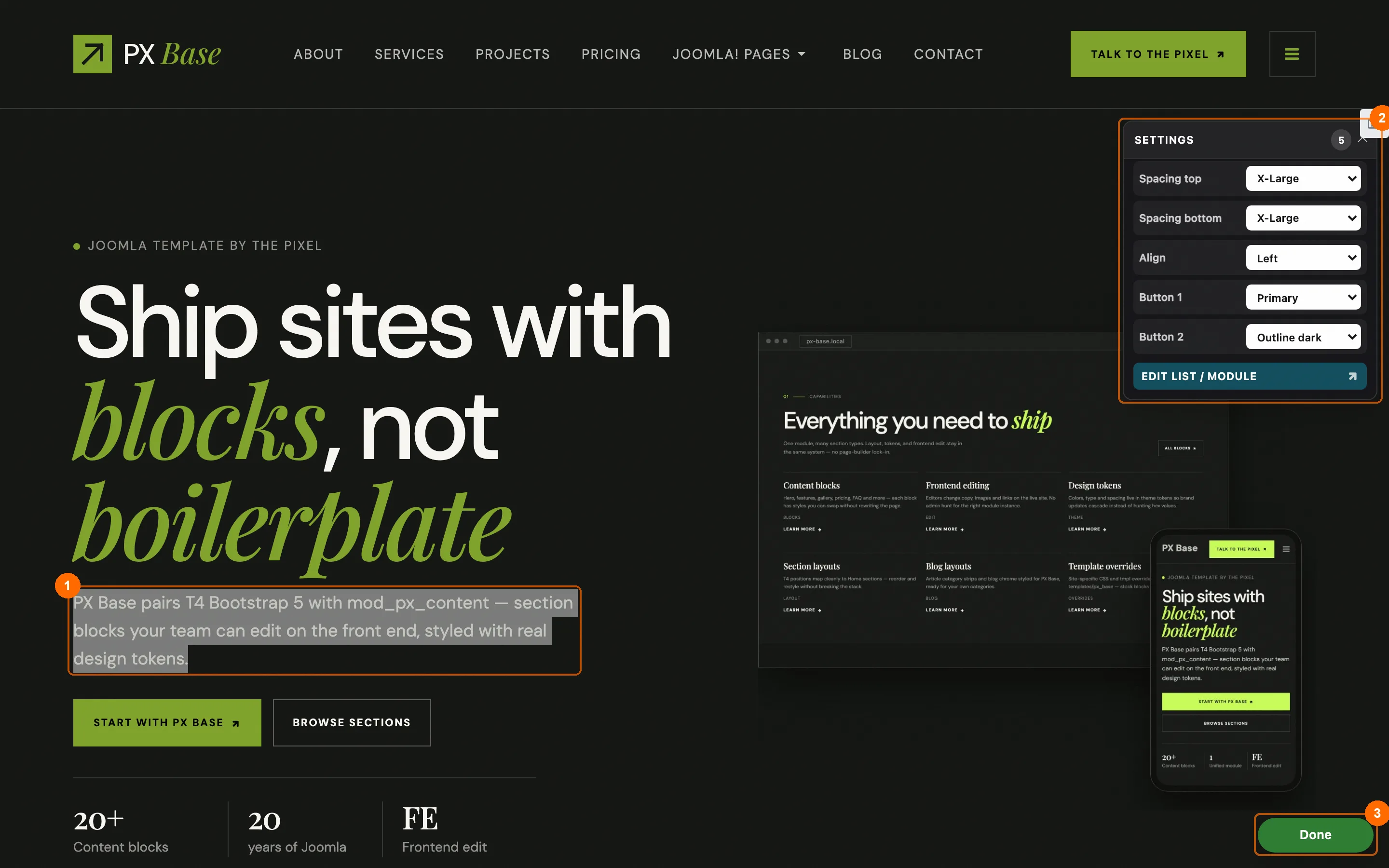
- Double-click a text to change it 1. Press Ctrl/⌘+Enter to save.
- Use the Img and BG buttons to pick an image or background from the Media Manager.
- Settings 2 opens the options of a block, such as spacing, alignment and button styles. Edit list / module opens the full module.
- Click Done 3 when you are finished.
Set up your pages
The quickstart has every page ready: replace the texts and images with your own. To build a page from scratch:
A page made of sections
- Create an article for the page (the demo pages are short articles: About, Services…).
- Create a menu item of type Single Article for it and choose the style PX Base - Home.
- Content » Site Modules » New » PX Content: choose the block Hero, set the position
slideshowand assign it to the new menu item only. - Add the next sections the same way in
section-1tosection-11.
Blog
The Blog menu item is a Category Blog of the Blog category with the default style. The “Build notes” strip on the home page is an Articles - Category module in section-9 with the blog-layout layout (Advanced tab). Other layouts: grid-layout, list-layout and highlight-layout.
Contact page
Edit the contact The Pixel in Components » Contacts: name, address, phone, email and links. The FAQ under the form is a PX Content module in contact-bottom.
Footer
The brand column is a Custom module in footer-logo; the link columns are Custom modules in footnav-2 to footnav-4. The copyright line is in footer.
Frequently asked questions
Is PX Base really free?
Yes. Create a free account on thepixel.dev and download it from the product page. You can use it on as many sites as you like. Pro membership adds every premium template and extension.
How do I change the logo and the site name?
Open a template style and go to Site Settings » Logo Settings. The demo texts that mention PX Base or The Pixel live in the modules and articles: change them there, or on the page with Edit content.
How do I use my brand colours?
Change Primary and Secondary in Theme Color and save. Buttons and highlights follow these colours. Sections with their own background (such as the hero) have a background field in their block settings.
The pricing, testimonials and client logos are about ThePixel. Can I remove them?
Yes, they are demo content. Unpublish the module in Content » Site Modules, or change its block and texts to your own.
My changes do not show on the site. What do I do?
Clear the cache in System » Clear Cache and reload the page. With CSS & JS Optimization on (T4 Global Settings), also reload with Ctrl/⌘+Shift+R after you change Custom CSS.
Does PX Base work with Joomla 5?
No. PX Base is made for Joomla 6 and needs PHP 8.3 or later.
Where can I get help?
Ask in the ThePixel forum. Tell us your Joomla and PHP versions and the page where you see the problem.
Upgrade
Take a full backup
Back up your files and database before any upgrade, so you can go back if something goes wrong.
PX Base checks for updates through Joomla: a new version shows in System » Update » Extensions and on the T4 Overview panel.
- Update the template from System » Update » Extensions, or download the latest Template from the product page and install it through System » Install » Extensions.
- When a release needs a newer T4 Framework plugin or PX Content module, the release notes say so: install those packages the same way.
- Your template settings, modules and custom CSS are kept.
Do not edit the template files directly: an upgrade overwrites them. Put your changes in Custom CSS instead.