
PX Hotspot turns any picture into an interactive image: draw points and areas in the Joomla administrator, give each one content, and show the image with a module. Set it up in Components → PX Hotspot.
Overview
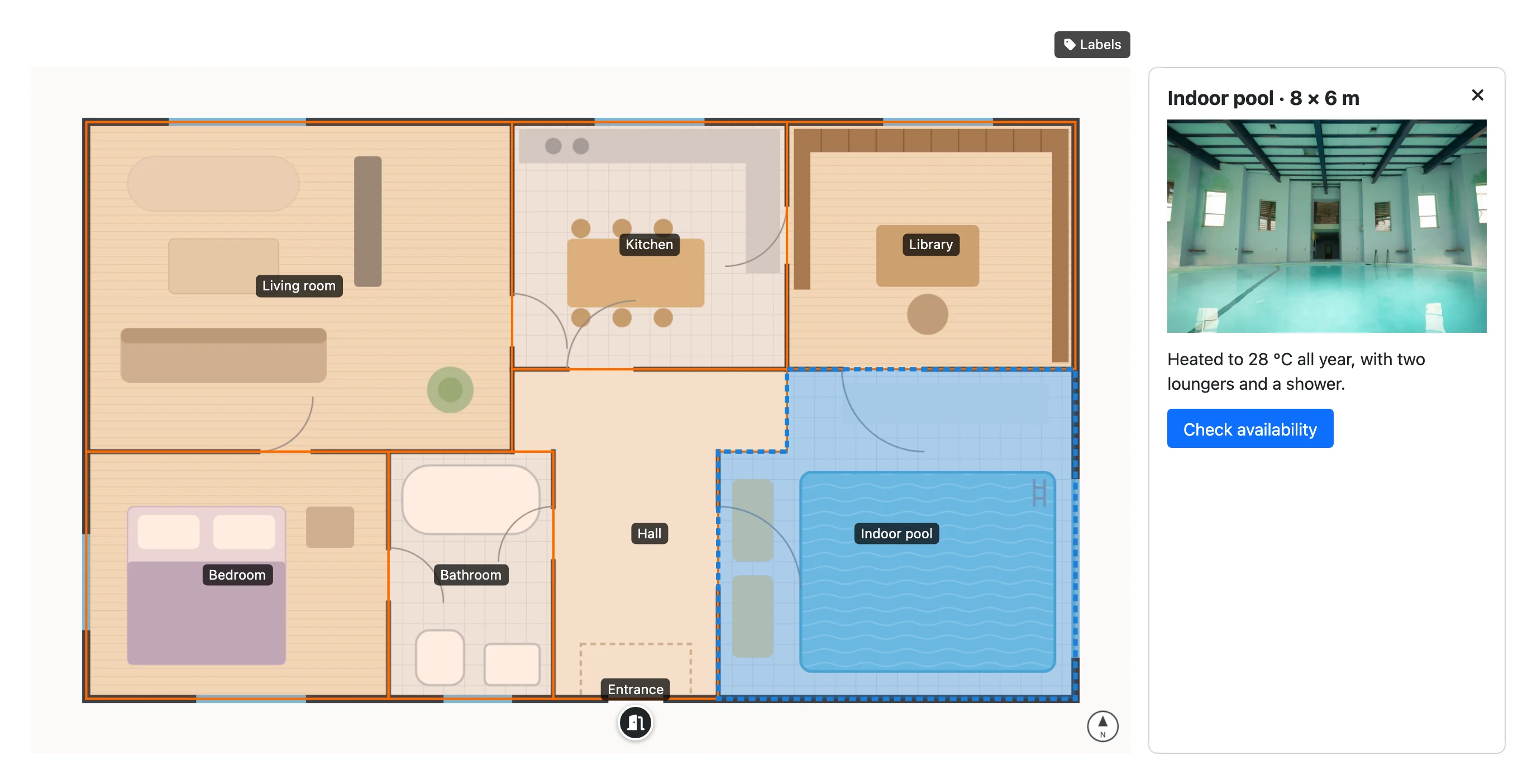
PX Hotspot turns any picture into an interactive image. You draw points and areas on the picture in the Joomla administrator, give each one some content, and visitors click or hover over them to read it. Use it for floor plans, product tours, maps, diagrams, menus or anything where "click on the picture to learn more" helps. PX Hotspot is free.
- Points and areas: markers, circles, rectangles and free polygons (3 to 100 corners), up to 200 hotspots per image.
- Markers: six built-in icons, about 2,000 Font Awesome 6 Free icons or your own picture, with colour, size and animation.
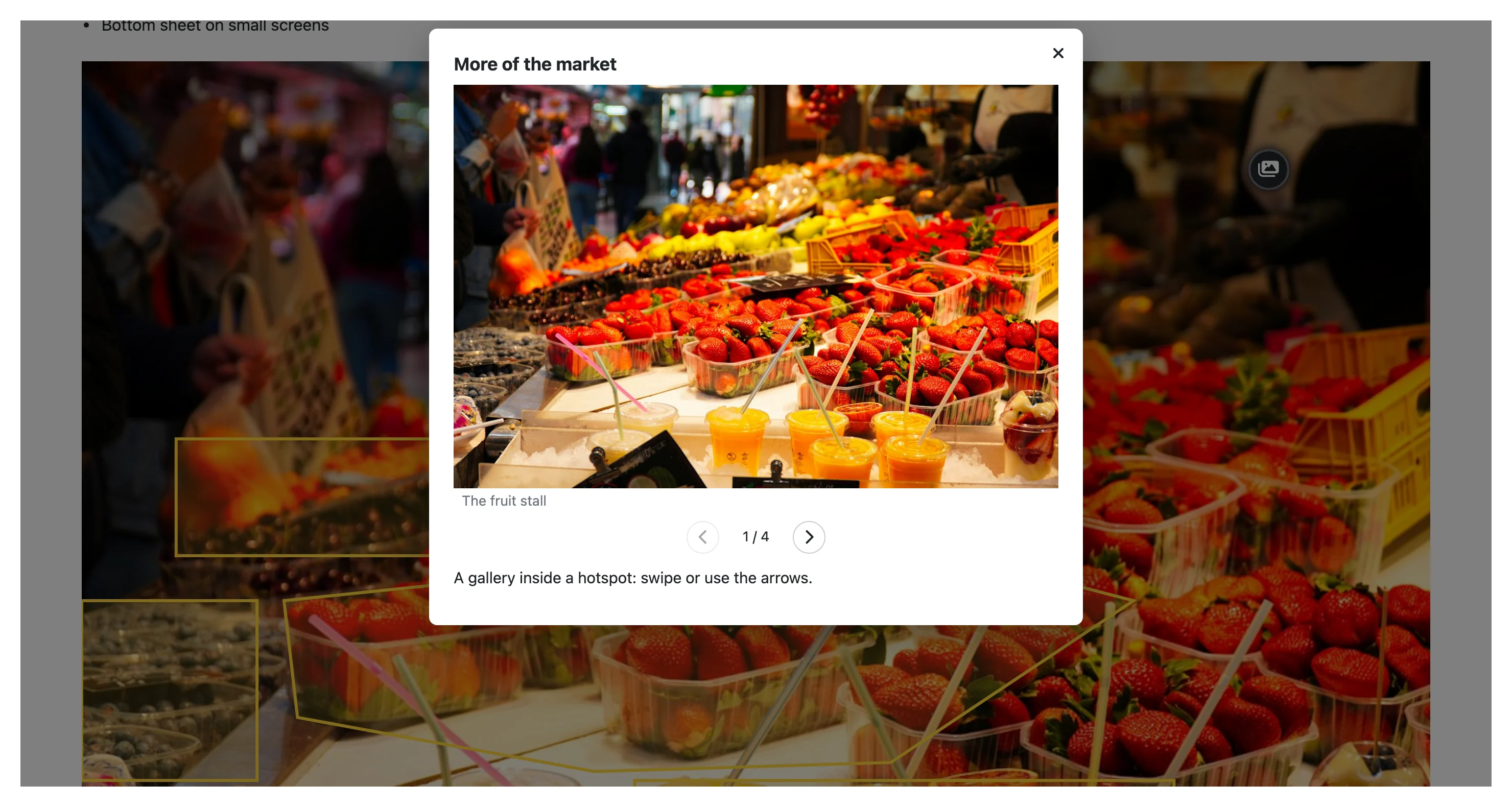
- Content: a heading, rich text, an image, a gallery, a YouTube / Vimeo / MP4 video, a button, or a Joomla article.
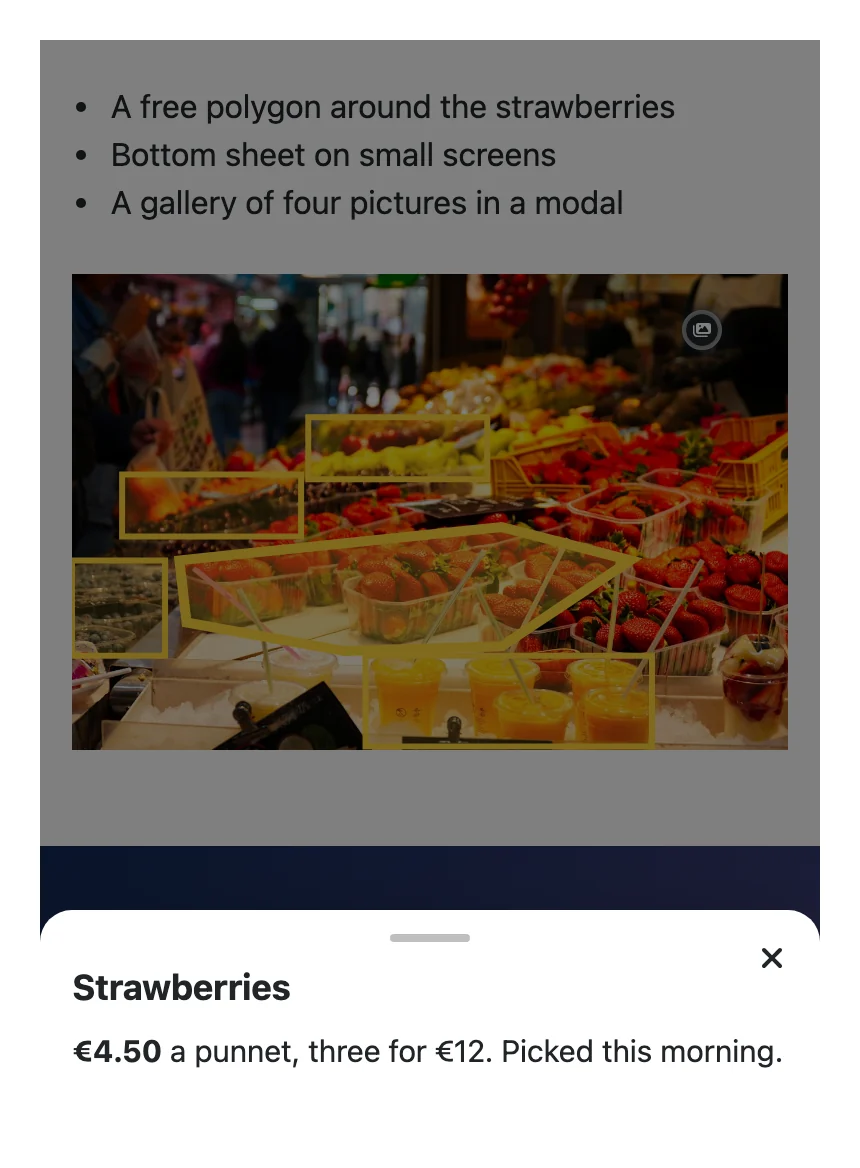
- Display: tooltip, modal or side panel per hotspot, opened on click or hover; a bottom sheet on phones.
- Image options: width, lazy loading, labels on the image, zoom and smaller markers on phones.
- The Joomla way: a module for any position,
{loadmoduleid}inside articles, ACL, access levels and languages. - Accessible: every hotspot is a real button for the keyboard and screen readers.
Installation
System requirement
- Joomla 5.4 or Joomla 6
- PHP 8.1 or later
- A MySQL or MariaDB database
Install the package
- Download
pkg_pxhotspot-1.0.0.zipfrom the PX Hotspot page (a free thepixel.dev account is enough). - In the Joomla administrator, go to System → Install → Extensions and upload the zip.
- Open Components → PX Hotspot.
The package installs the PX Hotspot component and the PX Hotspot module. A newer version shows up in System → Update → Extensions; you can also install the new zip over the old one.
Interactive images
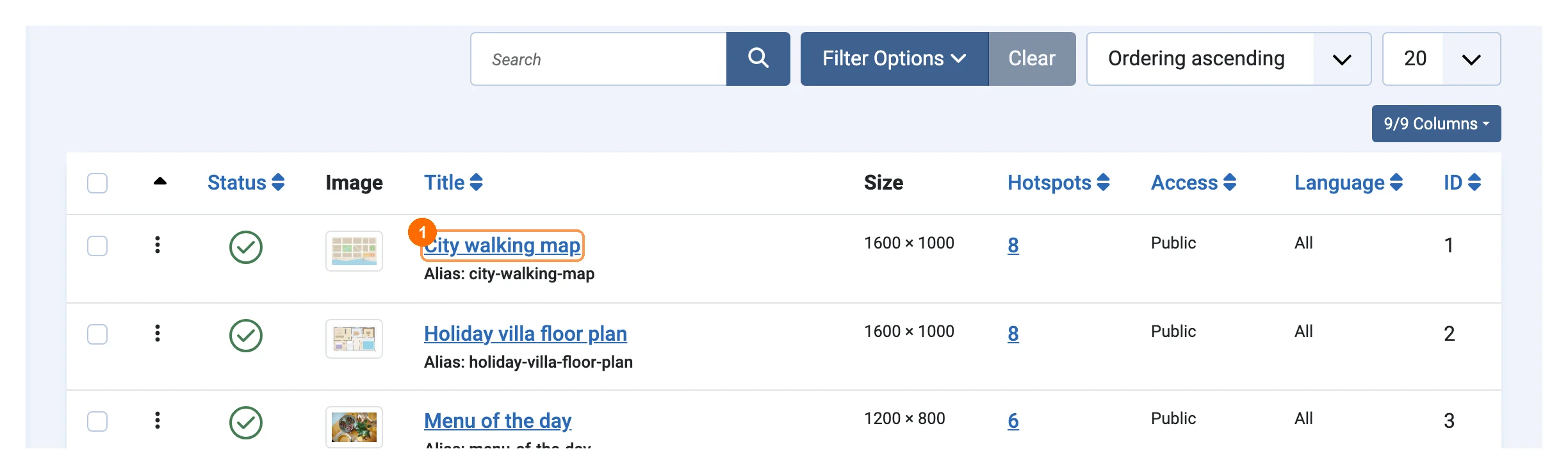
Components → PX Hotspot lists your interactive images with a thumbnail, the picture size, the number of hotspots, access and language. Click a title 1 to open the editor; the toolbar has New, Publish, Unpublish, Trash and Options as in any Joomla list.
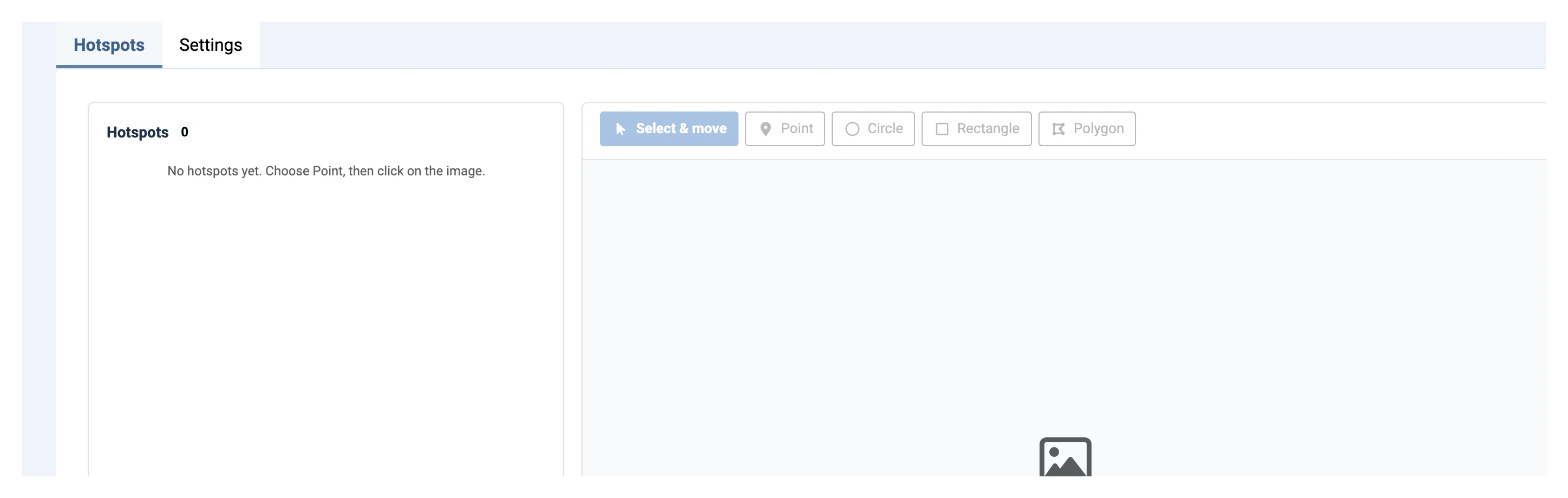
Click New and choose the background picture first. JPG, PNG and WebP are allowed (SVG is not), up to 10,000 pixels on the longest side. Give the image a title in the Settings tab.
The editor
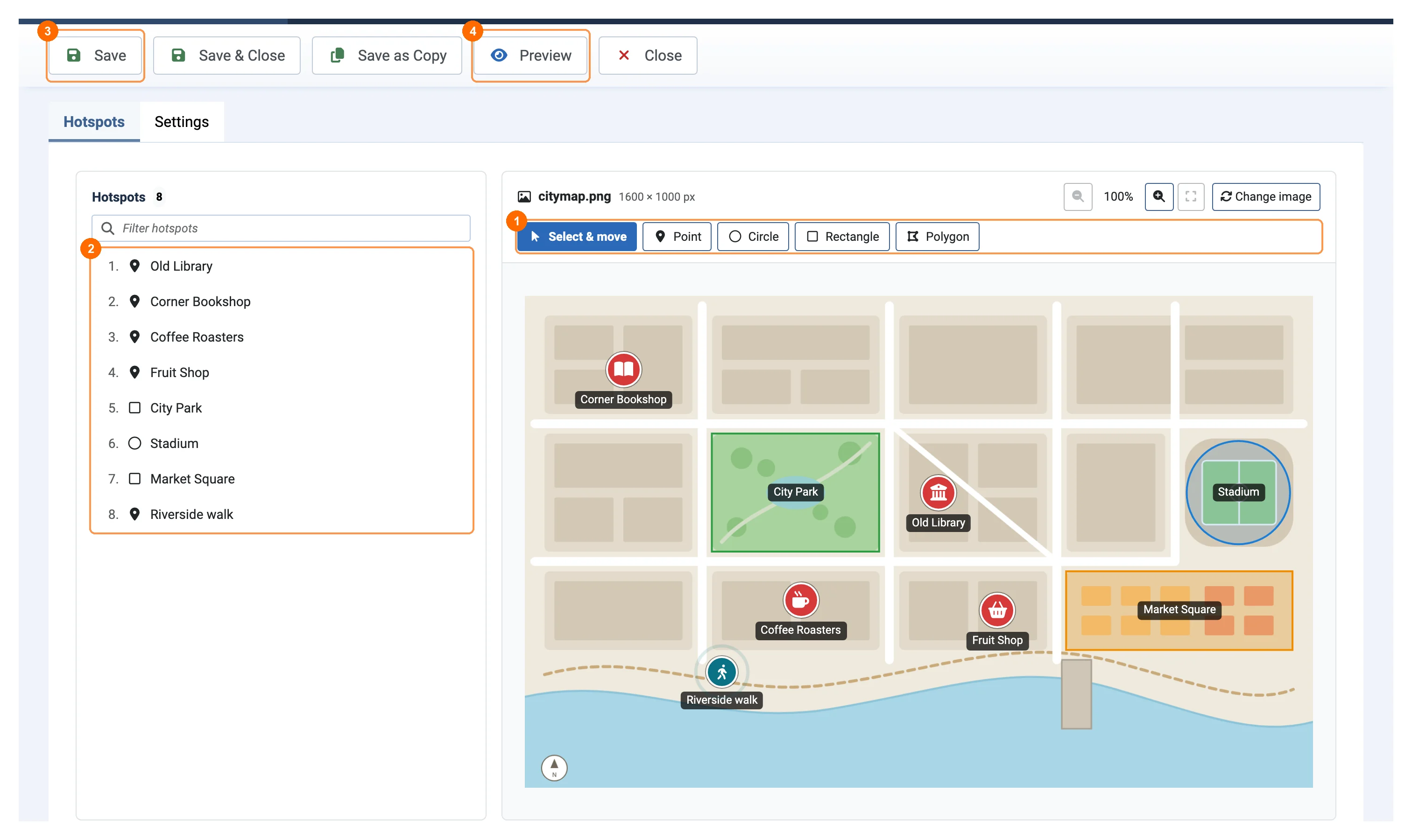
The Hotspots tab is a visual editor. Pick a tool 1: Point (click on the picture), Circle and Rectangle (drag), or Polygon (click each corner; click the first point, double-click or press Finish to close the shape). Select & move lets you drag a hotspot or pull its handles; a polygon's corners can be moved one by one.
The list on the left 2 shows every hotspot; click one to edit it, or filter the list by name. A dot marks hotspots with unsaved changes. Save 3 writes the image and all its hotspots at once; Preview 4 shows the image exactly as visitors see it.
- Zoom with the buttons above the picture for precise work on big images, and fit it back with one click.
- Esc stops drawing or deselects, Delete removes the selected hotspot (or polygon corner), the arrow keys move the selected hotspot.
- Duplicate copies a hotspot with its content; Save as Copy copies the whole image.
- Change image replaces the background picture; you choose whether to keep the hotspots.
Hotspot settings
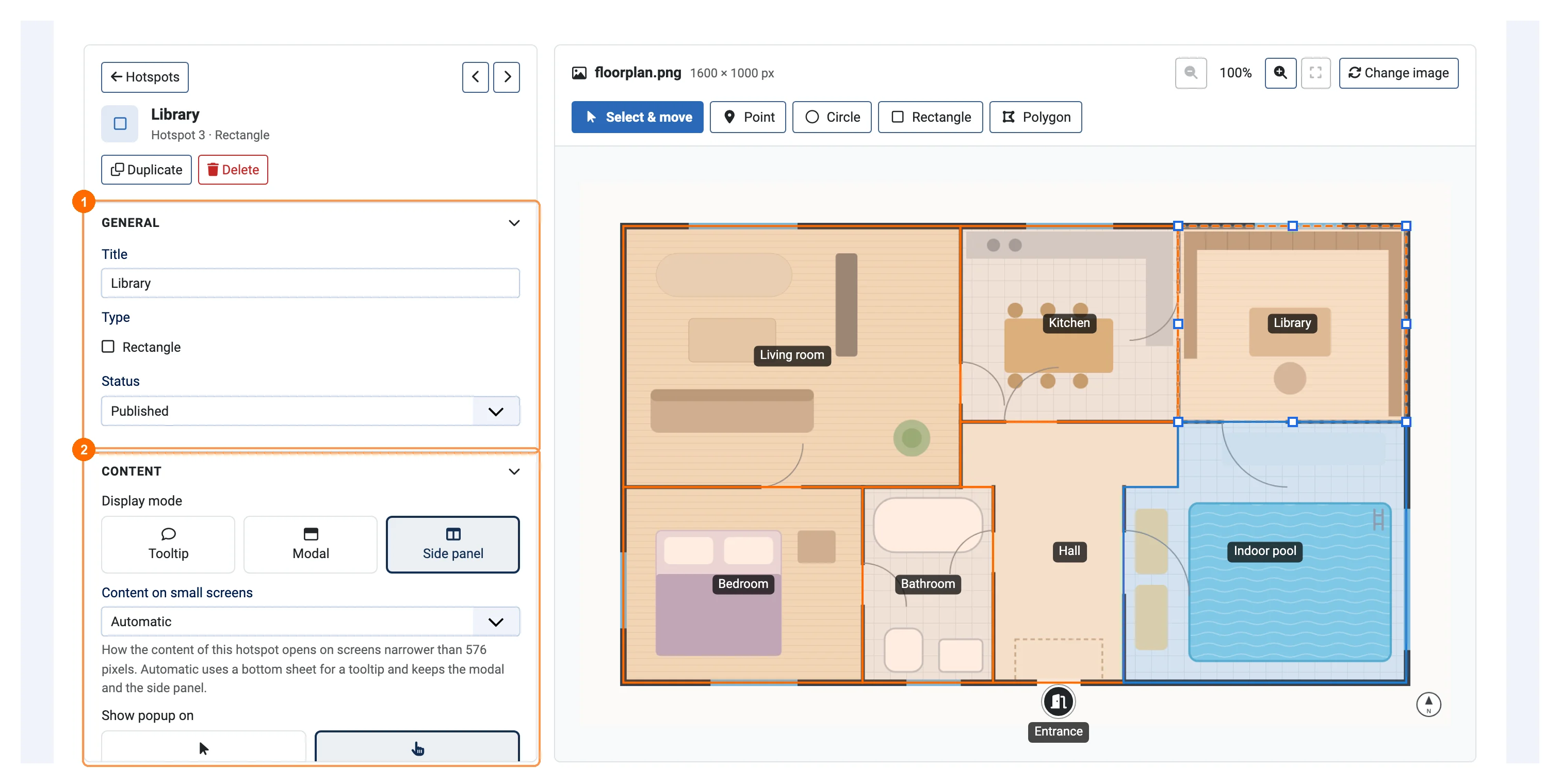
Select a hotspot to open its page in the sidebar. General 1 has the title (the name screen readers read and the text of its label), the type and the status. Content 2 sets how the content opens and what it shows.
How the content opens
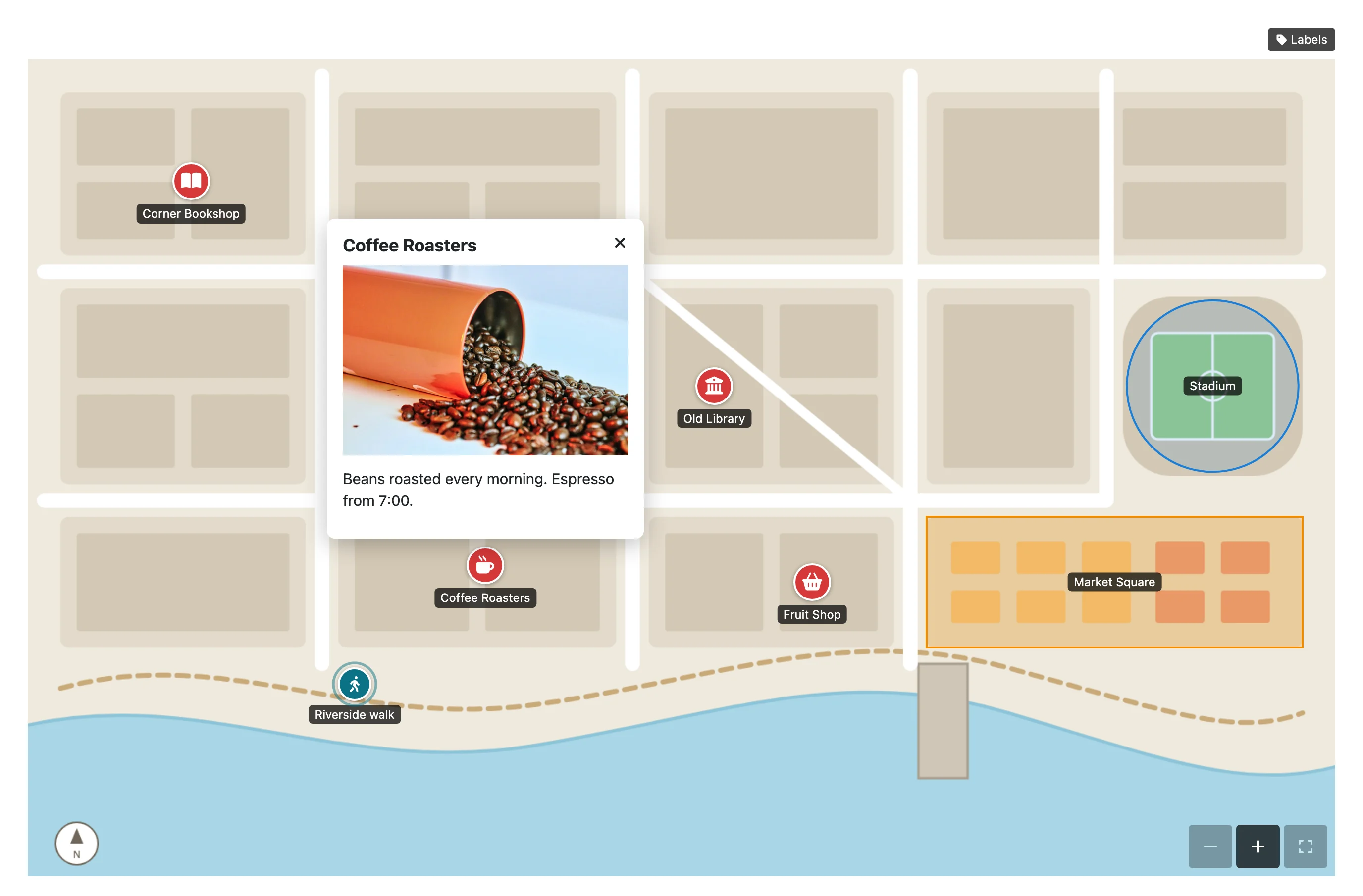
| Display mode | Tooltip (a small box next to the hotspot that follows it while the page scrolls), Modal (a dialog over the page) or Side panel (a panel beside the image, left or right). |
|---|---|
| Opens on | Click or Hover with the mouse. Touch screens and the keyboard always use a tap or Enter. |
| Content on small screens | On screens narrower than 576 px: Automatic (a bottom sheet for a tooltip, modal and panel stay), Bottom sheet, Modal or Same as desktop. |
What the content shows
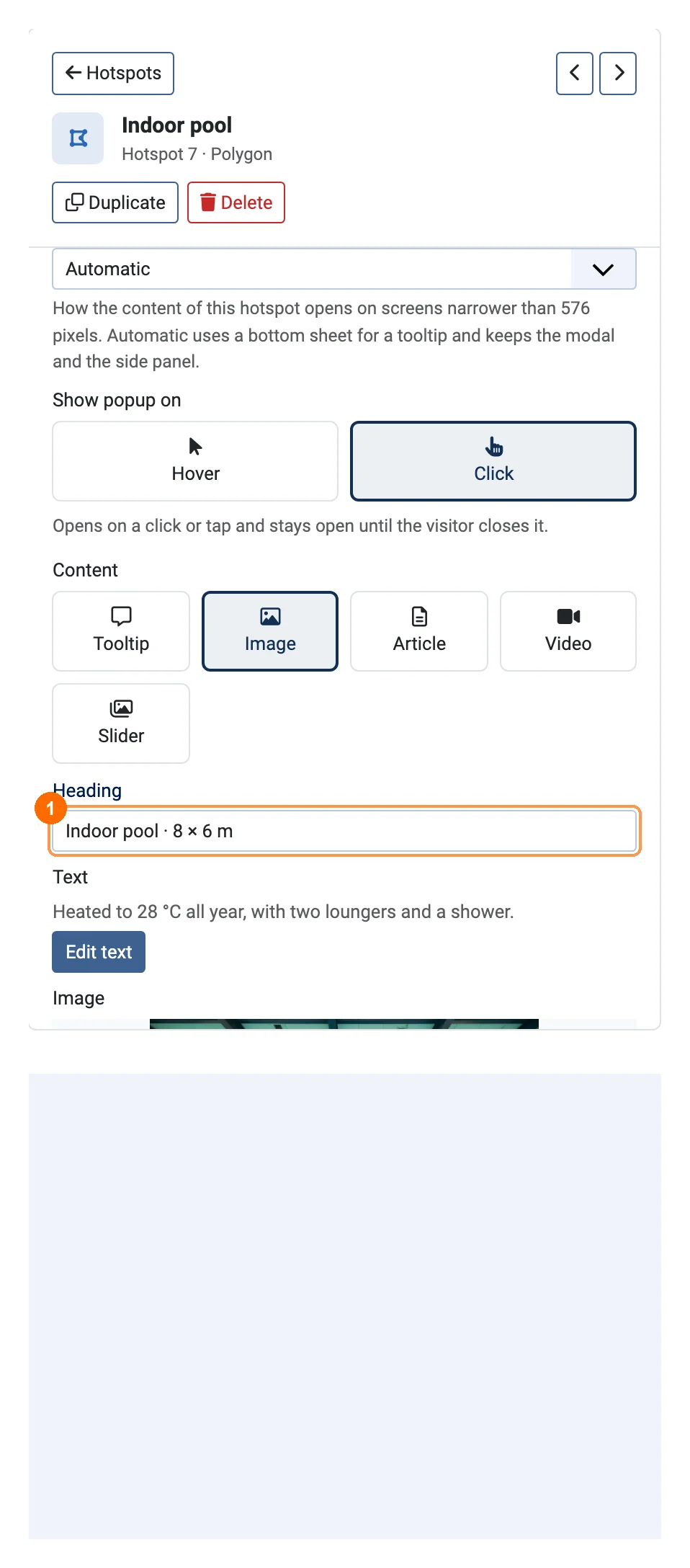
Choose the content type:
- Tooltip: a heading 1, text and an optional button.
- Image: the same with one picture.
- Article: the intro text or the full text of a Joomla article. PX Hotspot respects the article's state, publishing dates, language and access level.
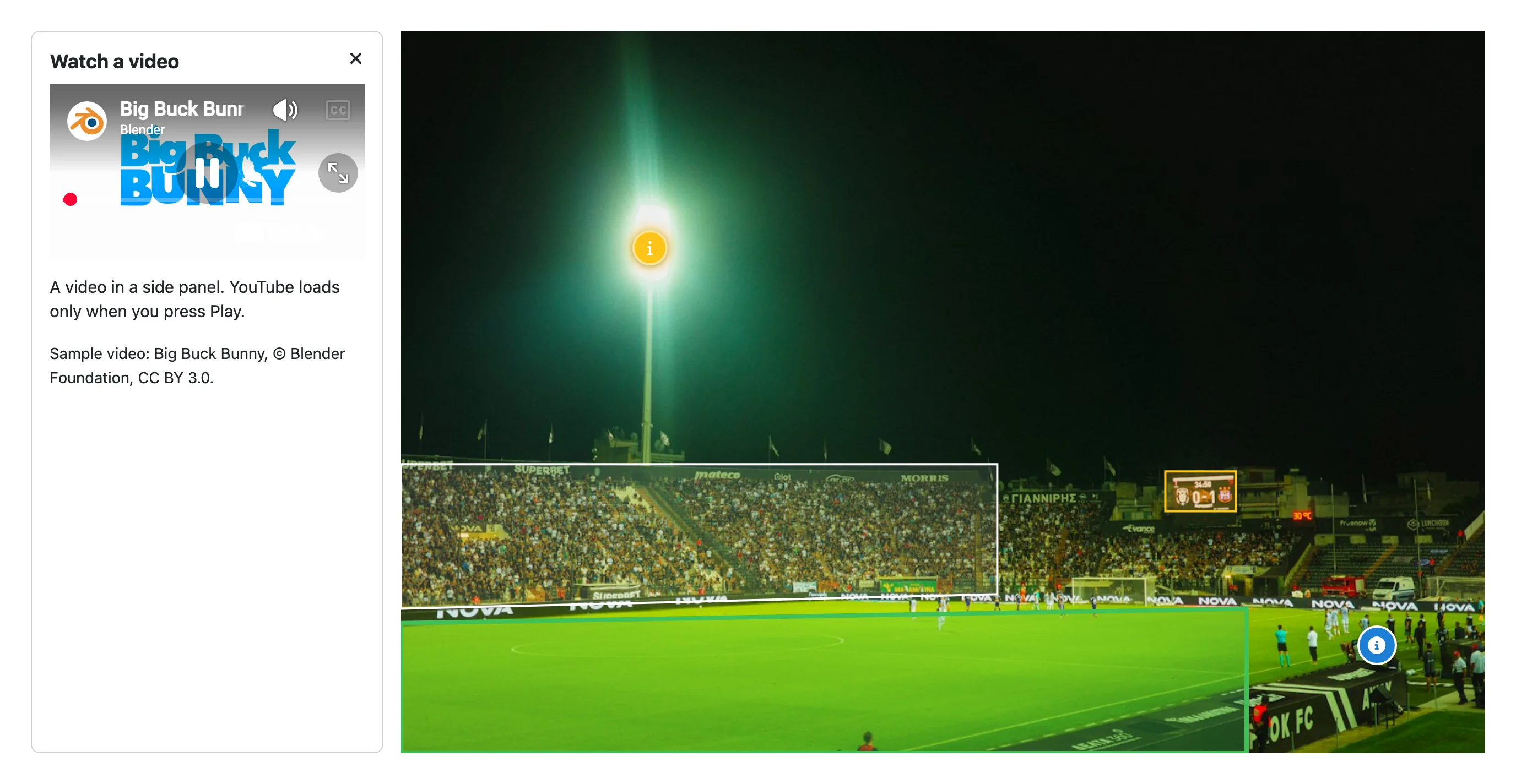
- Video: a YouTube, Vimeo, MP4 or WebM video with an optional poster. YouTube and Vimeo load only when the visitor presses Play; YouTube uses the no-cookie address.
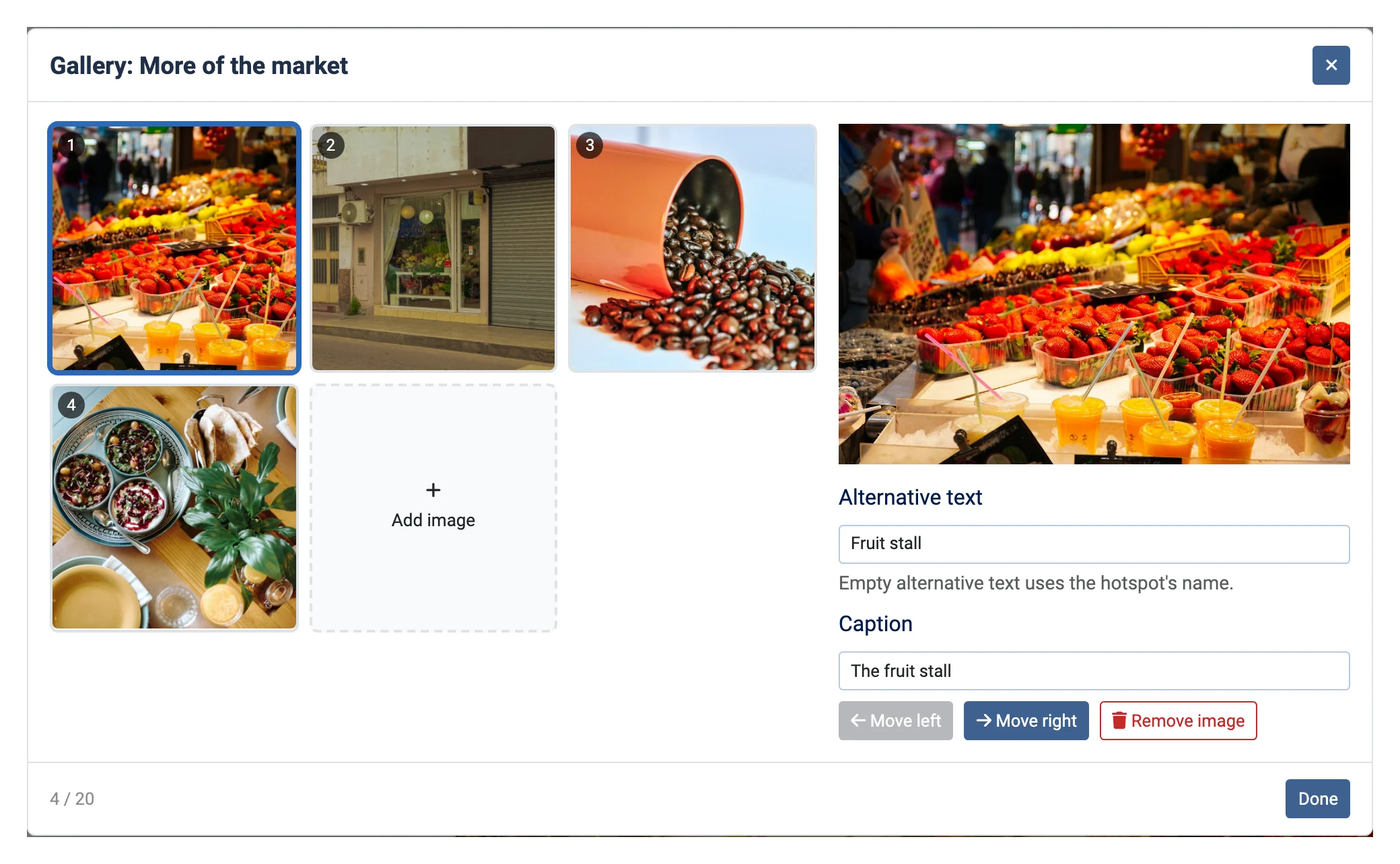
- Slider: a gallery of up to 20 pictures with alternative text and captions.
The text is edited with Joomla's editor (Edit text) and filtered with Joomla's text filters. The button takes a label and a link (http, https, mailto, tel, a page of your site or an #anchor; javascript: is refused).
Markers and areas
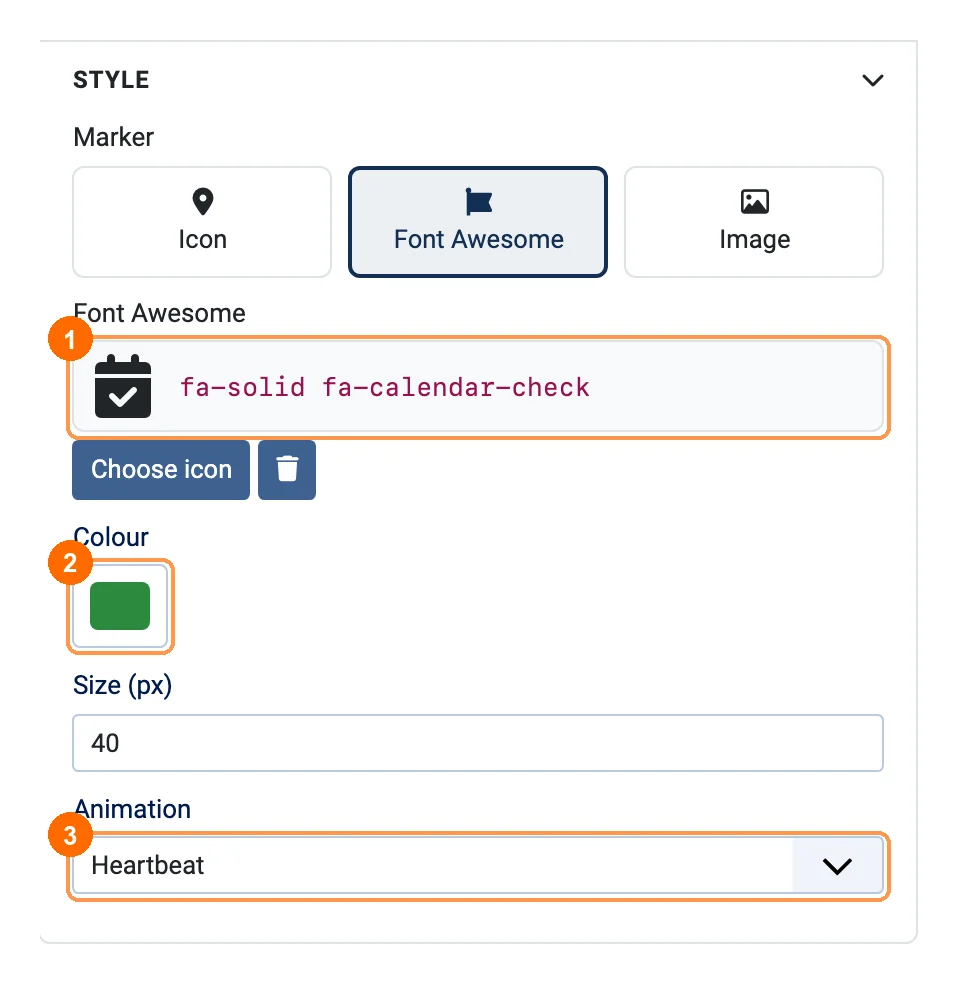
The Style section of a point sets its marker 1: a built-in Icon (dot, plus, info, pin, star, question mark), a Font Awesome icon or your own Image (round, rounded square or original shape). Then the colour 2, the size and an animation 3: pulse, bounce, glow or heartbeat. Visitors who prefer reduced motion see no animation.
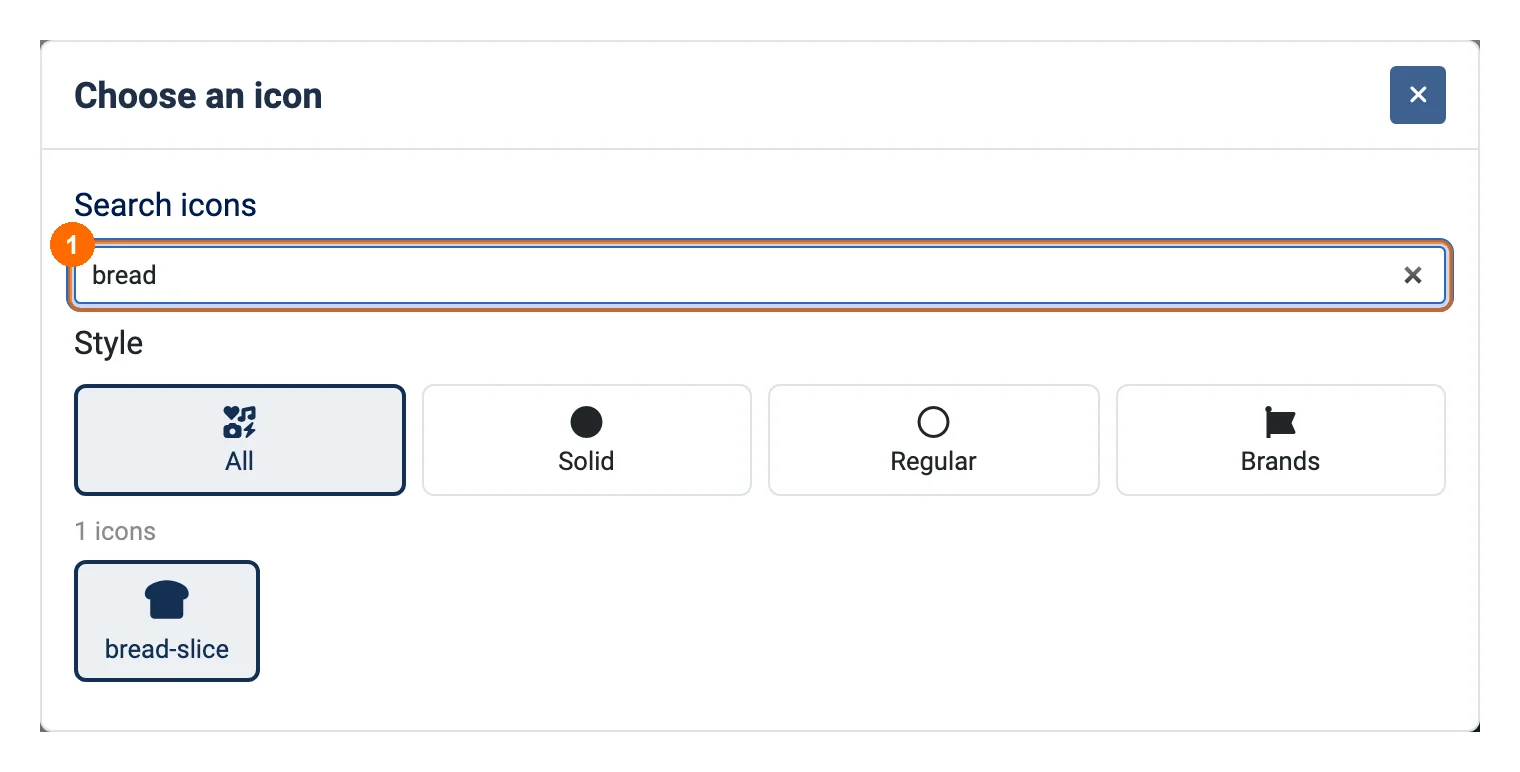
Font Awesome is only loaded on pages with an image that uses a Font Awesome marker. An area (circle, rectangle, polygon) has a fill colour and opacity, a border colour and width, and a stronger fill on hover.
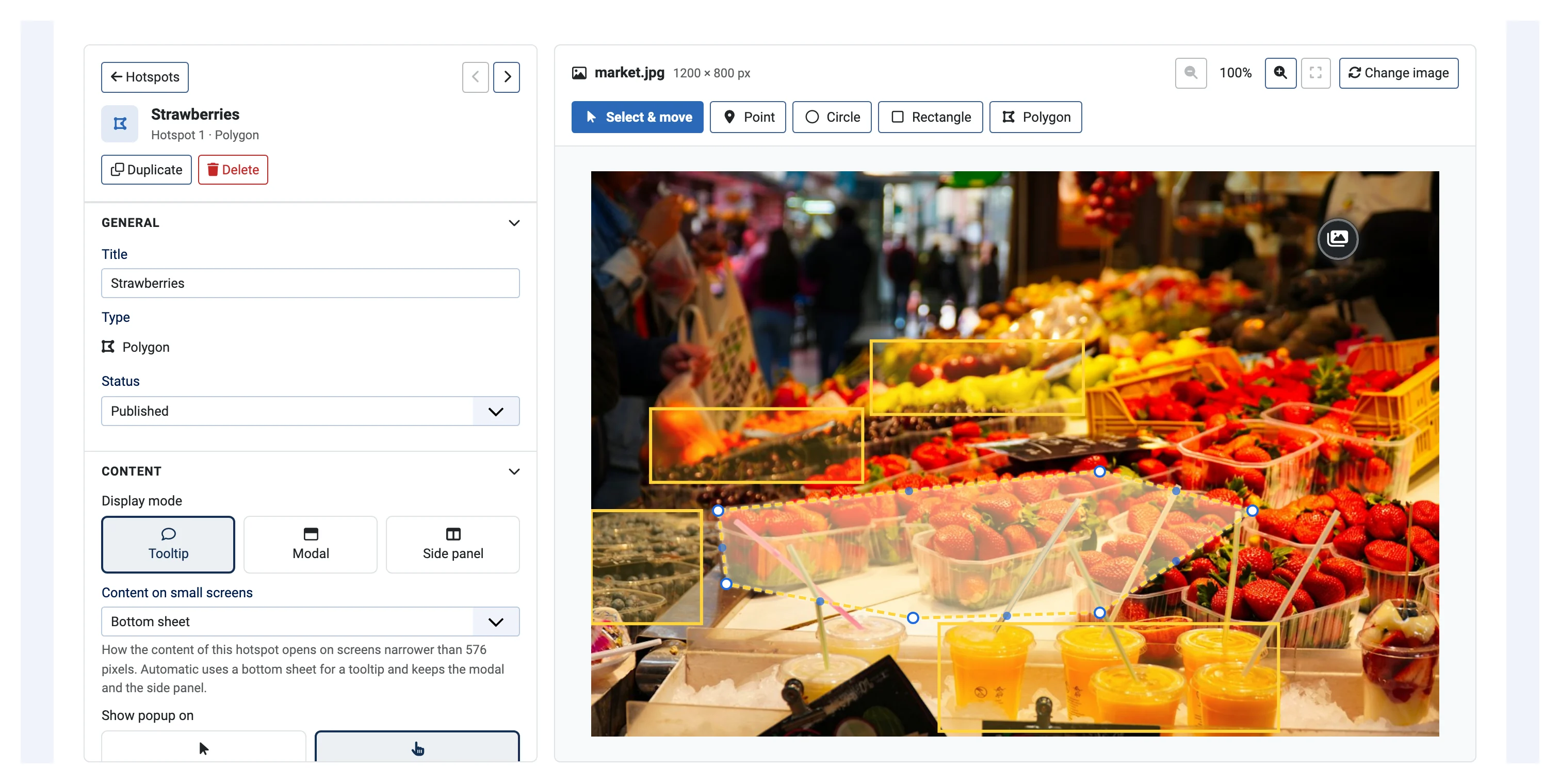
Image settings
The Settings tab has the title, alias, status, access level and language of the image, and how it is shown:
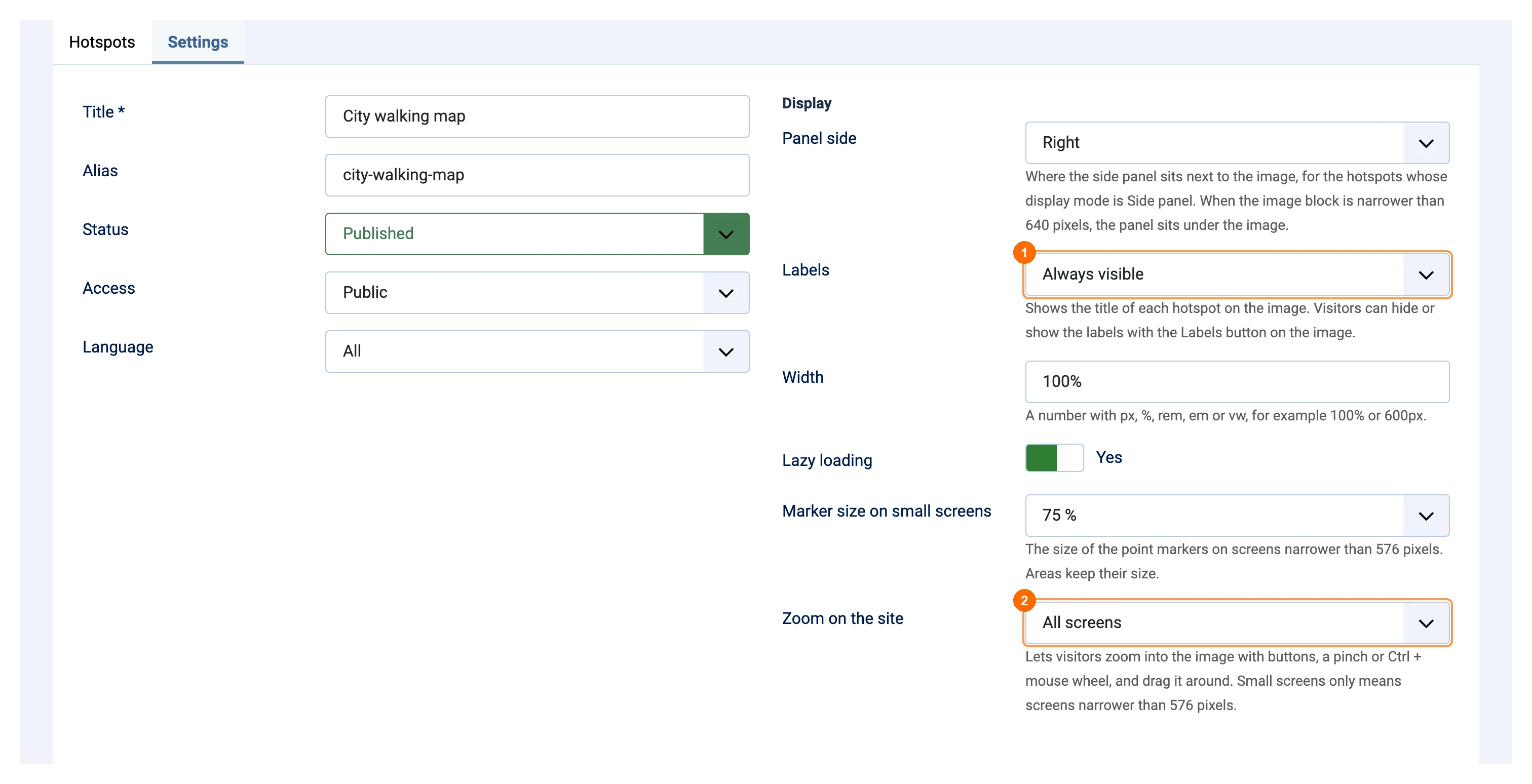
| Panel side | Left or right of the image, for hotspots that open in the side panel. On narrow image blocks the panel goes under the image. |
|---|---|
| Labels | Always visible shows the title of every hotspot on the image, with a Labels button that lets visitors hide them. |
| Width | A number and a unit: px, %, rem, em or vw, for example 100% or 640px. |
| Lazy loading | Loads the picture when it comes near the screen. |
| Marker size on small screens | 100, 75 or 50 % on screens narrower than 576 px, so markers don't cover the picture. |
| Zoom on the site | Off, small screens only or all screens: zoom buttons, pinch, Ctrl + mouse wheel and drag. |
Show the image on your site
Go to Content → Site Modules → New → PX Hotspot, select the interactive image 1 (or create and edit one in the popup), choose a position and the pages, and publish the module.
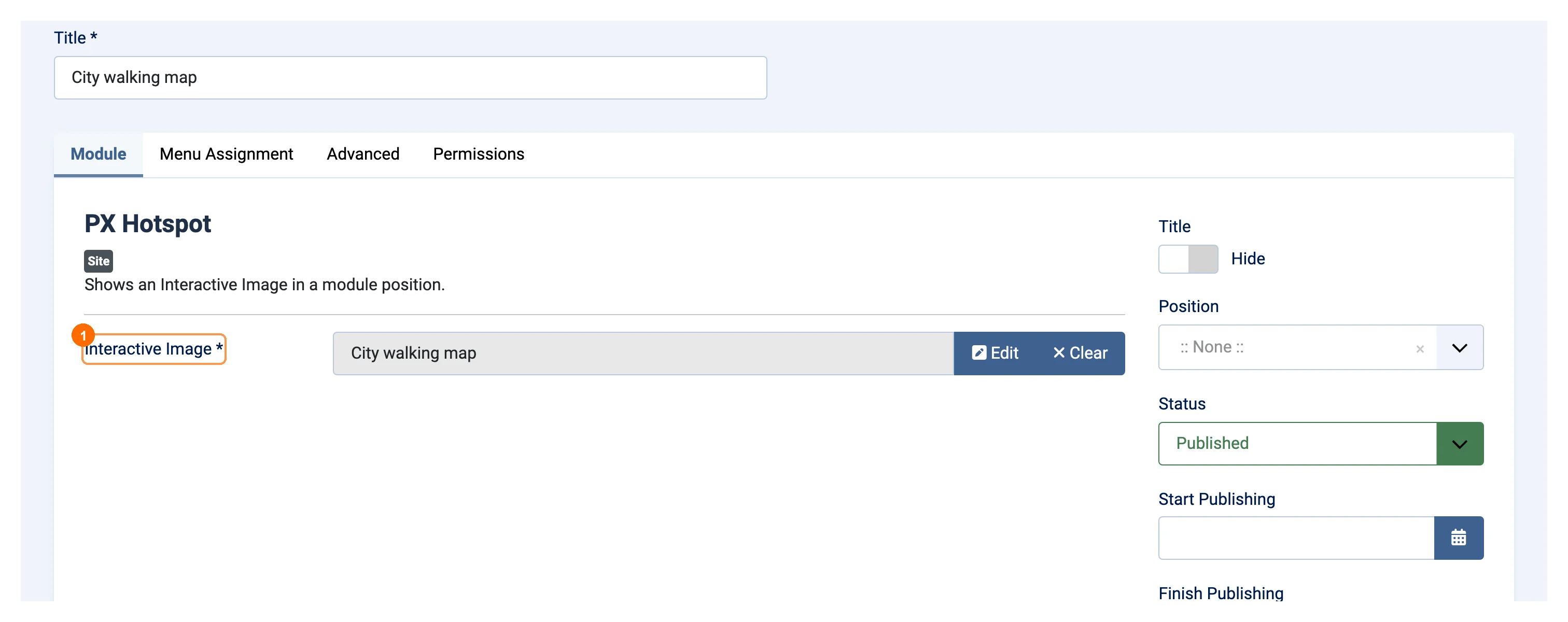
Inside an article: give the module no position, keep it published and assigned to the pages where the article shows, and write {loadmoduleid N} in the article (N is the module ID). This uses Joomla's own Content - Load Modules plugin, so PX Hotspot needs no plugin of its own. Several images on one page work independently, and scripts and styles load only on pages that show an image.
What visitors see
Permissions and safety
- Joomla permissions in Options → Permissions: create, edit, edit own, edit state and delete, as in Joomla's own components. Uploading a picture needs access to the Media Manager.
- Access levels, languages and publishing state for every image; unpublished hotspots are not shown.
- Every hotspot is checked on the server on each save: shapes must be inside the picture and every value within its limits.
- Every change in the administrator is protected by Joomla's security token and permission checks.
For AI agents and developers
The package includes administrator/components/com_pxhotspot/AI.md, a guide that tells an AI agent (or a developer) how to create, configure, copy and delete interactive images, their hotspots and modules with a PHP script that uses PX Hotspot's own classes, with the same checks as the editor. It has two complete examples. The PX Hotspot demo is built that way.
Good to know
- Changing the background picture can delete the hotspots of the old picture; the editor asks first.
- A picture deleted from Media leaves a broken image; choose another picture before the next save.
- Two people editing one image: the last save wins.
- Point markers keep their size on small screens unless you set a smaller marker size; keep points that sit close together apart, or use areas.
- Nothing shows? Check that the image, the module and its hotspots are published, the module is assigned to the page, and Content - Load Modules is enabled when you use
{loadmoduleid}.