
PX Editor is a Joomla editor plugin: one flowing writing page with a "/" menu and a + insert panel for images, galleries, video, tables, layout blocks and templates, saving clean HTML. Choose it in Global Configuration or per user.
Overview
PX Editor replaces the default Joomla editor with one flowing writing page: you type, press / or the + button to add an image, a gallery, a video, a table or a layout block, and what is saved is clean HTML that passes Joomla's text filters. It works wherever Joomla shows an editor: articles (administrator and front-end form), Custom modules, category descriptions. PX Editor is free.
- Fast writing: a one-row toolbar, a searchable insert panel, the "/" menu, a selection bubble and Markdown shortcuts.
- Media first: drag, paste or upload images, captions typed in place, galleries with a lightbox, YouTube and Vimeo as click-to-play posters.
- Layout blocks: tables, columns, callouts, buttons, collapsible sections, share buttons.
- Templates: 12 ready-made article skeletons, a category of site templates, and "My templates" saved with each author's account.
- Safe with existing content: opening and saving an article does not change its markup; what the editor cannot edit visually is kept as an HTML block.
- Light on the site: styles and script load only on pages with PX Editor blocks; no iframe or script is stored in the article.
Installation
System requirement
- Joomla 5.4 or Joomla 6 (the installer accepts Joomla 5.2 and later)
- PHP 8.2 or later
- A current Chrome, Edge, Firefox or Safari for authors; published pages work in every current browser
Install the package
- Download
pkg_pxeditor_v1.0.0.zipfrom the PX Editor page (a free thepixel.dev account is enough). - In your Joomla administrator go to System → Install → Extensions and upload the file.
The package installs three plugins, enabled on the first install:
| Plugin | What it does |
|---|---|
| Editor - PX Editor | The editor itself, in the administrator and in the front-end article form. |
| Content - PX Editor | Loads the styles, the lightbox and the video player on your site; post-format tags and share buttons when you turn them on. |
| Sample Data - PX Editor | Demo articles, a menu and the user guide (English and Vietnamese). |
PX Editor has no component. It creates one small table for the authors' personal templates, removed again when the editor plugin is uninstalled.
Choose PX Editor
Installing does not change the site's editor. Choose it yourself:
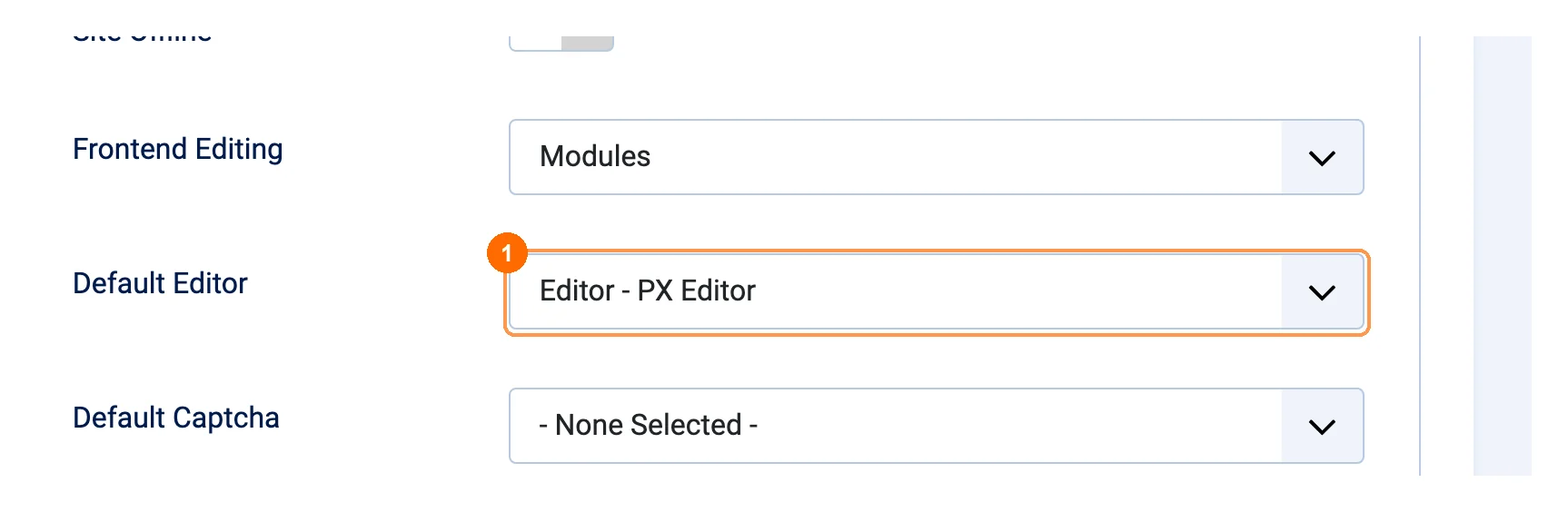
- For the whole site: System → Global Configuration → Site, set 1Default Editor to Editor - PX Editor and save.
- For one user (good for trying it first): Users → Manage, open the account, tab Basic Settings, set Editor to Editor - PX Editor. A user's own choice wins over the site default.
The writing screen
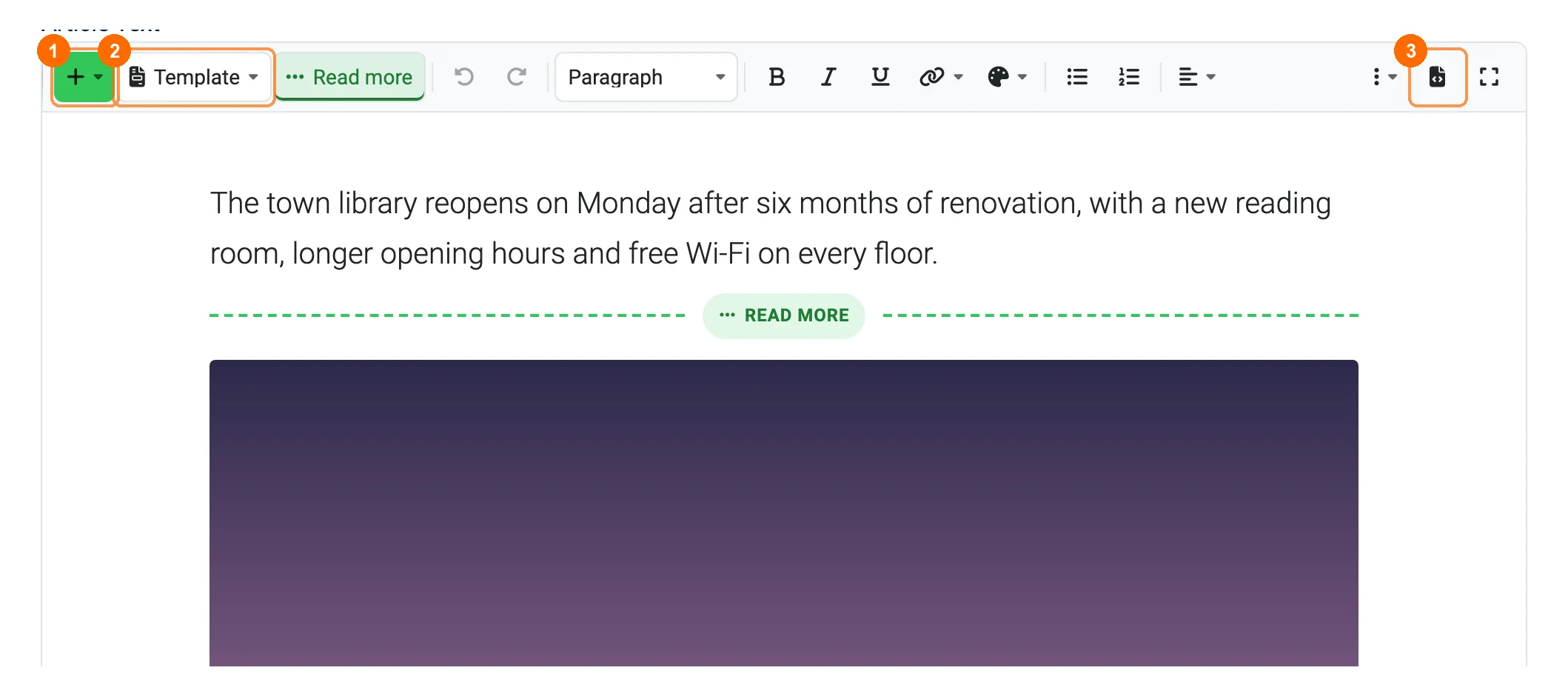
Open an article (Content → Articles → New) and start typing. The toolbar stays on one row: 1the highlighted + (insert panel), 2Template and Read more, then undo / redo, text style, bold, italic, underline, link, colours, lists, alignment, More (strikethrough, inline code, indent, subscript, superscript, clear formatting), 3HTML source and full screen. The bar at the bottom counts words and characters.
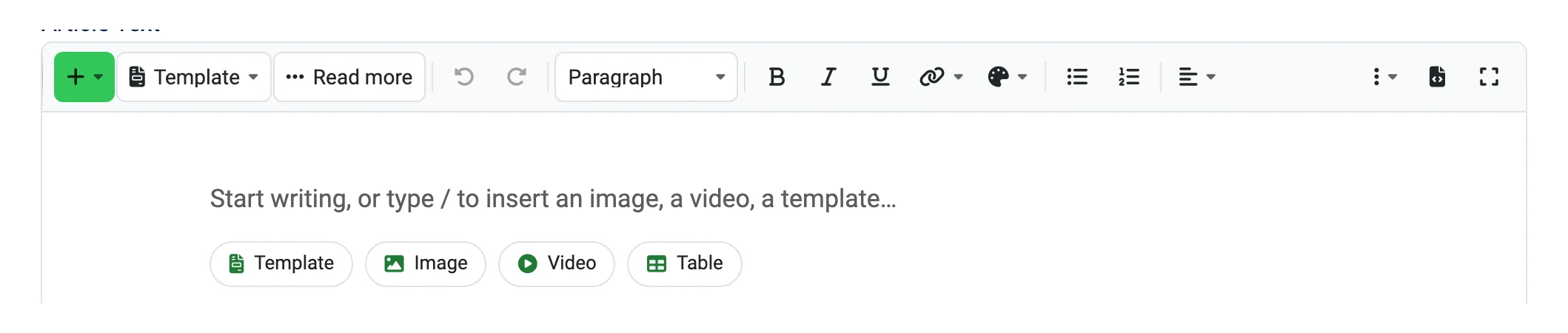
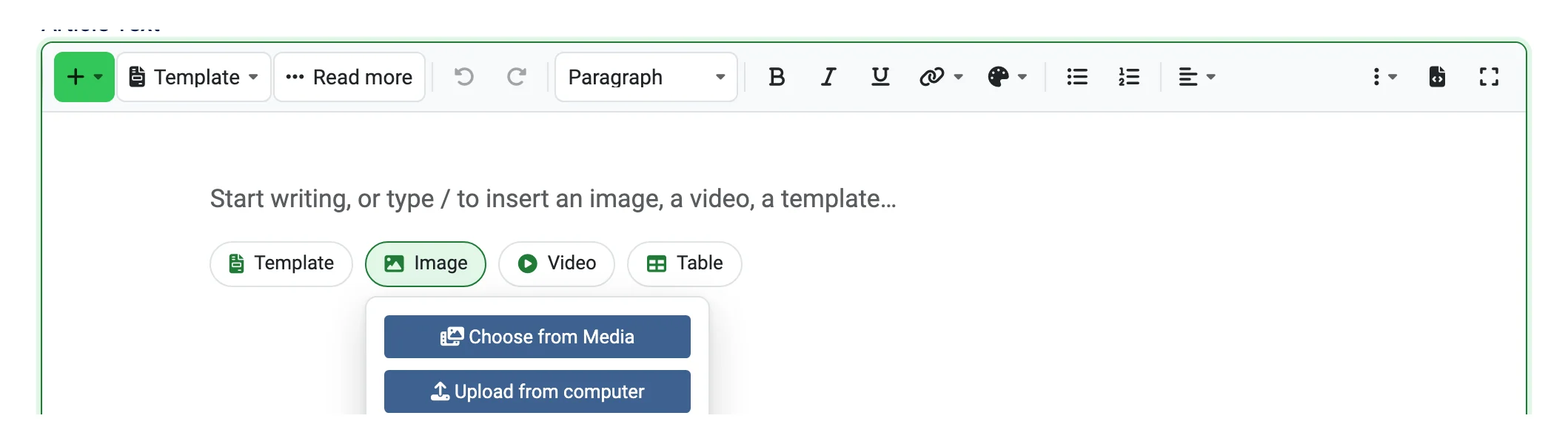
An empty article shows a hint and four quick buttons: Template, Image, Video and Table.
The + insert panel
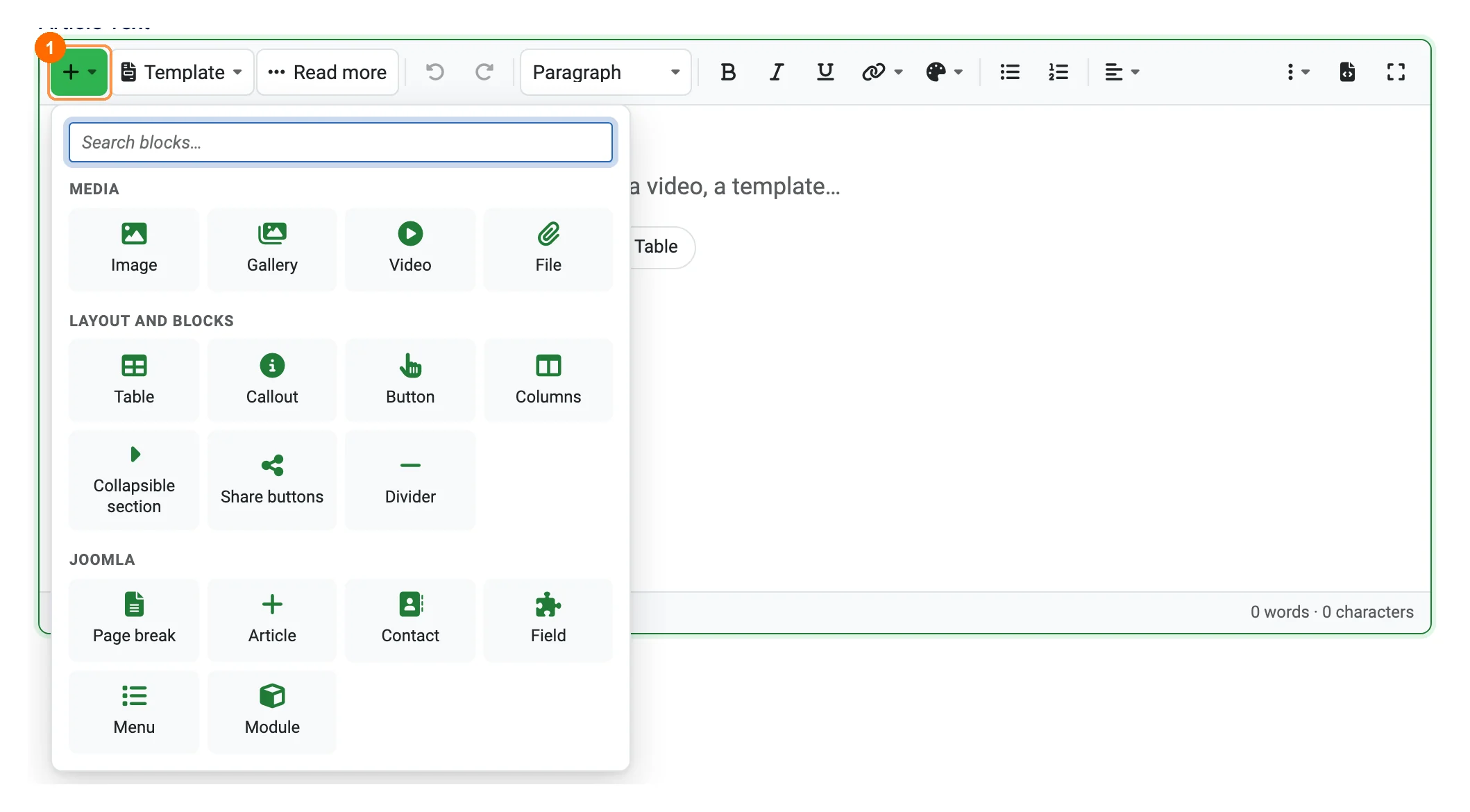
Press +: the search field has the focus, type a few letters and press Enter to insert the first result. Blocks are grouped as Media, Layout and blocks and Joomla (Joomla's own editor buttons: Article, Module, Contact, Field, Menu, Page break). A block is inserted at the cursor; on an empty line it replaces the line, inside a column, callout, collapsible section or table cell it goes inside it.
The "/" menu
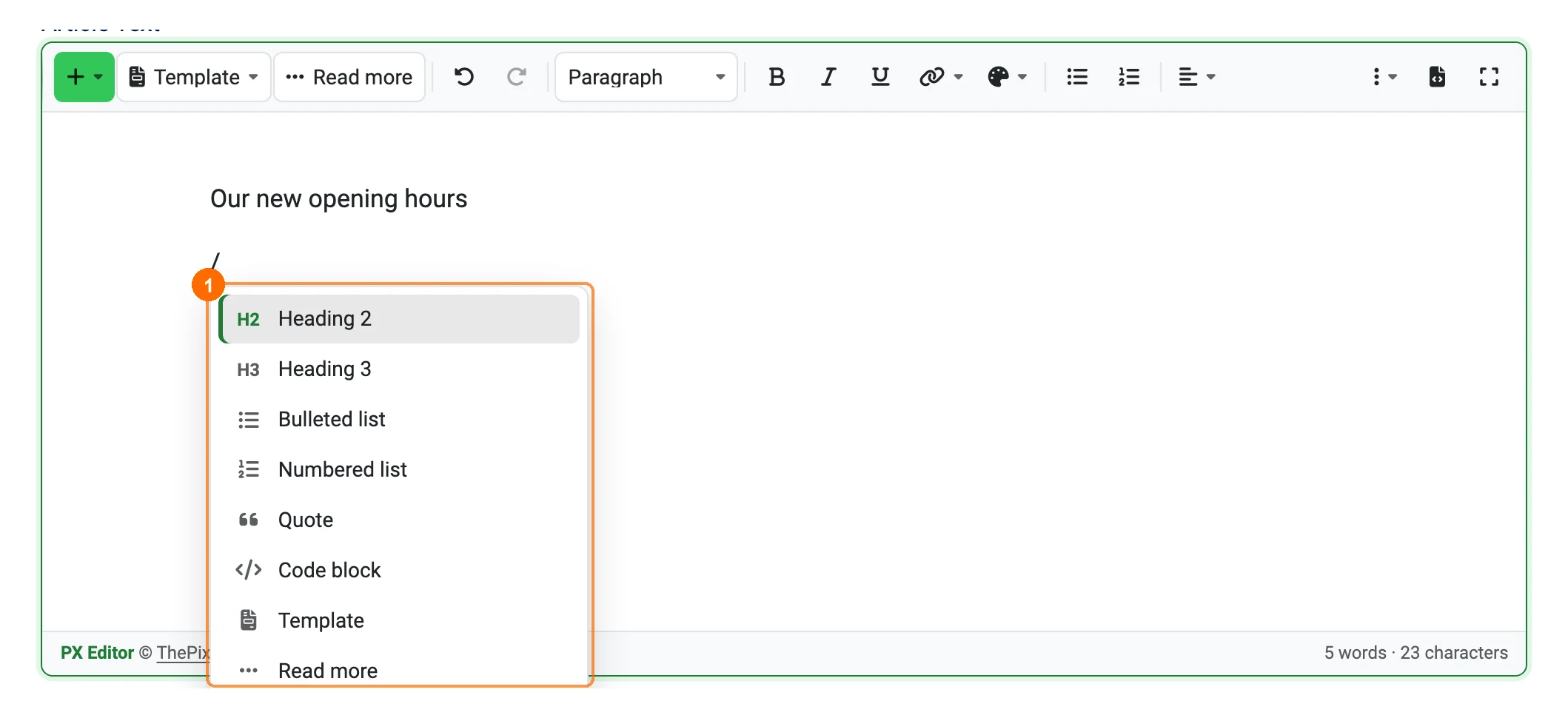
On an empty line (or after a space) type /. Keep typing to filter (/image, /video, /table, /template), choose with the arrow keys, insert with Enter or Tab, close with Esc.
Selection bubble and shortcuts
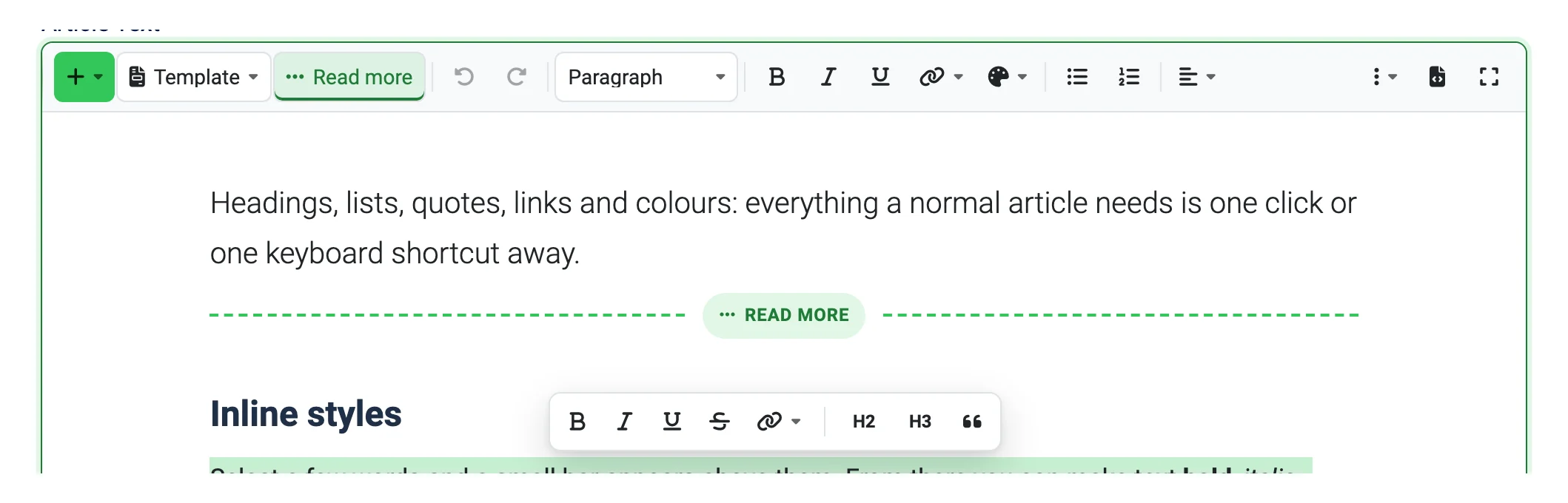
Select words and a small bar appears with bold, italic, underline, strikethrough, link, Heading 2, Heading 3 and quote. Links are edited in place (Ctrl+K, Mac ⌘K).
| Type | Result |
|---|---|
## + space | Heading 2 (### Heading 3 … up to 6) |
- / 1. + space | Bulleted / numbered list |
> + space | Quote |
--- | Divider |
**text**, *text*, text between backticks | Bold, italic, inline code |
| Alt+F10 | Toolbar of the current block (image, video, gallery, table, callout); Esc returns to the text |
You save with Joomla's usual Save and Save & Close buttons.
Images and galleries
Insert an image four ways: drag a file into the article, paste it, + → Image → Upload from computer (several files at once), or Choose from Media / an image address. Uploads go through Joomla's Media Manager and its permissions; the folder is set in the editor plugin.
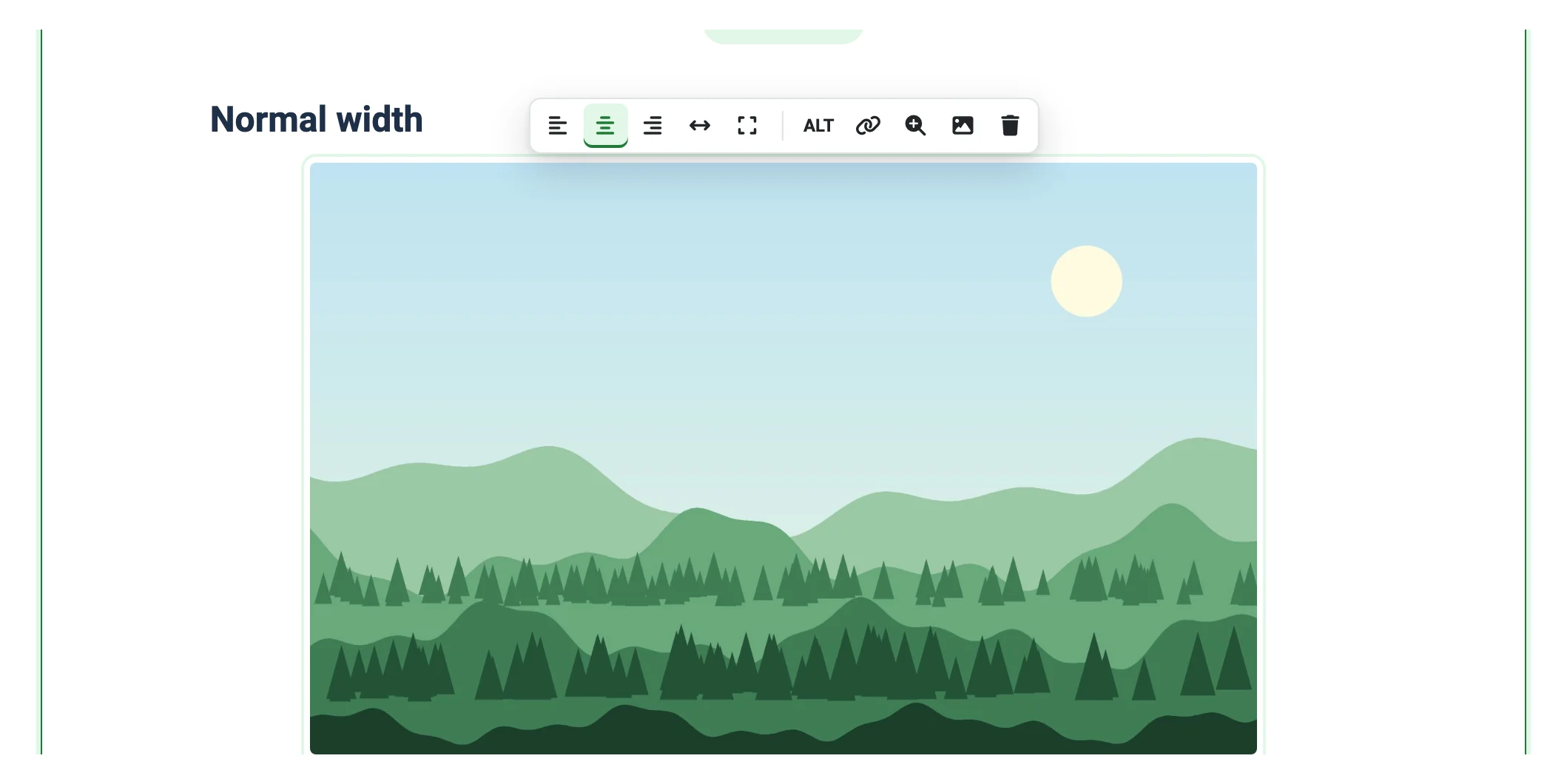
Type the caption on the line under the image (Enter continues below). Hover or click the image for its bar: float left, normal, float right, wide, full width, ALT (a warning shows while the alternative text is empty), link, enlarge on click, replace and remove.
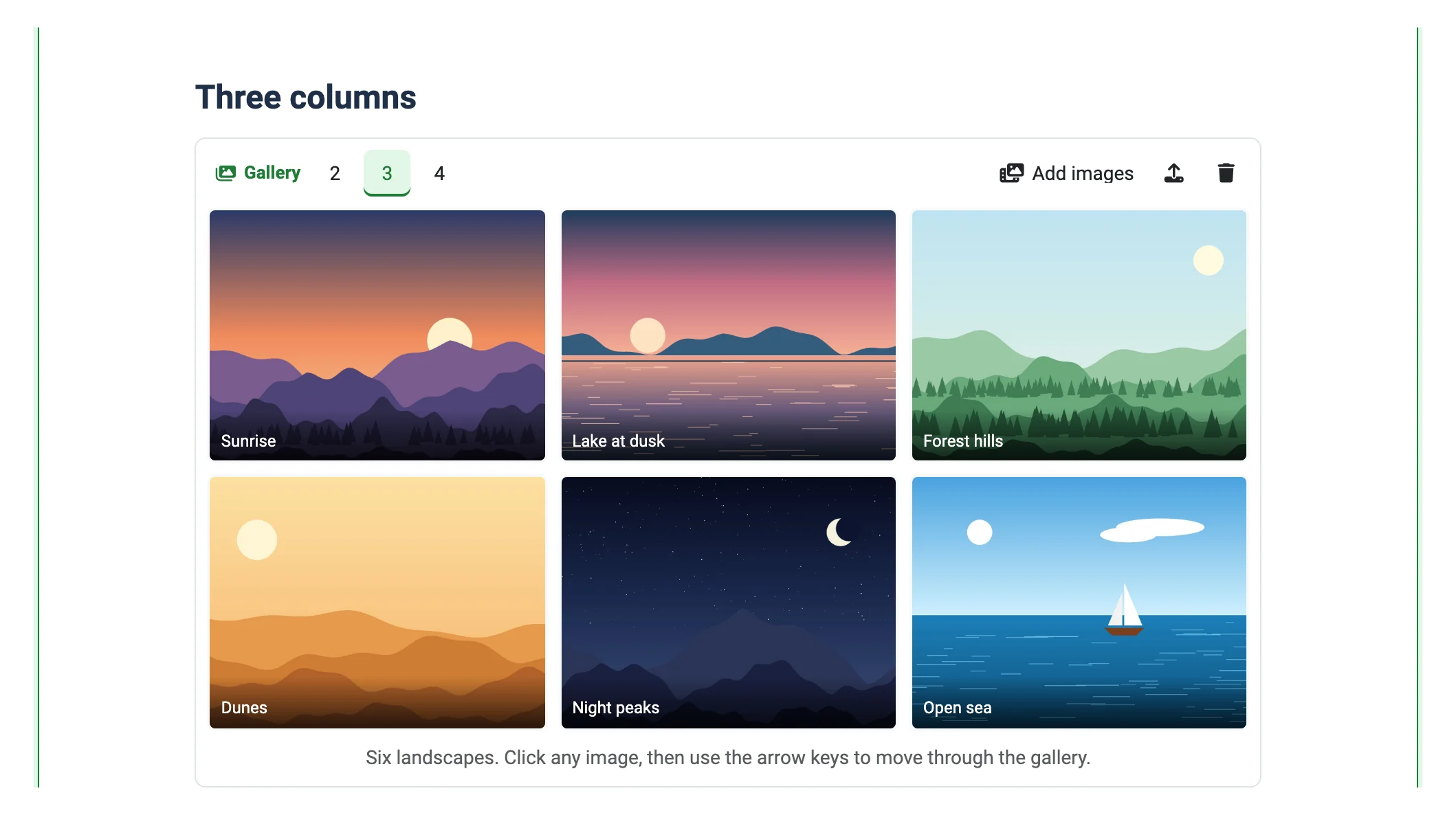
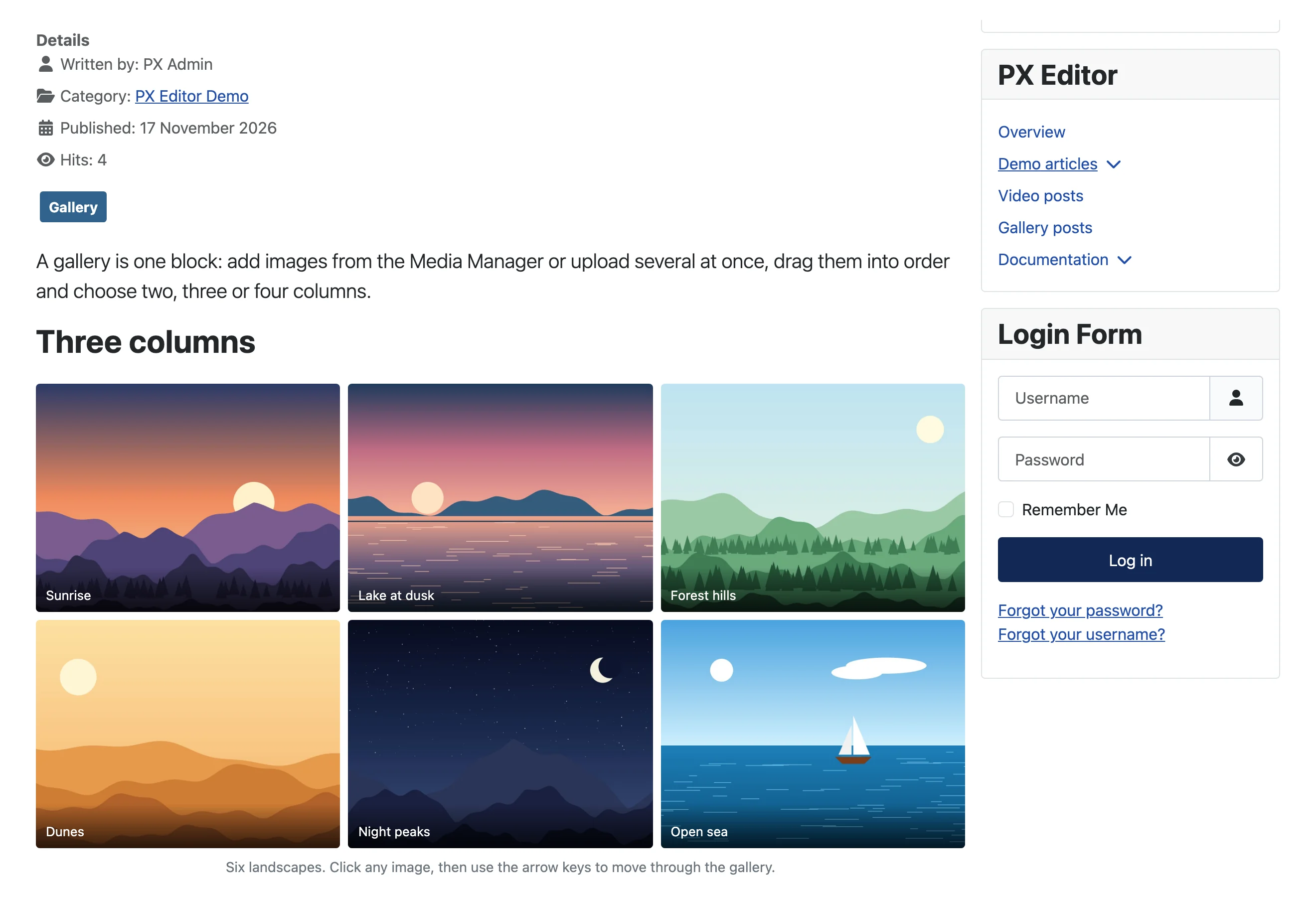
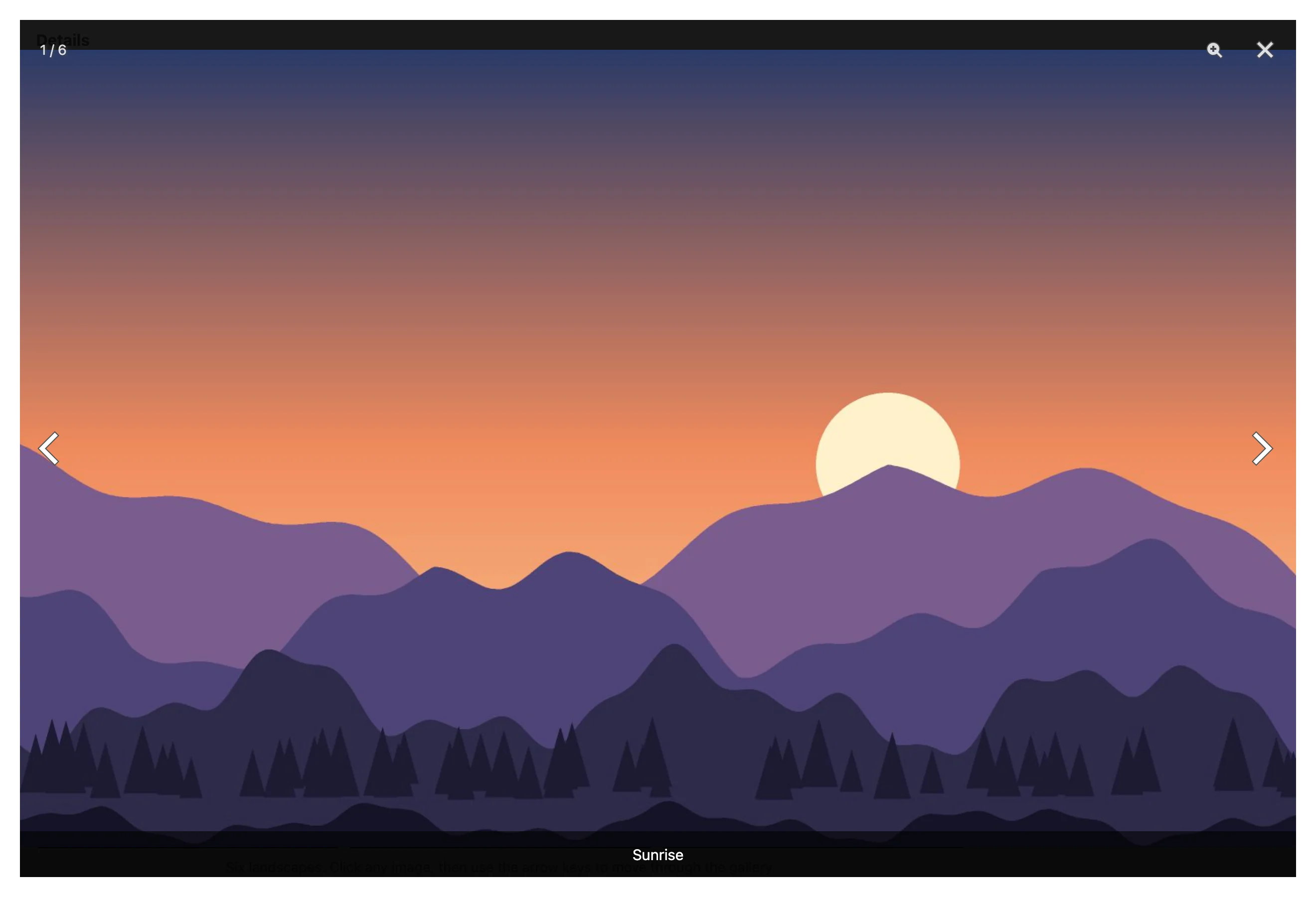
Galleries: + → Gallery, add images from Media or upload several, choose 2, 3 or 4 columns, drag to reorder, click an image for its alternative text and caption. On the site a click opens the lightbox (arrow keys, swipe, Esc); the lightbox script is downloaded at the first click only. Phones show two columns.
Video, audio and files
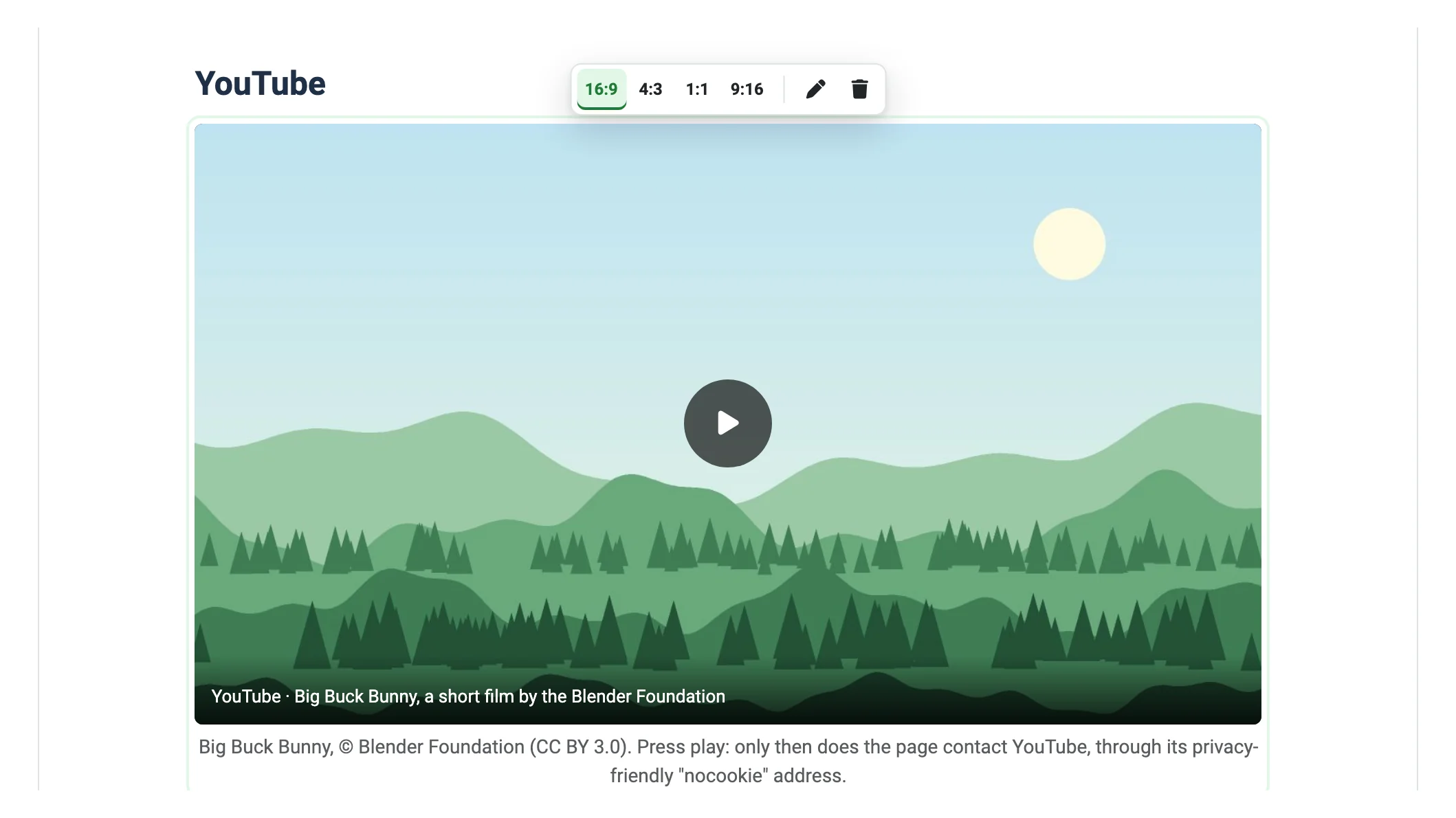
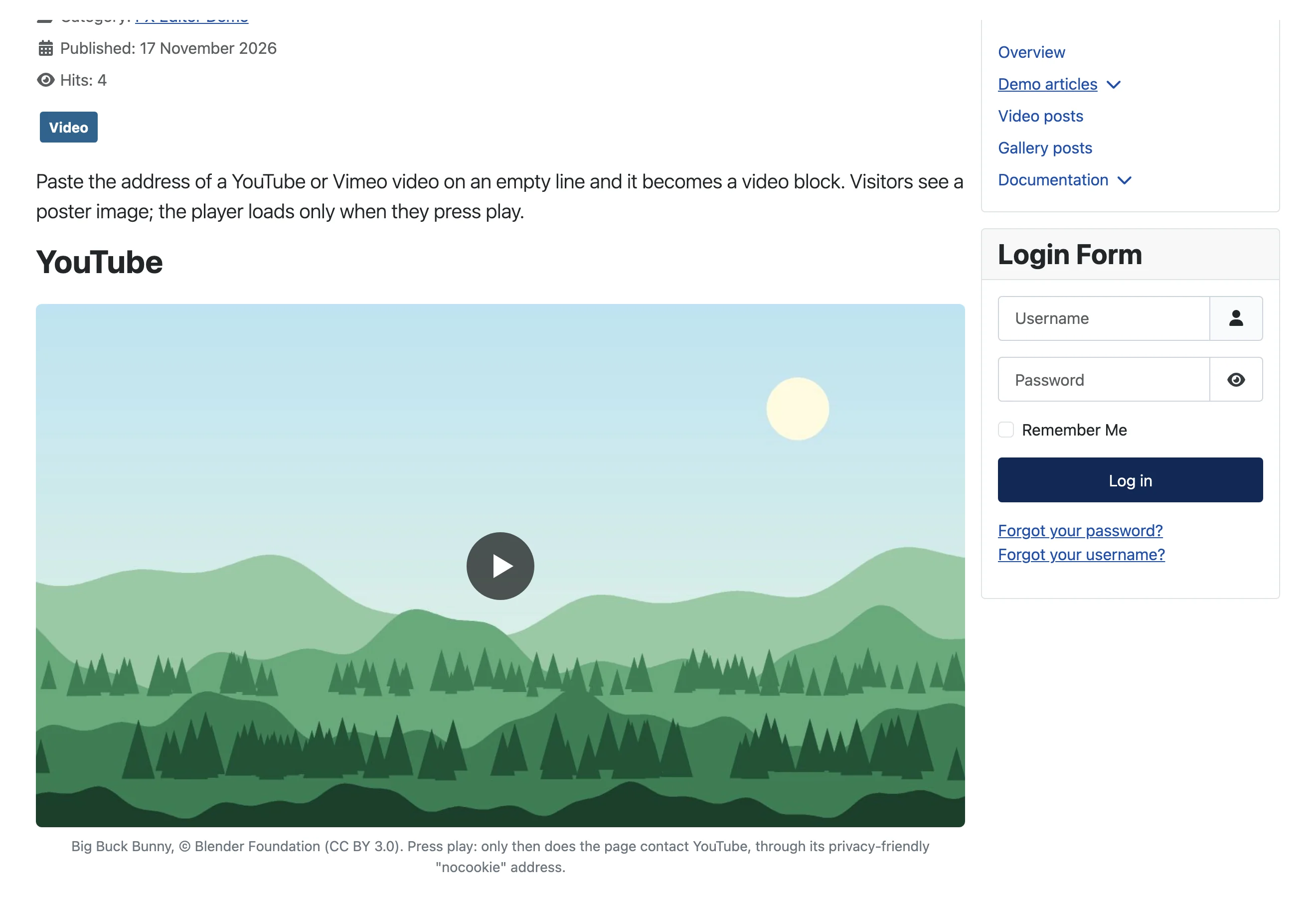
YouTube and Vimeo: paste the video address on an empty line, or + → Video. Watch pages, youtu.be links, Shorts (9:16), live streams, a start time (?t=42) and unlisted Vimeo videos are recognised.
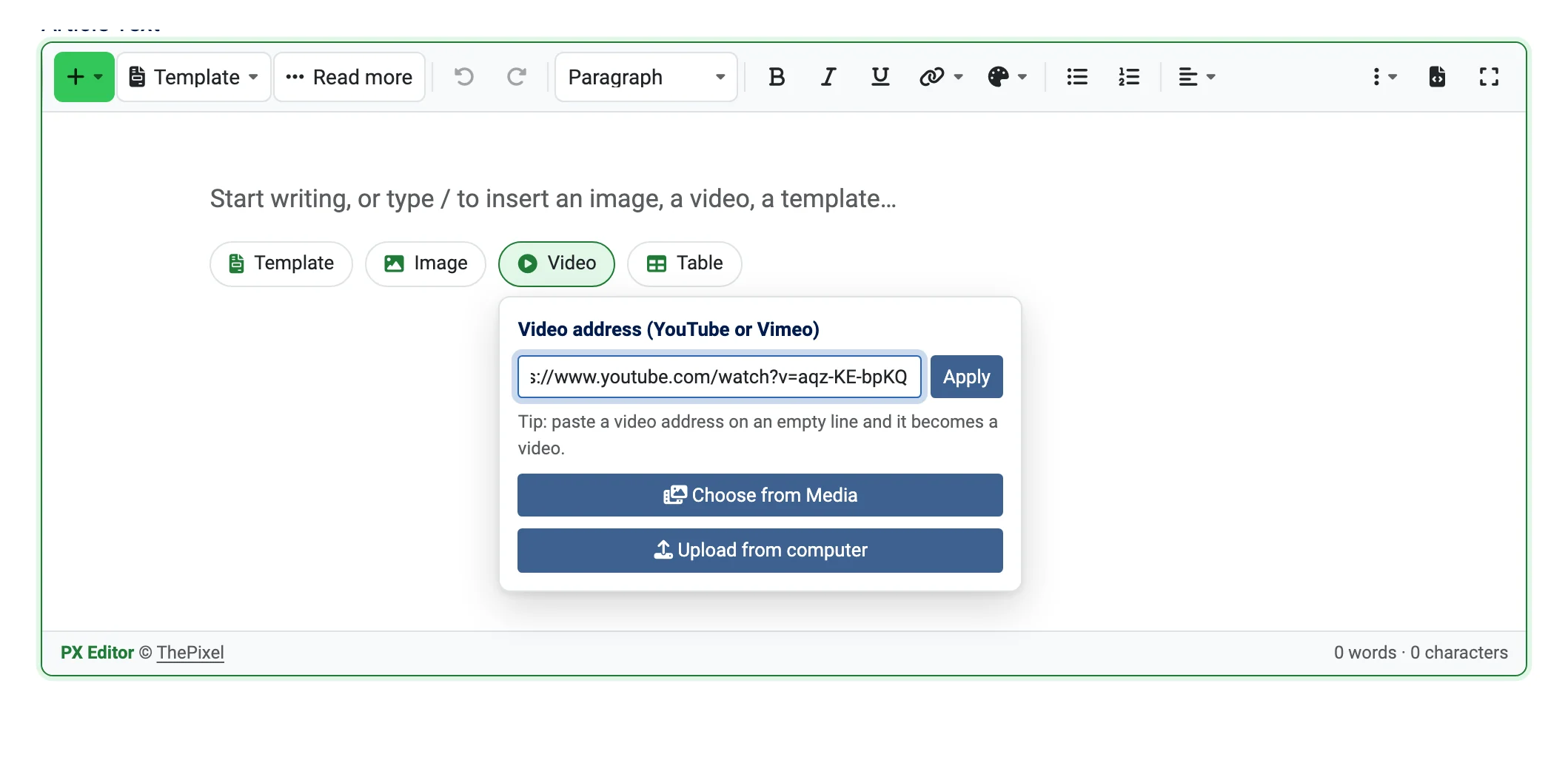
The article stores a poster image that links to the video, not an iframe: the page does not load the player until a visitor presses play, nothing is sent to YouTube or Vimeo before that, and Joomla's text filter (which removes iframes for Authors, Editors and Publishers) keeps it. The poster can be copied to your own site (images/pxeditor/posters). The block bar sets the ratio (16:9, 4:3, 1:1, 9:16), changes or removes the video.
Files: + → File. Video (mp4, webm, ogv, mov) and audio (mp3, m4a, ogg, wav) become players with the browser's controls (a video can have a poster); other files become a download link with type and size, for example "quote.pdf (PDF, 1.2 MB)". Joomla accepts only the file types allowed in Content → Media → Options.
Tables and layout blocks
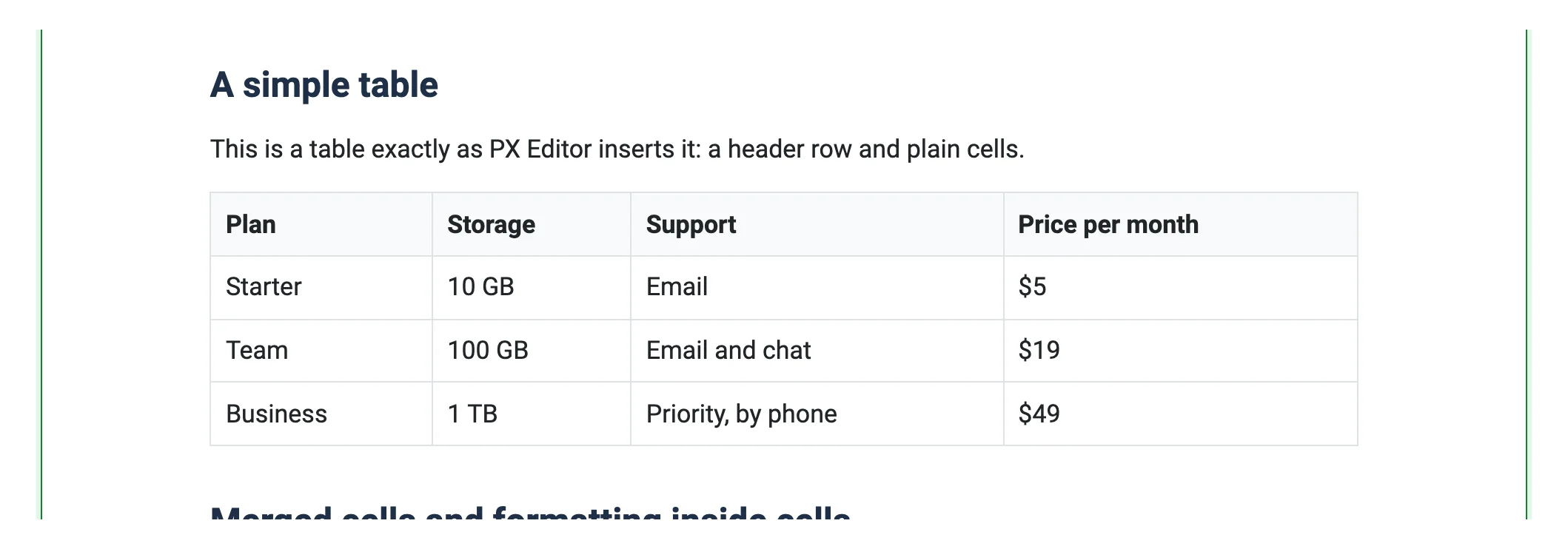
- Tables: choose the size on a 6 × 6 grid; a new table has a header row. With the cursor in the table a second bar adds or deletes rows and columns, toggles header rows and columns, merges and splits cells. Tab moves to the next cell (and adds a row in the last one).
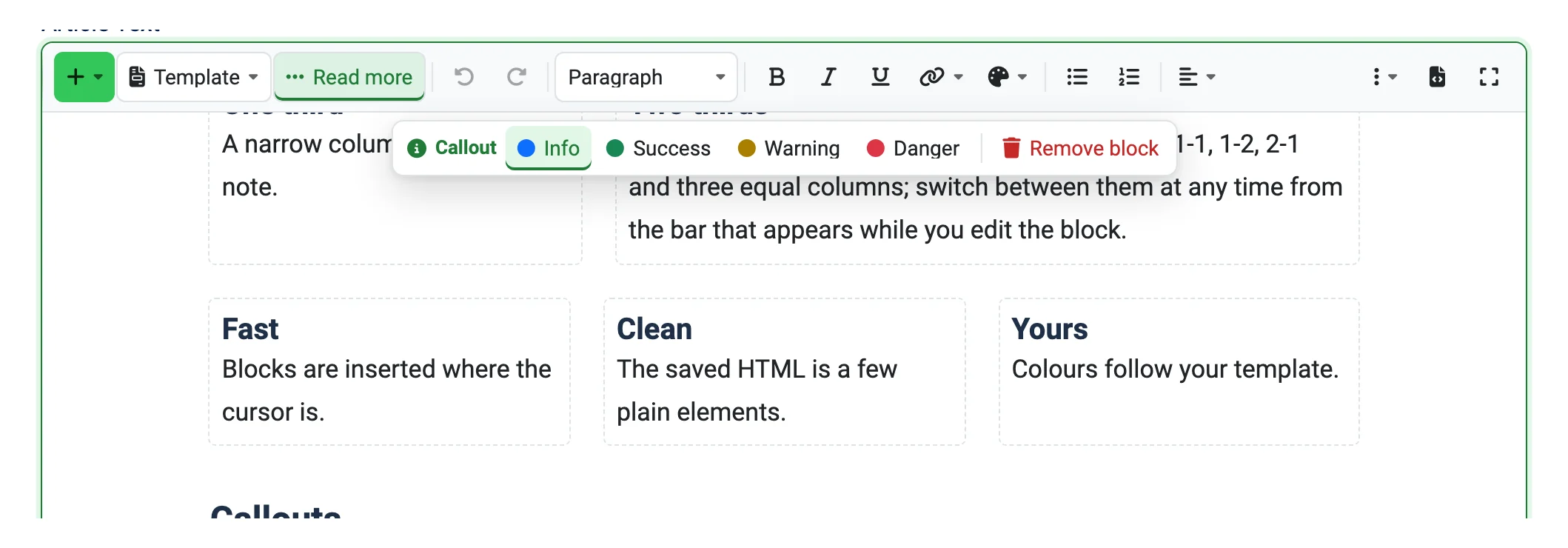
- Columns: 1-1, 1-2, 2-1 or 1-1-1; going from three columns to two moves the third column's content into the second. Columns stack below 768px.
- Callouts: Info, Success, Warning or Danger, with paragraphs, lists and images inside.
- Buttons: text, address, style (Primary, Secondary, Outline), new tab. A button is an ordinary link.
- Collapsible sections: the standard HTML
detailselement, no JavaScript needed on the site. - Share buttons, divider, page break (page title and table of contents label) and Read more (one marker per article, always between two top-level blocks).
HTML source and HTML blocks
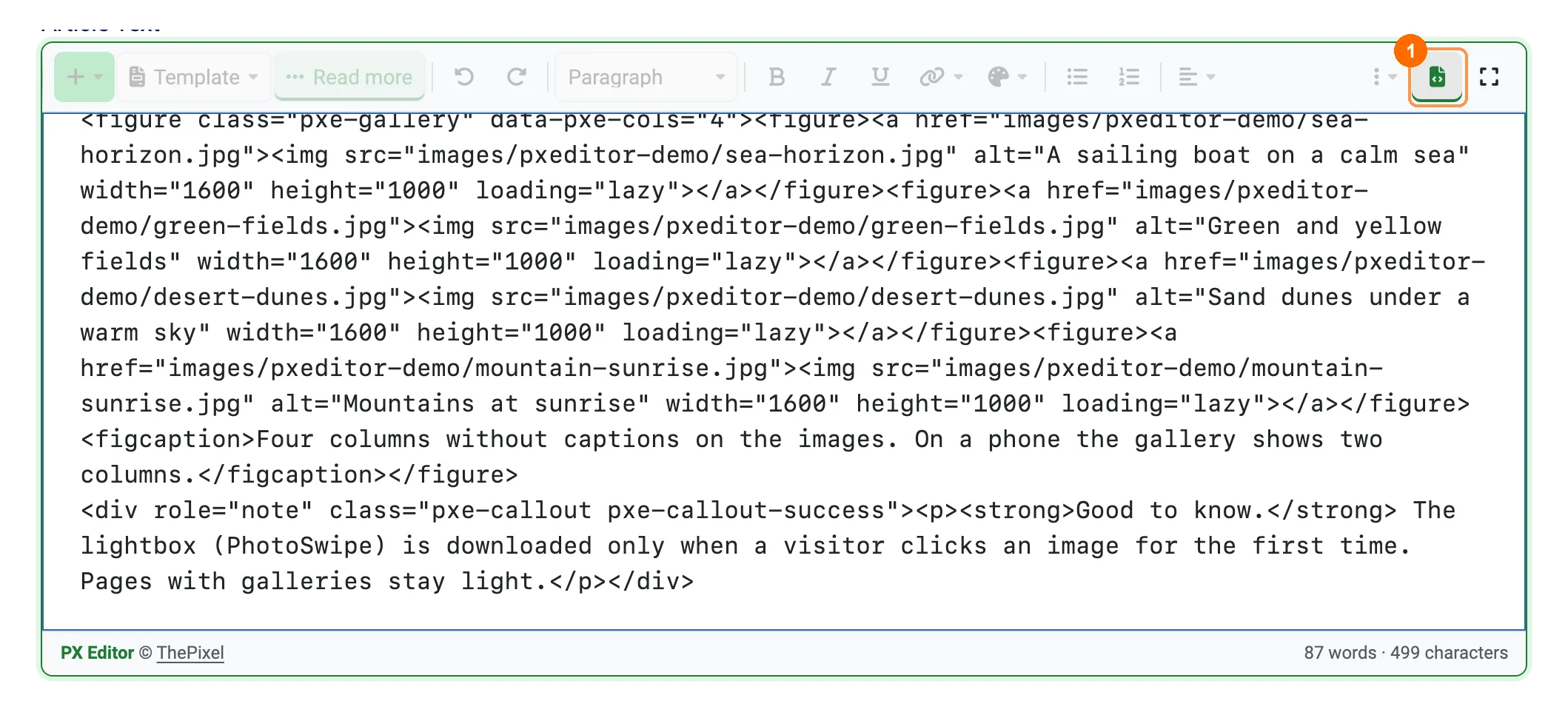
1HTML source on the toolbar shows and edits the article's HTML. Markup PX Editor cannot edit visually (an iframe, a script, a form, a table with a caption, elements with onclick…) appears as an HTML block: a card that shows the code as text and saves it exactly as it was. Edit HTML changes it.
Templates
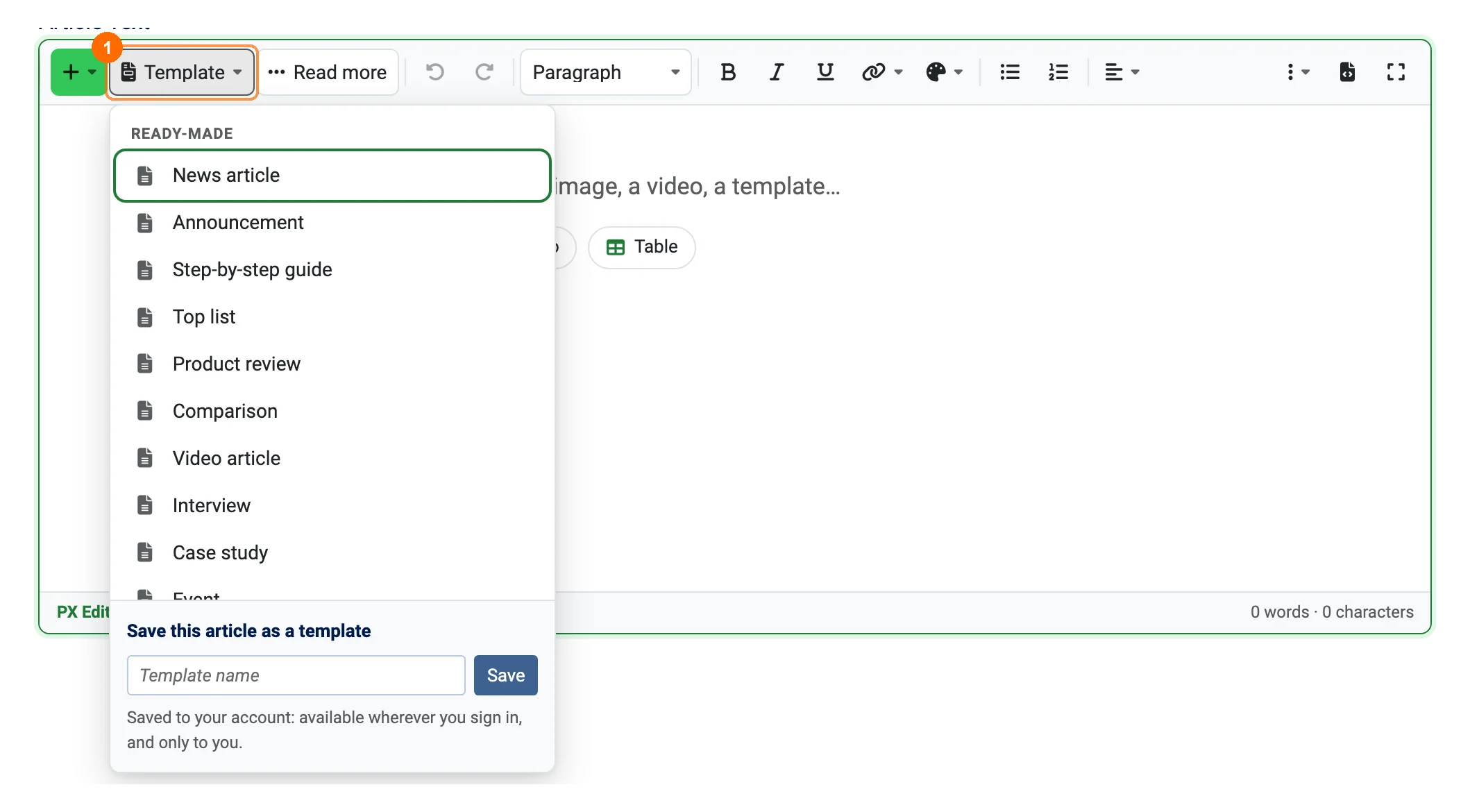
Press 1Template (or type /template): the template is inserted at the cursor. Three sources:
- Ready-made: 12 skeletons in English and Vietnamese (by the administrator language): news article, announcement, step-by-step guide, top list, product review, comparison, video article, interview, case study, event, recipe, questions and answers. Hide them with Offer ready-made templates.
- Templates of this site: choose a category in the editor plugin's Template category; its published articles become templates for every author (access and language are respected).
- My templates: Save this article as a template at the bottom of the panel. Stored with the user's account (available in any browser after signing in), visible only to that user, up to 50, filtered like an article on save.
Settings
System → Plugins, search for "PX Editor".
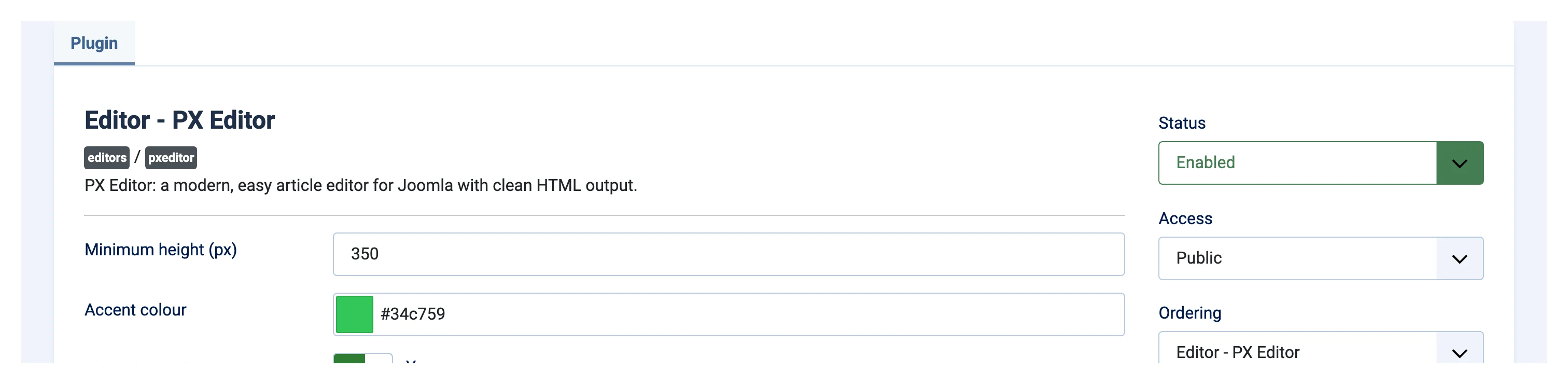
Editor - PX Editor
| Option | Default | Meaning |
|---|---|---|
| Minimum height (px) | 350 | Smallest height of the writing area (150 to 1200). |
| Accent colour | #34C759 | Colour of the + button, active buttons and the focus ring. Empty follows the administrator template. |
| Show the credit line | Yes | The product name in the bar under the editor; never written into your content. |
| Upload folder | Empty | Subfolder of the Media Manager image folder for dropped and pasted images. |
| Store video posters locally | Yes | Copies YouTube and Vimeo posters into pxeditor/posters in the Media Manager. |
| Offer ready-made templates | Yes | The 12 shipped templates in the Template panel. |
| Template category | None | Published articles of this category become shared templates. |
Content - PX Editor
Works on the site and when an article is saved; it never changes the article text.
- Load on every page (No): styles and script normally load only on pages with PX Editor blocks. Turn it on when a module or template override prints content without running content plugins.
- Post formats: a tag for articles with video, with a gallery and with audio (added or removed on save, other tags untouched), and a custom field that receives
video,gallery,audioorstandard. Use the tags in a Tagged Items menu item or the Articles module. - Share buttons: add to every article (above, below or both; off by default), networks (Facebook, X, LinkedIn, Pinterest, WhatsApp, Telegram, email, Copy link, the device's Share…), style, the word "Share", categories, blog and featured lists, Open Graph tags (on; tags set by another extension are kept).
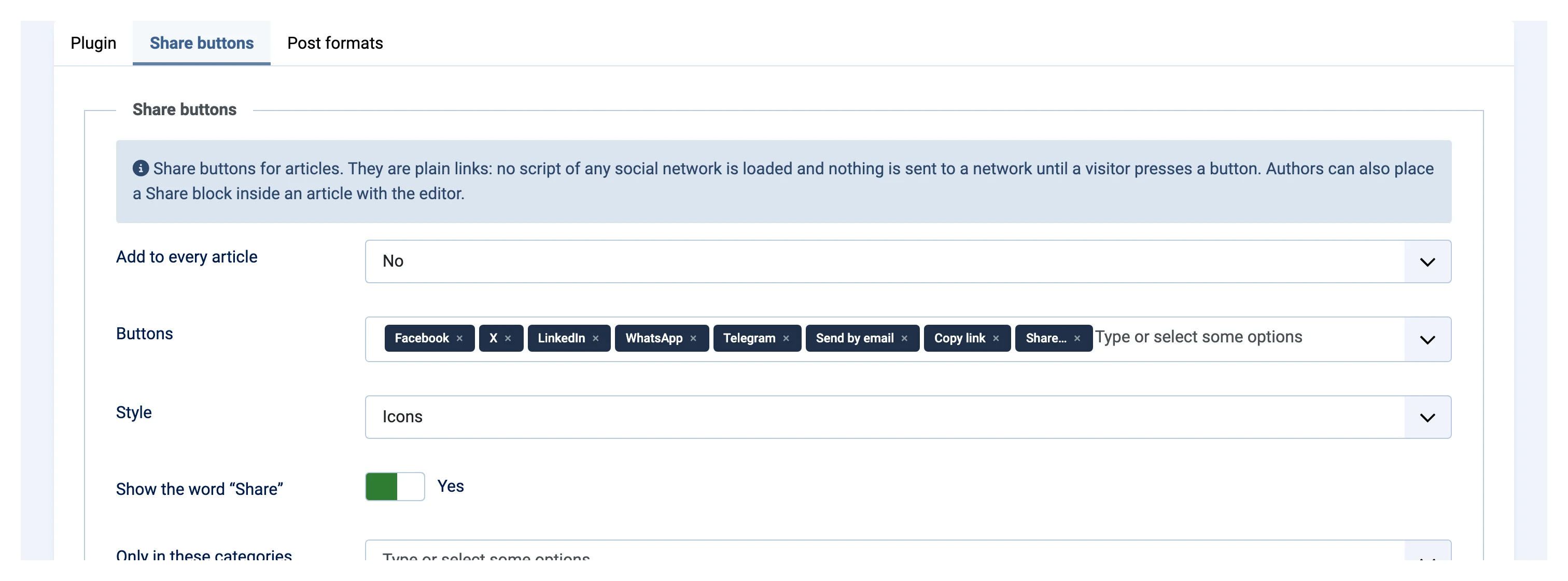
Share buttons are plain links: no script from a social network is loaded, nothing is sent until a visitor presses a button. Each article shows buttons from one source only: placed by the template (renderShare() in an override) wins over a Share buttons block in the article, which wins over the automatic buttons. The HTML can be overridden in templates/<template>/html/layouts/pxeditor/share.php.
Existing content and uninstalling
- Opening and saving an article does not change its HTML. Classes, ids, styles and
data-*attributes are kept;bstaysb,strongstaysstrong; module codes such as{loadmoduleid}stay text. The only normalisations: loose text at the top level is wrapped in a paragraph and extra white space between blocks is dropped. - Joomla's text filter: the HTML PX Editor writes passes the default filter for Authors, Editors and Publishers (no iframe, no script, no unusual elements).
- Next to another editor: articles are just HTML, so they open in TinyMCE, JCE or CodeMirror and back.
- Uninstall PX Editor Package in System → Manage → Extensions: articles are not touched and stay readable (images, tables, video posters as links, collapsible sections still work; columns and floats lose their layout). Choose another default editor first. Uploaded images and posters stay in the Media Manager; personal templates are deleted with the editor plugin.
Sample data
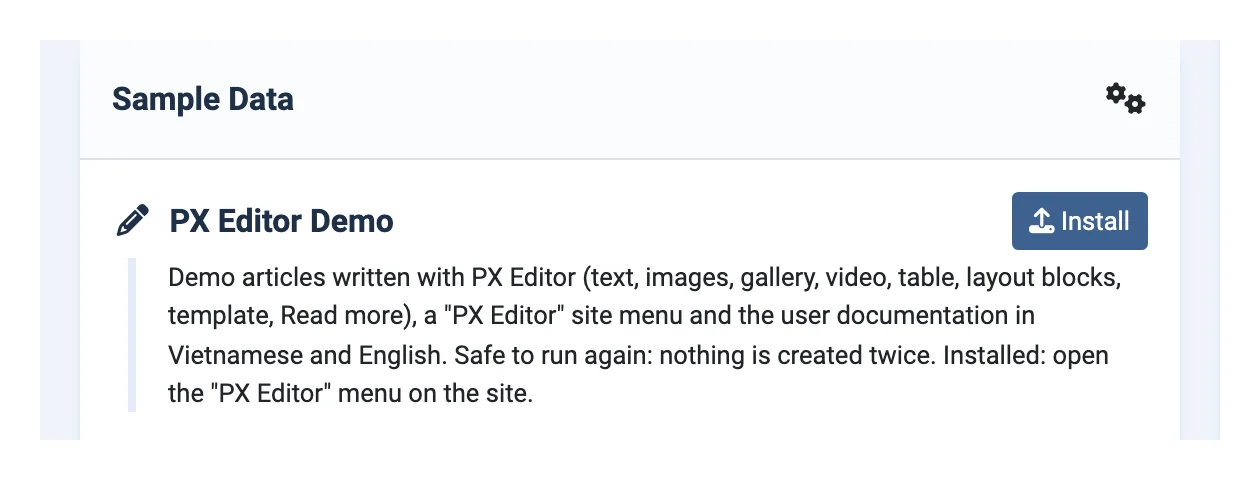
On the administrator home page, Sample Data → PX Editor Demo → Install adds demo articles for every block (formatting, images, galleries, video, tables, layout blocks, Read more), a "PX Editor" site menu, and the user guide as articles in English and Vietnamese. Running it again creates nothing twice and refreshes the guide.
Good to know
- Still the old editor? PX Editor never makes itself the default: choose it in Global Configuration or the user's Basic Settings (a user's own choice wins).
- Blocks without styling on the site? Check that Content - PX Editor is enabled; turn on Load on every page for content printed without content plugins; clear the cache.
- A video does not play? The owner may not allow embedding, or a Content Security Policy blocks
youtube-nocookie.com/player.vimeo.com(allow them inframe-src). - Uploads refused? The account needs the Create permission in Media, the file must fit
upload_max_filesize/post_max_size, and its type must be allowed in Media's options. - An iframe disappears after saving? That is Joomla's text filter, not PX Editor. Use the Video block for YouTube and Vimeo.
- Accessibility: the toolbar is a keyboard toolbar (arrow keys), every button has a label, Esc closes panels and returns the focus; works on Atum light and dark and on phones.