
PX Booking adds online bookings to Joomla 6: rooms by the night and appointments by time slot, with prices, deposits, payments and a planner in one component.
Overview
PX Booking takes bookings on a Joomla 6 site in two ways: stays by the night (rooms, apartments, rentals) and time slots (treatments, consultations, lessons, tours). Guests choose dates or a time, see the full price, reserve, pay and later manage their booking themselves. You run everything from one place in the Joomla administrator: bookings, a planner, prices per night, reports and the e-mails.
- Two booking modes: nightly stays with units (Room 101, 102…) and time slots with staff and rooms needed at the same time.
- Prices: rate plans, price rules (season, weekday, guests, length of stay, early booking, last minute), extras, taxes, coupons, deposits and cancellation policies.
- No overbooking: places are held while the guest checks out; prices are always computed on the server and frozen when the booking is placed.
- Guest self-service: a private booking page to pay, cancel by policy, change dates or time and add the booking to a calendar.
- Payments: bank transfer / pay on site, Stripe Checkout and PayPal, with refunds.
- Daily work: dashboard with health checks, bookings list, drag-and-drop planner, prices and availability calendar, reports and a "why not available?" diagnostics screen.
- Connections: two-way iCal sync with Airbnb, Booking.com and others, signed webhooks, Joomla Mail Templates, scheduled tasks and command line.
Requirements
- Joomla 6.0 or newer (Joomla 5 is not supported; the installer stops on older versions)
- PHP 8.3 or newer with
sodium(required, used to encrypt keys and secrets);intlrecommended (currency symbols);curlfor payment gateways, iCal and webhooks - MySQL 8.0.13 or newer, or MariaDB 10.6 or newer
- Joomla Scheduled Tasks running, best from a server cron job (holds and unpaid bookings expire through it)
- HTTPS for live payments with Stripe and PayPal
PX Booking uses one currency per site (an ISO 4217 code such as EUR, USD or VND). Choose it before the first booking.
Install
- Download
pkg_pxbooking.zipfrom your account. - In the Joomla administrator go to System → Install → Extensions and upload the file.
- Open Components → PX Booking.
The package installs the component, the module PX Booking - Bookables and these plugins, all enabled:
| Plugin | What it does |
|---|---|
| PX Booking - System | Answers payment notifications and iCal export feeds, also when the site is offline, and keeps private pages out of the page cache. Keep it enabled. |
| Bank transfer / pay on site, Stripe, PayPal | Payment methods. Stripe and PayPal stay hidden at checkout until their keys are entered. |
| PX Booking Notify - Email | Sends every PX Booking e-mail. |
| PX Booking - iCal import | Imports busy dates from other calendars. |
| Task - PX Booking, Console - PX Booking | Scheduled tasks and pxbooking:* commands. |
| Privacy, Smart Search, Action Log, Sample Data | Privacy requests, search index of bookable items and locations, booking actions in Users → User Actions Log, demo data. |
Quick start
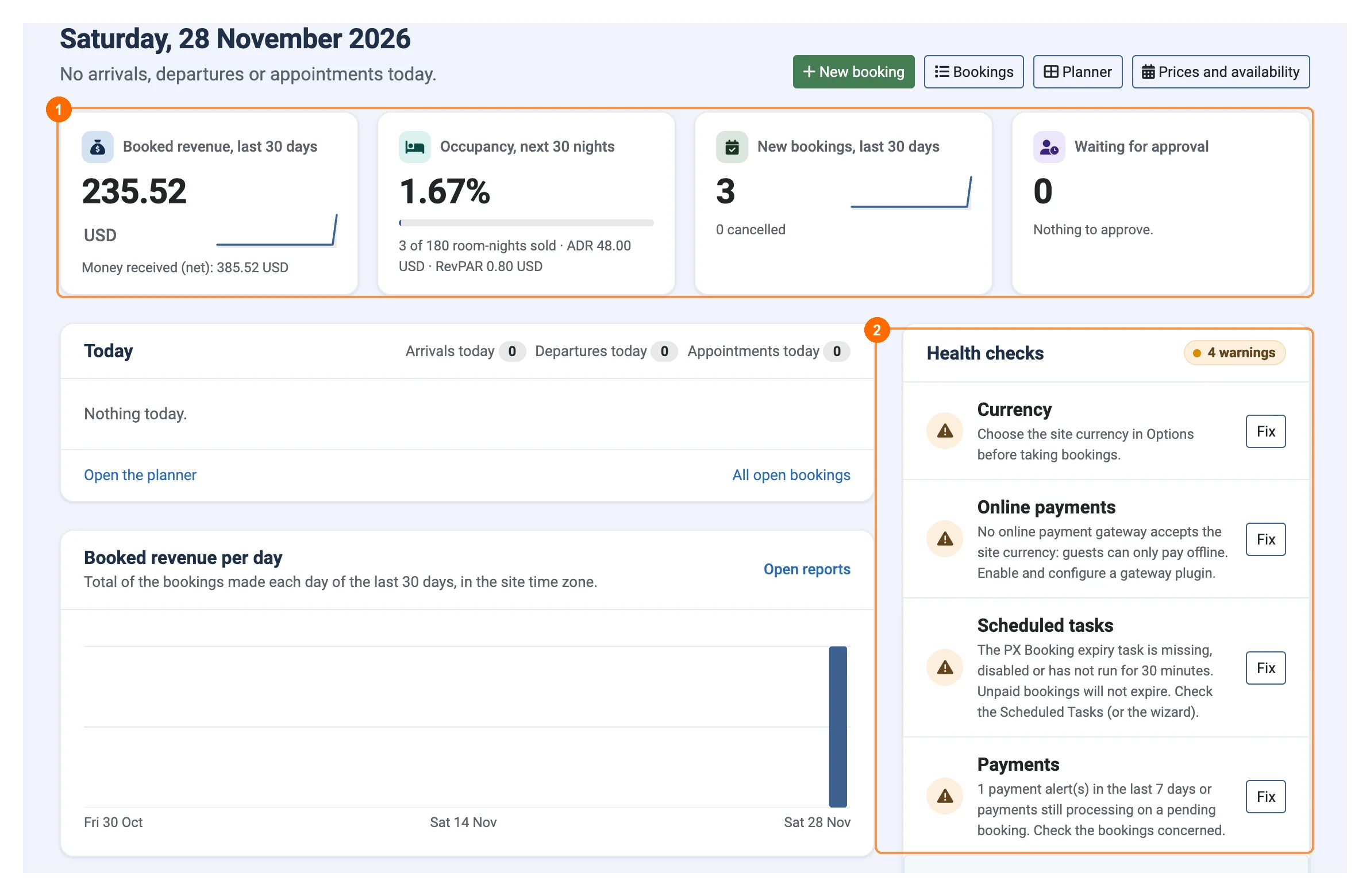
Components → PX Booking → Overview is the dashboard: 1booked revenue, occupancy, new bookings and approvals waiting, today's arrivals, departures and appointments, and 2Health checks. Each warning says what to do and has a Fix link. A Getting started checklist stays until setup is done.
Option A: sample data
On the Joomla Home Dashboard, in the Sample Data module, click Install next to Sample Data - PX Booking. It adds a homestay (three room types by the night with rates, rules and extras), a day spa (three treatments by time slot, therapists and treatment rooms) and a front-end menu. It is ordinary data: change it or delete it later.
Option B: the setup wizard
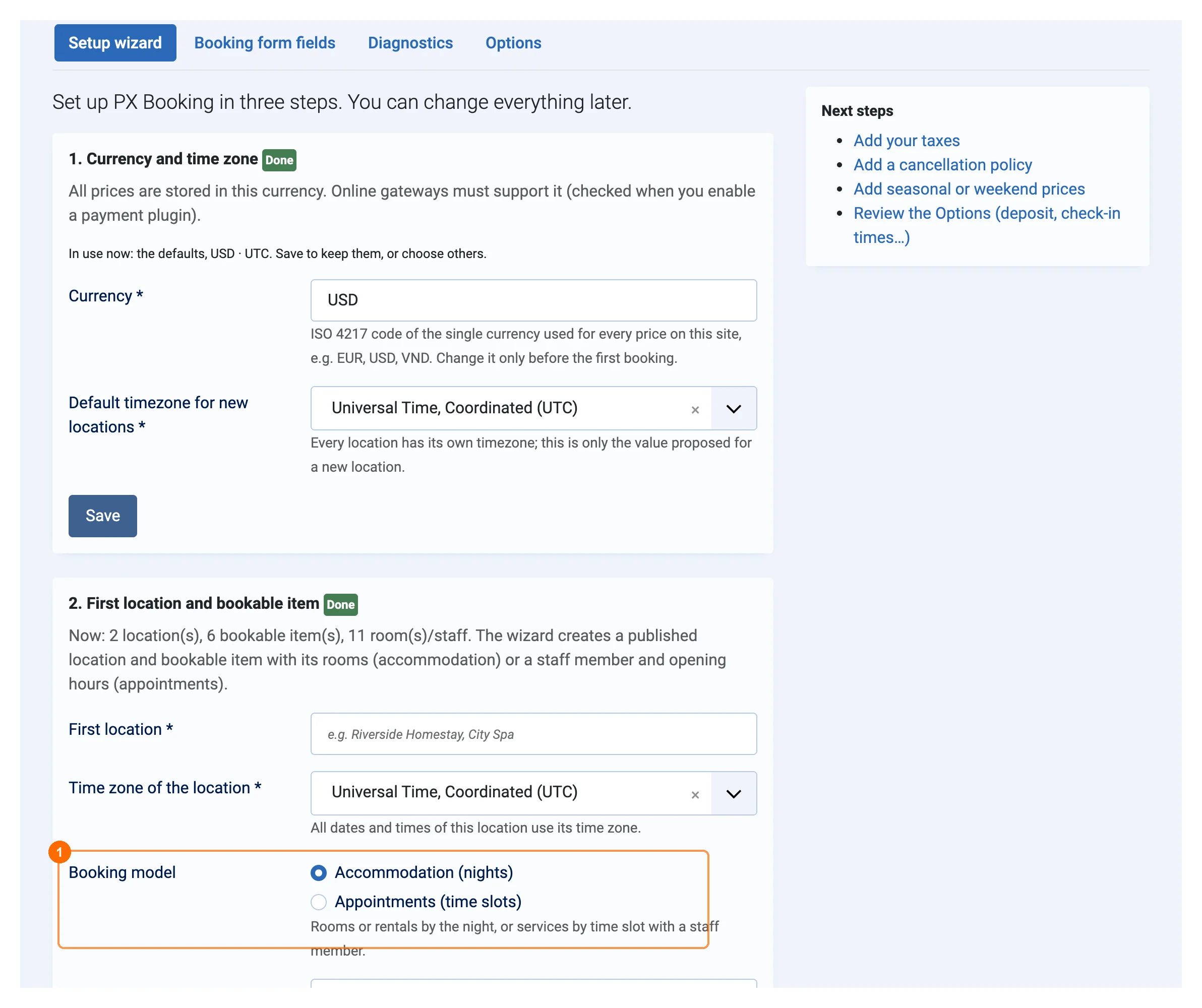
Components → PX Booking → Setup → Setup wizard has three steps:
- Currency and time zone: the site currency, and the time zone proposed for new locations.
- First location and bookable item: choose the 1Booking model. Accommodation (nights) asks for the room type, price per night, guests per unit and number of rooms. Appointments (time slots) asks for the service, price, duration, opening hours and a first staff member.
- Automation: Create the scheduled tasks adds the ten PX Booking tasks (see Scheduled tasks).
Then add a cancellation policy, taxes and seasonal prices, set up a payment method, create a menu item and make a test booking.
Locations and bookable items
The administrator menu has seven groups: Overview, Bookings, Catalog, Pricing, Reports, Connections and Setup. The screens of a group are tabs under the toolbar.
Locations
A location is the place guests come to: a homestay, hotel, spa or clinic (Catalog → Locations). It has an address with a map link, contact details, images and categories, and:
- Timezone: every date and time of the location (slots, check-in, "today", reminders) uses it. It is locked once the location has bookings.
- Check-in from / Check-out until for stays (empty = 14:00 and 12:00 from the Options).
- Schedule: weekly opening hours and exceptions for single dates. Catalog → Holidays closes every location on a date.
Bookable items
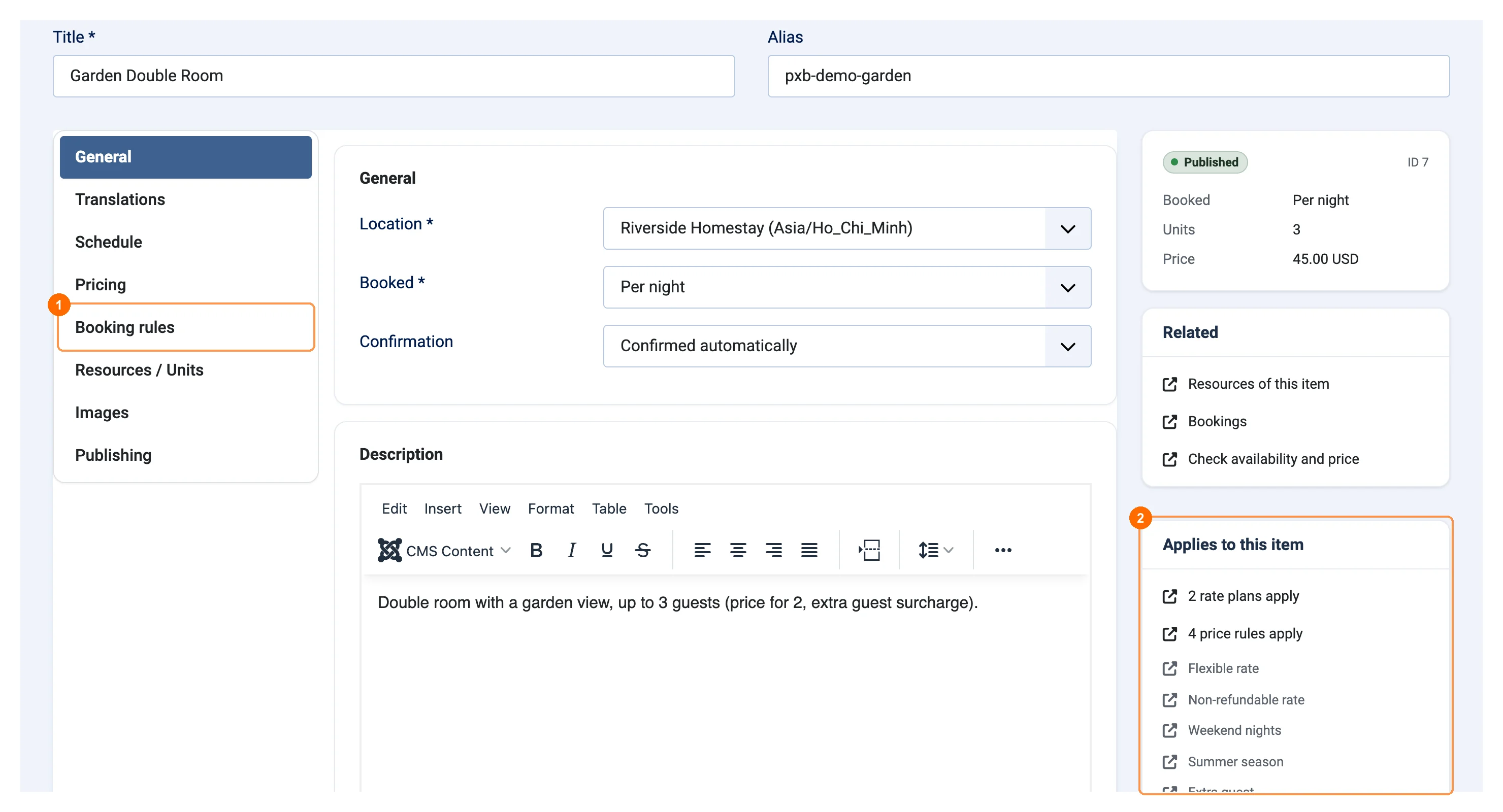
A bookable item is what guests book: a room type, a treatment, a consultation. It belongs to one location and is Booked either Per night or by Time slots. Confirmation is Confirmed automatically or Needs approval. The edit screen has tabs on the 1left and, on the 2right, the rate plans, price rules and cancellation policy that apply to it.
| Per night | Time slots | |
|---|---|---|
| Guests choose | arrival and departure, adults, children's ages, number of rooms | a day and a time, optionally a staff member, number of places |
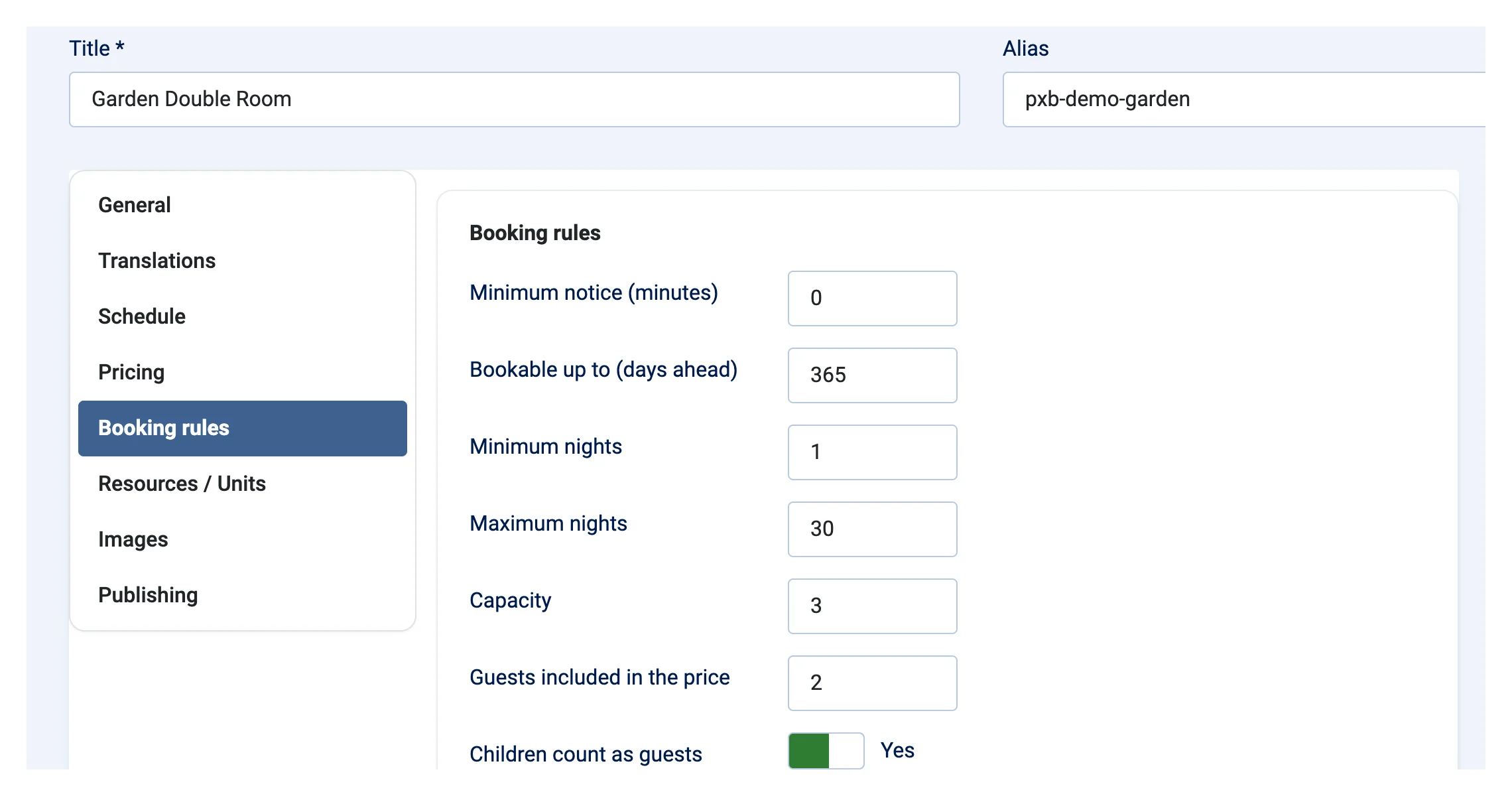
| Booking rules | minimum notice, bookable up to (days ahead), minimum / maximum nights, capacity, guests included in the price, children count as guests, infants up to age | minimum notice, bookable up to, duration, step and start times, buffer before / after, capacity, assignment |
| Occupies | one unit (a physical room) per room booked | one resource of each resource group (for example a therapist and a treatment room) |
Assignment (time slots) picks the staff member: Guest chooses (or 'any'), Automatic: least busy, Automatic: round robin or Automatic: highest priority. Joomla custom fields can be added to bookable items and locations (Bookable fields, Location fields).
Resources and schedules
A resource is what a booking occupies (Catalog → Resources):
- Unit (room): one physical room of a nightly bookable item. Five published units = five rooms to sell per night. Add them with Add units on the bookable item or under Resources.
- Staff: a person who delivers a service. Link a staff member to a Joomla user so they see their own bookings and get the Booking assigned e-mail.
- Room / equipment: a treatment room, a court, a vehicle.
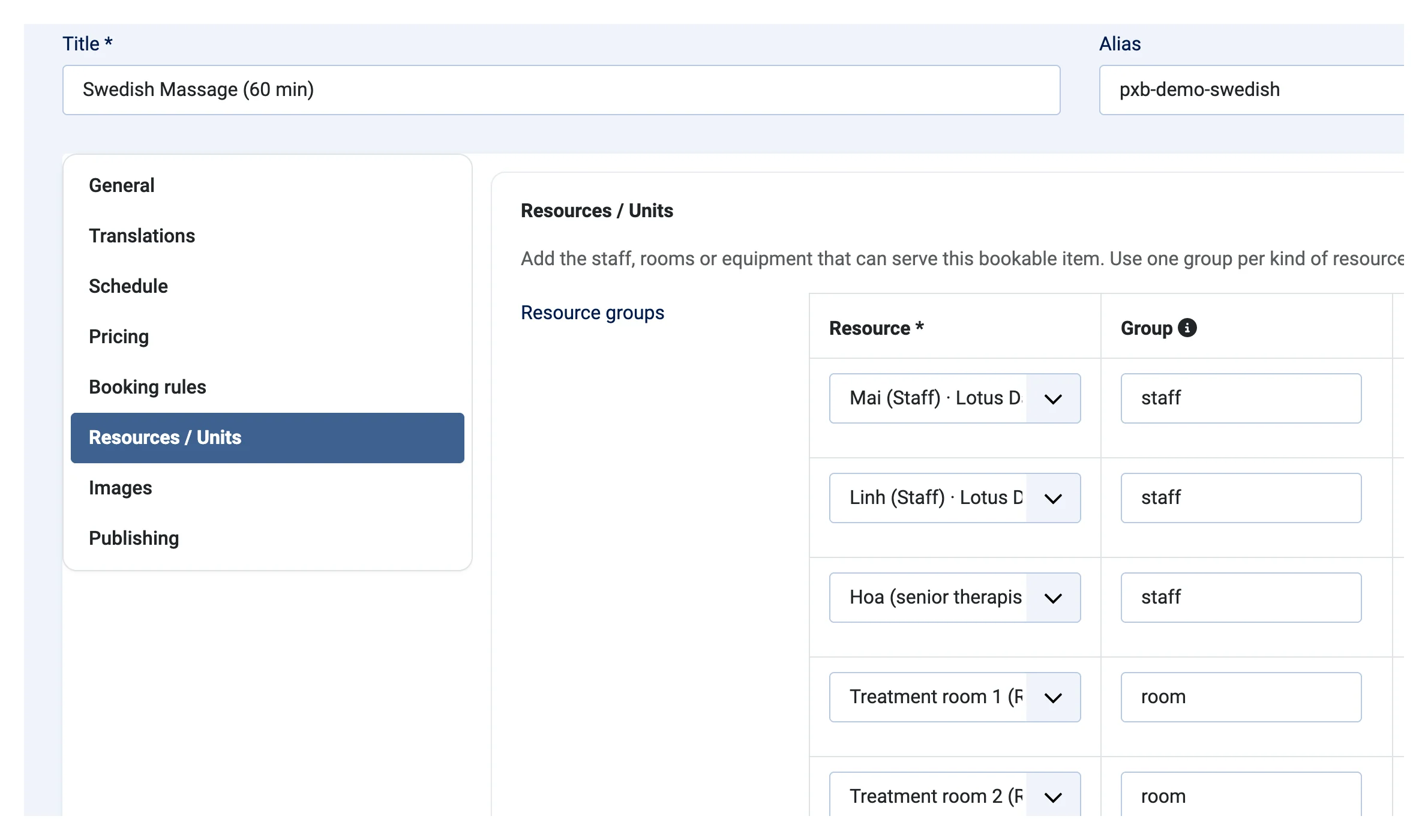
On a time slot item, the Resources / Units tab lists the resources in groups. A booking needs one resource of each group at the same time; the group with the lowest order is the one the guest can choose from, and a resource there can have its own duration and a surcharge.
Each location, staff member and room has a Schedule tab for working hours and days off. Places can only be booked inside the inventory horizon ("Bookable up to … days ahead"), which the task Extend inventory horizon moves forward every day.
Prices
Prices are always computed on the server in whole cents of the site currency. The total shown at checkout is the total charged; when something changes it, the guest is asked to confirm again. Later price changes never change existing bookings.
Prices and availability
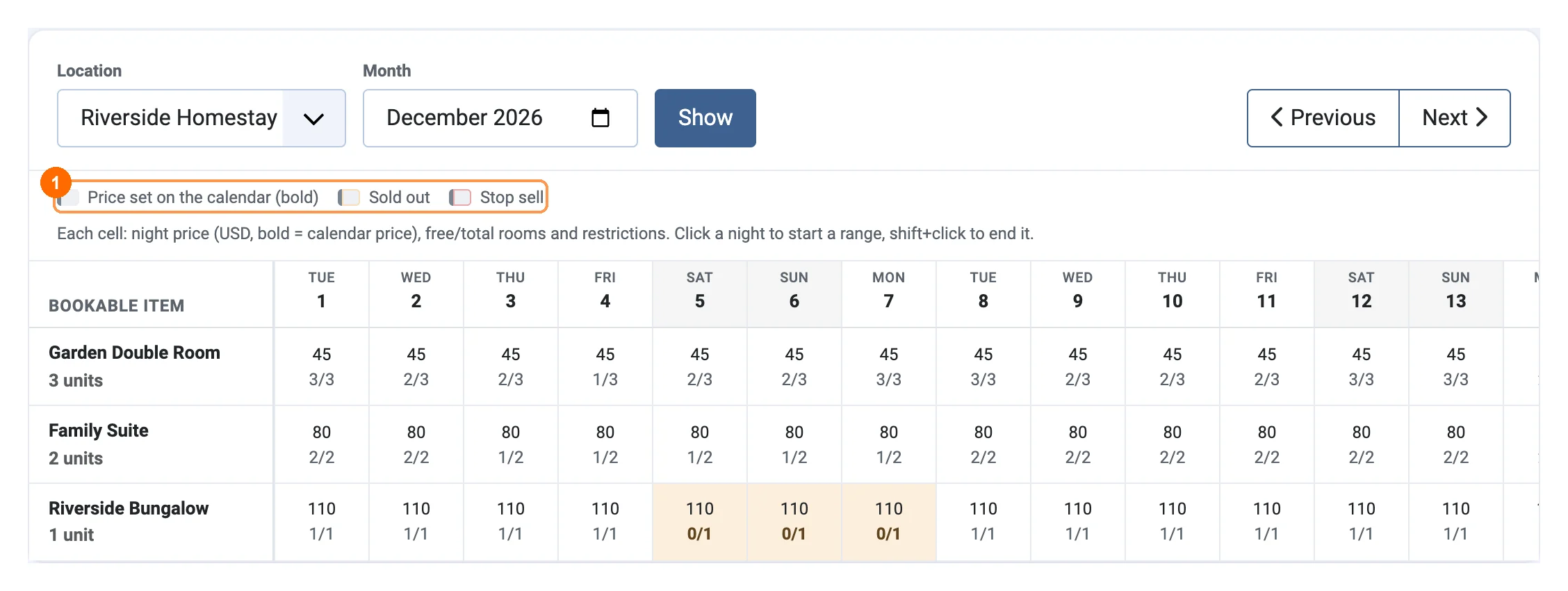
Pricing → Prices and availability shows each night of a month with its price and free / total rooms. Click a night to start a range, Shift + click to end it, then use Bulk edit to set a calendar price, minimum nights, closed to arrival / departure or stop sell. 1The legend marks calendar prices, sold-out nights and stop sell. A calendar price always wins over price rules.
Rate plans
A rate plan is a named price variant of a nightly item, for example "Non-refundable −10 %" or "Breakfast included": a price adjustment, minimum stay, refundable or not, included extras, its own cancellation policy and one default plan per item.
Price rules
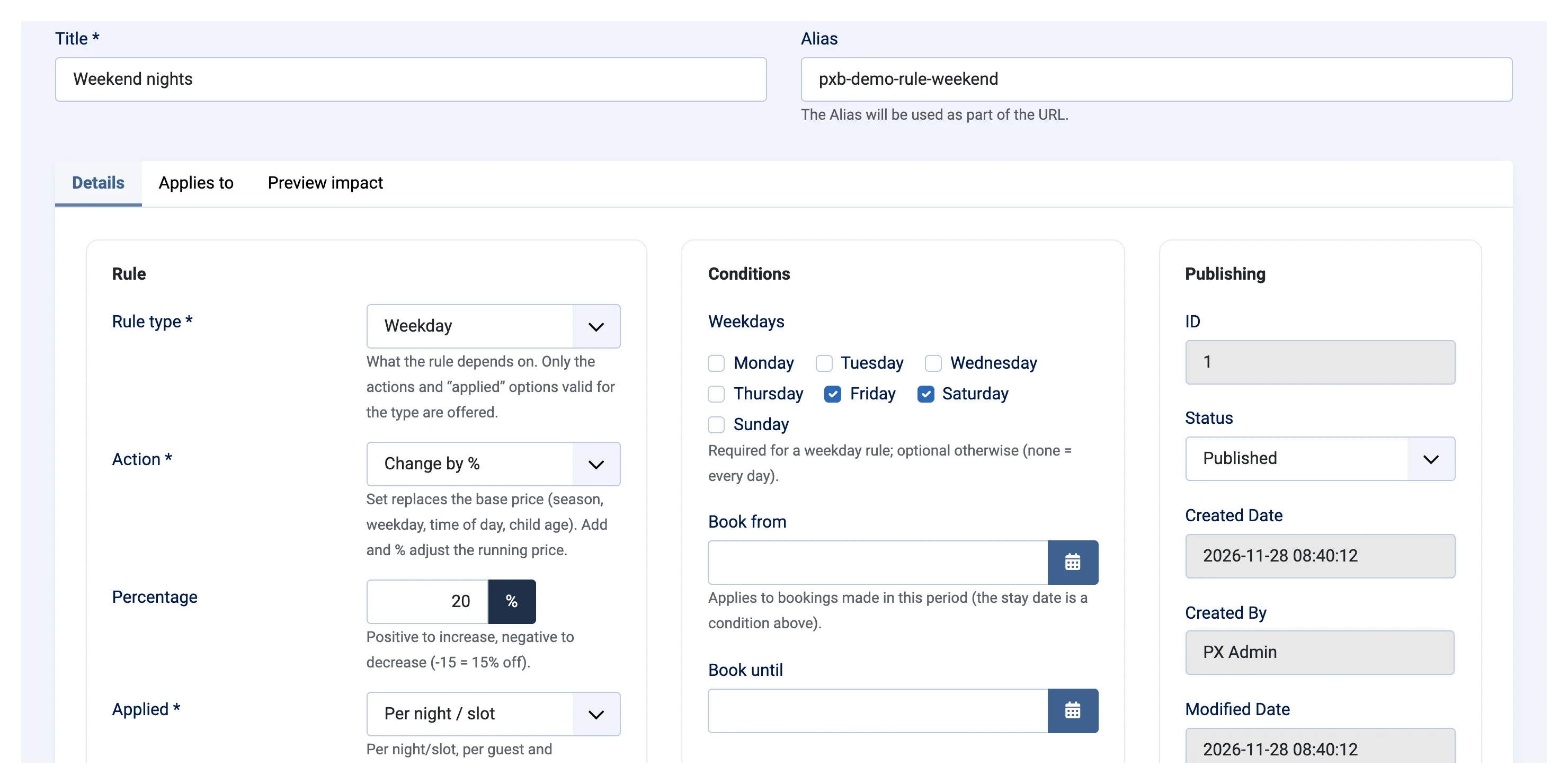
A price rule has a Rule type (Season, Weekday, Time of day, Number of guests, Extra guest, Child age, Length of stay, Early booking, Last minute), an Action (Set price, Add amount, Change by %) and how it is Applied (once per booking, per guest, per night / slot, per guest per night / slot). Higher Priority applies first; of several non-stackable rules only the highest wins. The Preview impact tab prices an example with and without the rule.
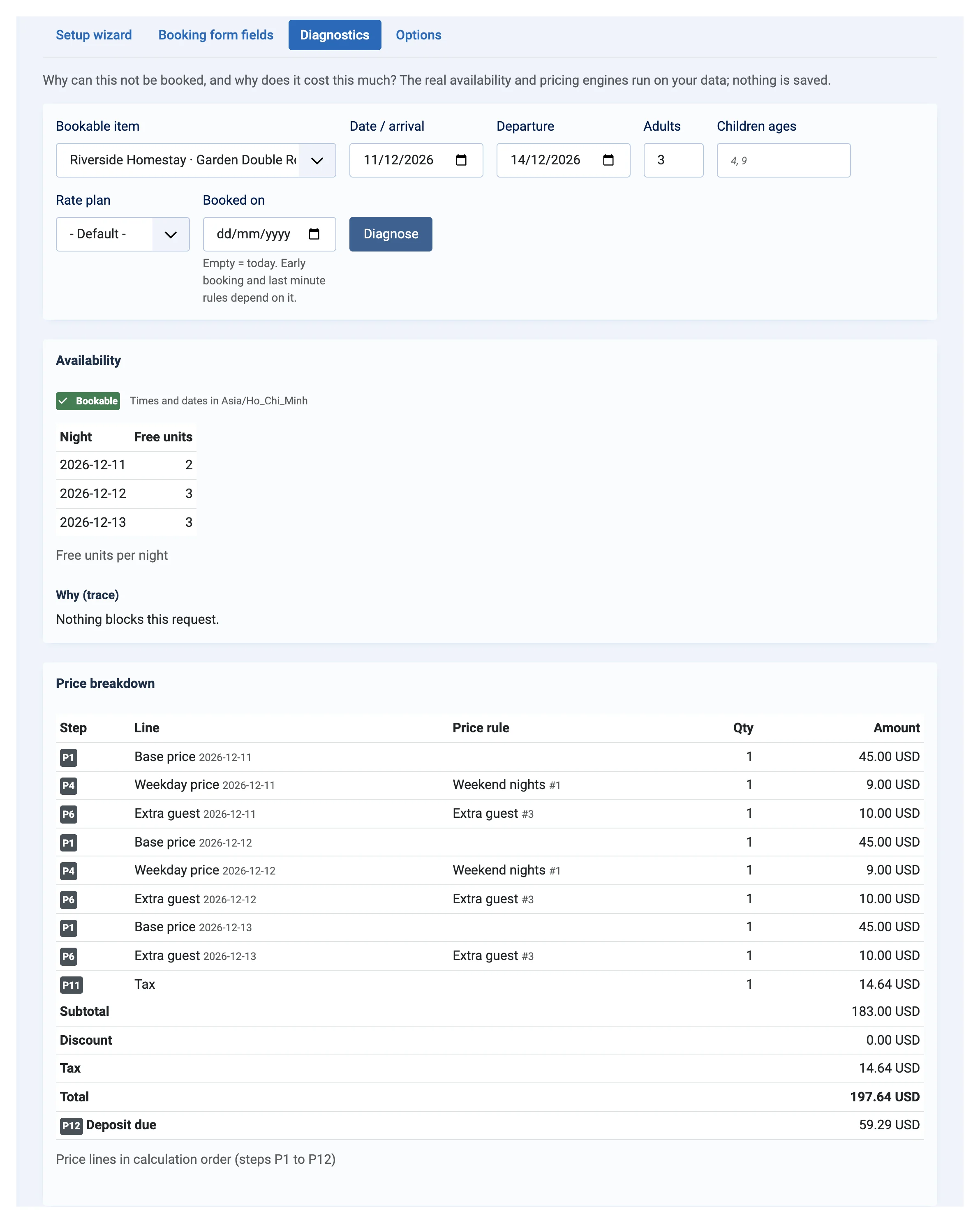
The price of each item is built in this order: base price (or a Set price rule), calendar price, rate plan, other price rules, staff surcharge, guest rules, length of stay / early booking / last minute, extras, fees from plugins, coupon, taxes, deposit. Diagnostics shows every line.
Extras, taxes and coupons
- Extras (Catalog → Extras): breakfast, airport pick-up, late check-out… with a price per item, person, night, person per night or booking, a maximum quantity and the items they are offered for. Guests pick them at checkout.
- Taxes: a rate, what it applies to (everything, the item price, extras, fees) and whether it is included in prices or added on top.
- Coupons: percentage or amount, with optional limits: booking dates, stay dates, minimum amount or nights, total uses, uses per guest, first booking only, exclude extras and the items it is valid for.
Deposits
Each bookable item sets its Deposit (no deposit, percentage, fixed amount, first night, or the default of the Options). In Options → Payments: Require full payment when booking, Balance due (days before arrival), Balance reminder and When the balance is overdue (notify the administrator or cancel). Unpaid bookings are cancelled after the Online payment time (default 30 minutes) or the Bank transfer / pay later time (default 2 days).
Cancellation policies
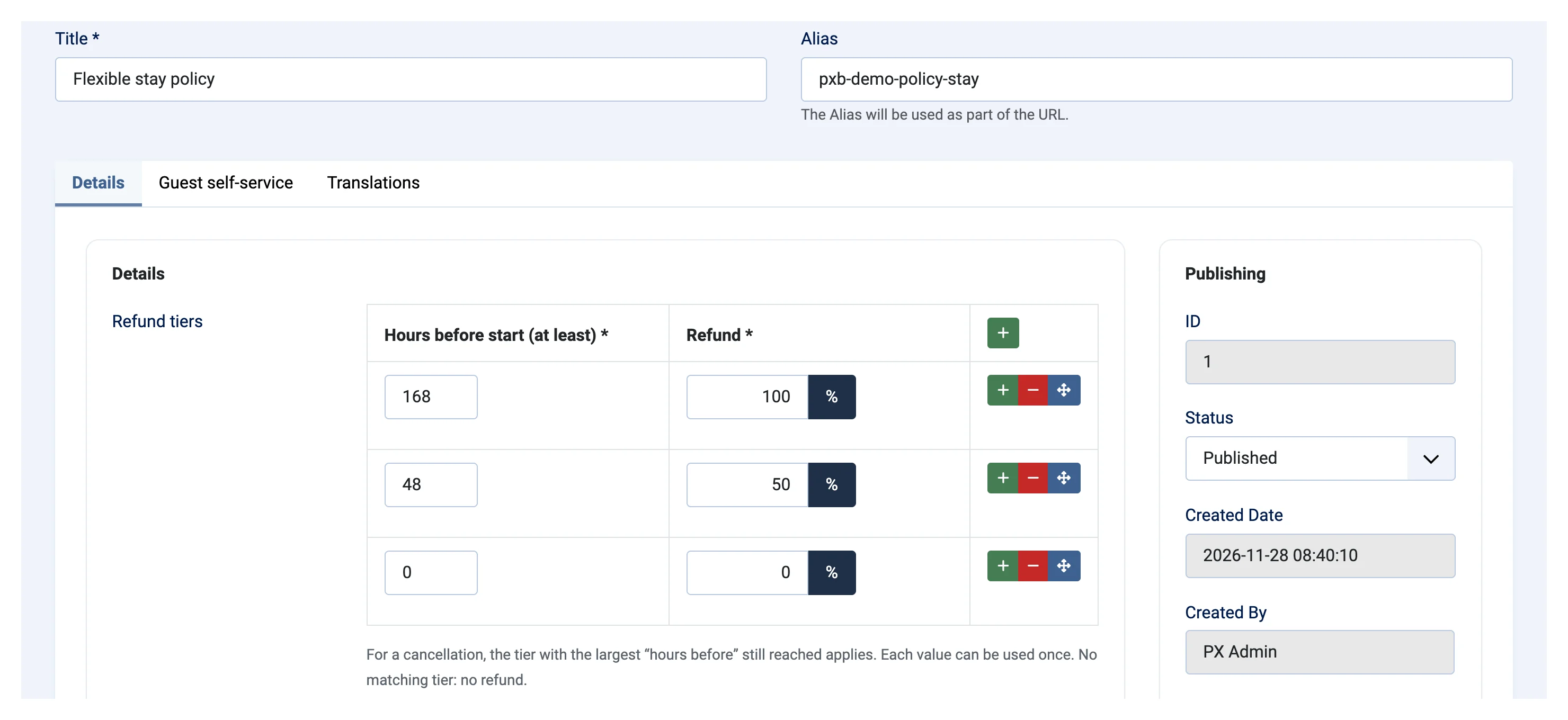
A cancellation policy has refund tiers: "hours before start (at least)" and a refund percentage. The tier with the largest hours still reached applies; no tier, no refund. It also says whether extras and fees are refunded, and on the Guest self-service tab whether guests can cancel and reschedule (until how many hours before, with an optional fee and refund of a price difference). The guest sees the policy text before booking, and the booking keeps a copy.
Front end
Menu items and module
In Menus → (your menu) → New → PX Booking:
| Menu item type | Shows |
|---|---|
| Bookable items list | Cards of rooms and services with their "from" price; filter by category, location and mode. |
| Location page | A location with its room types (several rooms of different types in one booking) and its services. |
| Single bookable item | One item with its booking widget, images, description, cancellation policy and address. |
| My bookings | The bookings of the logged-in user. |
The module PX Booking - Bookables shows the same cards in any module position: by category, location and type, in the component's order, newest first or by price, optionally "other rooms" of the item being viewed. Checkout, booking and invoice pages need no menu item; their URL segments are in Options → Frontend.
Booking widget
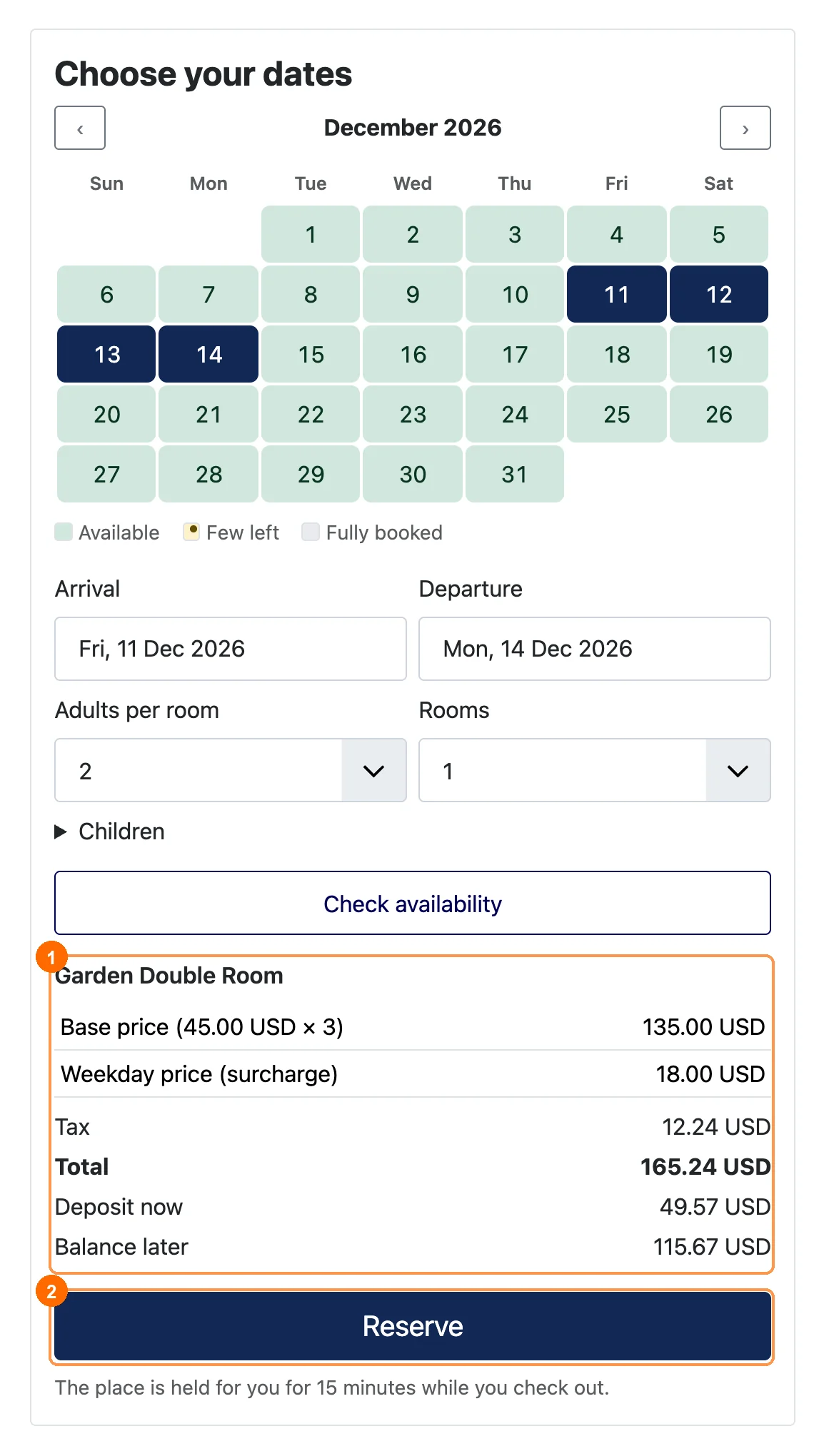
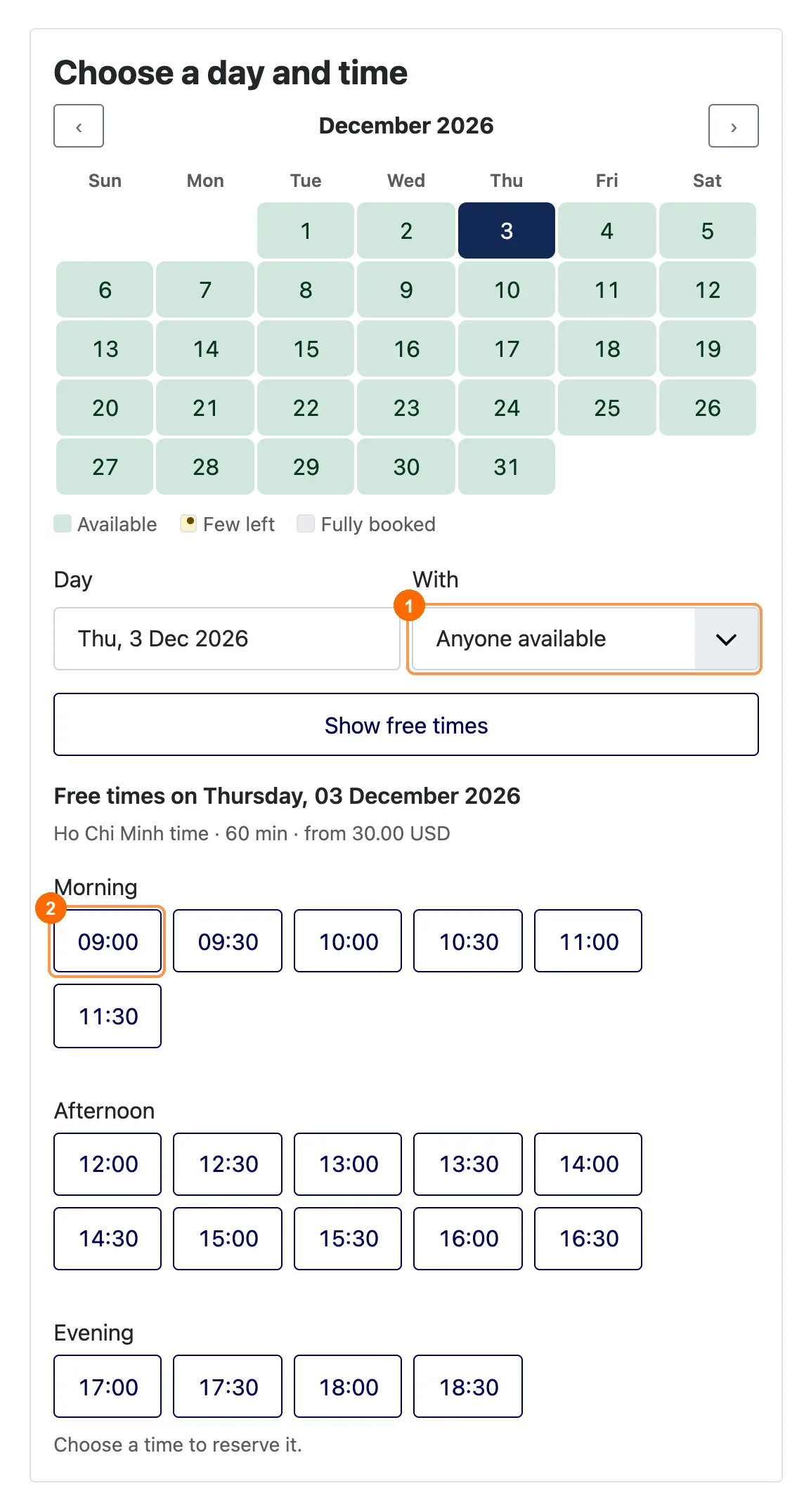
Per night, the guest picks arrival and departure in the month calendar, adults and rooms, and sees 1the price lines, deposit and balance. 2Reserve holds the room for the Hold time (default 15 minutes) and opens the checkout. For time slots the guest picks a day, 1a staff member or "Anyone available", then 2a time. Times are shown in the location's time zone. Every page also works without JavaScript.
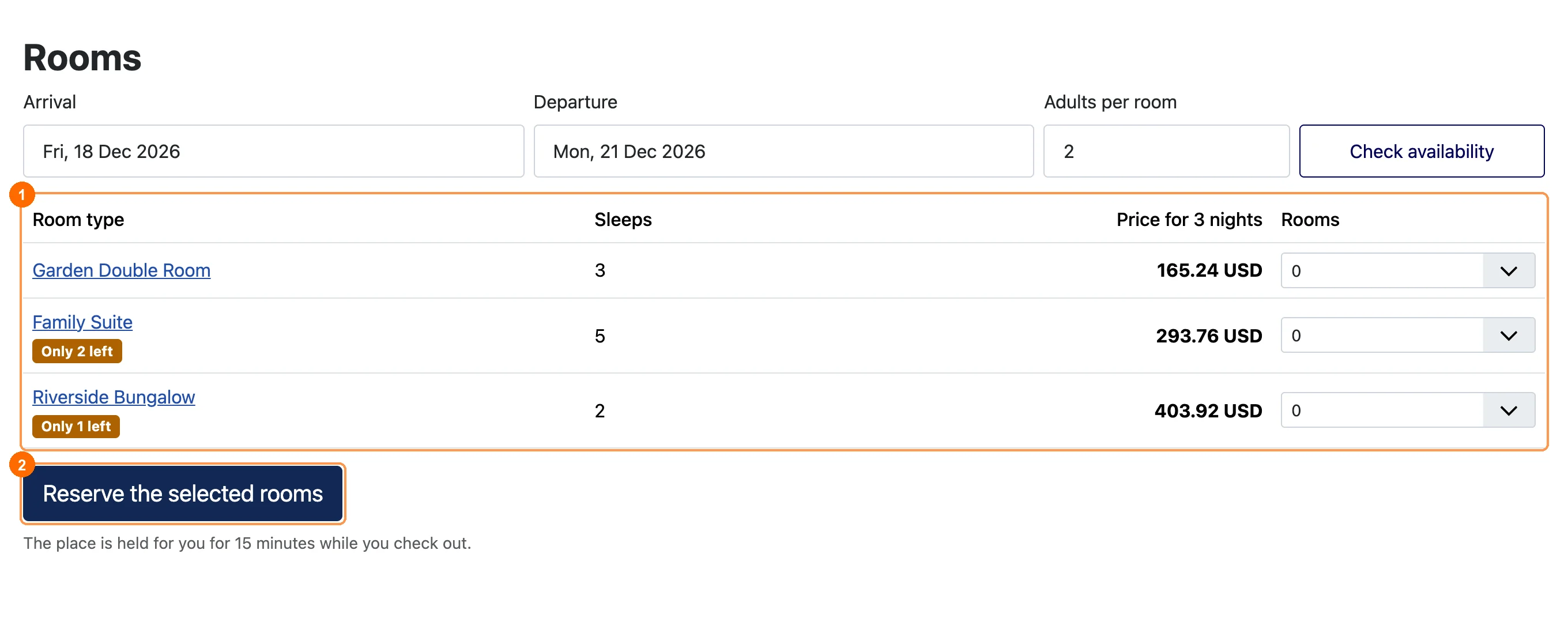
On a Location page the guest enters the dates once and chooses 1how many rooms of each type, then 2Reserve the selected rooms.
Checkout
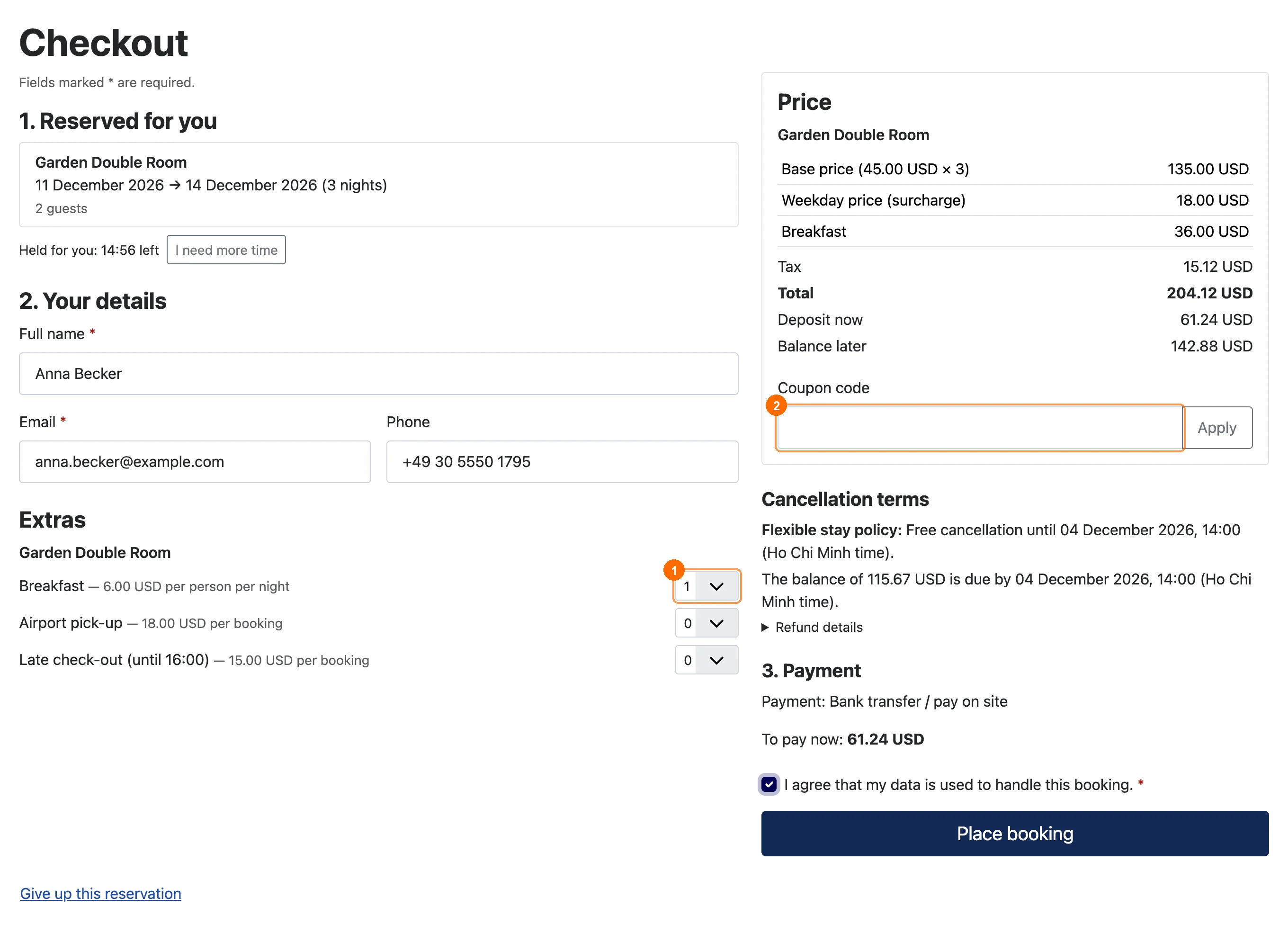
The checkout shows what is reserved with the time left, the guest's details and booking form fields, 1extras, 2a coupon code, the cancellation terms and the payment method with the amount to pay now. Add questions in Setup → Booking form fields (text, list, checkboxes, date, country, consent…, per item and with conditions). Require consent (Options → Frontend) adds a privacy checkbox. A honeypot, a minimum fill time, an optional captcha and rate limits per visitor keep spam out.
Guest self-service
After booking the guest lands on the booking page: dates or time in the location's time zone, price lines, payment instructions, a Pay button for the deposit or balance and the invoice. Depending on the cancellation policy the guest can 1cancel (the refund is shown first) and change dates or time (with the price difference). 2Add to calendar gives an .ics file and Google Calendar / Outlook.com links.
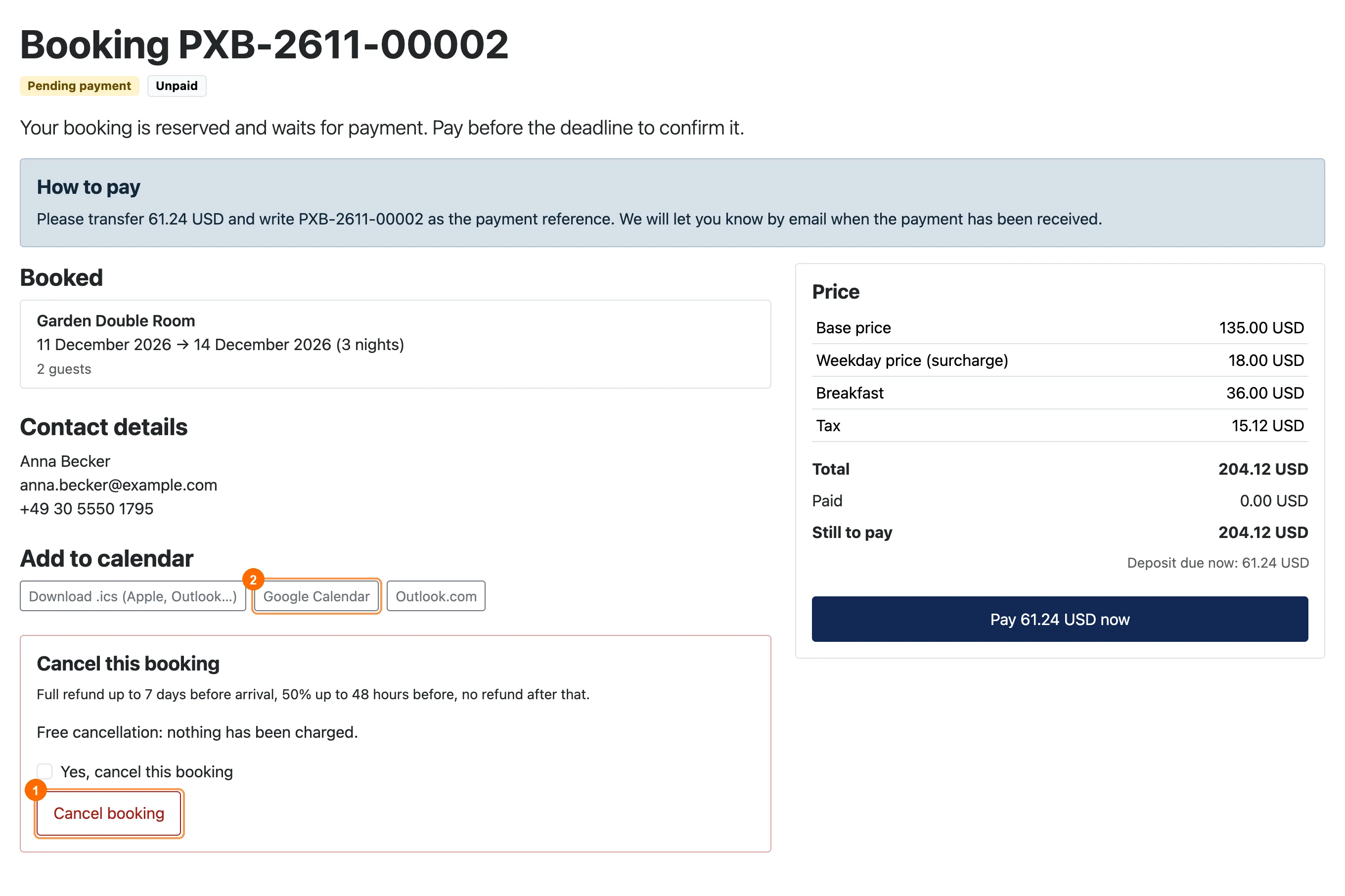
Only the logged-in owner or someone with the signed link from the booking e-mails can open this page. The link is valid until 30 days after the booking ends; a guest who lost it uses Email me my booking link. A logged-in user can add a guest booking to their account through a one-time link sent to the booking's e-mail address; bookings are never linked by e-mail address alone.
Payments
Each charge is a payment request for the exact amount due. Guests pay on the gateway's own page, so card data never reaches your site. A booking is confirmed by the gateway's webhook, or by the task Reconcile payments that checks open payments after 15 minutes. Payment plugins are in System → Manage → Plugins, type pxbookingpayment; each has a Title at checkout and Description at checkout. Guests only see methods that are enabled, configured and support the site currency.
| Plugin | Settings |
|---|---|
| PX Booking - Bank transfer / pay on site | Instructions per language (tags {BOOKING_NUMBER}, {AMOUNT}), Payment time (hours). Record the money with Record payment on the booking. |
| PX Booking - Stripe | Mode (Test / Live), Test / Live secret key, Test / Live webhook signing secret, Allow delayed payment methods, API version. |
| PX Booking - PayPal | Mode (Sandbox / Live), client ID, secret and webhook ID per mode, Brand name. |
The plugin screen shows the webhook address and the events to add in the Stripe Dashboard (Developers → Webhooks) or the PayPal app (Webhooks). Keys and secrets are stored encrypted. Stripe needs an Online payment time of at least 30 minutes; PayPal does not support every currency (for example VND) and is then hidden.
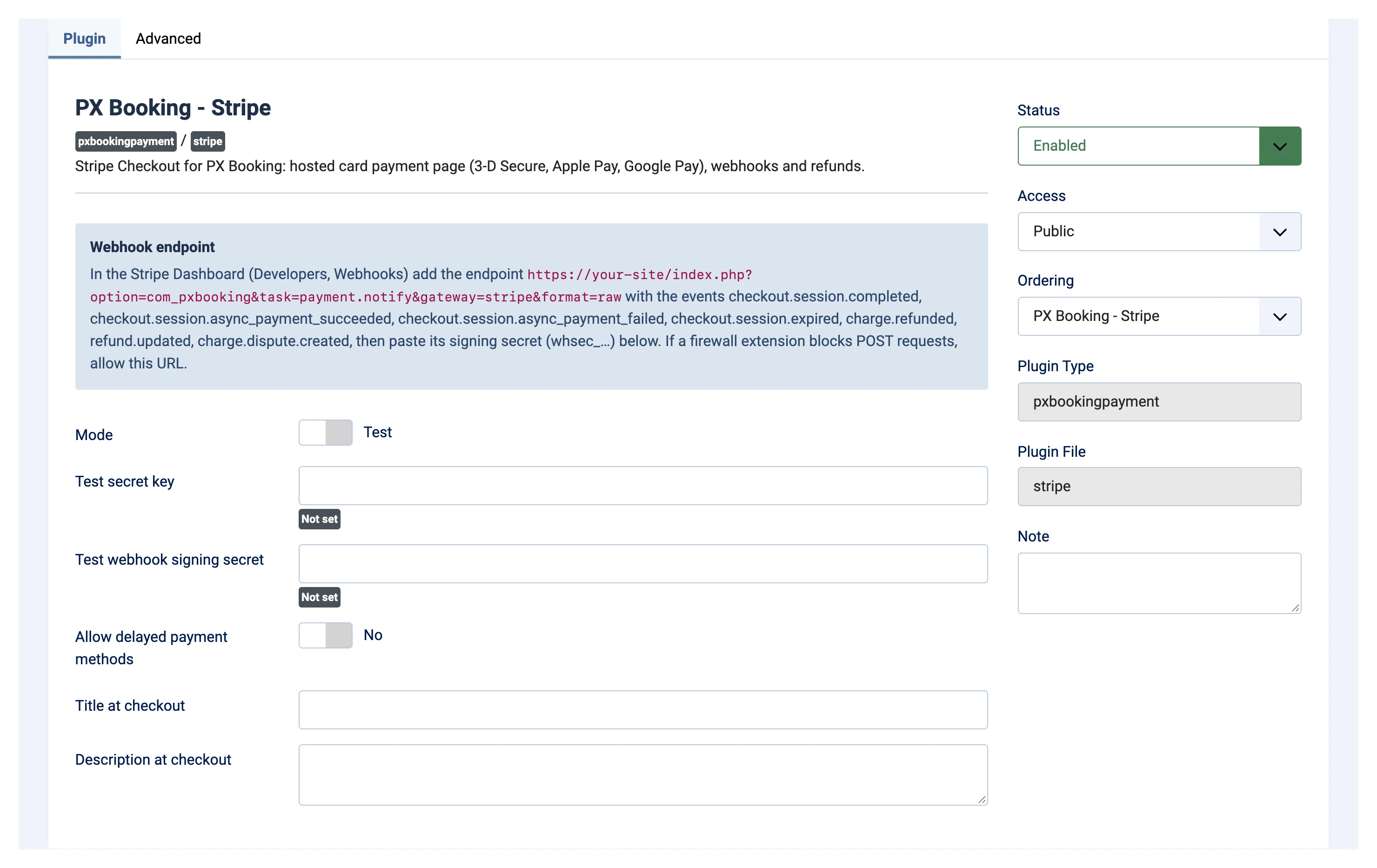
Refunds are made on the booking in the administrator (permission Refund payments); online refunds go back through the gateway. Money that arrives after a booking expired is always recorded: the booking is revived when the place is still free, otherwise the administrators get a payment alert (or a refund, with Refund late payments automatically when the place is gone).
E-mails
PX Booking sends 22 e-mails through Joomla's System → Mail Templates (names start with "PX Booking:"): booking received, confirmed, awaiting approval, approved / declined, cancelled, changed, reminder, balance due, payment received, refund sent, booking link, add booking to account and payment link for guests; new booking, needs approval, approval deadline, cancelled, balance overdue, calendar conflict and payment alert for administrators; booking assigned for staff. Each has a subject, plain text and HTML per language, with tags such as {CUSTOMER_NAME}, {ITEMS_TABLE}, {TOTAL}, {BALANCE}, {MANAGE_URL} and {PAYMENT_INSTRUCTIONS}.
Connections → Email templates previews 1any template with a real booking or sample data, in any language, and sends a test to you.
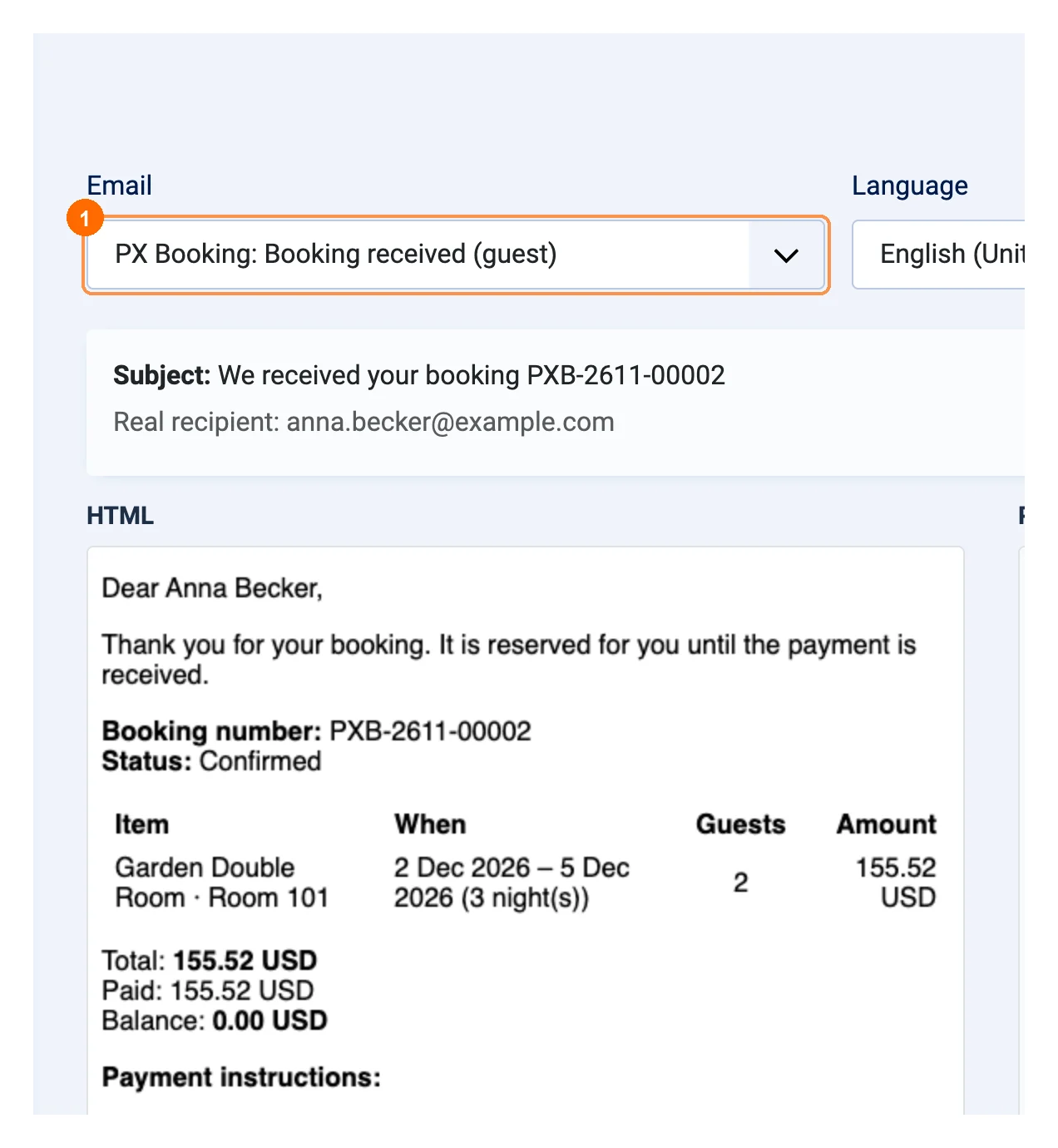
- Options → Notifications and connections: administrator e-mail addresses, Tell administrators about new bookings, Notify staff, Guest reminders and Send reminders before (hours), for example
24,2. - Plugin PX Booking Notify - Email: Attach calendar file, Copy guest emails to, Switched-off emails.
- Failed e-mails are retried after 5 minutes, 30 minutes and 2 hours. At most 5 e-mails per hour go to one address.
Admin
Bookings
Bookings opens on 1tabs with a count: Open, Awaiting approval, Money still due, Checked in, Completed, Cancelled, All. 2Each row shows the guest, dates or time, item and location, the booking and payment status and the total with a bar of what is paid. The toolbar confirms, cancels, checks in and exports CSV.
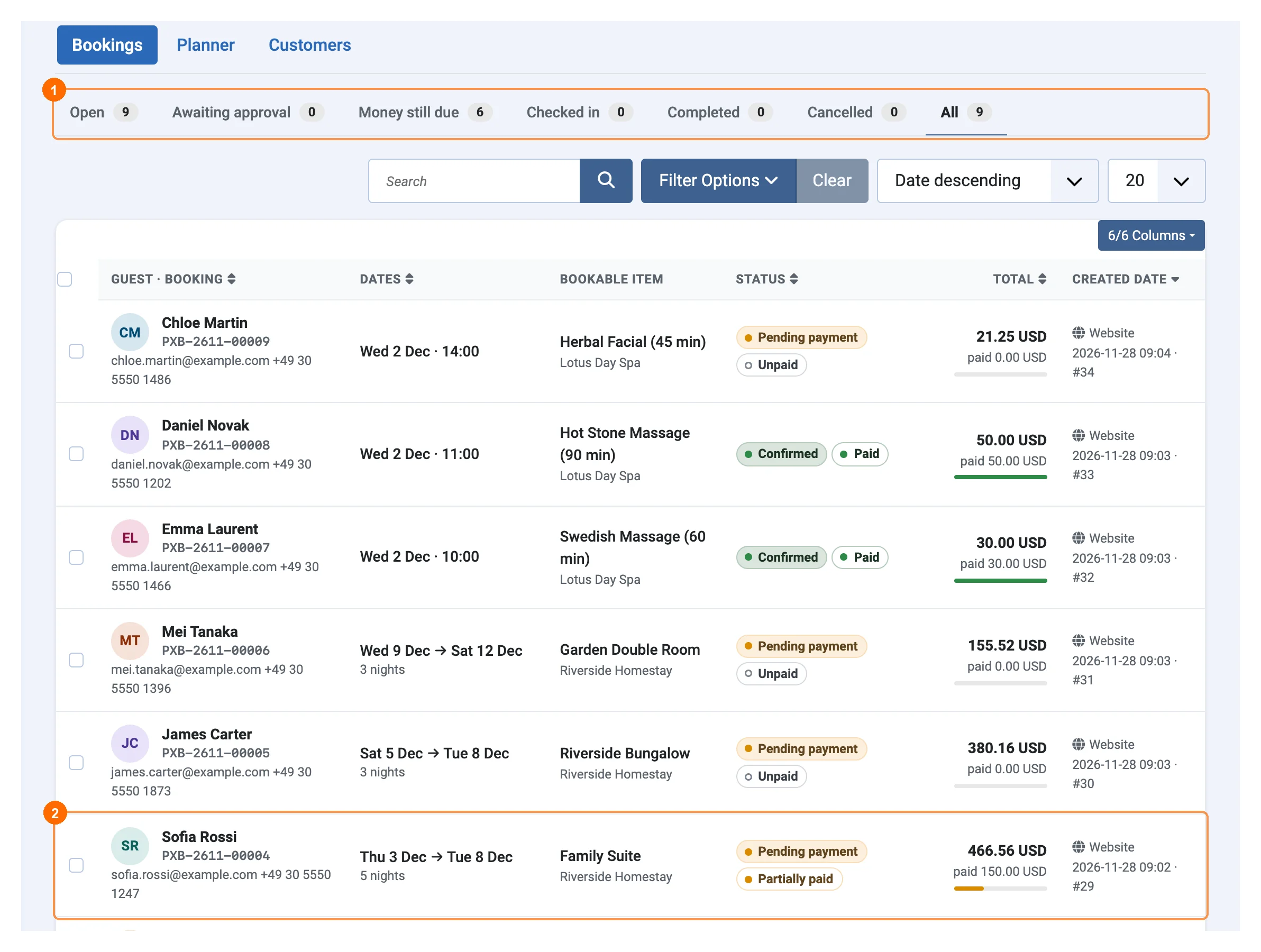
A booking opens on a summary with the everyday actions (approve, confirm, check in, complete, send a payment link, resend the confirmation). The tabs hold the items, contact, form answers, payments (Record payment, refunds), price history, invoices and the full history. Cancelling shows the refund given by the policy first.
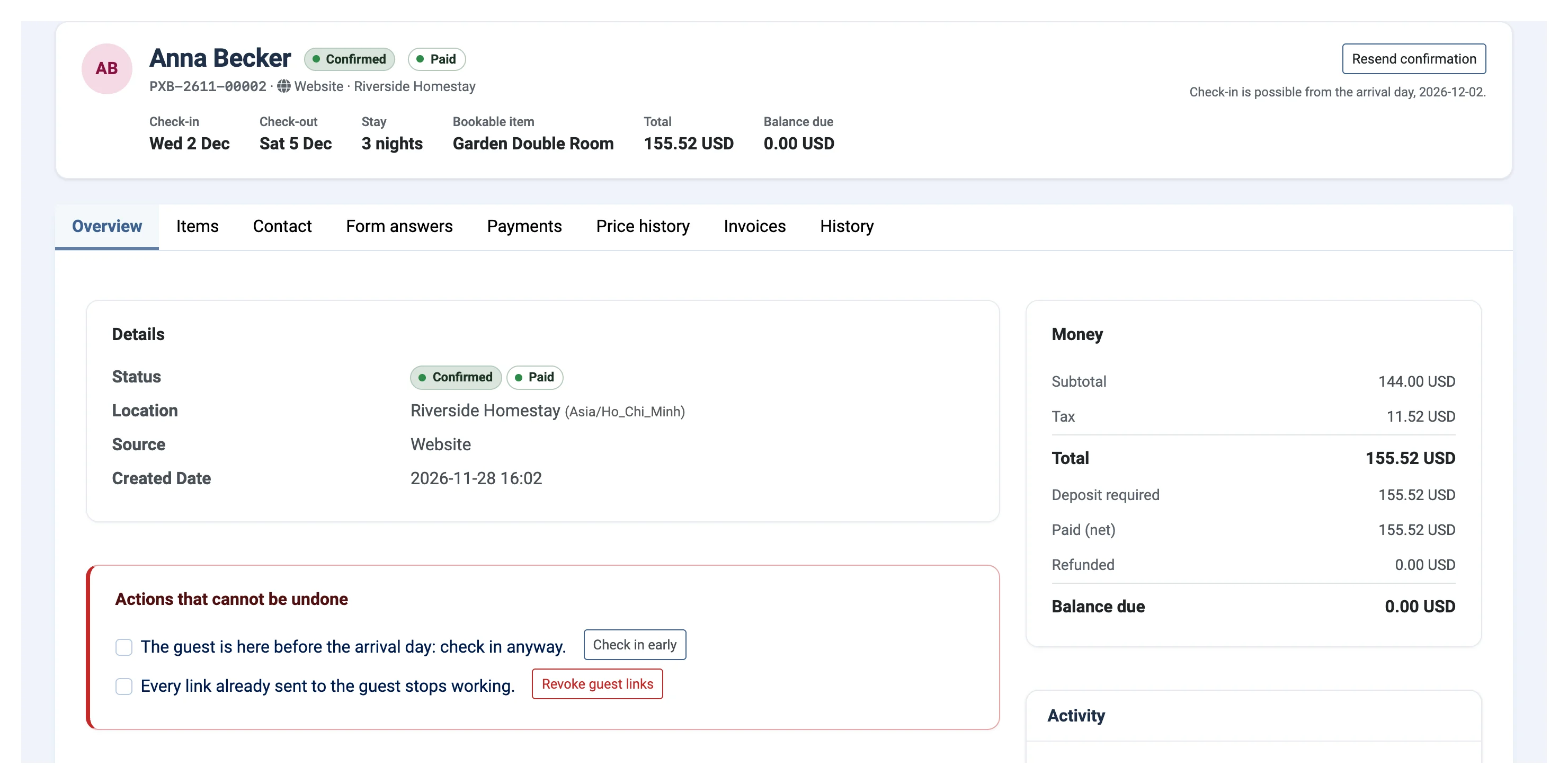
| Status | Meaning |
|---|---|
| Pending payment | Places are reserved until the payment time ends. |
| Awaiting approval | Waits for an administrator (items that need approval). |
| Confirmed | Paid as required, or nothing due. |
| Checked in, Completed | Set by staff; completed bookings count in reports. |
| Cancelled, No-show | By the guest, an administrator, expiry or the overdue action; no-show after the hours set in Options. |
Planner
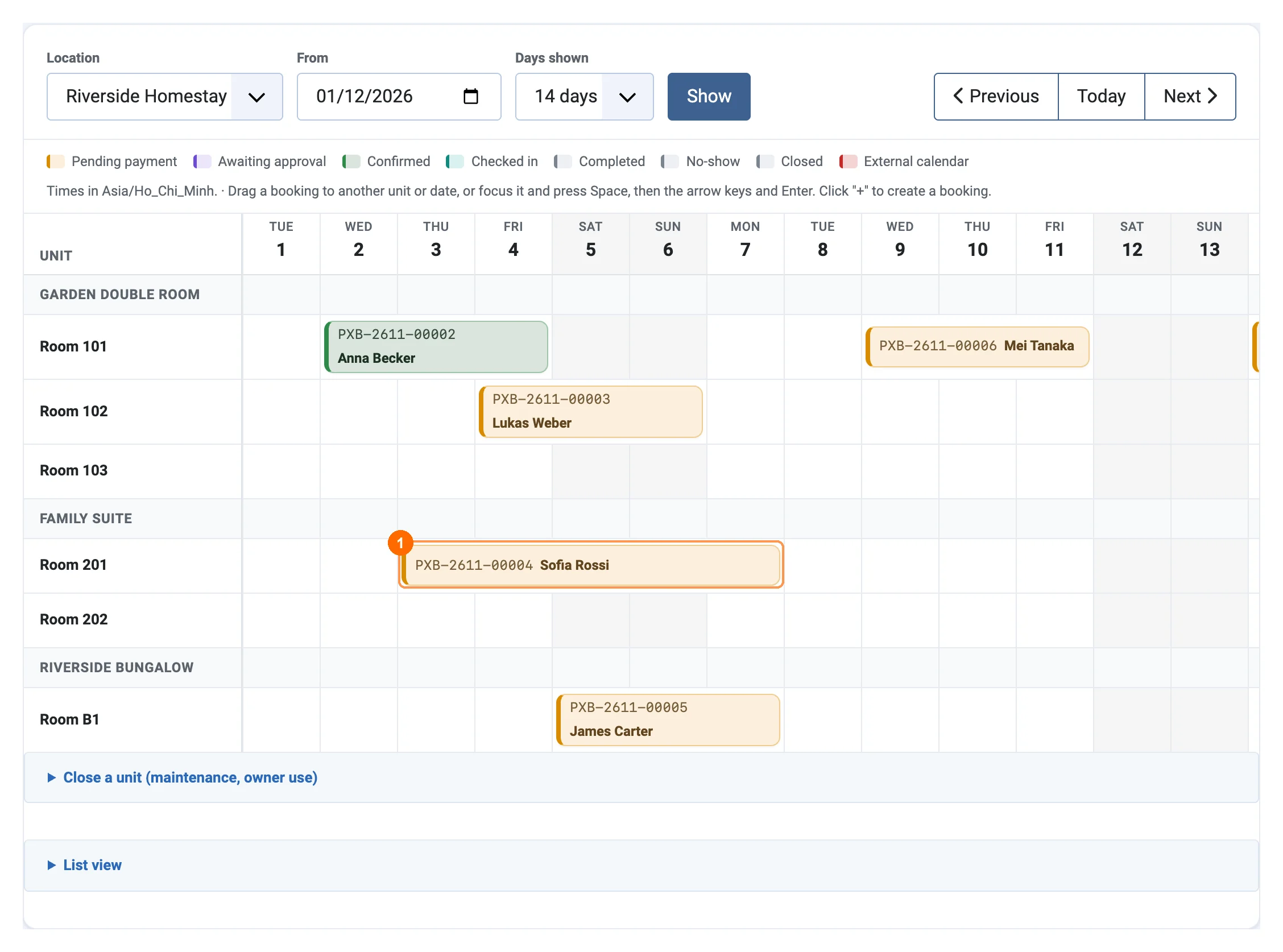
Bookings → Planner shows the bookings of a location on a timeline: per unit and night for stays, per staff member and room by the hour for time slots. 1Drag a booking to another unit or date (or select it with Space, move with the arrow keys, drop with Enter), click + in an empty cell to create a booking, or Close a unit for maintenance.
Reports
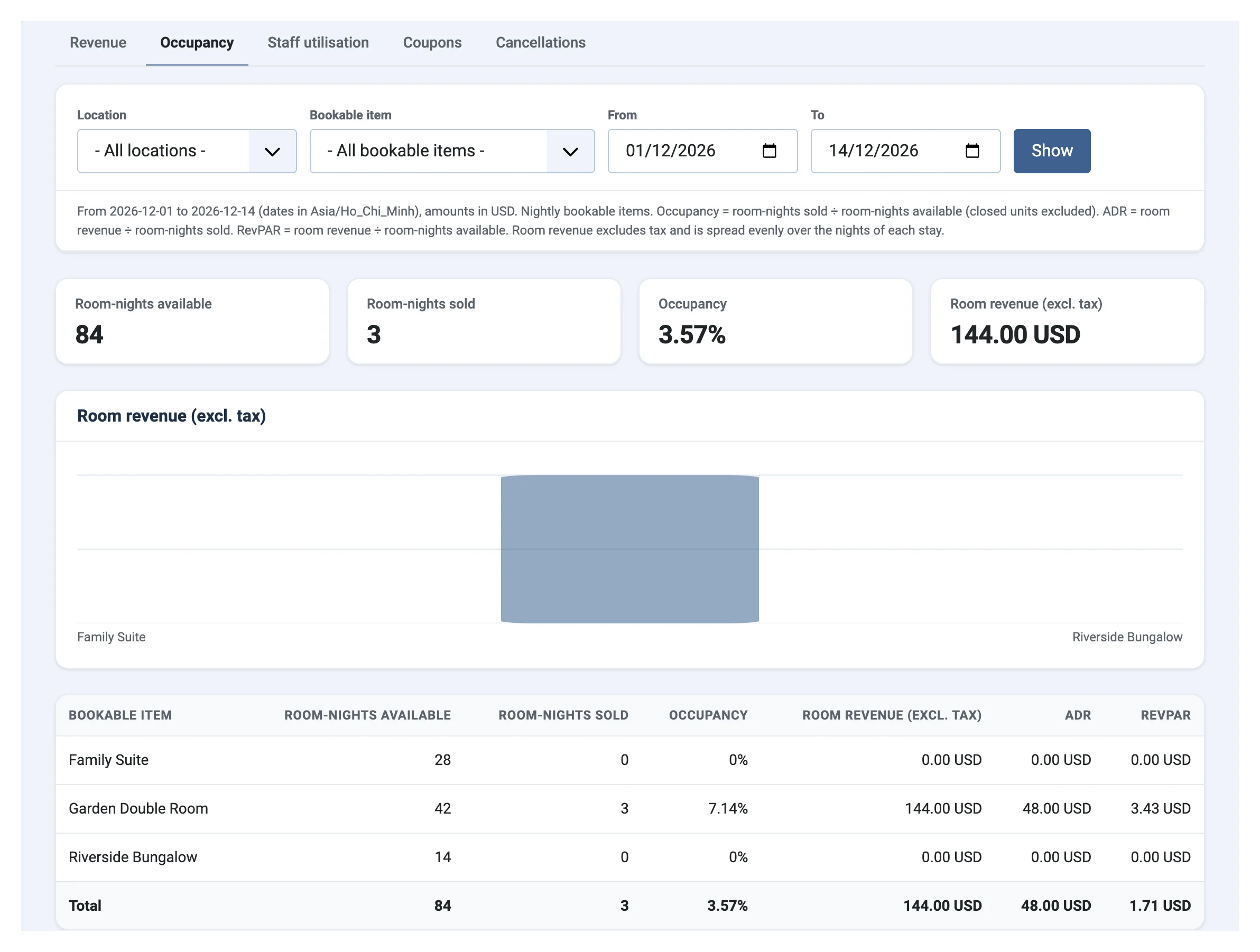
Reports has five tabs: Revenue, Occupancy (room-nights, occupancy, ADR, RevPAR), Staff utilisation, Coupons and Cancellations, for a period, location and item, each with a chart, a table and Export CSV.
Diagnostics
Setup → Diagnostics answers "why can this not be booked, and why does it cost this much?". Choose an item, dates or a time, guests, rate plan, coupon and the booking date; it runs the real availability and price engines without saving and lists the reasons per night or time, the free units and every price line with the rule that made it.
Permissions
Besides the Joomla actions, Options → Permissions has View bookings (only bookings of resources linked to the user), View all bookings, Manage bookings, Override booking rules, Refund payments, Manage pricing and View reports. This gives staff a simple view of their own appointments.
iCal and webhooks
iCal sync
- Import (Connections → iCal feeds → New): the
.icsaddress from Airbnb, Booking.com, Vrbo or Google Calendar and the unit or staff member it blocks. The task imports due feeds every 5 minutes; Sync now imports at once. A clash with a booking is never cancelled automatically: the administrators get a Calendar conflict e-mail and the dashboard warns. - Export (Connections → iCal export): one private address per unit or staff member and one per room type. Paste it into the other channel. New address replaces the key.
- Feeds show "Booked", not guest names, unless Guest names in feeds is on in the PX Booking - System plugin (only for internal calendars).
Channels refresh calendars on their own schedule, so a short double-booking window always remains with iCal.
Webhooks
Connections → Webhooks (Super Users) sends events to an HTTPS address as a signed JSON POST: booking.created, booking.confirmed, booking.cancelled, booking.rescheduled, payment.succeeded, payment.refunded, customer.created and more. The header X-PxBooking-Signature carries t=…,v1=…, an HMAC-SHA256 of timestamp.body with the signing secret. Failed deliveries are retried six times over about a day and a half (410 Gone stops them); Webhook log lists every delivery and can resend it. Payloads carry ids and amounts, not contact details.
Scheduled tasks and CLI
Background work runs as Joomla scheduled tasks (plugin Task - PX Booking). Create them in the setup wizard or in System → Scheduled Tasks → New:
| Task | Interval |
|---|---|
| PX Booking - Expire holds and unpaid bookings | every minute |
| PX Booking - Extend inventory horizon | daily |
| PX Booking - Recount longest blocks | weekly |
| PX Booking - Booking reminders | every 5 minutes |
| PX Booking - Balance reminders and overdue action | hourly |
| PX Booking - Approval deadline reminders | every 30 minutes |
| PX Booking - Retry failed notifications | every 10 minutes |
| PX Booking - Reconcile payments | every 15 minutes |
| PX Booking - iCal sync | every 5 minutes |
| PX Booking - Webhooks | every minute |
The Lazy Scheduler runs tasks on page visits, so on quiet sites holds expire late. Prefer a server cron job:
* * * * * /usr/bin/php /path/to/joomla/cli/joomla.php scheduler:run --all
Command line (plugin Console - PX Booking):
php cli/joomla.php pxbooking:status: table sizes, inventory horizon, overdue items and the tasks.php cli/joomla.php pxbooking:expire [--limit=100]: cancel unpaid bookings and release holds past their time now.php cli/joomla.php pxbooking:horizon [--bookable=ID]: create the missing inventory rows.php cli/joomla.php pxbooking:recount [--bookable=ID]: rebuild the inventory counters (when the dashboard reports a drift).php cli/joomla.php pxbooking:sync [--feed=ID]: import iCal feeds now.
When tasks run from the command line, set Options → Notifications and connections → iCal host name.
Privacy
- Consent: Options → Frontend → Require consent (on by default) and Privacy policy article.
- Privacy requests: the plugin Privacy - PX Booking adds customers, bookings, payments and invoices of an e-mail address to the export of Users → Privacy → Requests, and a removal anonymises the guest's name, e-mail, phone, form answers and notes. Payments stay for accounting without the identity; issued invoices are not changed. Removal waits until running bookings are completed or cancelled.
- Private pages: booking pages are
noindex, never cached and only open for the owner or with the signed link. - Keep guest data (days) is in the Options but not applied automatically in 1.0; use privacy removal requests.
Updates
When a new version is out, Joomla shows it in System → Update → Extensions. To install it:
- Back up the site files and database.
- Download the new
pkg_pxbooking.zipfrom your account page. - Upload it in System → Install → Extensions, over the installed version.
Your bookings, Options and plugin states are kept and database changes run automatically. Mail texts you edited in Mail Templates are not overwritten. PX Booking is GPL software: no feature is locked by a licence and it never calls a licence server.
FAQ and troubleshooting
- "These dates are not open for booking yet": the inventory rows do not reach that far. Check "Bookable up to … days ahead" of the item and run the task Extend inventory horizon or
pxbooking:horizon. - Holds or unpaid bookings never expire: the Joomla scheduler does not run. Create the tasks and add the cron job; the dashboard warns when the expiry task has not run for 30 minutes.
- A paid booking stays "Pending payment": the gateway's webhook did not arrive. Check the webhook URL, events and signing secret / webhook ID, and that no firewall blocks POST requests to it. Reconcile payments confirms it after 15 minutes anyway.
- PayPal or Stripe is missing at checkout: the keys of the selected mode are empty, or the gateway does not support the site currency.
- No e-mails: check that PX Booking Notify - Email is enabled, the template is not in Switched-off emails, and Joomla's mail settings (send a test from Email templates).
- The guest's link does not work: a newer link was sent, it expired, or Revoke guest links was used. The guest can request a new one on the booking page.
- "Too many attempts": the rate limits of Options → Frontend count per visitor address. Behind a proxy or CDN, add it to Trusted proxies.
- Page cache or CDN: keep the plugin PX Booking - System enabled; caches in front of Joomla must respect
Cache-Control: no-store. - Stored keys stopped working: the
$secretinconfiguration.phpchanged. Enter the gateway keys, webhook secrets and feed URLs again, and never change$secreton a live site. - Logs: PX Booking logs in the category
pxbooking; enable Global Configuration → Logging → Log Almost Everything to keep them. Secrets and card data are never logged.