
PX Filter adds faceted filter pages to Joomla 5.2+ and 6: visitors narrow articles, VirtueMart or HikaShop products and PX Booking rooms by category, tags, custom fields, price, rating and keywords, with live counts and clean SEO URLs.
Overview
PX Filter turns your Joomla content into a filter page: visitors tick categories, tags, colours, a price range or a star rating, and the results and the number next to every choice update at once. It filters Joomla articles with their custom fields, VirtueMart and HikaShop products, and PX Booking rooms and services. PX Filter is a paid extension.
- Facets: checkboxes, radio buttons, dropdown, range, date range, rating "N stars and up", colour or image swatches, category tree and on/off toggles, with AND / OR logic and live counts.
- Keyword search combined with the facets, accent-insensitive, sorted by relevance.
- Results: grid or list, result cards you choose field by field, page numbers, "Load more" or infinite scroll, and an off-canvas panel on phones.
- SEO: one clean URL per filter state, canonical and robots rules, SEO rules for landing pages, JSON-LD and an XML sitemap.
- Fast: its own index with a change queue, so filter pages stay quick with tens of thousands of items.
- Safe: access levels, language and publishing dates apply to results and counts; works without JavaScript.
Requirements
- Joomla 5.2 or later, or Joomla 6
- PHP 8.2 or later (Joomla 6 itself needs PHP 8.3)
- MySQL 8.0+ or MariaDB 10.4+ with InnoDB and utf8mb4 (keyword search uses an InnoDB FULLTEXT index)
- A Bootstrap 5 template such as Cassiopeia for the standard look; other templates can use layout overrides and CSS variables
- Optional: VirtueMart 4.6+ (Joomla 5) or the VirtueMart build for Joomla 6 (still a beta, tested with 4.9.3), HikaShop 6.x, PX Booking 1.0
Installation
- Download
pkg_pxfilter-1.0.0.zipfrom your thepixel.dev account. - In your Joomla administrator go to System → Install → Extensions and upload the file. The installer stops with a message when PHP or Joomla is too old.
- Open Components → PX Filter.
The package installs:
| Part | What it does |
|---|---|
| PX Filter component | Filters, facets, values, SEO rules, index, analytics and the results page. |
| PX Filter module | The facet panel for a sidebar or any other page. |
| System - PX Filter | Queues changed content for the index. Keep it enabled. |
| PX Filter - Articles | Joomla articles as a source. |
| PX Filter - VirtueMart, PX Filter - HikaShop | Shop products as a source. Installed disabled: enable the one of your shop. |
| PX Filter - PX Booking | PX Booking rooms and services. Enabled on install only when PX Booking is installed. |
| PX Filter - Analytics | Anonymous search statistics. |
| Task - PX Filter, Console - PX Filter | Scheduled Tasks and command line. |
| Sample Data - PX Filter | The demo catalogue and the user guide. |
The parts can only be uninstalled together, as one package. Uninstalling deletes all PX Filter tables (filters, facets, index, statistics); your articles and products are not touched.
Quick start
The Dashboard (Components → PX Filter) shows the number of filters, facets and indexed items, the queue and the index per source. Start with 1New filter wizard. A yellow notice appears while no queue task exists; 2Create the queue task adds one that runs every 5 minutes (see Index and performance).
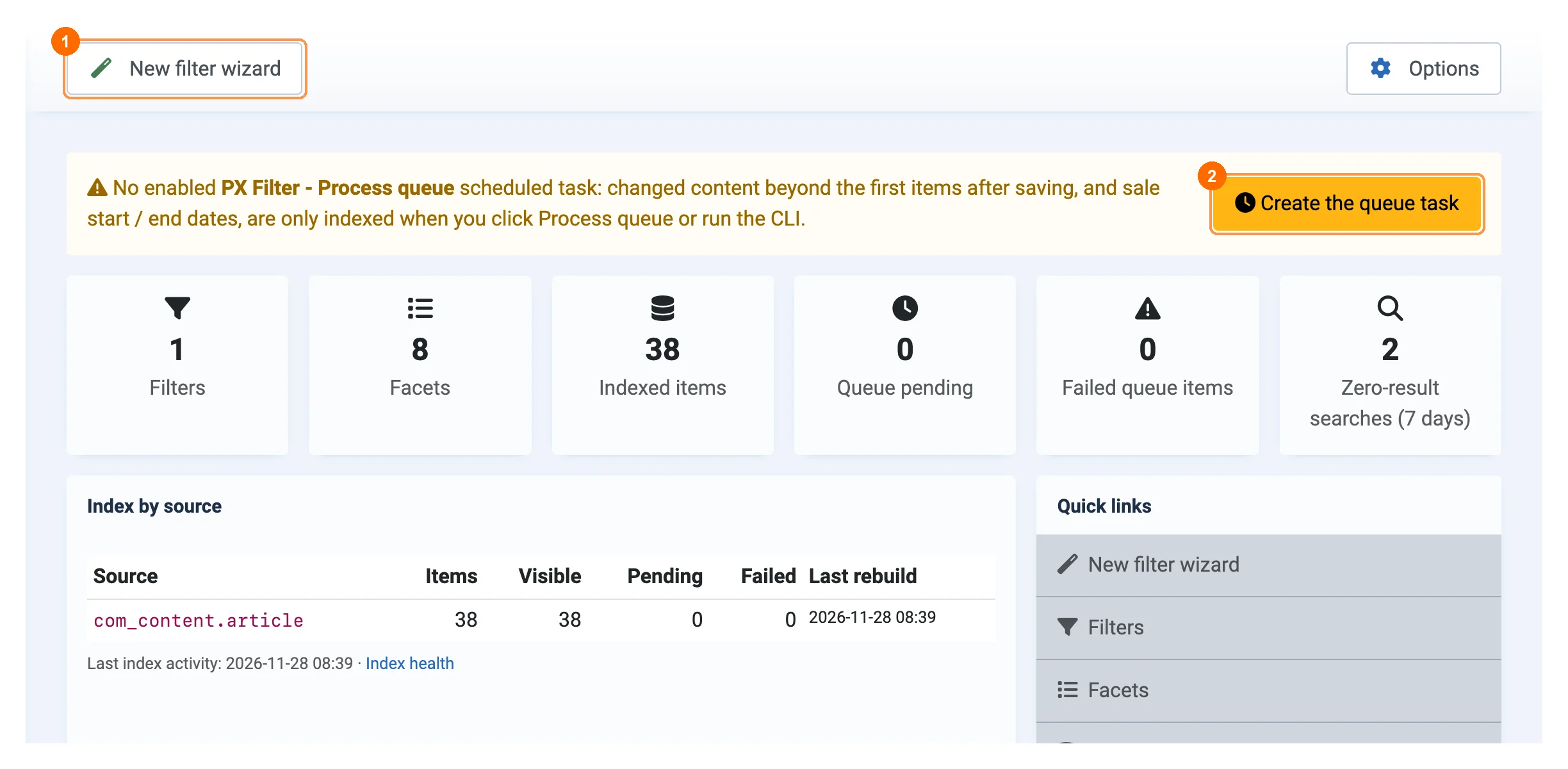
The setup wizard
- Choose a source: articles, or the products of an enabled shop plugin. The table shows how many items are indexed; when it says 0, build the index first (Index → Rebuild index).
- Choose facets: each field shows how many values and items the index holds. Fields with at least two values are ticked already.
- Create: give the page a 1Title, set Access and Language, and choose whether to 2Create menu item (a "Filter results" menu item) and 3Create module (the facet panel in a template position). Click Create filter.
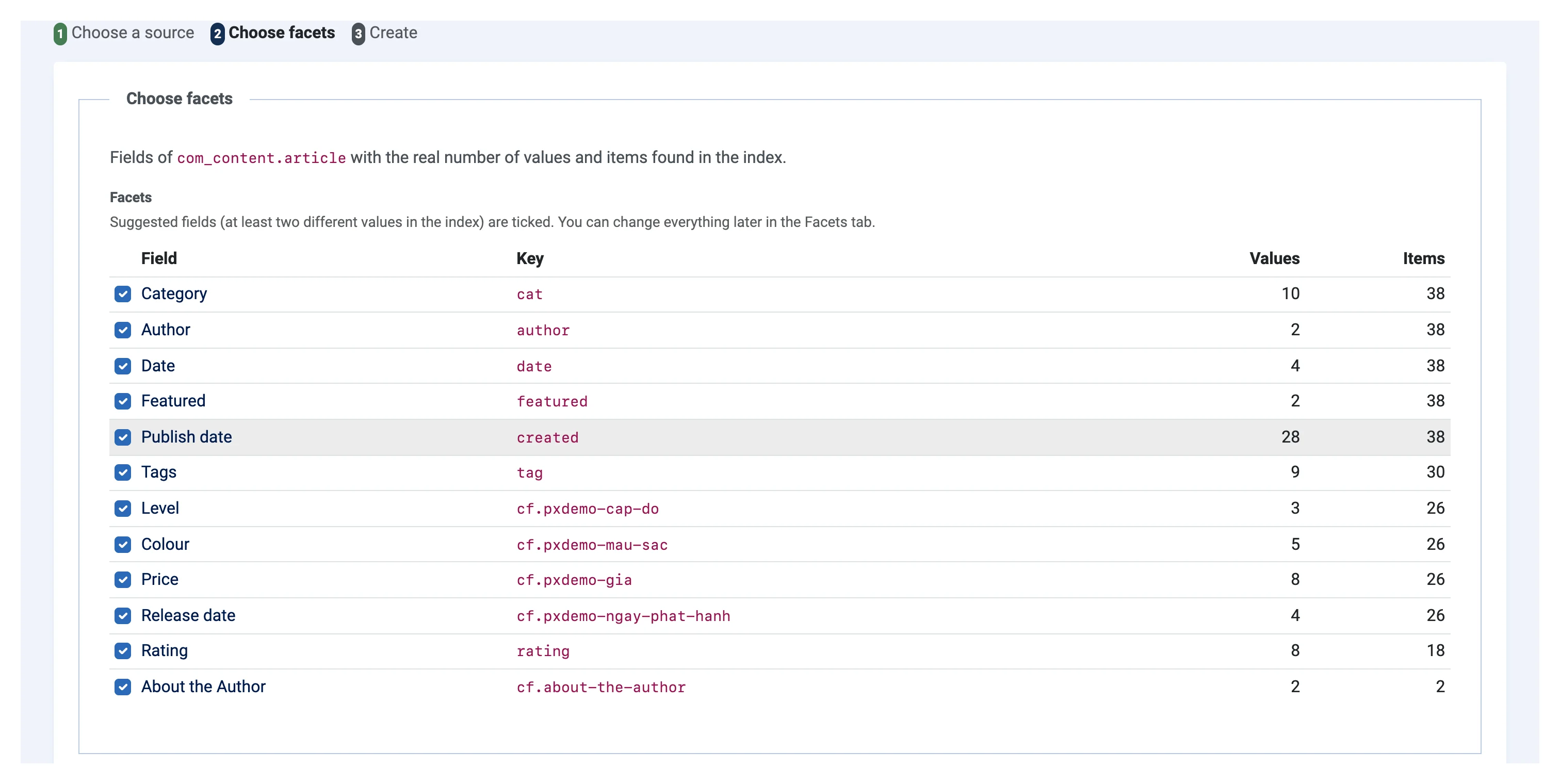
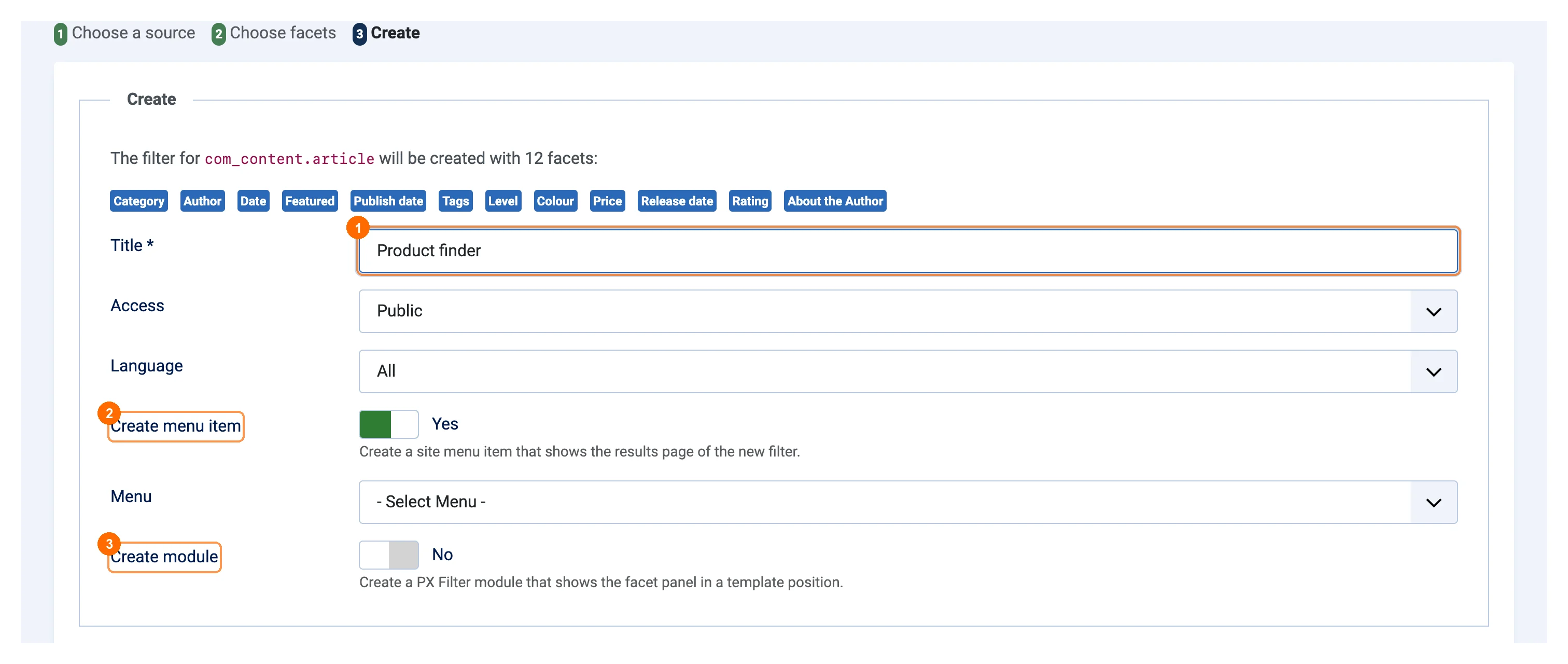
The wizard makes a published filter with one facet per ticked field: number fields get a range, other fields checkboxes with OR logic, and facets from the fifth on start collapsed. You land on the filter's edit screen to fine-tune it.
Sample data
To look around first, open the Home Dashboard and click Install on the PX Filter Demo row of the Sample Data panel. It adds a small catalogue (26 articles with pictures, categories, tags and custom fields), a filter with 8 facets, 3 SEO rules, a menu, a module and the user guide. The Remove PX Filter demo button on the PX Filter Dashboard deletes only what the demo created.
Filters
A filter is one filter page: a source, its facets and its display options. Components → PX Filter → Filters lists them. Next to New you find the 1New filter wizard; tick filters to 2Duplicate or 3Export them, or 4Import a file (see Import and export). Every row has a 5Preview link.
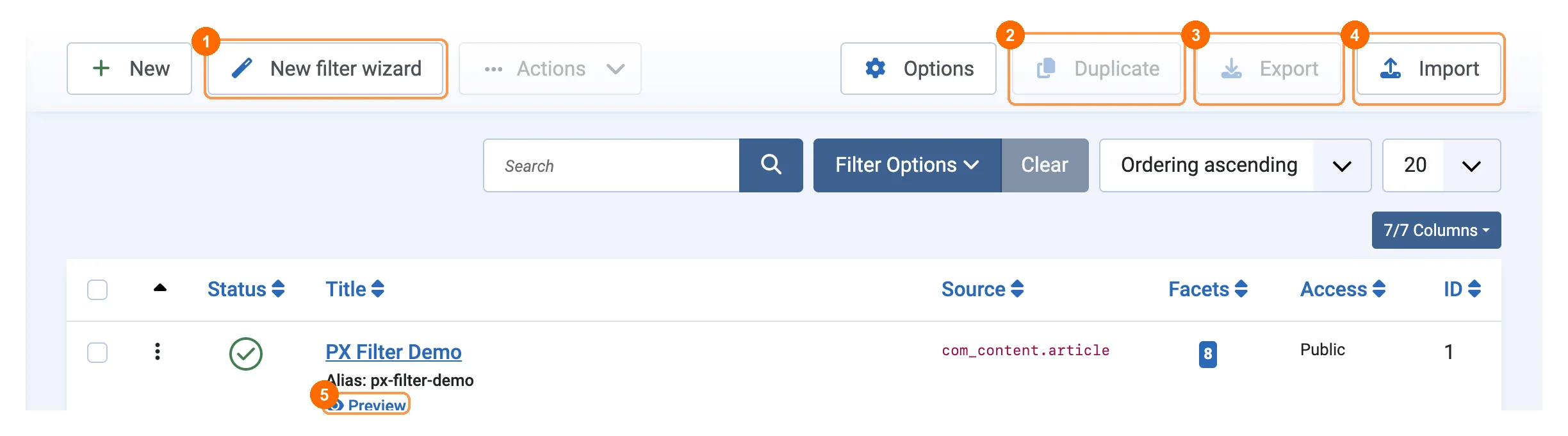
The filter edit screen has six tabs:
- Details: Source, Description, Status, Access and Language. An unpublished filter, or a visitor without access, cannot open the page.
- Facets: a quick table to add, edit and drag facets of this filter (field, label, control, logic, collapsed, values shown, values without results, SEO indexable, display conditions).
- Layout: columns, spacing, panel position, pagination and the Apply button for this filter (see Results page).
- Options: Limit to categories (only these categories and their subcategories are searched and counted), Results per page, Default sort, Results layout (grid or list), Keyword Box, its placeholder and Search while typing.
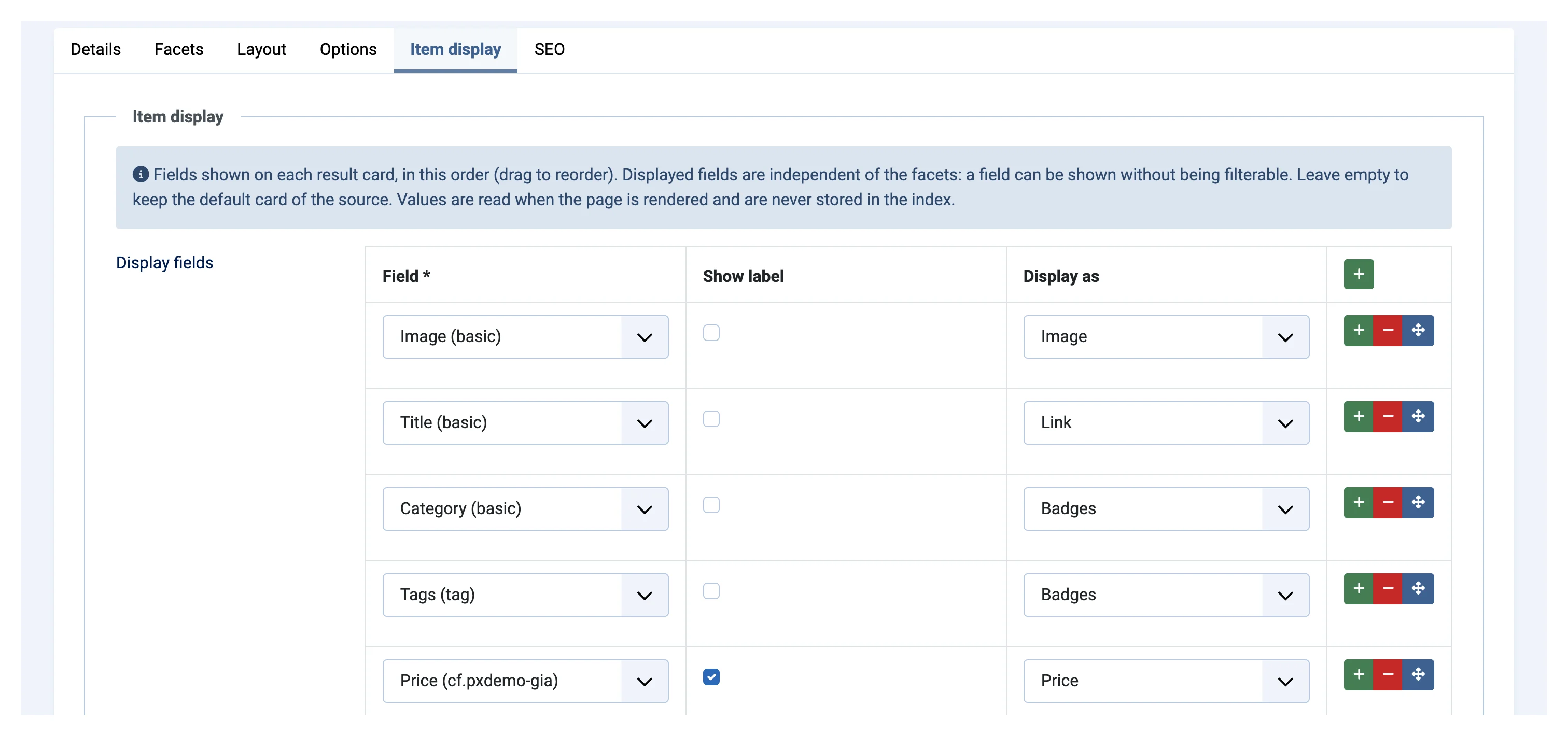
- Item display: the fields of each result card.
- SEO: page title and meta description templates (see SEO).
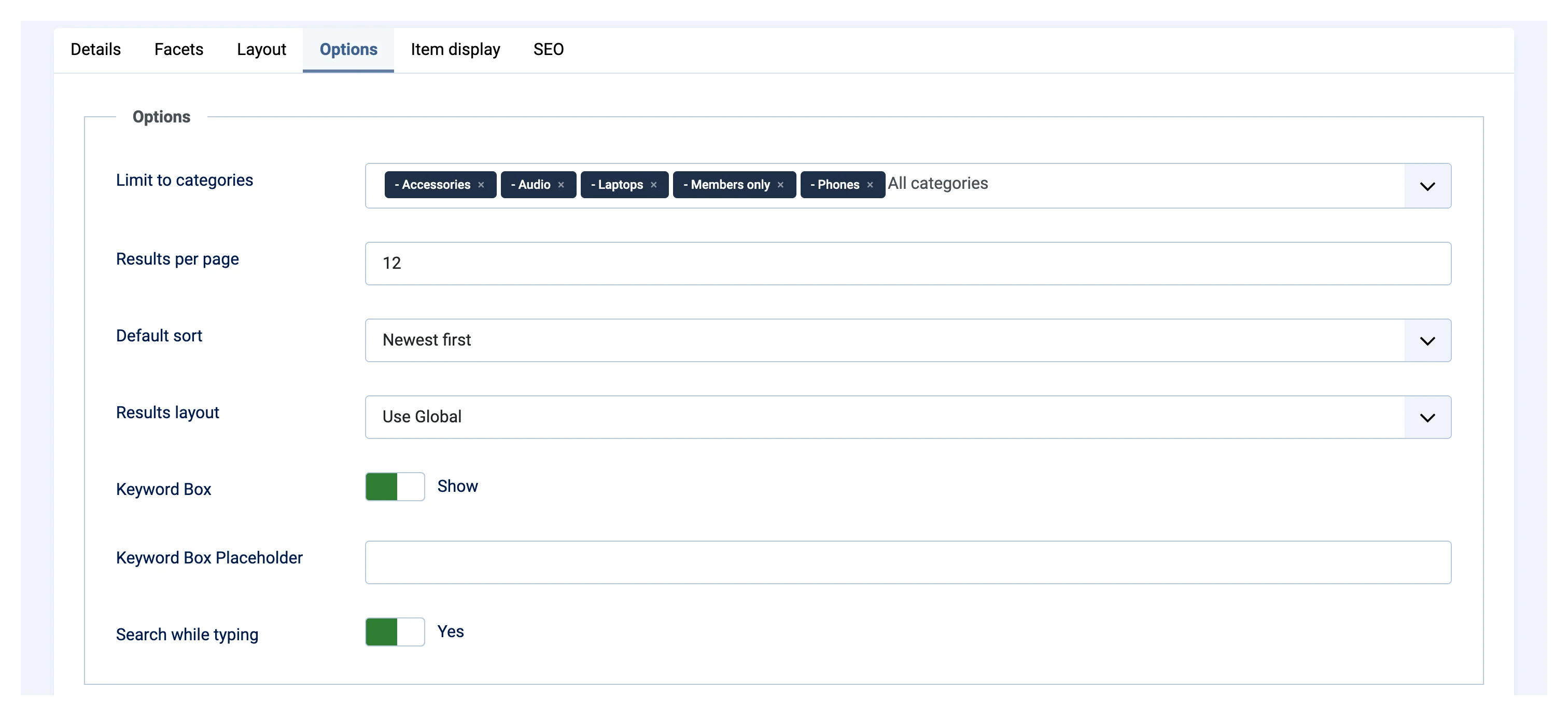
An empty field in a filter uses the component Options; a menu item can override the filter. For the Layout options the menu item wins, so one filter can look different on two pages.
Item display
Choose what each result card shows, in order (drag to reorder, up to 20 rows). Each row has a Field (Title, Image, Description, Date, Author, Category, Add to cart button for shops, plus the fields of the source such as custom fields or price), Show label and Display as: Text, Badges, Price, Date, Rating (stars), Image or Link. A field does not need to be a facet to be shown. Leave the tab empty for the default card of the source.
Facets
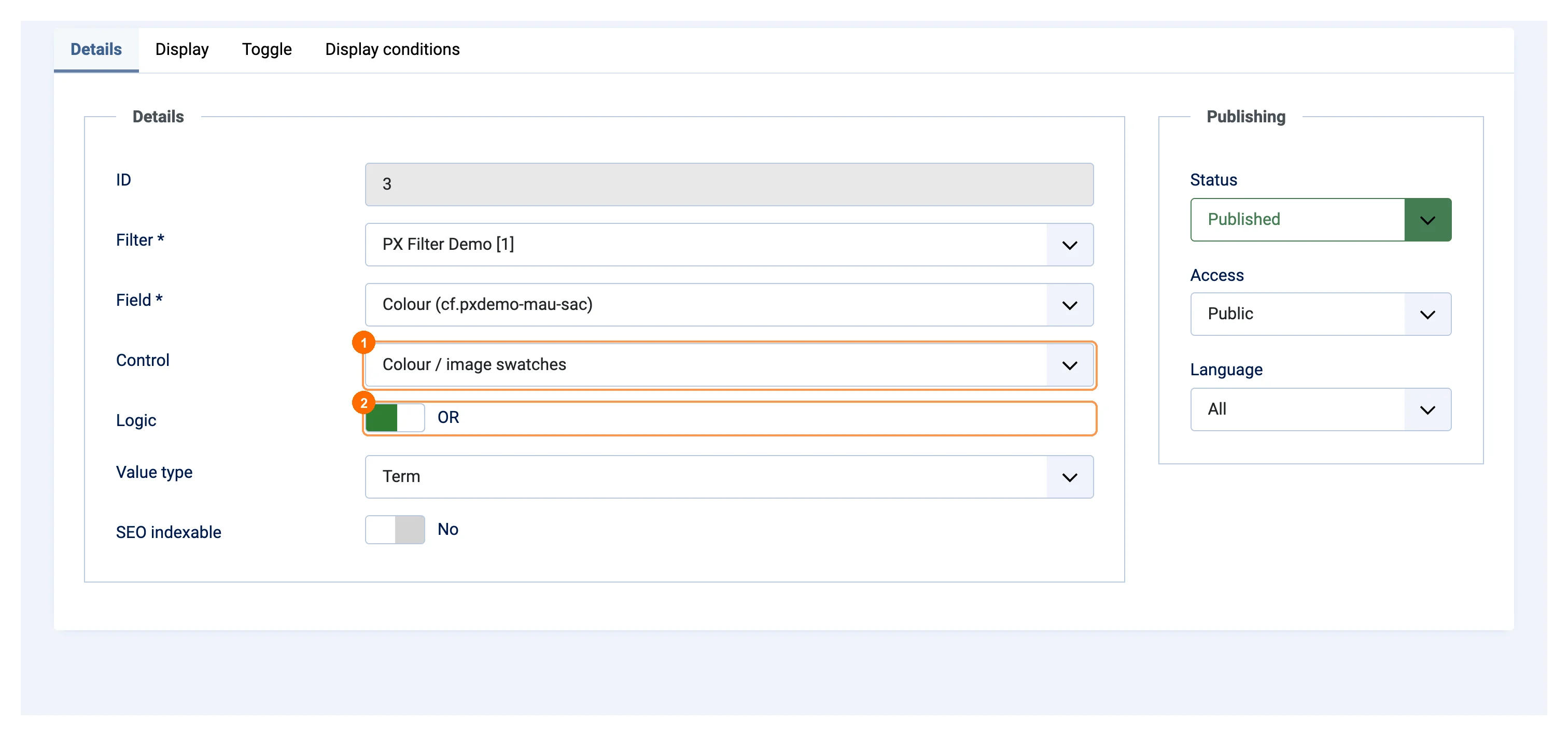
A facet is one group of choices, such as "Colour" with Black, White and Red. Edit facets in Components → PX Filter → Facets or in the Facets tab of a filter. On the Details tab pick the Field of the source, the 1Control and the 2Logic:
- OR: items with any of the selected values. The counts of the facet ignore its own selection, so visitors still see the other choices.
- AND: items with all selected values (good for tags).
| Control | Use for |
|---|---|
| Checkboxes | Several values: categories, colours, tags. |
| Radio buttons / Dropdown | One value, for example Featured, a year or a brand. |
| Range (min–max) | Numbers: price, rating, number custom fields. |
| Date range | Dates, with quick presets such as Last 7 days, This month or Last 12 months. |
| Rating (N stars and up) | A score from 0 to 5, such as article votes or shop reviews. |
| Colour / image swatches | Colours, materials, patterns. The colour comes from the source or from the Values screen. |
| Category tree | Nested categories. |
| Toggle (single on/off) | One switch such as On sale, In stock, New (last N days) or 4★ and up. |
For articles the fields are category, tags, author, year, publish date, featured, rating and the custom fields (list, radio, checkboxes, text, integer, calendar, color).
Display and conditions
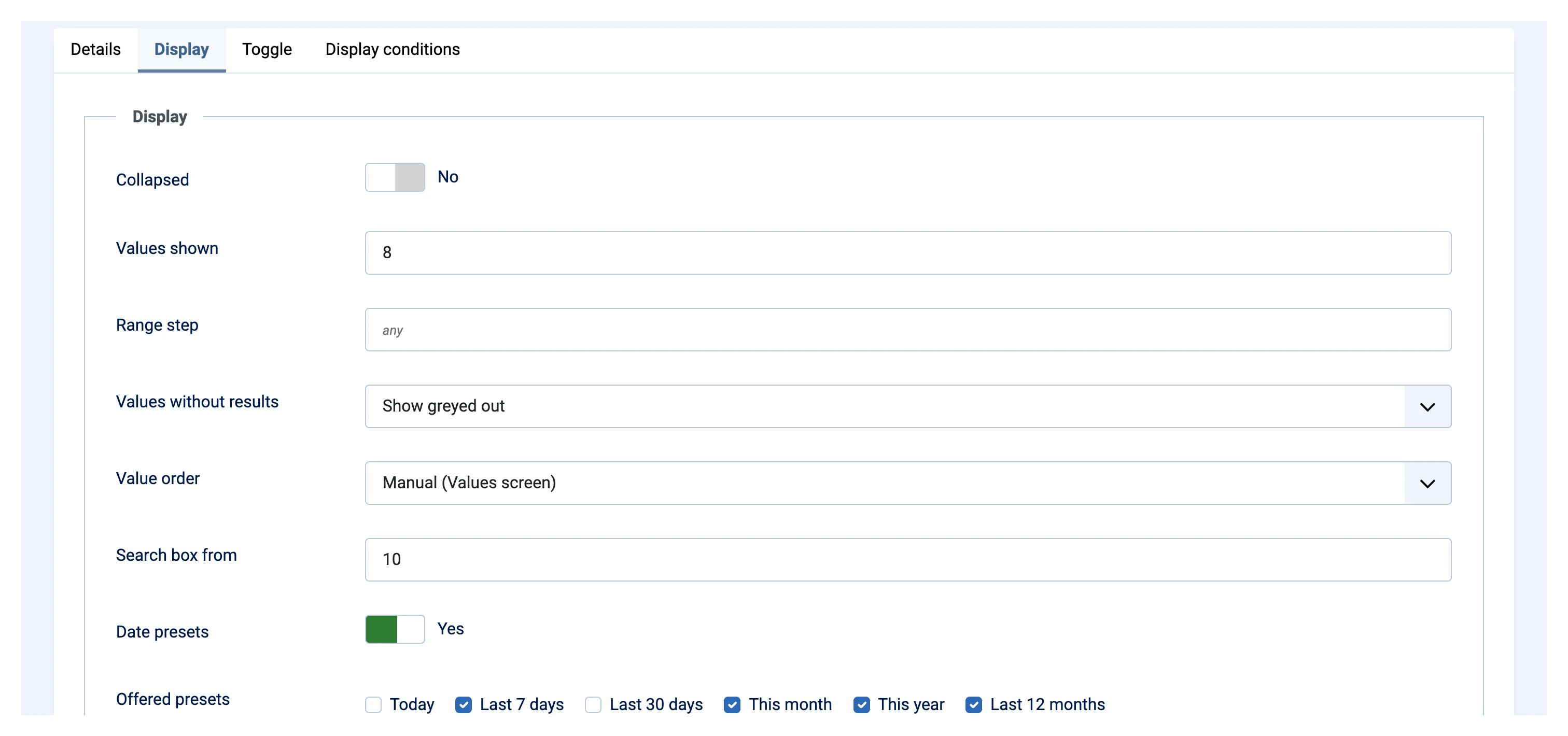
- Collapsed: the facet stays closed until opened (it opens by itself while it has a selection).
- Values shown (default 8): the rest is behind a "Show N more" link.
- Values without results: Hide, Show greyed out (the panel does not jump) or Show as links.
- Value order: Manual (the Values screen), Alphabetical (by site language) or Number of results.
- Search box from (default 10): long lists get a search box.
- Range step, Date presets and Offered presets for ranges and dates.
The Toggle tab sets what a toggle means: the value it selects, a minimum (for "4★ and up") or "within the last N days" (for "New"). On the Display conditions tab a facet can show only when another facet has a selection, or only in some categories, for example "Size" only after a "Type" is chosen. A hidden facet is not counted and its selection is removed from the URL.
Values screen
Components → PX Filter → Values lists the values of a filter's fields. Changes are kept across every re-index and show on the site at once.
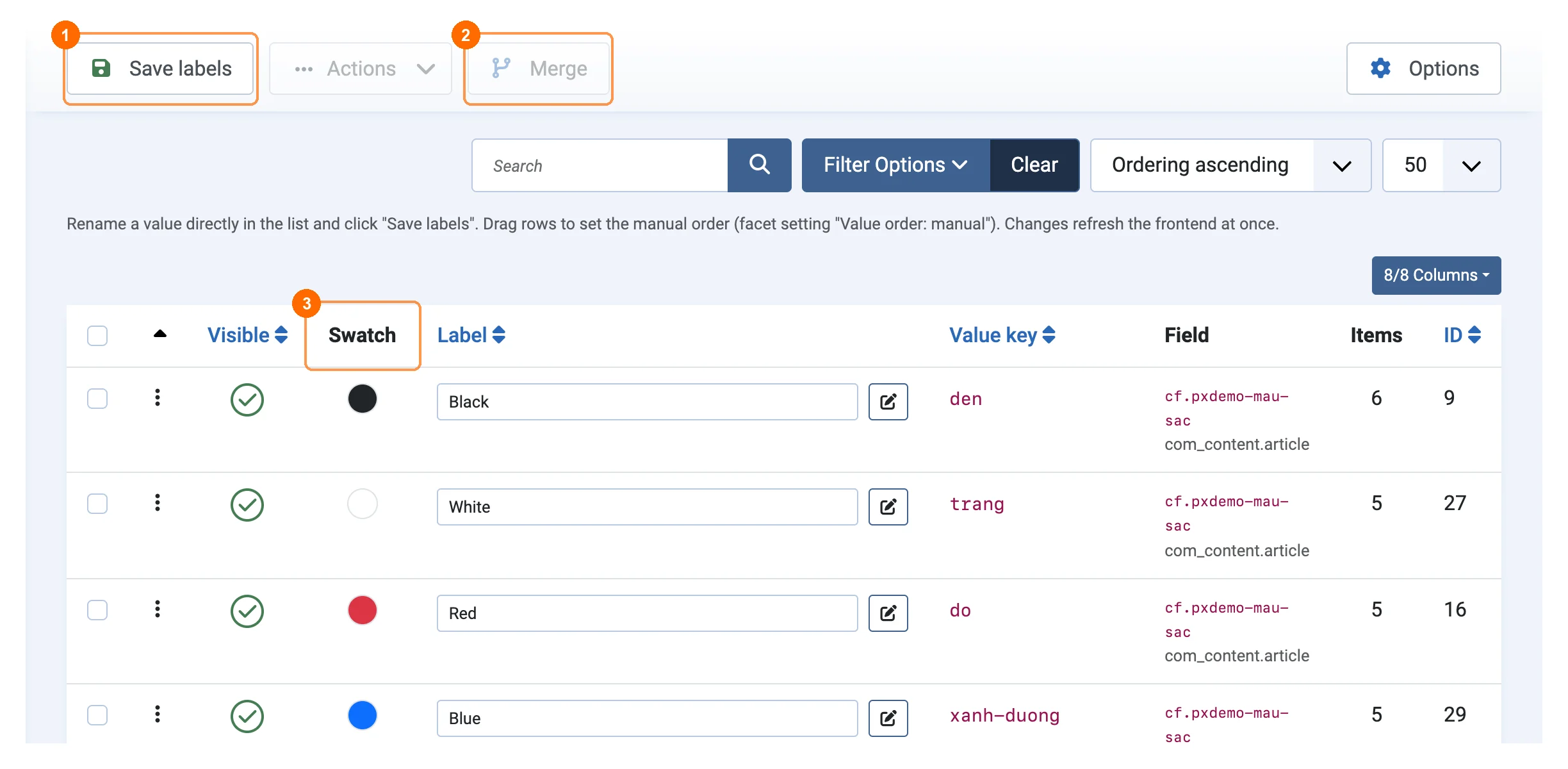
- Rename: type a new label in the list and click 1Save labels. The URL does not change, so old links keep working.
- Hide / Show: a hidden value is no longer offered.
- 2Merge: turn "Red", "red" and "RED" into one value. Unmerge undoes it.
- Order: drag rows to set the manual order, for example S, M, L, XL.
- 3Swatch: open a value to give it a colour or an image. It wins over what the source provides.
Results page and module
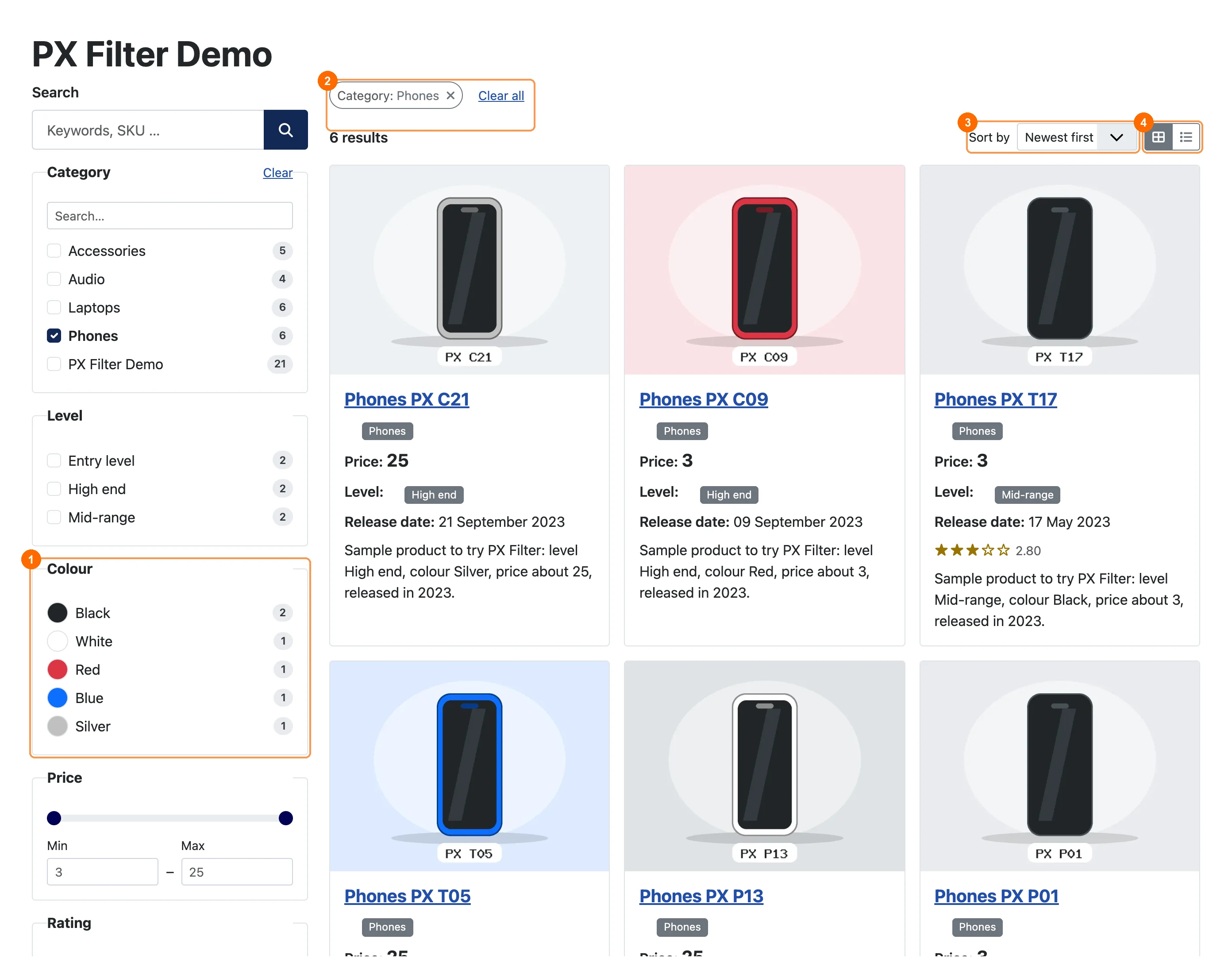
Show a filter with a menu item: Menus → [your menu] → New → PX Filter → Filter results, pick the Filter and save. Visitors see the facets with 1live counts, 2the active choices with a "Clear all" link, the 3sort box and 4the grid / list buttons. Every choice is a real link, so the page works without JavaScript; with JavaScript the results, counts, title and URL update without a reload and the Back button still works.
Layout options
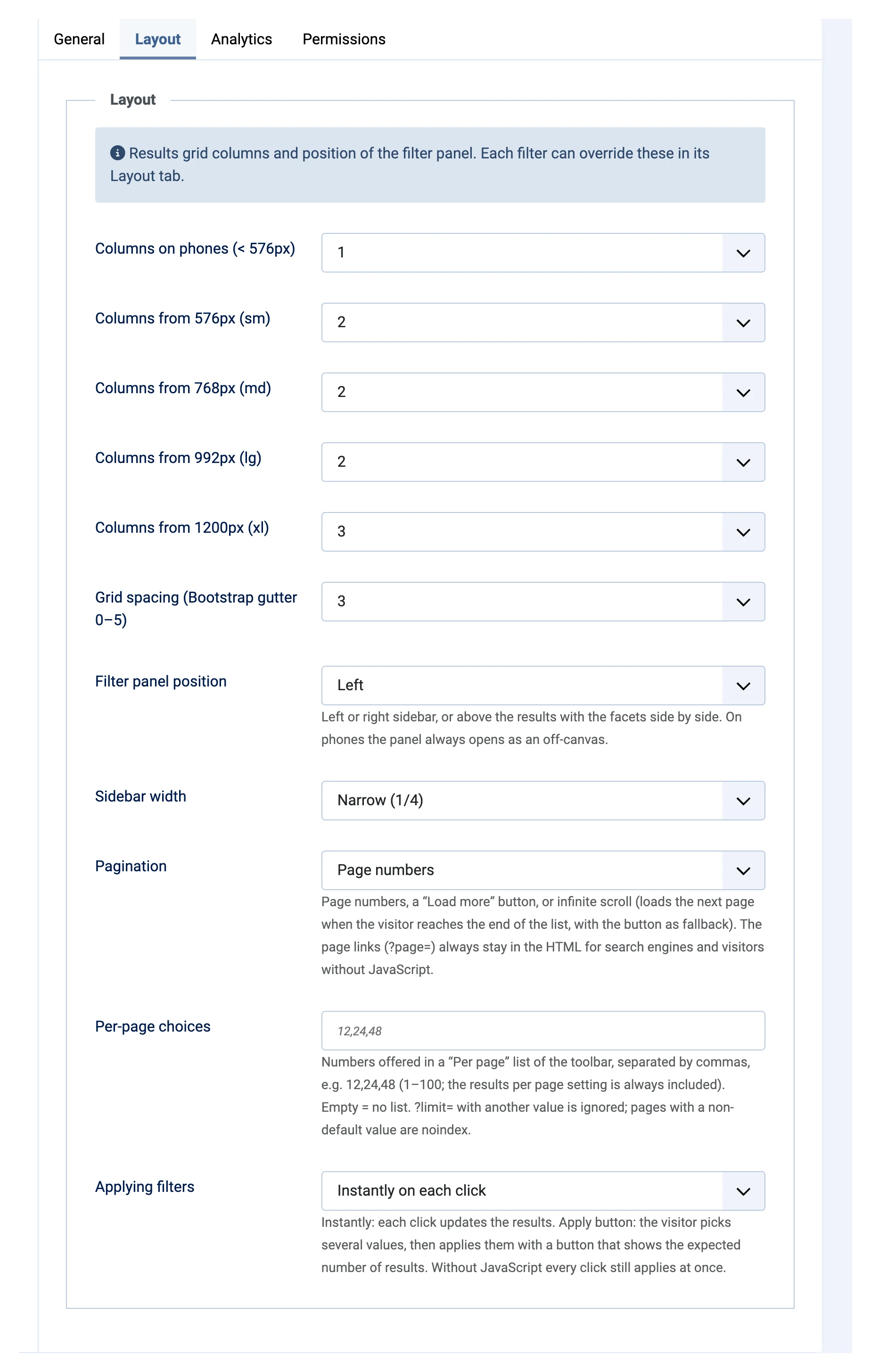
The Layout tab of the component Options, of a filter or of a menu item sets:
- Columns per screen width (1 to 6) and Grid spacing.
- Filter panel position: Left, Right or Top, and its width (narrow, medium, wide).
- Pagination: Page numbers, a "Load more" button or Infinite scroll. The page links stay in the HTML for search engines.
- Per-page choices, for example
12,24,48. - Applying filters: Instantly on each click, With an Apply button (shows the expected number of results), or Apply button on small screens only.
On phones
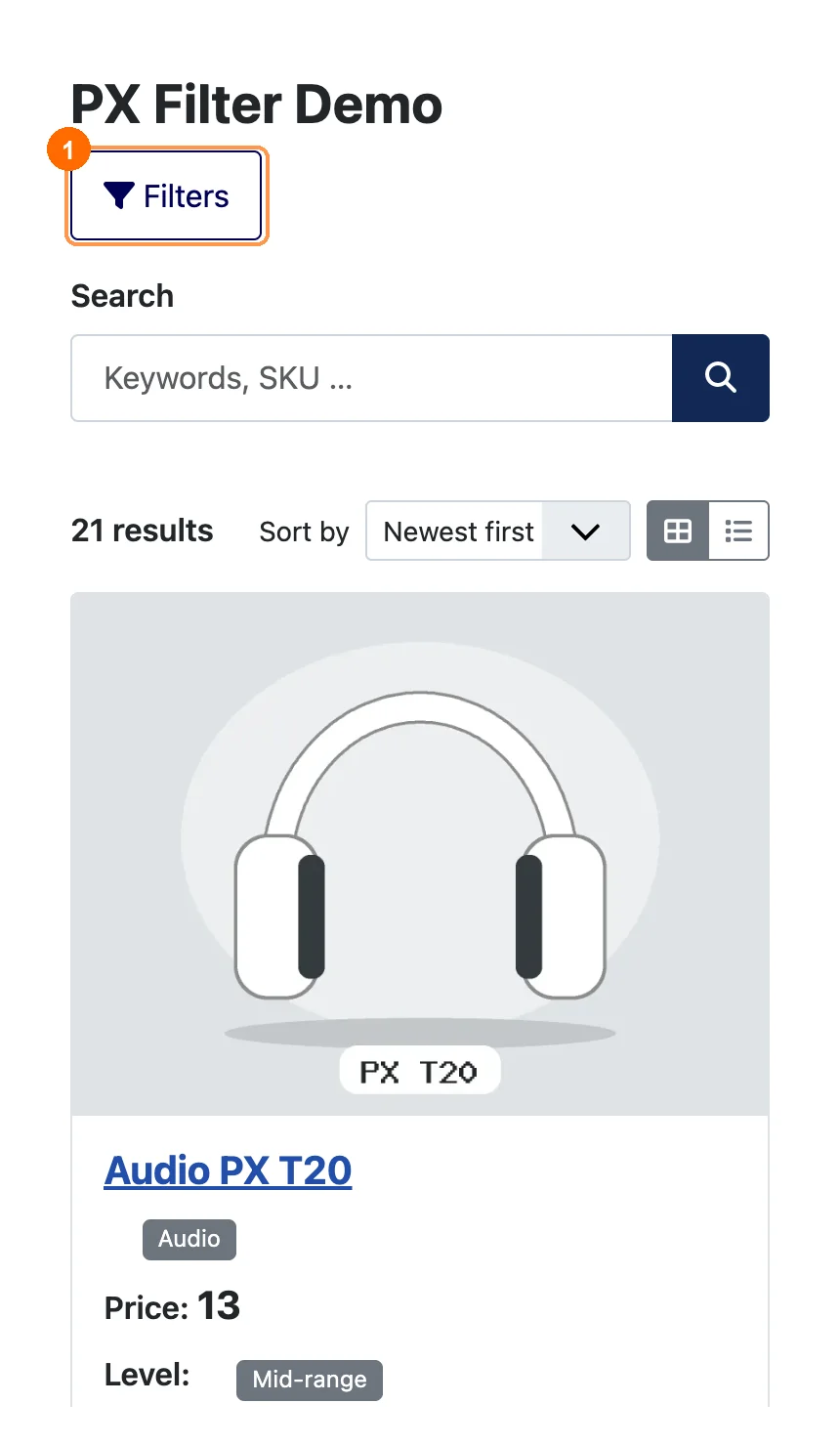
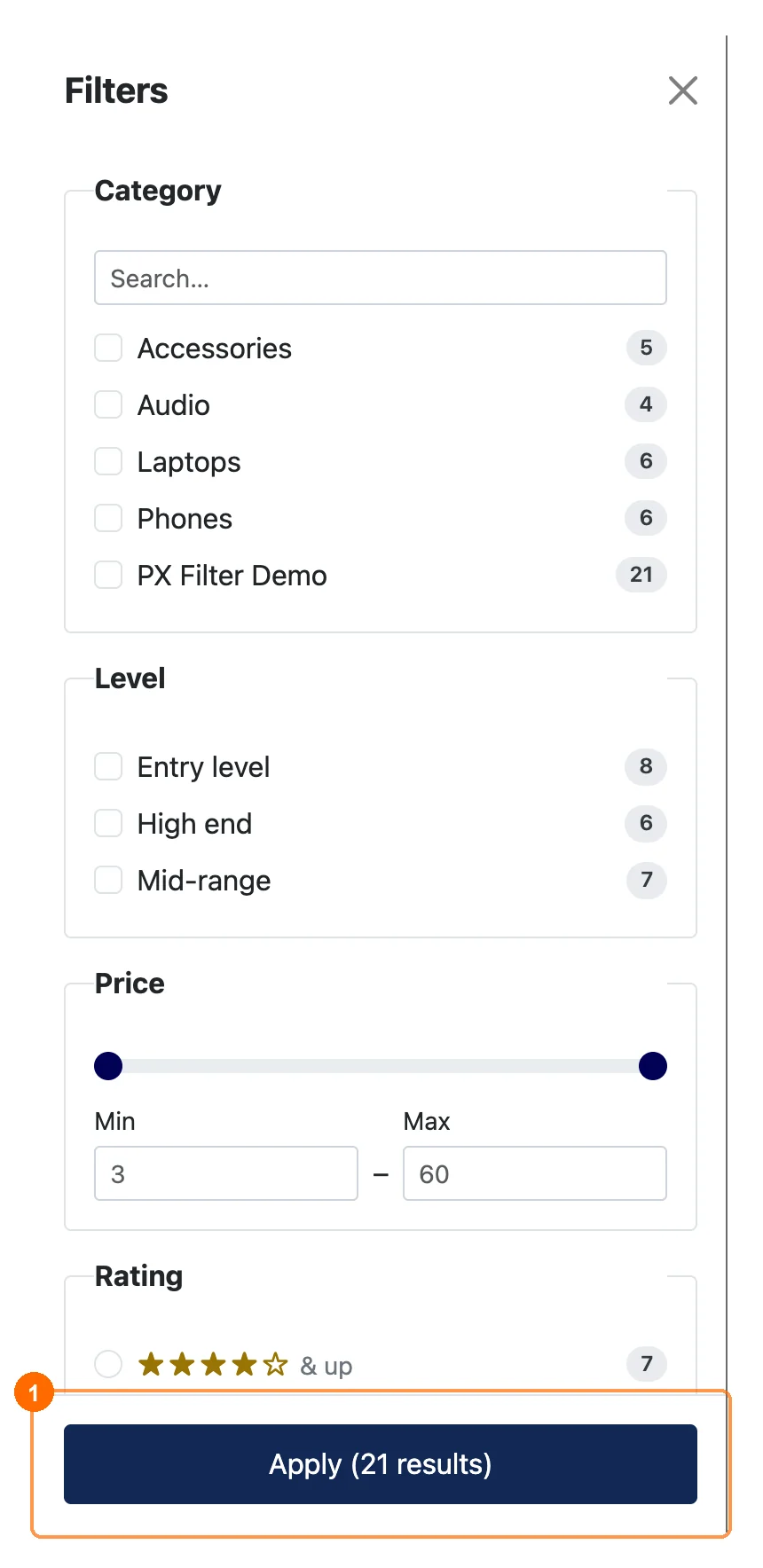
Below 768px the facets move into an off-canvas panel. Visitors tap 1Filters, make their choices and tap 1Apply (… results); the number updates while they choose.
The PX Filter module
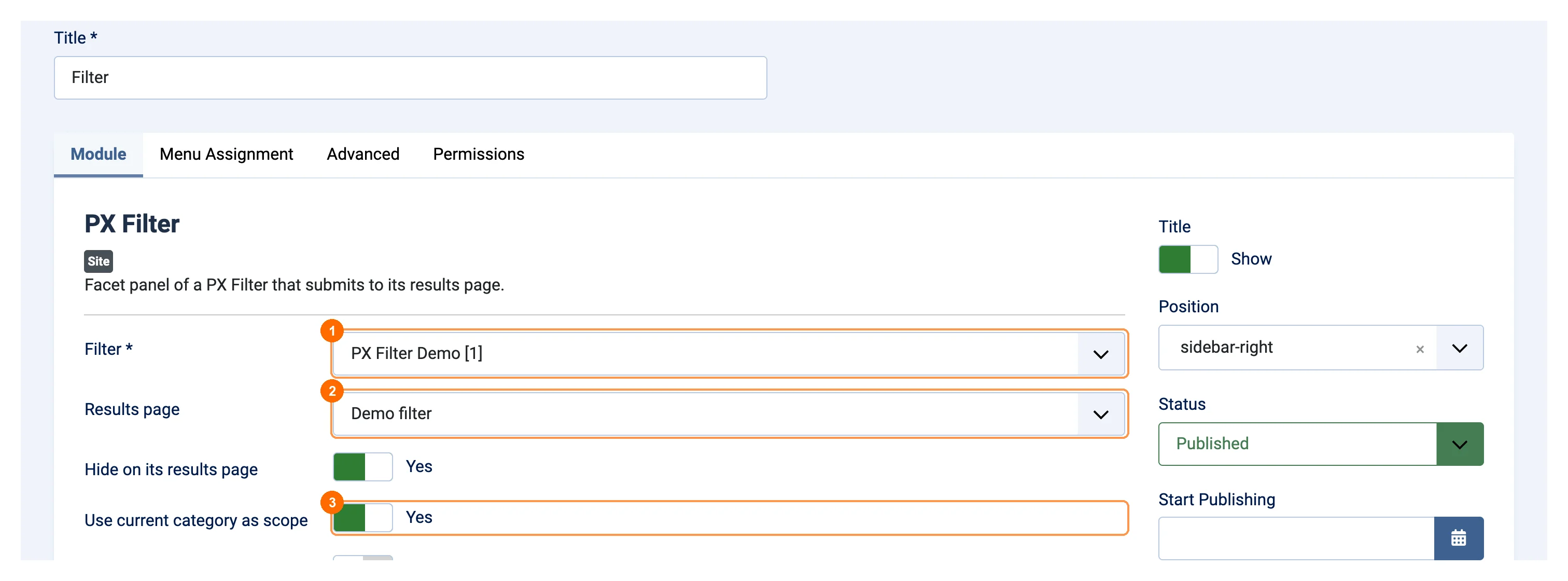
For a facet panel in a sidebar or on other pages, go to Content → Site Modules → New → PX Filter:
- 1Filter: the filter to show.
- 2Results page: the menu item that shows the results ("- Auto -" takes the first one). Hide on its results page avoids two panels on that page.
- 3Use current category as scope: on a category or product page (articles, VirtueMart, HikaShop) the module counts only that category and pre-selects it in its links.
- Keyword Box: shows the search box in the module too.
Keyword search
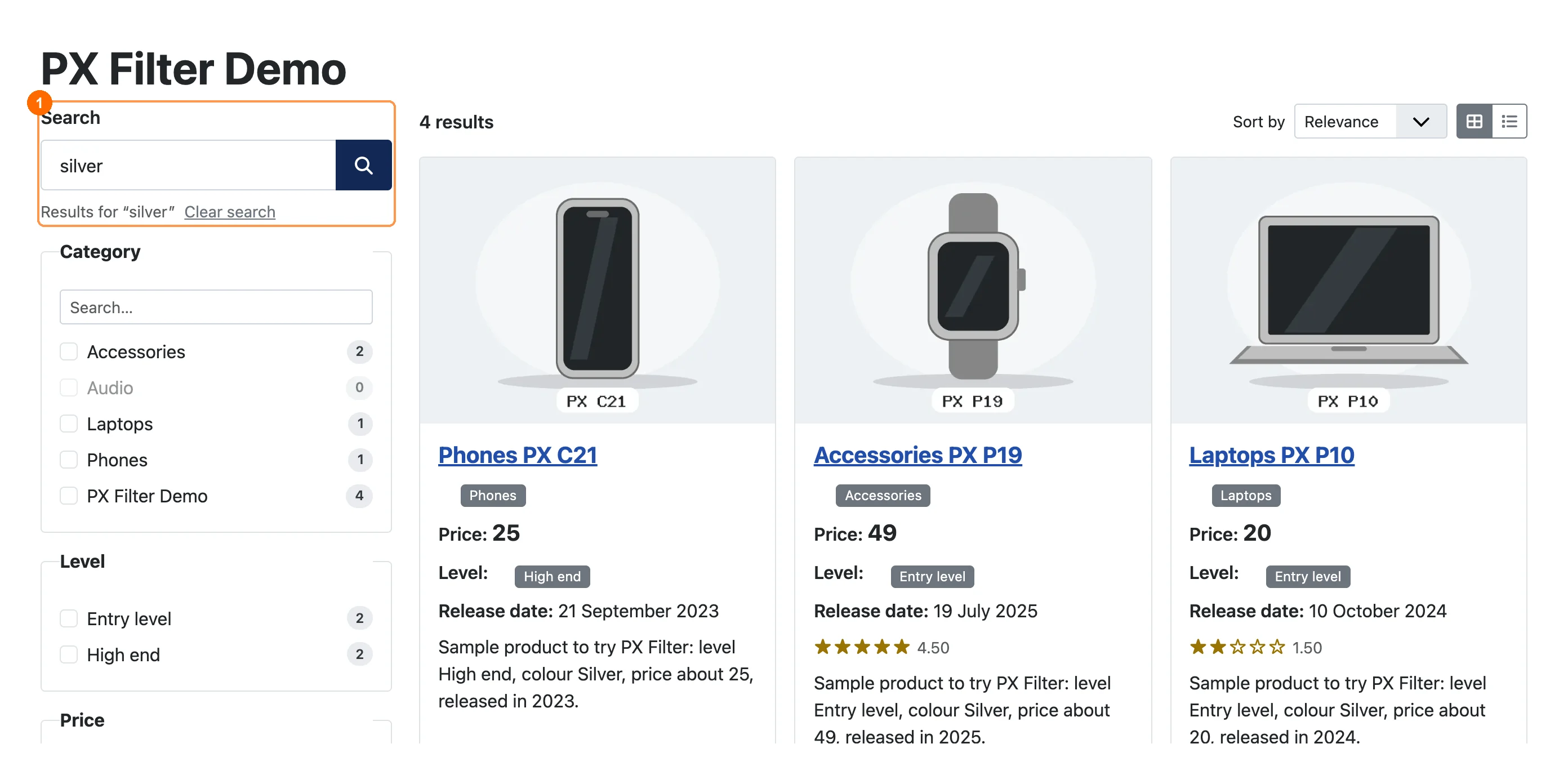
The 1search box at the top of the panel works together with the facets: results and counts only cover matching items. Typing with or without accents finds the same items, words match from their start ("wire" finds "wireless"), and with a keyword the default sort is Relevance. Search while typing updates the results from 3 characters; shorter words are searched on Enter.
Searched are the title, and for articles the intro text, meta keywords, category, tags, author and custom field values; for VirtueMart and HikaShop the SKU, description, category, manufacturer and custom fields. Keyword pages are always noindex. Run Rebuild index once after an update.
Shops and other sources
Enable the plugin in System → Manage → Plugins, click Rebuild for the new source on the Index page, then create a filter with that source. The plugin does nothing while its component is not installed.
| Source | Fields |
|---|---|
| VirtueMart products | Category, manufacturer, price, stock, on sale, date added, featured, rating, custom fields. Child products are indexed on their own. |
| HikaShop products | Category, manufacturer, price, stock, on sale, date added, rating, characteristics (variants such as colour or size) and custom fields. Variants fold into their main product. |
| PX Booking rooms and services | Category, location, booking type, "at least N guests", capacity, price and custom fields. The card shows "From … per night" and links to the booking page. |
- Prices are an estimate for a guest visitor; the shop always calculates the final price in the cart.
- The Add to cart button field posts into the shop's own cart. Products with options show "Choose options" and link to the product page.
- Sales and prices with start / end dates re-queue the product at that time, so run the Process queue task often.
- VirtueMart: toggling Published or Featured in its product list and stock changes from orders fire no event. Schedule the Rebuild index task.
For developers
Any component can become a source: a plugin in the pxfilter group registers an adapter (SourceAdapterInterface) on onPxFilterCollectAdapters. Other events: onPxFilterBeforeIndexDocument (change or skip a document before it is indexed), onPxFilterBeforeQuery (add fixed conditions or force a sort), onPxFilterAfterQuery (read or replace the result) and onPxFilterBuildMeta (title, description, robots, canonical, breadcrumbs and JSON-LD). The article, VirtueMart, HikaShop and PX Booking plugins are working examples.
SEO
Clean URLs
With Joomla's SEF URLs on, choices become path segments: /products/colour-black+white/level-premium?price=10-30&page=2. Ranges, sort and page stay in the query string. URLs in the wrong order are redirected (301) to the one canonical URL; unknown values give a 404.
Canonical and robots
A filter page may be indexed only when it has results, no range, page 1 with the default sort and page size, no more selected facets than Max indexable facets (default 2), and only facets with SEO indexable on, one value each. All other pages are noindex, follow with a canonical to the nearest indexable page. Switch SEO indexable on only for facets people search for, such as categories and brands.
Page titles and descriptions come from templates with the tokens {filter}, {values}, {site}, {total} and {page}, for example {filter} – {values} | {site}. PX Filter also outputs JSON-LD (ItemList and BreadcrumbList).
SEO rules
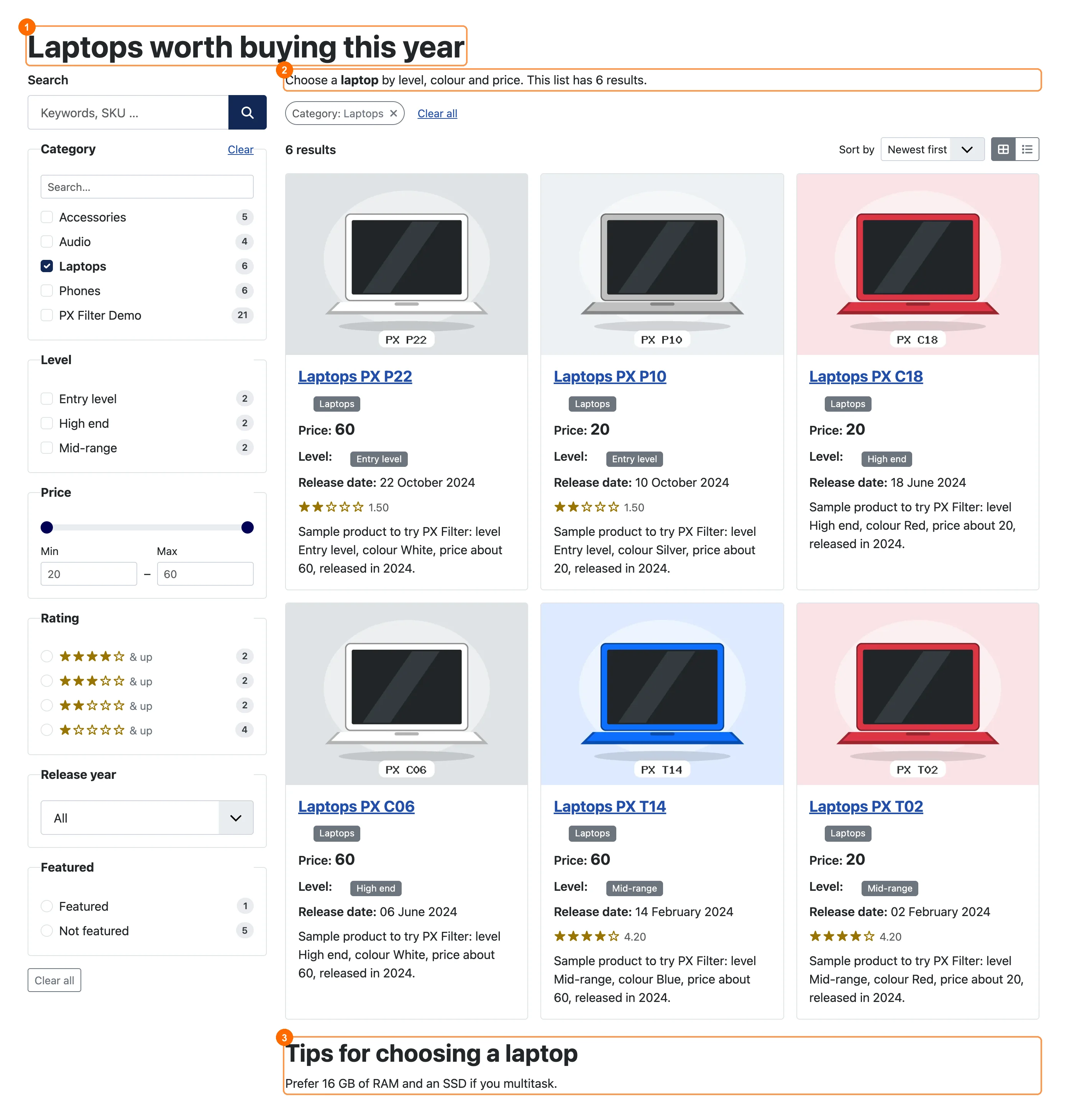
Components → PX Filter → SEO rules turn chosen combinations into landing pages, such as "Laptops" or "Phones by colour". A rule has conditions on up to 3 facets (listed values or Any value), and on Meta and robots an H1 heading, page title, meta description, robots (Default, Force index or Force noindex) and an optional canonical URL. The Texts tab holds an intro text above the results and a bottom text below them. The tokens above work here too, plus {facet:alias}.
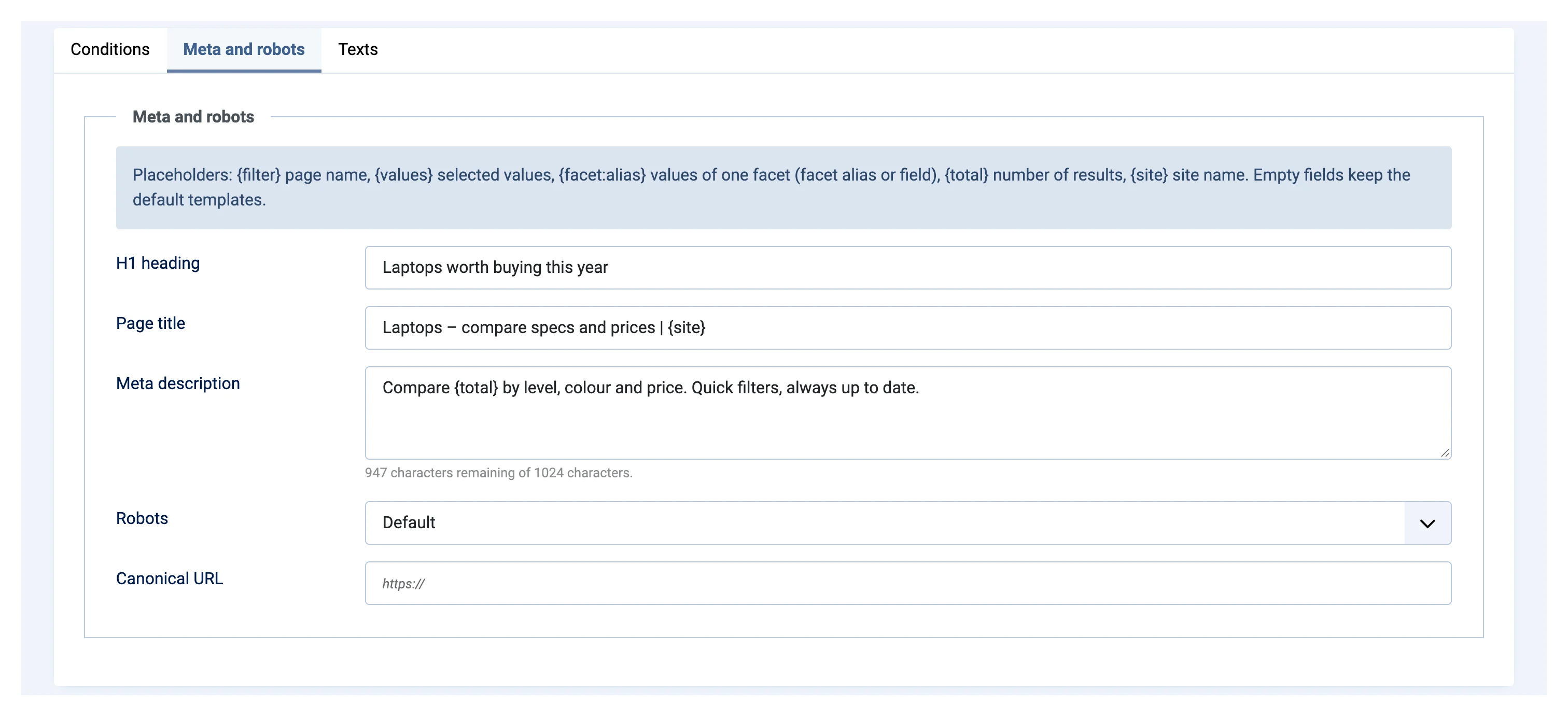
On the site the page gets the rule's 1H1 heading, 2intro text and 3bottom text. Rules never apply to keyword searches, ranges, sorted pages or page 2 and beyond. A menu item set to noindex always wins.
XML sitemap
PX Filter serves a sitemap of its indexable pages at index.php?option=com_pxfilter&view=sitemap&format=xml (add &lang=xx on a multilingual site). It lists the results page of each filter, the indexable one-value combinations and the Force index rules. Above 50,000 URLs it becomes a sitemap index. Submit it in Google Search Console or add it to robots.txt yourself; PX Filter does not change robots.txt.
Index and performance
PX Filter keeps its own index. When you save, delete, publish or change the access of content (also categories, tags and custom fields), System - PX Filter queues the items; up to 20 are indexed right after saving, the rest by the queue task. Results are cached and the cache refreshes by itself when the index changes.
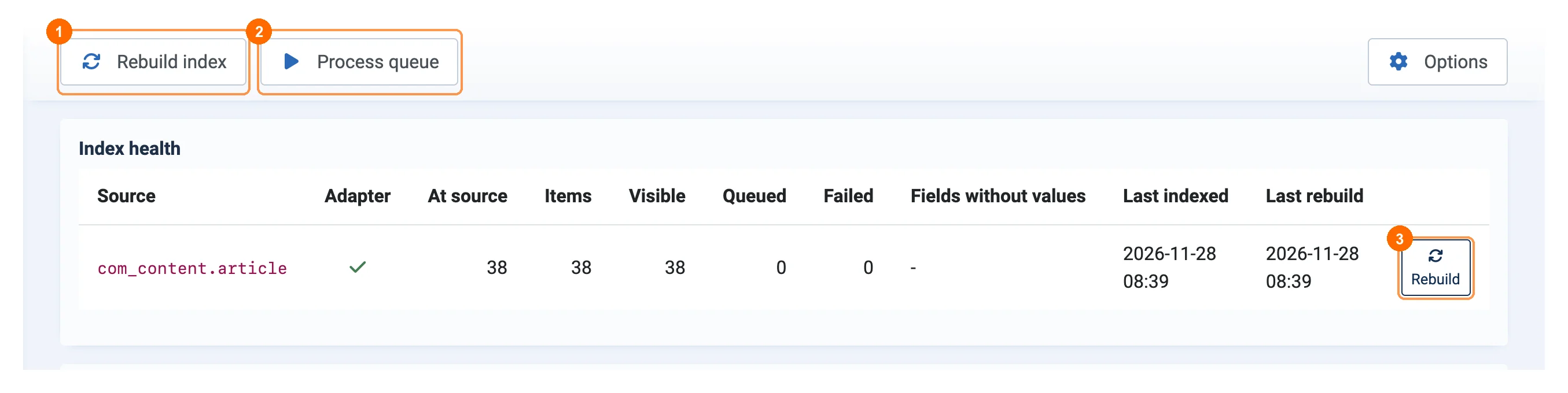
Components → PX Filter → Index shows the health of each source (items at the source, indexed, visible, queued, failed, fields without values). 1Rebuild index rebuilds everything while the site keeps working; if it stops halfway, click again to continue. 2Process queue runs the queue now, and 3Rebuild does one source. Retry failed appears when items failed; the reason is in administrator/logs/pxfilter.php.
Scheduled Tasks
Create them in System → Manage → Scheduled Tasks → New; none is created on install:
| Task | Defaults | Run |
|---|---|---|
| PX Filter - Process queue | Batch size 200, time budget 25 s | Every 5–15 minutes (needed on every site) |
| PX Filter - Rebuild index | Batch size 500, time budget 25 s | Nightly or weekly; resumes where it stopped |
| PX Filter - Clean up analytics | Keep statistics 180 days | Daily |
On sites with little traffic, run php cli/joomla.php scheduler:run from a cron job.
Command line
php cli/joomla.php pxfilter:status: index status per source.php cli/joomla.php pxfilter:rebuild [--source=com_content.article] [--batch=500] [--resume]: rebuild the index.php cli/joomla.php pxfilter:queue [--batch=200] [--time=60] [--retry-failed]: process the queue.php cli/joomla.php pxfilter:bench: a benchmark on synthetic data (--cleanupremoves it).
The Rebuild index permission (Options → Permissions) controls who may rebuild, process the queue and retry failed items. The JSON requests of the filter page are rate-limited per visitor (Rate limit, default 60 per minute); normal page loads are never limited.
Analytics and preview
Components → PX Filter → Analytics shows what visitors filter for: searches, filtered searches, zero-result rate, query time and cache hit ratio, the top facet values and selections, searches without results, and the top keywords. Choose a filter and a period (today up to 365 days).
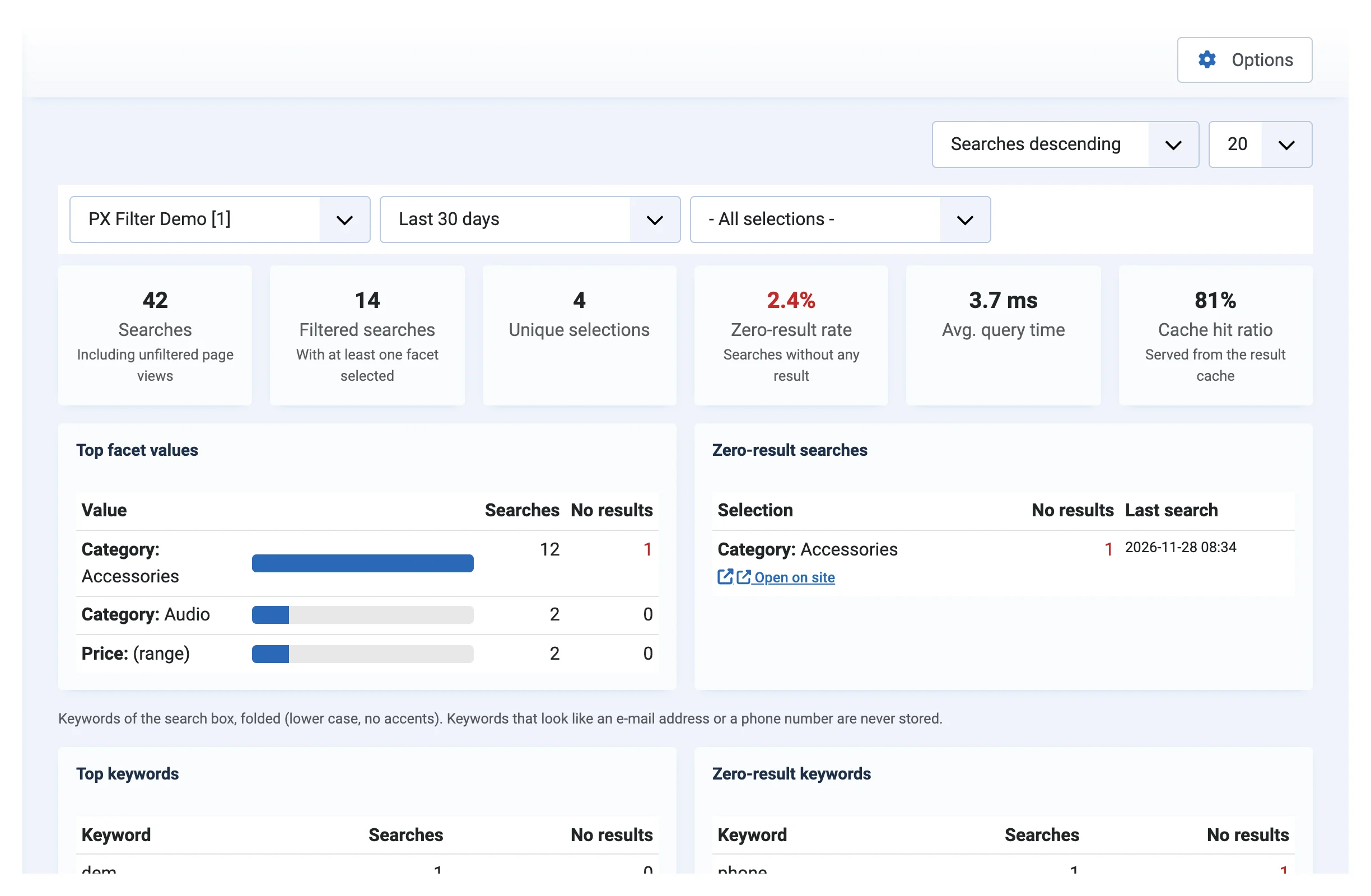
No personal data is stored: only the filter, the day, the selected values, the number of results and the query time. No IP address, user or browser data, and keywords that look like an e-mail address or phone number are dropped. Bots and administrator previews are not counted. Turn recording off or sample part of the searches in Options → Analytics; the Clean up analytics task deletes old data.
The Preview page shows the counts and the first results of a filter as a chosen User group and Language would see them, with the query time, without logging in as someone else.
Import and export
- Duplicate copies the ticked filters with their facets and SEO rules, unpublished, like Save as Copy.
- Export downloads one JSON file with the filters, facets, SEO rules and value settings (labels, swatches, hidden and merged values).
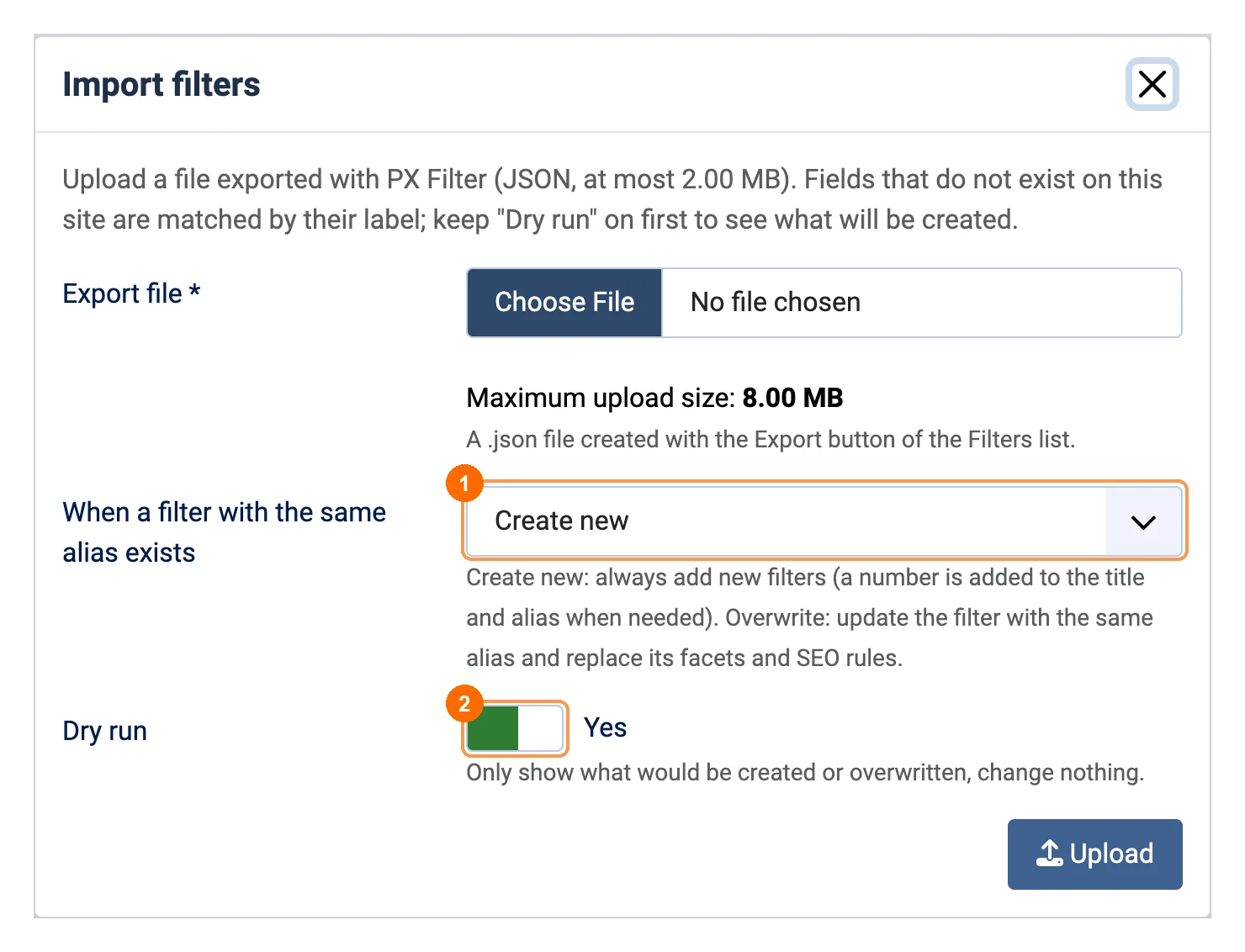
- Import uploads such a file (at most 2 MB). Choose 1what happens when a filter with the same alias exists (Create new or Overwrite by alias) and keep 2Dry run on to see first what would be created. Upload again with Dry run off to import; on any error nothing changes.
Moving a set-up from a test site to the live site: shop fields that exist only by ID are matched by their label, categories by alias and access levels by name. A facet whose field is missing comes in unpublished. Rebuild the index on the new site first so the value settings find their values.
Template overrides and CSS
Every part has a layout you can override in System → Site Templates → [template] → Create Overrides: the results page (html/com_pxfilter/filter/default.php), the module (html/mod_pxfilter/default.php), and in html/layouts/com_pxfilter/pxfilter/ the facet panel, toolbar, pagination, keyword box, each facet control (facet/checkbox.php, facet/swatch.php…), the result cards (item/…), the results grid and list, and the SEO rule texts.
For colours and sizes, set CSS variables in your template CSS, for example Cassiopeia's user.css:
.pxf {
  --pxf-accent: #198754;
  --pxf-facet-max-height: 18rem;
}
Available: --pxf-accent, --pxf-accent-contrast, --pxf-border, --pxf-count-color, --pxf-count-bg, --pxf-option-hover, --pxf-focus-ring, --pxf-facet-max-height (default 22rem), --pxf-swatch-size (1.5rem), --pxf-star-color and --pxf-card-image-ratio (4 / 3).
Updates
When a new version is out, the Joomla updater shows it in System → Update → Extensions. Download the new package from your account downloads and install it over the old one in System → Install → Extensions. Filters, facets, SEO rules and settings are kept.
FAQ / Troubleshooting
- I changed content but the results did not change. Check that System - PX Filter is enabled. On the Index page, click Process queue when Queued is above 0 and create the queue task. Bulk changes that fire no event (a new custom field, VirtueMart quick toggles, stock from orders) need Rebuild index.
- A facet or field is missing. A facet shows only when the index has values for it; the Index page lists "Fields without values". Check its Status, Access and Language, and Values without results.
- Members see items that guests do not. That is by design: restricted items, or items in a restricted category, are shown and counted only for visitors allowed to see them. Check with the Preview page.
- The filter page gives a 404. The filter is unpublished, the visitor lacks access, the language does not match, or the URL holds a value that no longer exists. Open the page from the menu.
- The layout looks broken. PX Filter uses Joomla's Bootstrap 5. With another kind of template, set the CSS variables or create overrides.
- Cache. The result cache refreshes itself when the index changes. If in doubt, clear the
com_pxfiltergroup (andcom_pxfilter_sitemap) in System → Maintenance → Clear Cache.